商品写真・広告・編集に使えるGPT Image 2.5プロンプト8選
使いやすいGPT Image 2.5プロンプトには、画像の用途、重要な細部、変更したい点を書きます。商品広告なら、読めるパッケージ文字と見出し用の余白が必要かもしれません。編集なら、人物の顔と部屋を変えずにジャケットだけ変更する、といった指定になります。
以下の8つはSeeddanceのオリジナル例です。Xで紹介された編集手順とOpenAIのガイドを参考にしています。各例には入力素材、コピーできるプロンプト、結果で確認すべき具体的な項目があります。生成前に、サンプルの商品と文字を自分の要件に置き換えてください。
編集パターンの参考にしたXの投稿
9月9日、@xiaohuがGPT Image 2.5の編集プロンプト15個を公開しました。参照画像の役割、商品シーン、文字のローカライズなど、対象を絞った編集を扱っています。9月9日15時11分(中国標準時)の確認時点で、投稿には166件のいいね、31件のリポスト、23,062件の表示があり、プロンプト全文を読めました。Higgsfieldの宣伝も含むため、モデル性能の証拠ではなくプロンプト集として参照します。
方法を端的に表す一文があります。
“Keep product, layout and lighting exactly as is.”
これらは閲覧数を記録したリリース初期の例であり、X全体の人気プロンプトランキングではありません。より反響の大きかったアニメーションとスプライトシートの投稿は、GPT Image 2.5クリエイティブプロンプトガイドで紹介しています。
OpenAIの公式ガイドにも似た指示があります。
“Separate changes from constraints.”
以下のプロンプトはこの区別を使います。「ラベルを読みやすく保つ」は確認項目であり、モデルがすべての文字を保持する保証ではありません。
再利用できる短い要件テンプレート
Make: [the image and where it will be used]. References: [what each uploaded image supplies]. Composition: [subject placement, crop, and empty space]. Appearance: [materials, lighting, palette, and medium]. Exact text: [the words that should appear, or no text]. Keep: [details that must survive]. Change in this revision: [one specific request].
不要な項目は削除できます。文字のない写真に、タイポグラフィの長い説明は要りません。完成画像と比べやすいよう、重要な要件を冒頭近くに置きます。
1. 見出し用の余白がある商品写真
商品の鮮明な写真をアップロードします。この例は陶器のコーヒーカップですが、素材の説明を書き換えればボトルや瓶にも使えます。
Create a portrait product photograph for a coffee shop announcement. Use the uploaded cup as the reference for its silhouette and glaze. Place it in the lower right on a pale stone counter. Leave the upper left mostly empty for a headline added later. Use soft window light from the left and a short contact shadow. Keep the handle shape and small speckles in the glaze. Add no lettering, utensils, plants, or extra cups.
背景より先に、取っ手の穴とカップの縁を確認します。変わっていれば元の参照画像に戻り、その特徴を明確にしてください。きれいな場面に置けても、販売する商品に見えなくなれば役に立ちません。
2. 読む順番が明確なポスター
参照画像は不要です。3行のコピーをすべて承認済みのイベント情報に置き換えてください。
Design one portrait poster for a neighborhood ceramics workshop. Use warm white paper, black type, and one orange illustration of a bowl. At the top, place the exact headline "MAKE A BOWL". Below it, place "Saturday, 10 am" in smaller type. At the bottom, place "Clay House Studio". Make the headline the first thing a viewer reads. Keep wide margins and separate the three text blocks. Include no other words, badges, prices, or logos.
スマートフォンの大きさで読んでください。3行が競合するなら、デザインを表す形容詞を足すのではなく、相対的な文字サイズを調整します。
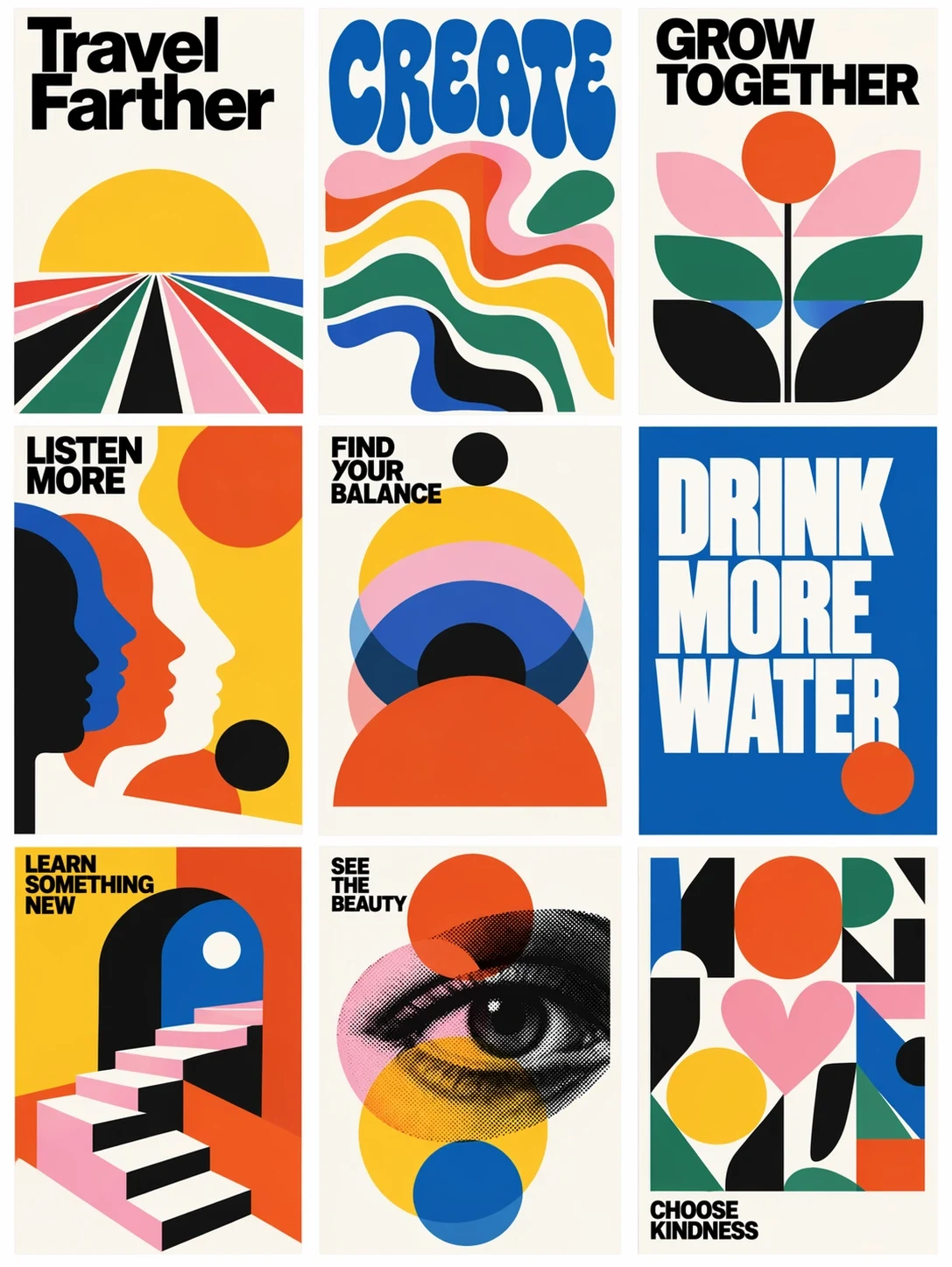
OpenAIのリリースに掲載されたChatGPT Images 2.5公式例。大きな文字と単純な形で空間を分けており、レイアウトの参考になります。
3. 背景色だけを変えるバリエーション
承認済みの商品画像から始めます。2つ目が1つ目の意図しない変更を引き継がないよう、各案を同じ元画像から作ります。
Edit the attached approved product advertisement. Replace the peach background with a pale mint background. Retain the product position, crop, label, headline, and existing shadow. Keep the same amount of empty space above the product. Do not add objects or change the product color. Return one version with this background change.
見出し、商品の大きさ、影の位置を並べて比較します。これらを十分一貫して保てた案だけが、後の広告テストで背景色の効果を切り分けるのに役立ちます。
4. 2枚の参照画像で服を1着だけ変更
画像1を人物、画像2を衣服の参照に使います。何着も並べたコラージュより、服の正面写真のほうが説明しやすくなります。
In image 1, replace the person's coat with the short denim jacket in image 2. Use image 2 for the jacket cut, stitching, buttons, and blue fabric only. Keep the face, hair, expression, hands, trousers, and stance from image 1. Fit the jacket naturally around the existing shoulders and elbows. Match the room light and retain the original background and crop.
新しいジャケットと重なる袖口、指、髪を確認します。ズボンも変えたい場合は、ジャケットがうまくできた後に別の修正として依頼してください。
5. UIスクリーンショットの広告シーン
個人のアカウント情報を消したスクリーンショットをアップロードします。正確なUIが必要な最終素材では、合成時に元のスクリーンショットを承認済みの端末シーンへ配置します。
Create a landscape promotional photograph of a laptop on a plain desk. Use the uploaded screenshot as the screen-content reference. Keep its sidebar on the left and its main chart in the center. Angle the laptop only slightly so the screen remains easy to read. Use a white wall, soft daylight, and empty space on the right. Place no other devices, hands, or decorative text in the scene.
ナビゲーションラベルとグラフの小さな文字を原寸で確認します。ノートパソコンの写真が本物らしくても、UIの細部は作り物かもしれません。構図には生成シーンを使い、ピクセルの正確さが必要なら元のスクリーンショットを残してください。
6. 別市場向けに見出しを変更
承認済みのポスターから始めます。翻訳文は自分で用意し、画像モデルには明確な文字編集を頼みます。
Edit the attached workshop poster for its Spanish edition. Replace only the headline "MAKE A BOWL" with "CREA UN CUENCO". Keep the date line, studio name, bowl illustration, colors, and margins. Fit the new headline into the existing headline area. Use the same bold type treatment and keep every letter legible. Do not translate or add any other text.
文言と改行を正確に確認します。長い翻訳はイラストを圧迫するため、次の編集で見出しを小さくするか、2行を許可してください。これは画像のローカライズであり、ウェブページ本文の翻訳とは別です。
7. 部屋の写真にある素材を変更
変更する物がはっきり見える部屋の写真を1枚使います。
In this room photograph, change the round side table from glossy white to natural oak with a matte finish and visible fine grain. Keep the table's diameter, height, leg arrangement, and position. Retain the sofa, floorboards, window, and camera perspective. Make the new wood respond to the existing window light. Leave all other furniture and materials as they are.
テーブルの脚が同じ位置で床に接しているか確認します。素材の編集で寸法まで変われば、別のデザイン案になってしまいます。
8. きれいな商品切り抜きを作る
輪郭がはっきり見える商品写真をアップロードします。
Isolate the photographed amber glass jar on a transparent background. Retain the lid ridges, label wording, jar proportions, and glass color. Remove the table and room behind it. Keep the jar centered with a small clear margin on every side. Inspect the edges around the lid and the translucent glass. Add no new shadow, floor, lettering, or decorative objects.
APIを直接使う場合はbackground="transparent"を指定し、PNGまたはWebPで出力します。書き出したアルファチャンネルを確認してください。画像に描かれた市松模様は透明ではありません。OpenAIの画像プロンプトガイドに設定方法があります。
プロンプトが外れたときの対処
目に見える失敗を説明します。「瓶のラベルが6文字から7文字になった」なら修正できます。「もっとプロらしく」では、不満点の判断をモデルに任せることになります。
承認した画像は毎回コピーを保存します。部分修正ではその画像を再利用し、変更内容、場所、残すべき細部を指定してください。OpenAIは、編集が周辺の細部にも影響する場合があると説明しています。採用前に確認しましょう。画像編集のヘルプ
FlareとSunburstのどちらを使う?
要件が単純で待ち時間が重要ならFlareから始めます。精度が必要な難しい編集ではSunburstを試してください。GPT Image 2.0と2.5の比較で、公式のモデル区分と料金の前提を確認できます。
Xのプロンプトをそのまま掲載していますか?
引用した一文はリンク先のX投稿からのものです。番号付きの8つは、要件と確認方法が異なる独自テンプレートです。元投稿のリンクから完全なプロンプト集を読み、方法を比較できます。
生成前にモデルを確認するには?
利用するサービスで選択中のモデルを確認します。GPT Image 2.5概要にはリリース情報と公式出典へのリンクがあります。製品名や公開ページだけで判断せず、ワークスペースで有効なモデルを確認してください。