Seedance 2.0 is one of the most powerful AI video generators available right now — and it's free to try. Whether you want product demos, cinematic shots, or social media clips, this tutorial walks you through everything from your first prompt to a finished video.
What Is Seedance 2.0?
Seedance 2.0 is an AI video generation model developed by ByteDance. It accepts both text prompts and reference images as input and generates high-quality, realistic video clips.
Key strengths of Seedance 2.0:
- Exceptional motion realism and temporal consistency
- Supports both text-to-video and image-to-video
- Fast generation speed
- Strong understanding of camera movement instructions
How to Get Started with Seedance 2.0 (Step by Step)
Step 1: Open the Generator
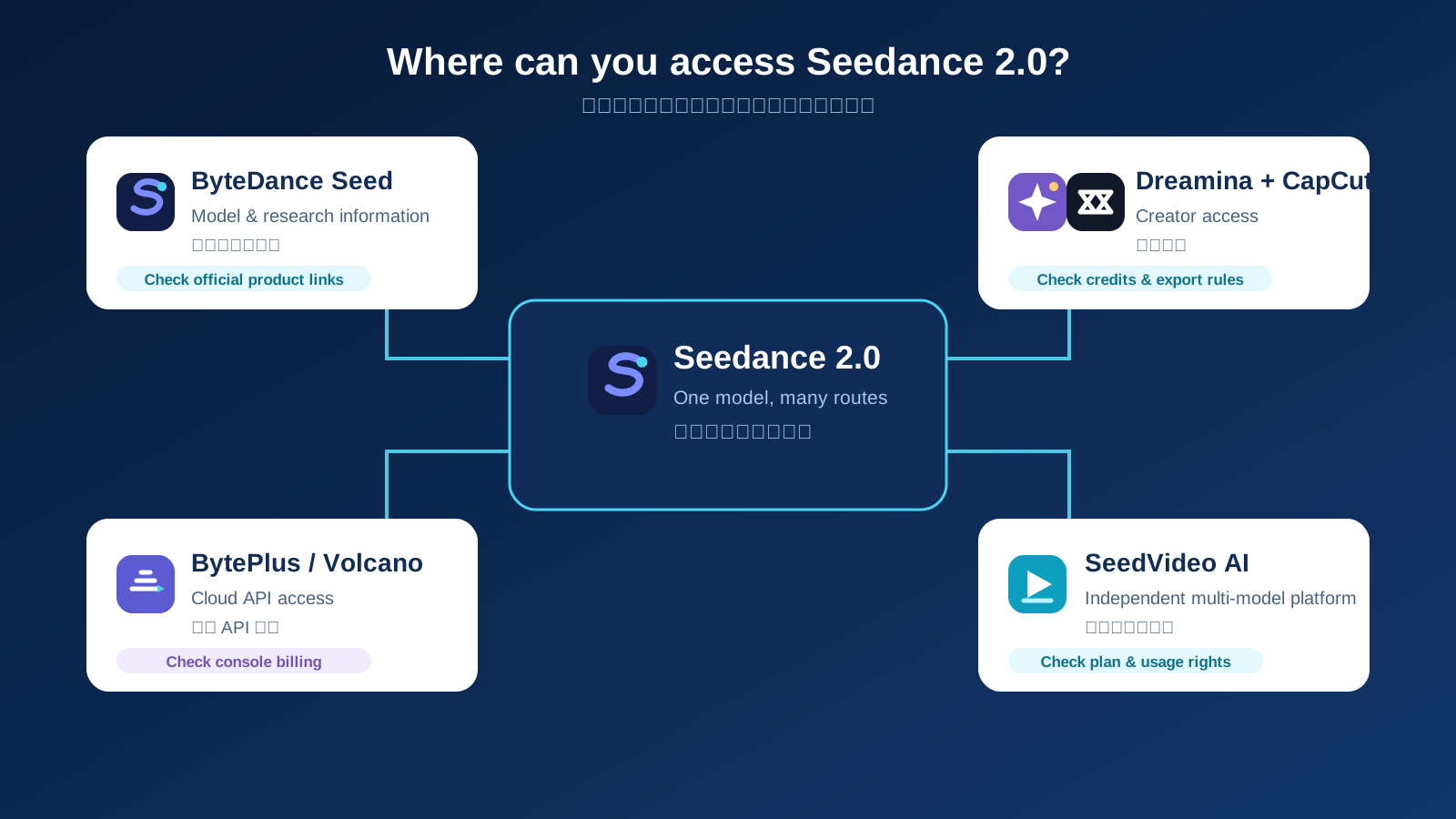
Head to Seeddance AI and choose your mode:
- Text to Video — start from a written description
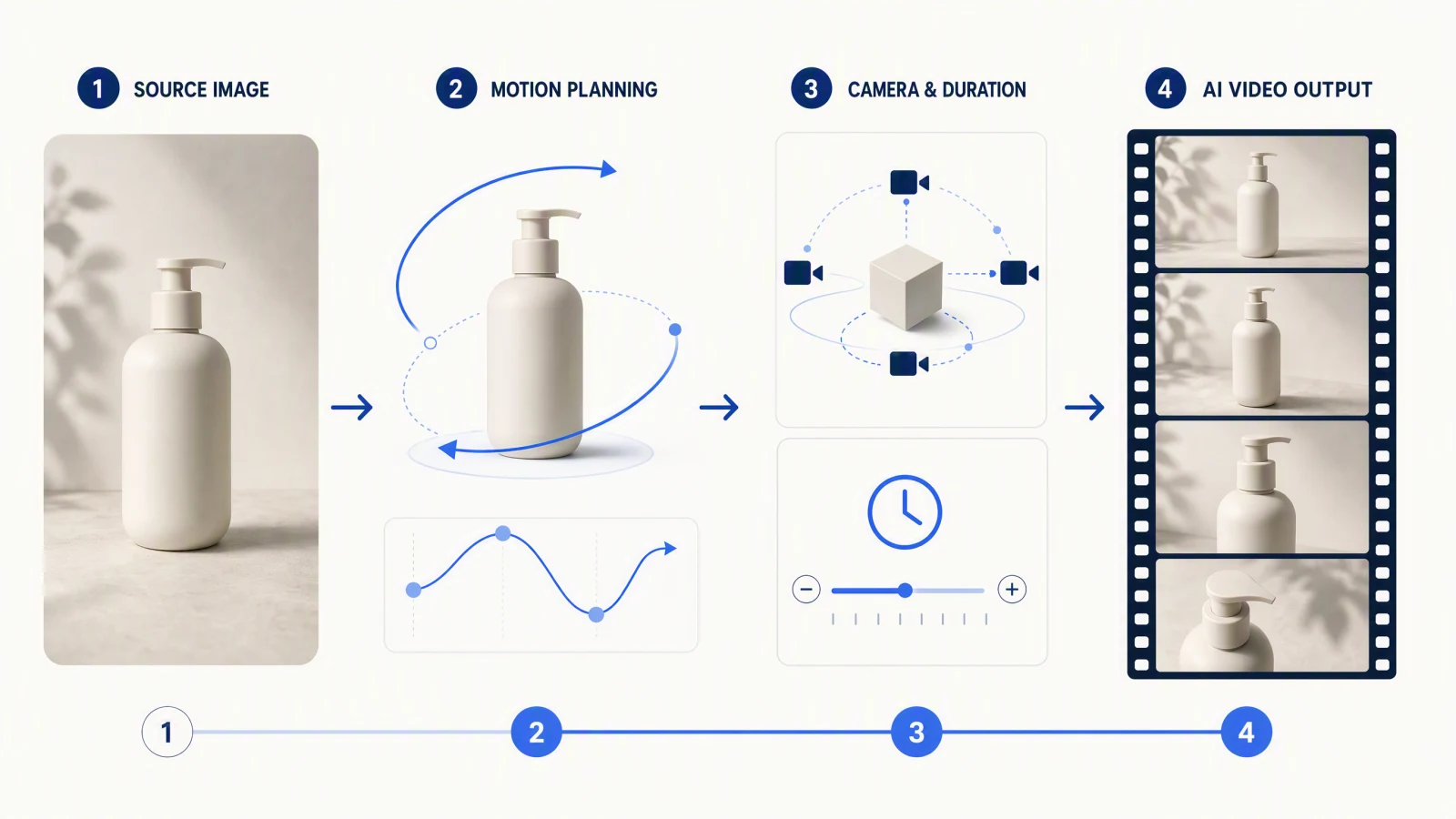
- Image to Video — animate a photo or illustration you already have
Step 2: Write Your First Prompt
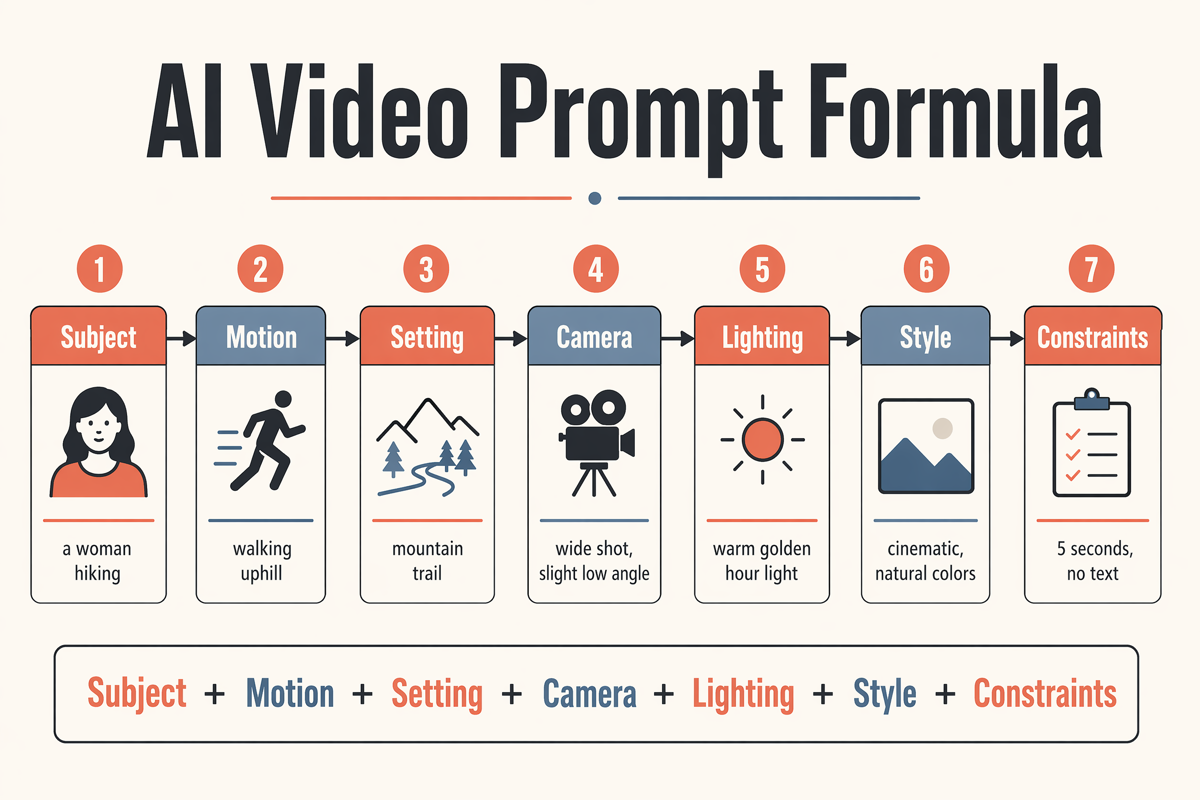
Use this proven formula:
[Subject] + [Action/Motion] + [Camera] + [Style/Lighting]
Example:
A woman walking through a rainy Tokyo street at night, slow tracking shot from behind, neon lights reflected on wet pavement, cinematic realism
The more specific your camera and motion instructions, the more controlled your output will be.
Step 3: Generate and Review
Click Generate and wait for your first draft. Don't aim for perfection — treat it as a starting point.
Step 4: Iterate One Variable at a Time
Once you have a draft:
- Keep what works (subject, lighting, composition)
- Change one thing per iteration (camera angle, style, speed)
- Regenerate and compare
This approach consistently produces better results than rewriting from scratch.
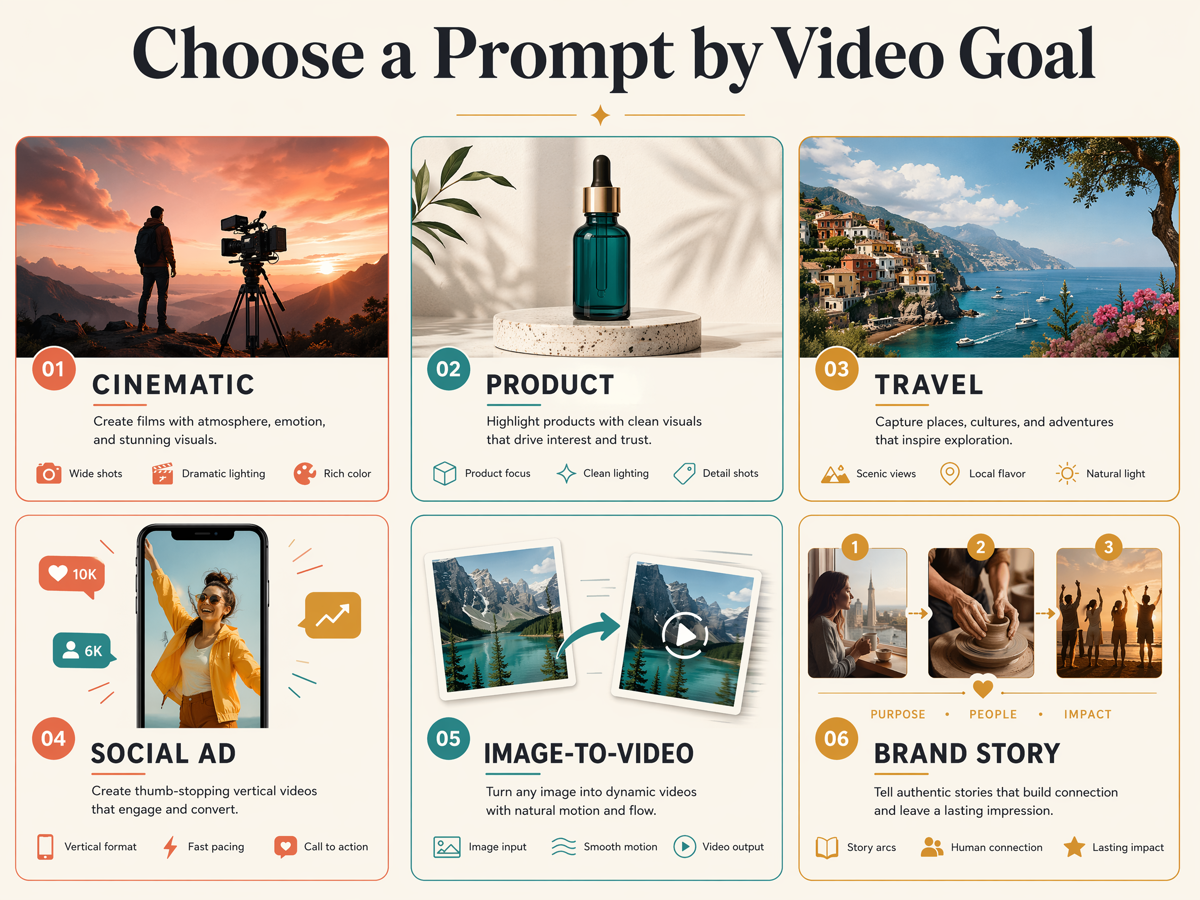
10 Ready-to-Use Seedance 2.0 Prompts
Copy any of these to get started immediately:
Product & Commercial
A sleek black sneaker rotating slowly on a white platform, close-up studio shot, soft key light with subtle shadow, product advertisement style
A glass perfume bottle with golden liquid, slow zoom-in, bokeh background, luxury commercial aesthetic
Cinematic & Atmospheric
Aerial view of a dense forest in autumn, slow drone push forward, golden hour light filtering through trees, cinematic documentary style
A lone lighthouse on rocky cliffs during a storm, wide establishing shot, dramatic waves crashing, overcast moody sky
Character & Portrait
A young woman in a flowing white dress standing in a sunlit wheat field, gentle breeze moving her hair, medium shot, warm golden light, soft cinematic grain
Urban & Street
Busy Tokyo intersection at night, overhead view, fast motion of pedestrians and traffic, neon signs reflecting on wet ground
Abstract & Motion
Liquid mercury droplets falling in slow motion on a dark surface, extreme close-up macro shot, studio lighting, ultra high detail
Social & UGC Style
A barista pouring latte art in a cozy cafe, handheld camera, natural window light, warm tones, lifestyle vlog aesthetic
Nature & Landscape
Ocean waves crashing on black volcanic sand beach at sunrise, low angle wide shot, slow-motion spray, vivid golden and blue tones
Sci-Fi & Fantasy
A futuristic city skyline at dusk with flying vehicles, wide aerial shot slowly pulling back, purple and orange gradient sky, high detail
Common Mistakes to Avoid
Overloaded prompts — Don't try to describe everything at once. Pick a single clear subject and action.
Contradictory style instructions — Avoid mixing styles like "realistic" and "anime" in the same prompt.
No camera direction — Always specify whether the camera is static, panning, tracking, or zooming. It makes a huge difference.
Changing too many variables at once — You'll lose track of what actually improved the result.
Pro Tips for Better Results
Use image-to-video for consistent characters. If you need the same face or object across multiple clips, start with a reference image.
Build a personal prompt library. Save your best-performing prompts by category (product, landscape, character). Reusing proven structures saves time.
Match prompt length to complexity. Simple shots need simple prompts. Over-describing a basic motion often confuses the model.
Specify aspect ratio intent in your prompt. Descriptions like "wide establishing shot" naturally guide the model toward landscape framing.
Start Creating with Seedance 2.0
You now have everything you need. Pick one of the prompts above, paste it in, and hit Generate.