SeedVideo AI

Seedream 5.0 Free:Complex Ideas, Striking Images

Seedream 5.0 supports text-to-image creation, editing with multiple reference images, deep prompt reasoning, and sharp output up to 4K. Try Seedream 5.0 online for free!

Model family

What Is Seedream 5.0?

Seedream 5.0 is a ByteDance image-model family offered here in Pro and Lite variants. Both accept text and optional image references. Pro focuses on high-fidelity generation and editing, while Lite adds deeper prompt reasoning and supports larger output batches.

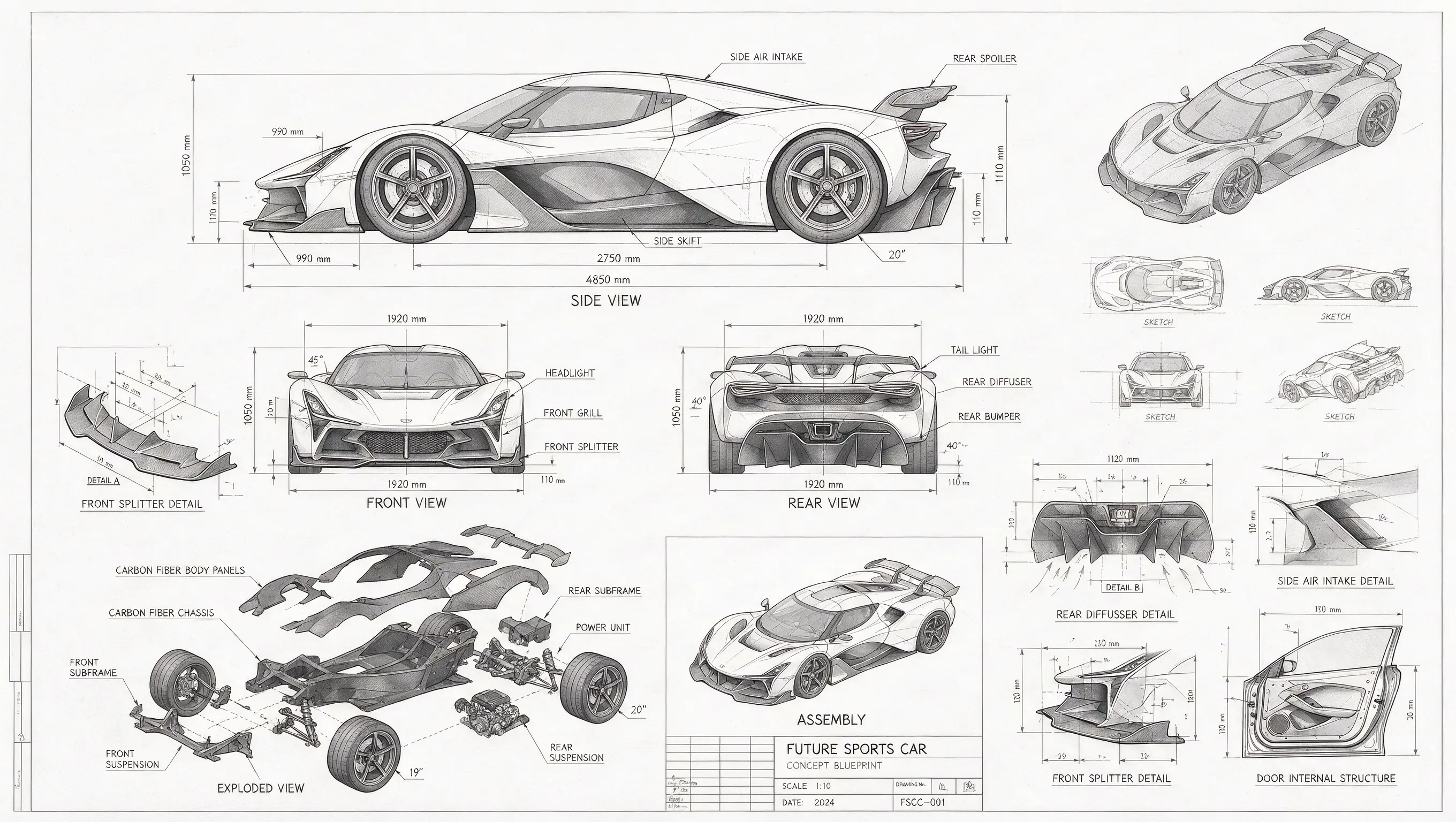
Official Seedream 5.0 Pro futuristic car blueprint exampleSeedream 5.0 Pro
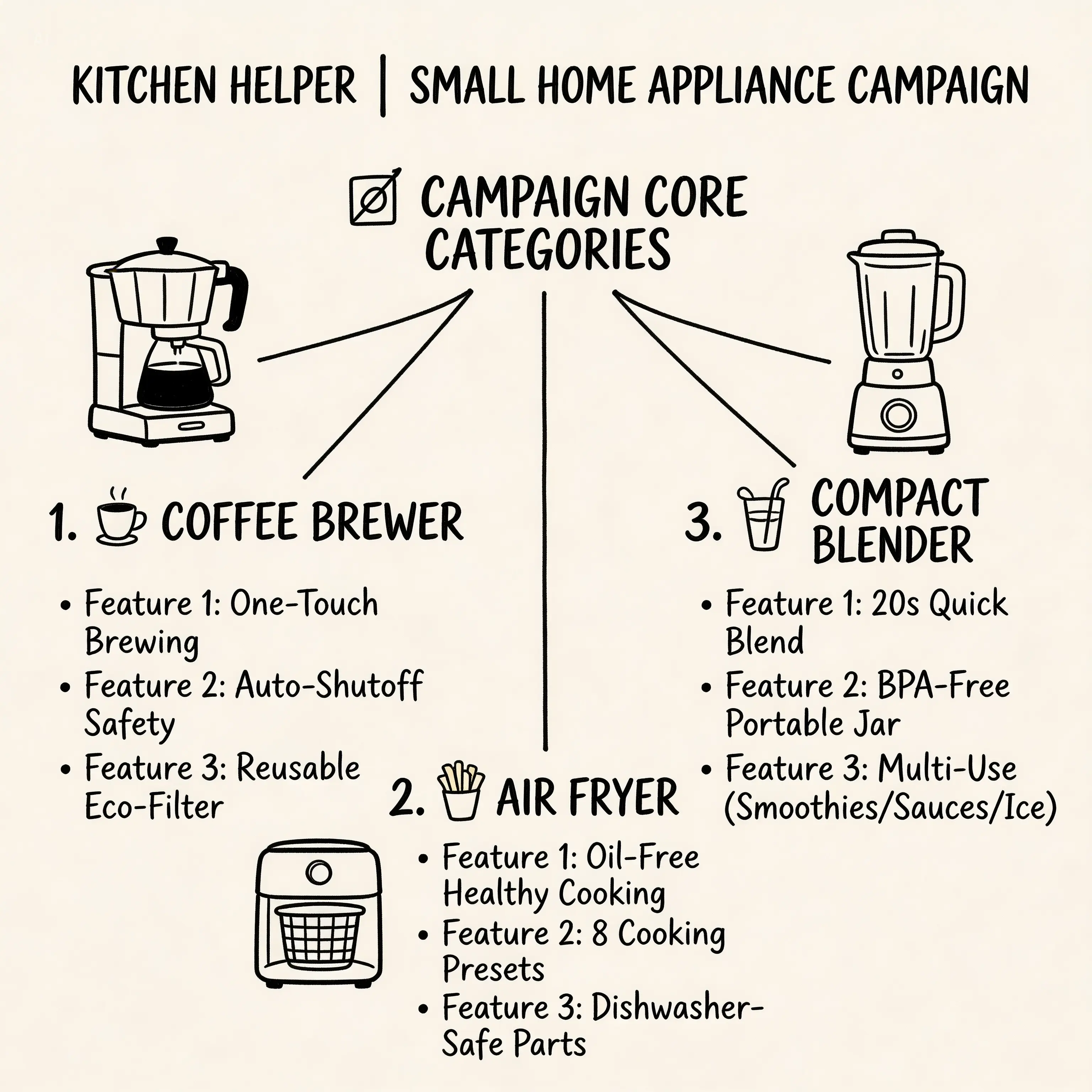
Official Seedream 5.0 Lite kitchen campaign mind map exampleSeedream 5.0 Lite

Choose Pro or Lite for the Job

Use Pro when one carefully controlled image, product creative, or reference-led edit matters most. Use Lite when a complex brief needs more internal reasoning, when you want several directions from one request, or when you need its 2K, 3K, and 4K output tiers.

Creation modes

Create with Seedream 5.0 on Seedance.io

Start with the model that fits the task, then keep the prompt, references, ratio, output tier, and image count together in one compact image-generation workflow.

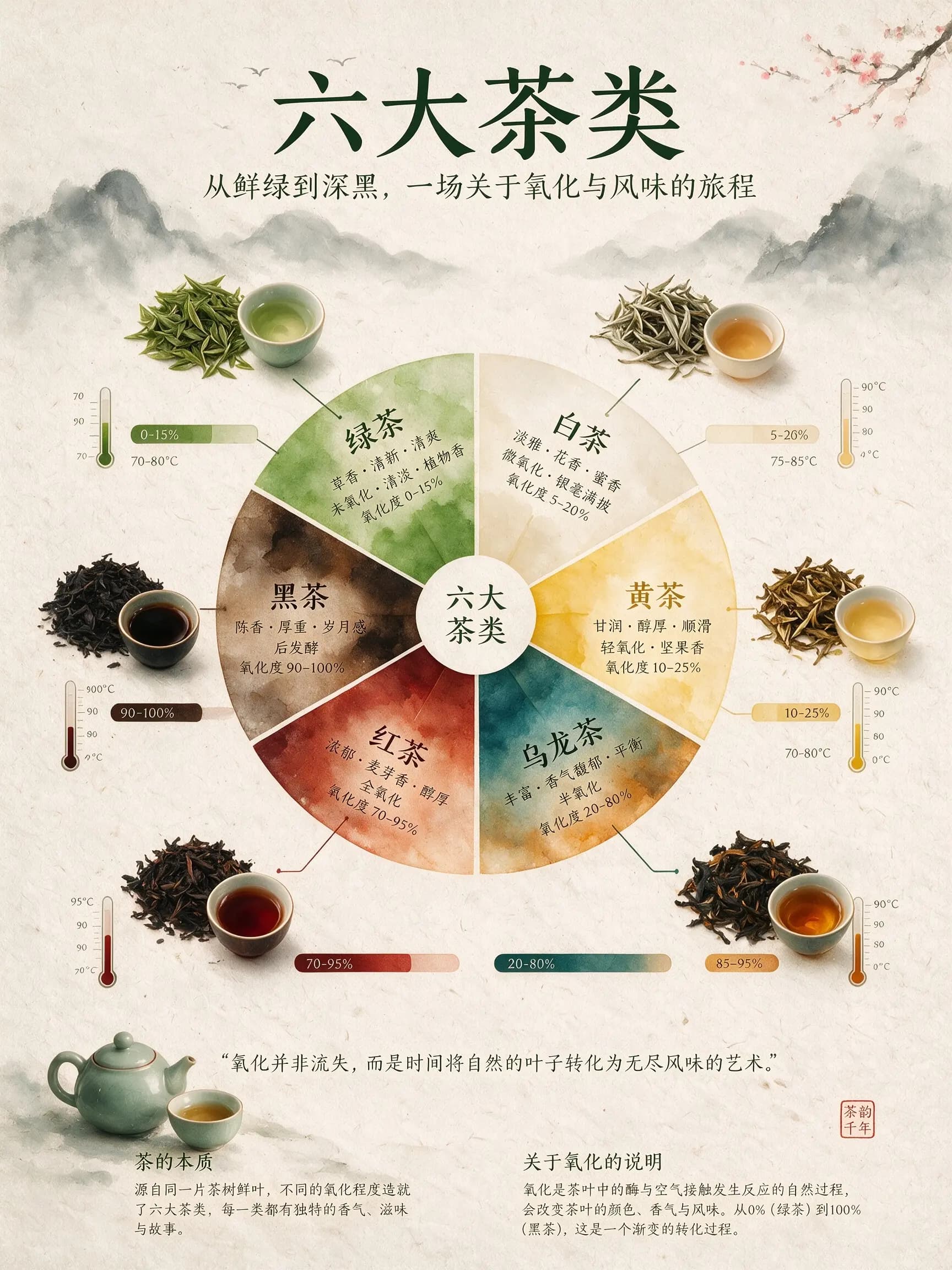
Official Seedream 5.0 Pro Chinese tea infographic exampleSeedream 5.0 Pro
Creation modes01

Generate Polished Images with Pro

Build campaign visuals, product scenes, posters, character studies, and editorial concepts with Seedream 5.0 Pro. Select 1K, 1.5K, or 2K output and use 1.5K as the balanced default.

Official Seedream 5.0 Pro futuristic car blueprint exampleSeedream 5.0 Pro
Creation modes02

Edit with Up to 10 References in Pro

Add source or reference images when the prompt alone cannot define the product, character, style, or composition. Explain what should stay, what should change, and how the references should work together.

Official Seedream 5.0 Lite kitchen campaign mind map exampleSeedream 5.0 Lite
Creation modes03

Handle Complex Briefs with Lite

Seedream 5.0 Lite is designed to reason through multi-part instructions before rendering. It is a useful choice for structured visuals, knowledge-rich concepts, and briefs with several relationships to resolve.

Official Seedream 5.0 Lite aromatherapy campaign exampleSeedream 5.0 Lite
Creation modes04

Generate More Variations with Lite

Lite supports up to 15 outputs in one request and up to 14 reference images. Use a smaller count while refining the brief, then expand only when the direction is stable.

Output control

Match the Model and Settings to the Brief

The generator only shows settings supported by the selected model, so Pro and Lite keep their own output tiers, reference limits, count limits, and custom-size validation.

01

Pick Pro or Lite

Choose Pro for a single premium generation or edit. Choose Lite for reasoning-led image work, broader reference context, or multi-image exploration.

02

Set Ratio, Pixels, and Quality

Use Auto, one of the documented aspect ratios, or exact custom pixels. Pro offers 1K, 1.5K, and 2K; Lite offers 2K, 3K, and 4K through the current EvoLink contract.

03

Control References and Count

Pro accepts up to 10 reference images and returns one image per request. Lite accepts up to 14 references and can return 1–15 images.

Creative uses

Use Seedream 5.0 Across Real Image Workflows

Move from fast exploration to a more deliberate final image without switching providers or rebuilding the brief.

01

Product and Campaign Creative

Combine product references, styling cues, and layout instructions into launch images, ecommerce scenes, ads, and social concepts.

02

Posters and Editorial Graphics

Describe hierarchy, copy zones, composition, and visual tone for posters, covers, story cards, and editorial illustrations.

03

Character and Style Direction

Use several references to hold onto recognizable features, wardrobe, color language, or art direction across new scenes.

04

Image-to-Video Starting Frames

Generate a strong still, download the selected result, and use it as the opening frame or visual reference in an image-to-video workflow.

Four-step workflow

How to Use Seedream 5.0 on Seedance.io

The same image workspace supports both variants. Change the model first so the available settings and limits update before generation.

  1. Step one

    Open Image Generation

    Go to the AI Video Generator workspace and select Image. Your video drafts remain separate from the image form.

  2. Step two

    Choose Pro or Lite

    Open the model menu and select Seedream 5.0 Pro or Seedream 5.0 Lite according to the output and batch needs of the brief.

  3. Step three

    Add the Brief and References

    Write the prompt, upload optional reference images, then choose a ratio or custom size, output quality, and Lite image count.

  4. Step four

    Generate, Review, and Continue

    Generate the task, compare the durable results, download the best image, or carry it into the next creative step.

Workspace preview

One Workspace for Pro and Lite

Switching the model updates the supported ratios, quality tiers, output count, custom dimensions, and reference limit without changing the rest of the workflow.

Official Seedream 5.0 Pro Chinese tea infographic exampleSeedream 5.0 Pro
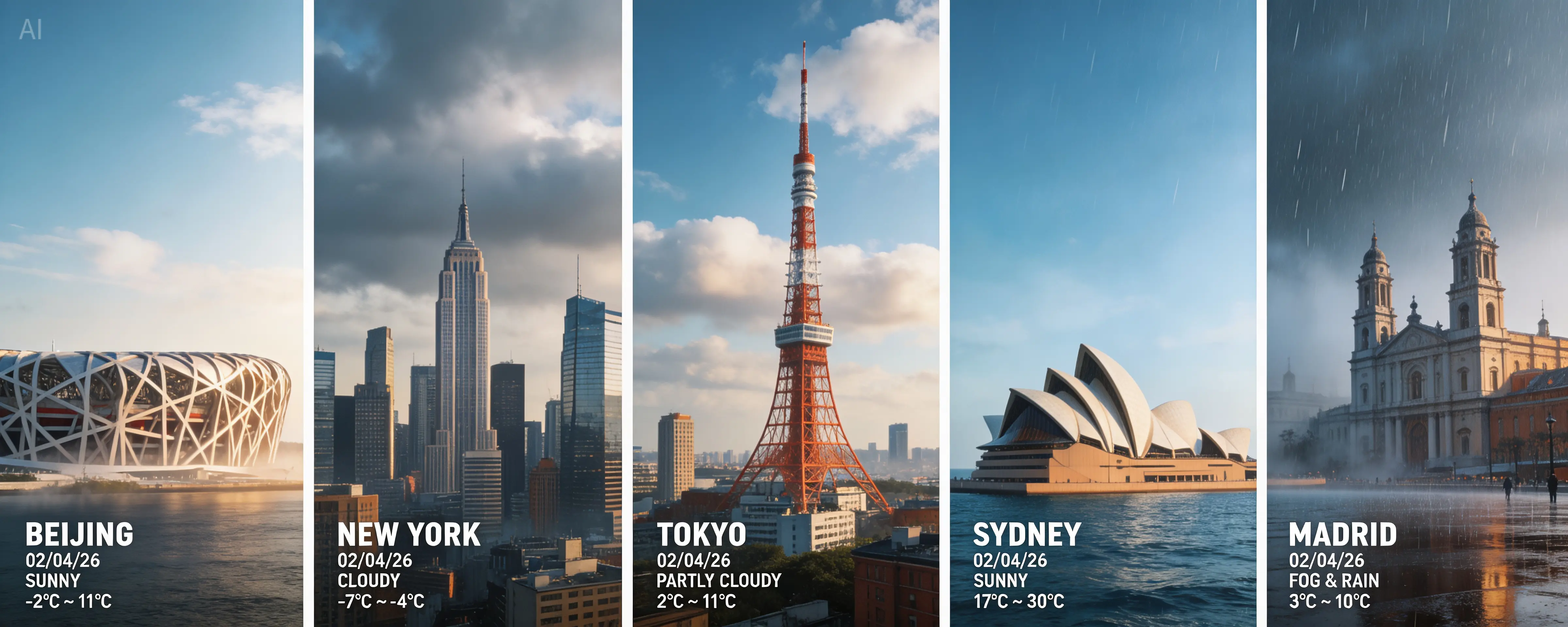
Official Seedream 5.0 Lite live weather dashboard exampleSeedream 5.0 Lite
Official Seedream 5.0 Pro futuristic car blueprint exampleSeedream 5.0 Pro
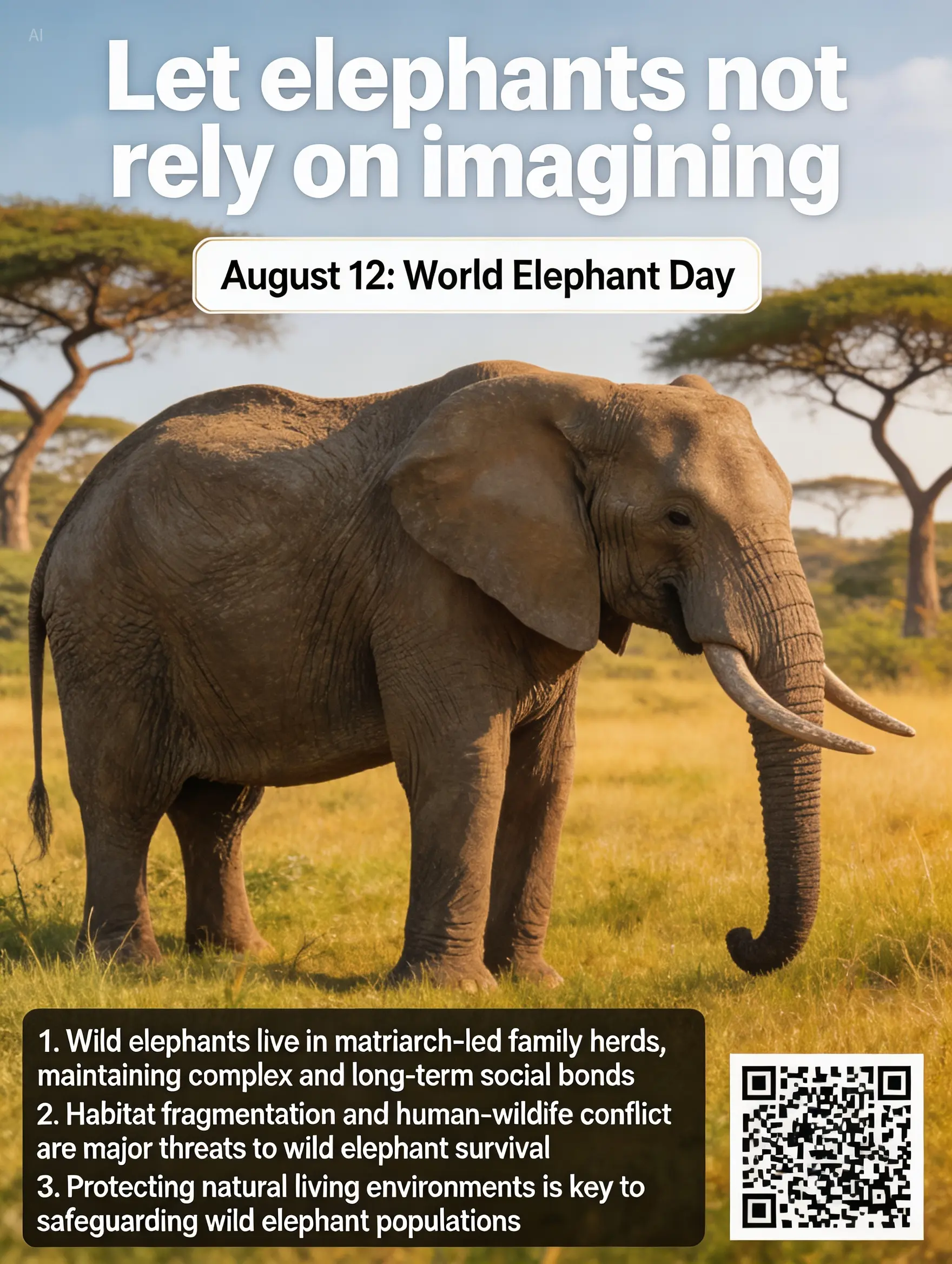
Official Seedream 5.0 Lite World Elephant Day poster exampleSeedream 5.0 Lite
Official Seedream 5.0 Pro multilingual platform safety guide exampleSeedream 5.0 Pro
Official Seedream 5.0 Lite kitchen campaign mind map exampleSeedream 5.0 Lite
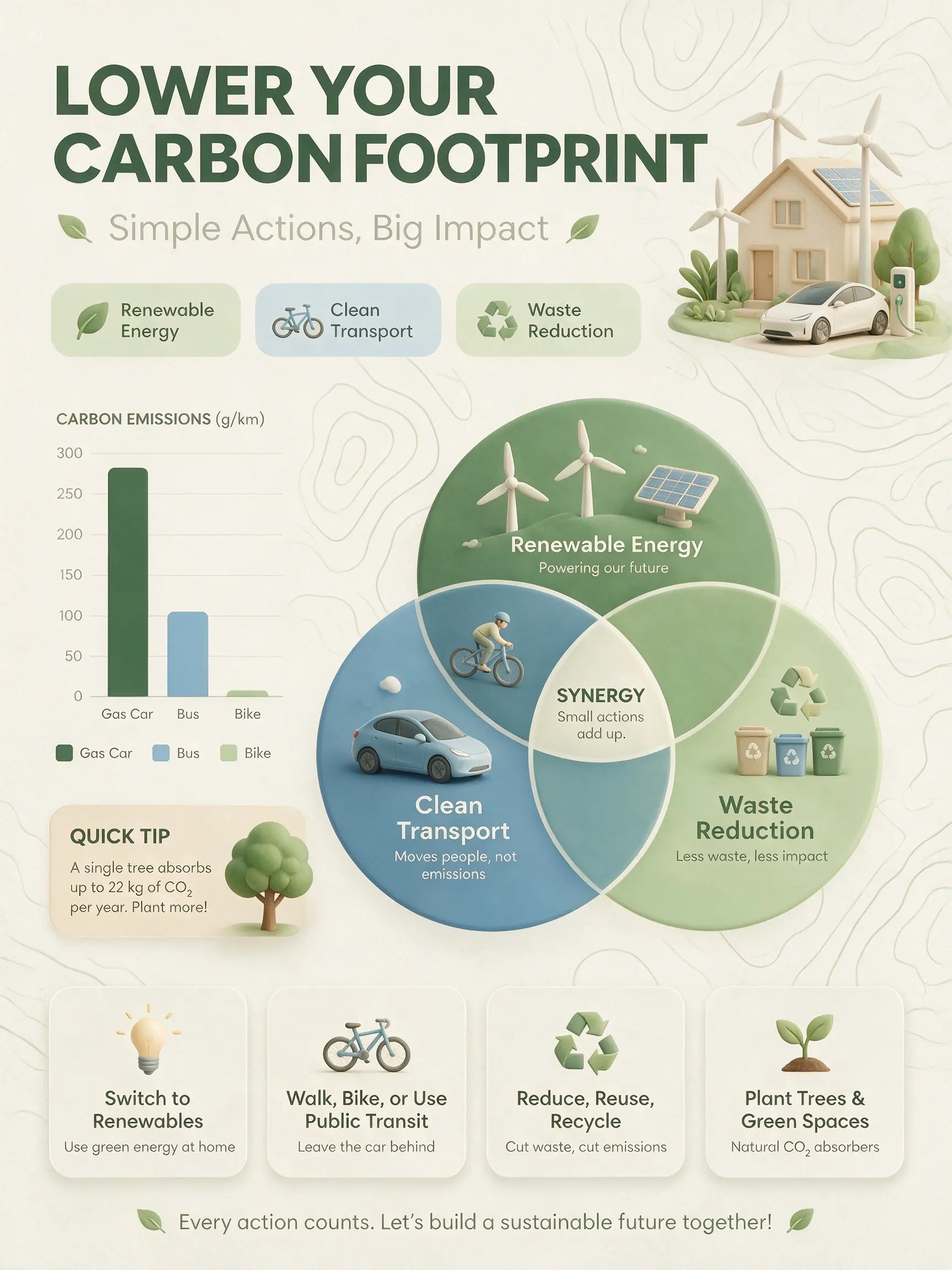
Official Seedream 5.0 Pro carbon footprint infographic exampleSeedream 5.0 Pro
Official Seedream 5.0 Lite aromatherapy campaign exampleSeedream 5.0 Lite
Official Seedream 5.0 examples published by ByteDance Seed
Official examples · ByteDance Seed
Open Image Generator

Prompt direction

Write Better Seedream 5.0 Prompts

Give the model the decisions that matter. Separate subject, composition, visual treatment, text, and protected reference details instead of compressing everything into vague adjectives.

Prompt 01

Describe the Visual Hierarchy

Name the main subject, supporting elements, camera or viewpoint, foreground and background relationship, lighting, and intended crop.

Prompt 02

Assign a Job to Each Reference

Explain which image controls identity, product appearance, palette, layout, texture, or pose. Also state what must not be copied or changed.

Prompt 03

Keep Edits Focused

For editing, identify the exact change and repeat the protected details. Review small text and precise geometry before using the image in production.

Model choice

Seedream 5.0 Compared with Other Image Models

Choose around the workflow and controls you need, then test the same brief and references before standardizing a model for production.

01

Seedream 5.0 Pro vs Lite

Pro is the one-image, reference-editing choice with 1K–2K tiers. Lite supports deeper reasoning, up to 14 references, 2K–4K tiers, and batches of up to 15 images.

02

Seedream 5.0 vs GPT Image 2

Seedream exposes image-priced tiers and model-specific reference limits through EvoLink. GPT Image 2 uses OpenAI image workflows with separate quality and resolution controls. Compare editing fidelity on your own inputs.

03

Seedream 5.0 vs Nano Banana Pro

Both can use text and image context. Seedream gives you a Pro/Lite family with different batch and reference limits; Nano Banana Pro belongs to the Gemini image workflow. Availability and output behavior can change.

Capability table

Detailed Seedream 5.0 Comparison

This table separates the two Seedream variants and links every model row to a current provider or developer source.

Seedream 5.0 Pro

Developer
ByteDance
Inputs
Text + up to 10 images
Workflow
Generation and reference editing
Output controls
Auto, ratios, custom · 1K / 1.5K / 2K
Access
Seedance.io · EvoLink API
EvoLink Seedream 5.0 Pro

Seedream 5.0 Lite

Developer
ByteDance
Inputs
Text + up to 14 images
Workflow
Reasoning-led generation and editing
Output controls
Auto, ratios, custom · 2K / 3K / 4K
Access
Seedance.io · EvoLink API
EvoLink Seedream 5.0 Lite

GPT Image 2

Developer
OpenAI
Inputs
Text + images
Workflow
Generation, editing, multi-turn refinement
Output controls
Flexible size, resolution, and quality controls
Access
Seedance.io · OpenAI API
OpenAI GPT Image 2

Nano Banana Pro

Developer
Google
Inputs
Text + images
Workflow
Gemini image generation and editing
Output controls
Model-specific aspect and output tiers
Access
Seedance.io · Gemini API
Google Gemini image models

Provider contracts, availability, pricing, and output limits can change. Check the linked source before building a fixed production assumption.

Primary sources

Try both variants

Test Pro and Lite with the Same Brief

Keep the prompt, references, and ratio consistent, then compare detail control, composition, generation time, and the number of usable results.

Start Creating

Seedream 5.0 FAQ

Frequently Asked Questions About Seedream 5.0

Short answers about model choice, references, quality tiers, and the Seedance.io integration.

Seedream 5.0 is a ByteDance image-model family. Seedance.io exposes the Pro and Lite variants for text-to-image and reference-image workflows through EvoLink.

Pro focuses on high-fidelity generation and editing, supports up to 10 references, and returns one image in 1K, 1.5K, or 2K. Lite supports deeper prompt reasoning, up to 14 references, 2K, 3K, or 4K, and 1–15 outputs.

Yes. Select an image-to-image workflow by uploading references. Pro accepts up to 10; Lite accepts up to 14. Use public, supported image files and describe the role of each reference.

Seedream 5.0 Pro currently returns one image per request. Seedream 5.0 Lite accepts an image count from 1 through 15.

Both models support Auto, documented aspect ratios, and validated custom pixel sizes. Pro offers 1K, 1.5K, and 2K quality tiers; the current Lite API reference lists 2K, 3K, and 4K.

EvoLink documents optional web search for Lite through model_params.tools. The Seedance.io generator currently exposes prompt, references, size, quality, and count; it does not expose a web-search toggle in this release.

Open AI Video Generator, switch to Image, and choose Seedream 5.0 Pro or Seedream 5.0 Lite from the image-model menu.

Check the terms that apply to your Seedance.io account, your inputs, and the intended use. A model output does not automatically clear trademarks, likenesses, copyrighted material, or other third-party rights.

Seedance.io workflow

Why Create Seedream Images on Seedance.io?

Use one account and one workspace to compare image models, manage generated results, and move selected stills into video work.

01

One Menu for Pro and Lite

Switch variants without rebuilding the form. The available settings and limits update with the selected model.

02

Server-Validated Requests

The server maps public model IDs to EvoLink IDs, rejects unsupported options, and recalculates credits from validated settings.

03

Durable Result Storage

Completed EvoLink result URLs are copied into product storage before the task is presented as a durable success.

Related models

Compare Other Creative Models

Test another image model or continue with a video model when the brief needs a different workflow.

Seedream 5.0 · Pro and Lite

Create Your Next Image with Seedream 5.0

Choose the variant, set the supported controls, and generate from text or reference images in the Seedance.io workspace.

Open Image Generator