SeedVideo AI

GPT Image 2 Free:Bring Your Idea to Life

GPT Image 2 supports high-fidelity image input, advanced text rendering, natural-language editing, and flexible output up to 3,840 px. Try GPT Image 2 online for free!

Model overview

What Is GPT Image 2?

GPT Image 2 is OpenAI's current image-generation model for fast, high-quality generation and editing. It accepts text and image inputs, supports flexible image sizes, and processes reference images at high fidelity.

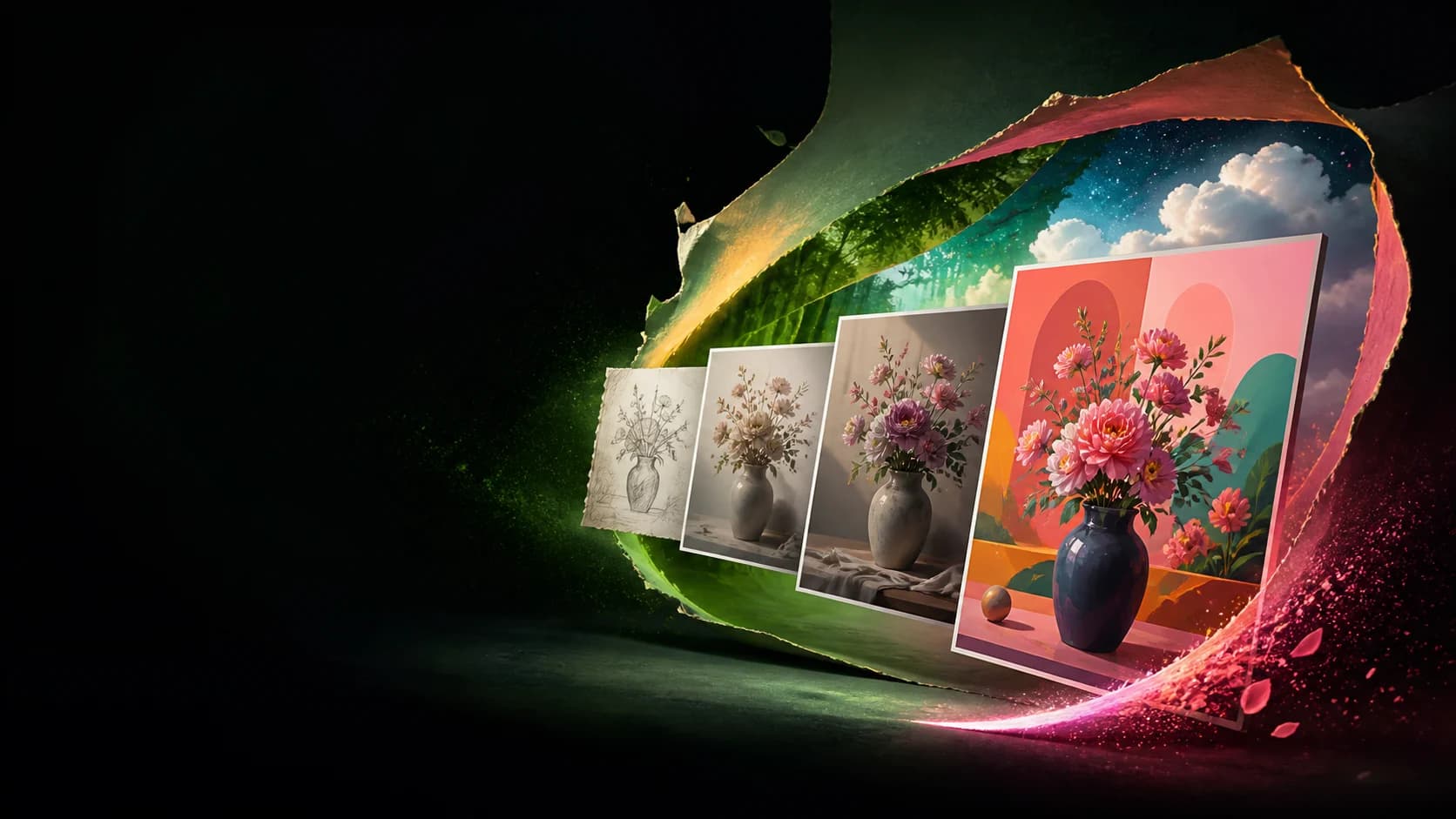
A visual idea evolving from a sketch into polished photographic and illustrated images

What the GPT Image 2 Model Can Create

Use it for illustrations, product scenes, campaign concepts, posters, social graphics, storyboards, and visual drafts. Begin with a prompt, add image references, or edit an existing visual. The result can stand alone or become a starting frame for video creation.
Creation modes

Create Images with GPT Image 2 on Seedance.io

Move from an initial idea to a usable visual without breaking the work across disconnected tools. Generate a first version, inspect it, and keep the useful decisions while refining the rest.

Creation modes01

Generate Images from Text Prompts

Describe the subject, setting, composition, lighting, mood, and visual treatment. A clear brief gives the model enough context to turn a rough concept into a deliberate visual direction for campaigns, product ideas, or story frames.

Creation modes02

Edit Images with Natural Language

Ask for a focused change in ordinary language instead of rebuilding the whole image. Name what should change and what must remain untouched when testing another background, color treatment, layout, object, or detail.

Creation modes03

Create from Reference Images

Add a reference when words alone cannot define a product, character, composition, or visual direction. GPT Image 2 processes image inputs at high fidelity while your prompt explains what to preserve, reinterpret, or remove.

Creation modes04

Refine Images Through Conversation

Treat the first output as a draft. Multi-turn image workflows let you improve framing, simplify the scene, correct details, or explore a new treatment through shorter follow-up instructions instead of one oversized prompt.

Creative control

Bring More Control to AI Image Creation

A useful image is more than an attractive result. It needs the right hierarchy, recurring visual details, and a revision path that protects decisions already approved.

01

Design Text-Heavy Visuals

Build concepts for posters, covers, menus, packaging, and social graphics where words belong to the composition. Specify exact copy, placement, hierarchy, and type direction, then review spelling and alignment before publishing. OpenAI notes that precise text rendering can still require correction.

02

Maintain Characters and Visual Direction

Carry the same references and creative rules across related images to guide a character, product, palette, or atmosphere. Consistency is possible, but recurring details can still drift between generations, so compare each result against the approved reference.

03

Refine Specific Details Without Starting Over

When most of an image already works, isolate the revision. Change an expression, object, background element, lighting choice, or line of copy while explicitly protecting the composition and details you want to keep.

Creative workflows

Use GPT Image 2 Across Creative Workflows

Start from the format your audience needs, shape the image around its message, and keep the next production step visible from the beginning.

01

Social graphics and marketing banners

Explore launch posts, event graphics, paid-ad concepts, and channel-specific layouts with the intended aspect ratio, focal subject, headline space, and brand mood written into the brief.

02

Product visuals and ecommerce creative

Place a product reference into seasonal, lifestyle, or conceptual scenes to compare early campaign directions before committing to final photography or production.

03

Concept art and storyboards

Translate a script, scene description, or character note into frames that help collaborators discuss composition, tone, and missing story beats before animation or filming.

04

Turn GPT Image 2 images into videos

Use a selected still as a start frame, style reference, storyboard panel, or campaign asset, then build motion and additional scenes around the visual direction you approved.

Four-step workflow

How to Use GPT Image 2 on Seedance.io

You do not need a complicated formula. Give the model enough context to understand the goal, judge the first result against that goal, and make one clear revision at a time.

  1. Step 1

    Enter a Prompt or Upload a Reference Image

    Describe the subject, scene, purpose, and visual treatment. Add a reference when a specific person, object, product, style, or composition should guide the result.

  2. Step 2

    Choose Your Format and Generate

    Select the size and quality that fit the intended channel. Generate a first version and evaluate the composition, message, hierarchy, and details—not style alone.

  3. Step 3

    Review and Refine the Result

    State what should change and what should remain. Keep each follow-up focused, such as replacing the background, correcting copy, adjusting light, or removing one distracting element.

  4. Step 4

    Continue Creating with Your Image

    Download the visual as a standalone asset or continue with it as a reference, storyboard frame, campaign concept, or starting image for an AI-generated video.

Visual examples

GPT Image 2 Showcase

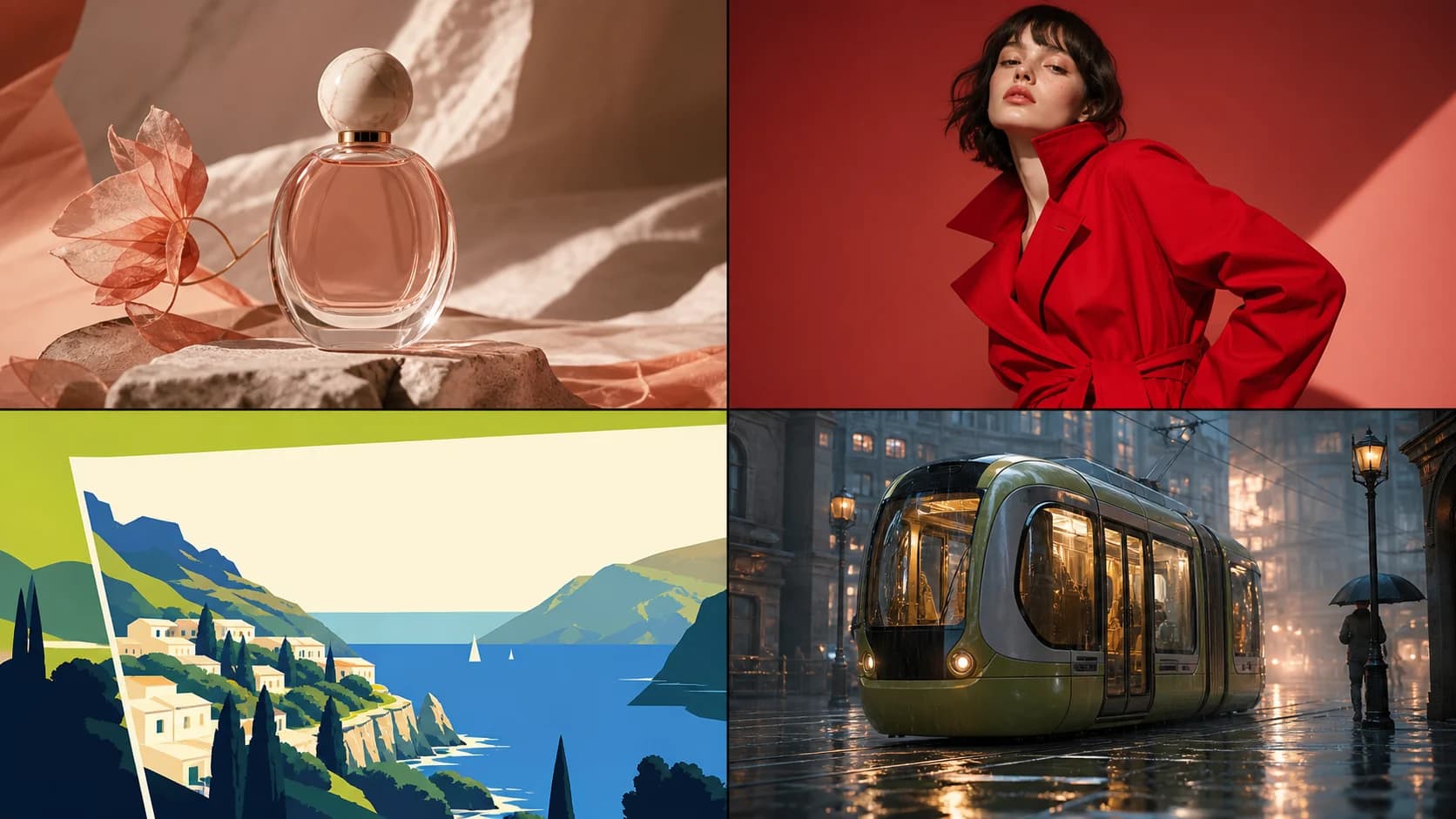
One brief can lead to product photography, fashion editorial, graphic illustration, or a cinematic story frame. Use the same review standard across styles: clarity, composition, usable detail, and fit for the final channel.

Four original AI image concepts: perfume product photography, fashion editorial, travel illustration, and a cinematic tram scene
Original Seedance.io showcase artwork · product, editorial, illustration, and cinematic concept workflows
Start Creating

Prompt guide

How to Write Better GPT Image 2 Prompts

A strong prompt communicates intent and priorities, not a pile of adjectives. Give the model a structured brief, then use short follow-ups to refine individual decisions.

Prompt 01

Describe the Subject and Composition

Start with the subject and action. Add the setting, camera distance, perspective, lighting, mood, and intended placement of important elements. If copy will sit above the subject, reserve that space in the composition.

Prompt 02

Specify Text, Layout, and Visual Style

Put required wording in quotation marks and state where it belongs. Describe headline hierarchy, supporting copy, type treatment, color direction, and audience. Keep critical text short and inspect every character before public use.

Prompt 03

Use Focused Instructions for Image Editing

Name the edit target, the requested change, and the protected details. For example: replace only the background with a quiet evening street; keep the subject, clothing, pose, crop, and camera angle unchanged.

Model comparison

GPT Image 2 Compared with Other AI Image Models

No image model wins every brief. Compare them with the same prompt, references, aspect ratio, and acceptance criteria, then keep the one that reaches a usable result with fewer compromises.

01

GPT Image 2 vs Nano Banana Pro

Both support text-and-image creation workflows. GPT Image 2 centers high-fidelity image inputs, generation, editing, and conversational refinement; Google positions Nano Banana Pro for complex graphic design, product mockups, accurate text, and real-world grounding. Test the same brief before choosing.

02

GPT Image 2 vs Midjourney

Choose around the way you direct the work. Test GPT Image 2 when your process depends on conversational edits and protected details. Compare Midjourney when image, style, character, or omni references are central to exploration. Neither reference workflow guarantees an exact copy.

03

GPT Image 2 vs GPT Image 1.5

OpenAI now lists GPT Image 1.5 as its previous, deprecated image model. Run the same prompt and edit sequence when evaluating a migration, and judge composition, reference fidelity, correction effort, output size, and whether the new model improves your real workflow.

At-a-glance

Detailed Comparison Chart

These are workflow-level differences, not a quality ranking. Product surfaces, model versions, output options, and availability can change; open the linked primary sources before making a production decision.

GPT Image 2

Developer
OpenAI
Supported inputs
Text and image
Editing and references
Image generation, editing, high-fidelity image inputs, and multi-turn refinement through supported APIs
Public output options
Flexible sizes up to 3,840 px per edge within documented constraints
Primary access
OpenAI Image API, Responses API, and supported products
OpenAI GPT Image 2

Nano Banana Pro

Developer
Google
Supported inputs
Text and image
Editing and references
Professional image generation and editing with reasoning and Search grounding
Public output options
Options up to 4K in supported Gemini surfaces
Primary access
Gemini API and Google AI products
Google Gemini 3 Pro Image

Midjourney

Developer
Midjourney
Supported inputs
Text and image references
Editing and references
Image prompts plus version-specific style, character, and omni reference tools
Public output options
Depends on model version, aspect ratio, and upscale path
Primary access
Midjourney web app and Discord
Midjourney references

GPT Image 1.5

Developer
OpenAI
Supported inputs
Text and image
Editing and references
Previous image-generation and editing workflow
Public output options
Documented fixed sizes; model is deprecated
Primary access
Legacy OpenAI API access while available
OpenAI GPT Image 1.5

OpenAI also documents current limitations around precise text placement, recurring visual consistency, and layout-sensitive composition. Treat every first output as a draft that needs review.

Primary sources

Start with starter credits

Try GPT Image 2 with Free Trial Credits

Turn the next idea into an image, refine it through focused instructions, and see how it fits into a broader creative workflow. New users receive starter credits after signing up; further use follows the current Seedance.io credit rules.

Start Creating

FAQ

Frequently Asked Questions About GPT Image 2

Quick answers about access, generation, editing, prompting, pricing, API support, and responsible commercial use.

GPT Image 2 is OpenAI's current image-generation model for creating and editing visuals from text and image inputs. OpenAI describes it as a fast, high-quality image model with flexible sizes and high-fidelity image inputs.

Open the GPT Image 2 workflow on Seedance.io, sign in, and start with a prompt or reference image. Developers can also use the OpenAI Image API for single-turn generation and editing, or the Responses API for conversational, multi-step image workflows.

Seedance.io is free to try with a limited amount of starter credit for new users. Additional generation uses credits under the current pricing and account rules shown in the product.

Costs vary with the active product configuration and requested output. On Seedance.io, review the credit quote before generation. For direct API use, consult the current OpenAI pricing page and image-generation calculator rather than relying on a fixed historical price.

Yes. OpenAI documents GPT Image 2 for image generation and image editing endpoints. The Responses API also supports conversational, multi-turn image generation workflows through its image tool.

The current OpenAI model catalog lists the GPT Image 2 snapshot as gpt-image-2-2026-04-21. Use the live model catalog for the latest alias, snapshot, availability, and rate-limit details.

Explain the subject, composition, setting, lighting, visual treatment, required text, and intended use. For an edit, name the exact target and the details that must stay unchanged. Start with a clear brief, then make one focused revision at a time.

Commercial use depends on the current OpenAI terms, content policies, your rights to the input material, and any industry-specific rules that apply to the project. Review those requirements before publishing or selling generated work.

Connected workflow

See Why Creators Choose Seedance.io

The useful part of an image workflow is what happens after the first result. Keep generation, review, iteration, and motion planning close together so the approved visual direction survives the handoff.

01

Compare ideas before production

Generate multiple directions early, evaluate them against the same brief, and move forward with a visual decision that collaborators can see and discuss.

02

Protect approved details during edits

Use focused revision instructions to preserve the subject, crop, palette, or composition while changing the one detail that still blocks approval.

03

Carry still images into motion

Move a selected concept into image-to-video and broader AI video workflows without losing the starting frame, story beat, or art direction that made it useful.

Keep exploring

Explore More AI Image Models and Creative Tools

Different briefs benefit from different visual engines and follow-up tools. Compare the workflow you need, then choose the shortest path from idea to a usable asset.

GPT Image 2 · Create and edit

Try GPT Image 2 on Seedance.io Now

Start with a prompt or reference image, refine one decision at a time, and turn the strongest result into the next creative asset.

Start Now