Free AI Video Upscaler: Upscale Video to 1080P, 2K & 4K

Improve video quality online with a free AI video upscaler. Upscale MP4 and MOV clips up to 30 seconds to 1080P, 2K or 4K with an AI video enhancer that sharpens every frame and keeps motion smooth. Runs on free credits, no sign-up.

OriginalUpscaledSample

AI Video Upscaler: Enhance Video Quality Online

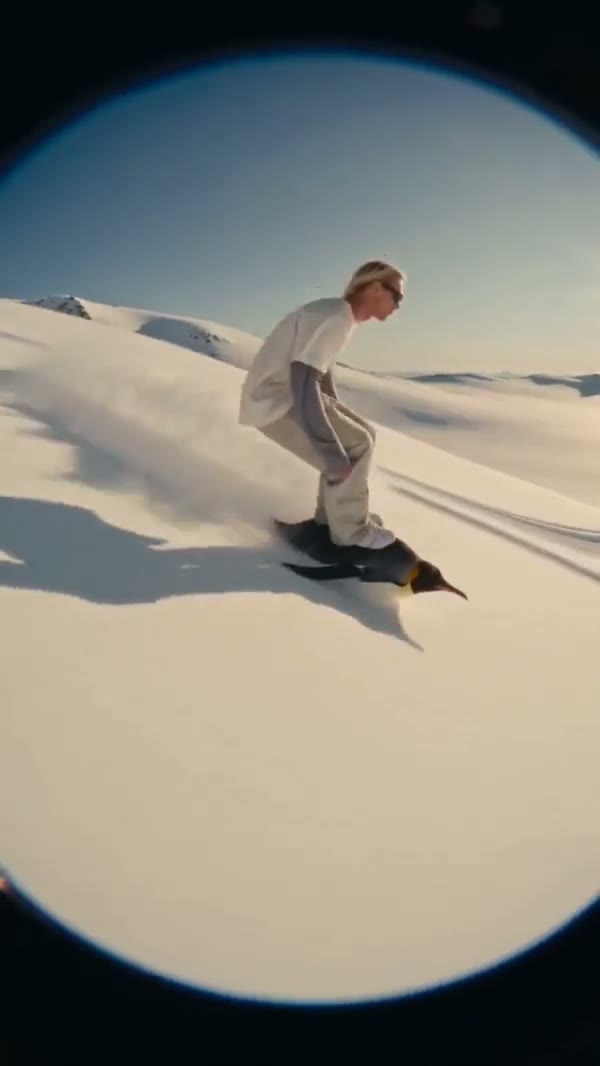
Low-resolution video looks soft and blocky on today’s large screens. Our AI video upscaler raises the resolution of every frame and rebuilds the detail a plain resize cannot: edges, faces, text and the texture of skin, water and rock, while motion stays steady from frame to frame. Upload a clip, choose 1080P, 2K or 4K and download a sharper video.

BeforeAfter

720P to 4K output

The video upscaler takes 360p to 1080p sources up to 1080P, 2K or 4K. Only resolutions above your source are offered, so you never pay to shrink a video.

Sharper frames, steady motion

Every frame is sharpened while motion stays smooth, and the clip keeps its original frame rate and length.

Priced by length

Credits depend on the clip’s length, the output resolution and the model, and show before you run. A failed run gives the credits back.
01

Upscale Talking-Head and UGC Videos

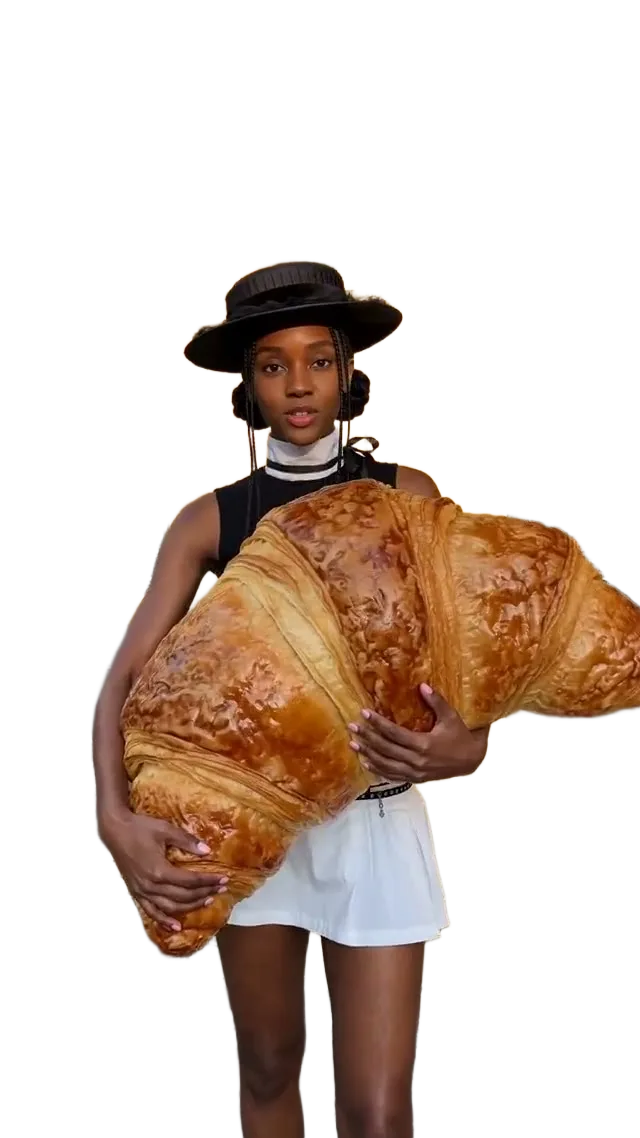
Phone recordings, interviews and creator clips are often shared at 360p or 480p. Upscale them to 1080P with the AI video enhancer and faces, hair and the product in hand come back sharp, ready for TikTok, Reels and YouTube Shorts at full quality.

BeforeAfter

02

Sharpen AI-Generated Videos

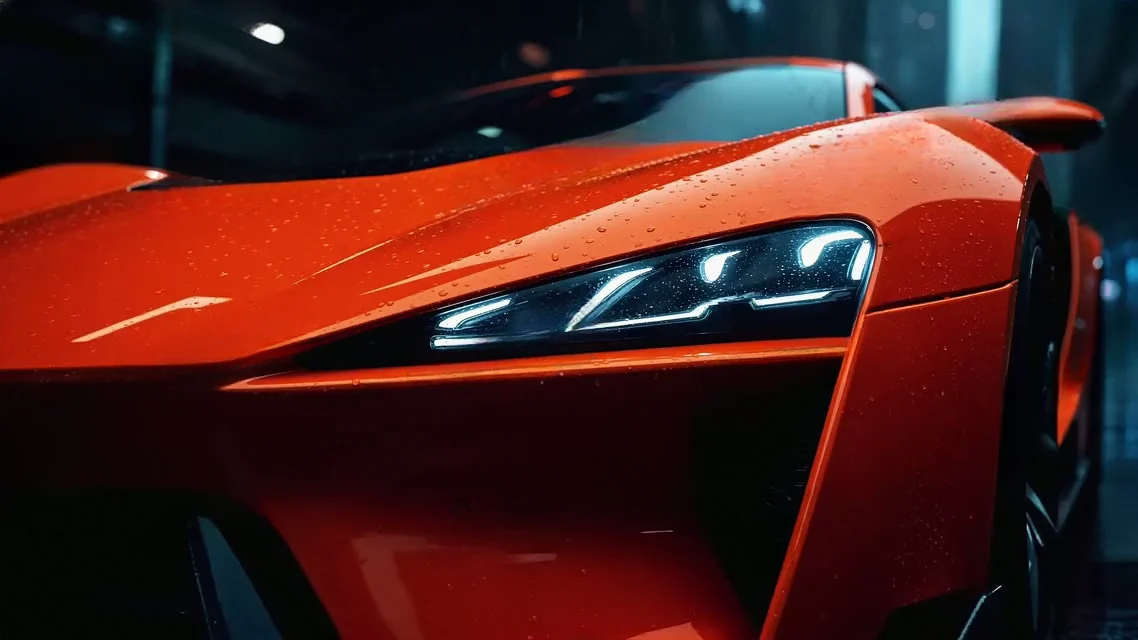
Many AI video models render drafts at 480p or 720p. Upscale the clips you like to 1080P, 2K or 4K so reflections, droplets and fine edges hold up in ads, music videos and on big screens, whichever generator made them.

BeforeAfter

03

Upscale Animation and Illustrated Clips

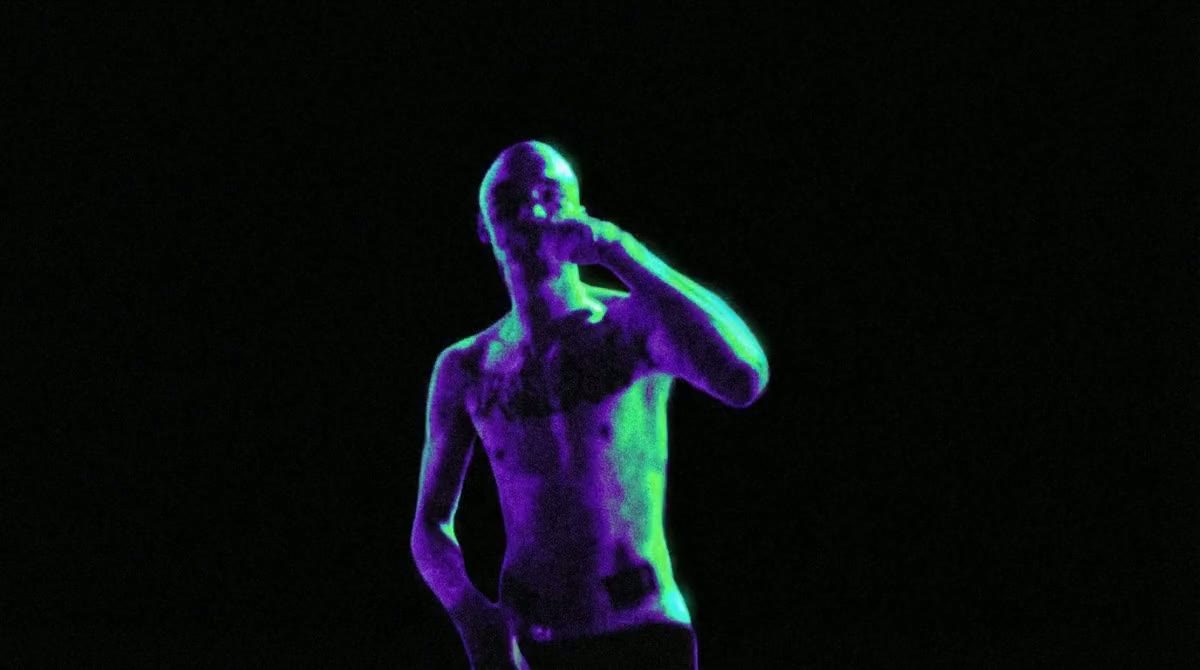
Animated and painted styles need clean lines and smooth color, not invented noise. The video upscaler keeps outlines crisp and washes even, so cartoons, anime and illustrated clips look like they were rendered at the higher resolution.

BeforeAfter

AI Video Enhancer for Every Screen

Whenever a clip has to look good bigger than it was recorded, upscale it first to improve video quality.

Social videos

Social videos

Upload sharper Reels, TikToks and Shorts, so platforms do not soften them further on recompression.

AI video creators

AI video creators

Finish AI-generated clips at 1080P or 4K before you cut them into ads, trailers and music videos.

Product and ad videos

Product and ad videos

Make small product clips crisp enough for landing pages, marketplaces and paid ads.

Old and low-res footage

Old and low-res footage

Give early phone videos and archived clips a new life on today’s high-resolution screens.

How to Upscale a Video Online

Everything happens in the video upscaler at the top of this page, and every result is also saved to My Assets once you have an account.

  1. 1

    Upload your video

    Click the upload box or drag a file onto the page. MP4 or MOV, up to 30 seconds, between 360p and 1080p.

  2. 2

    Choose resolution and model

    Pick 1080P, 2K or 4K and a model: Standard, Professional or Large model. The credit cost updates as you choose.

  3. 3

    Upscale and download

    Press Upscale video, wait for the progress bar, compare before and after, then download the MP4.

Video Upscaler FAQs

What people ask before they use the video upscaler: how it works, what it costs, which clips it takes and how long it runs.

Last updated:

An AI video upscaler increases the resolution of a video and fills in the new pixels with detail predicted by a model, frame by frame. Unlike a plain resize, which only stretches the pixels, it sharpens edges, faces and textures in every frame.

Yes, you can try it for free without signing up. New visitors start with free credits, and the cost depends on the clip’s length, the output resolution and the model: a 10-second clip to 1080P costs 2 credits on Standard, 5 on the Large model and 15 on Professional. The exact cost shows next to the button before you run, and a failed run gives the credits back. More credits are on the pricing page.

Upload a clip between 360p and 1080p to the video upscaler, choose 4K as the output resolution and press Upscale video. The best results come from a 1080p or 720p source; a 360p clip gains a lot of sharpness but cannot recover detail that was never recorded.

Standard is the fastest and cheapest and offers scene presets such as UGC, short drama, AIGC and old film. Professional gives the best balance of sharpness and natural detail for most footage. The Large model is generative and recreates more texture in very soft clips.

MP4 and MOV clips up to 30 seconds and 200 MB (100 MB without an account), in SDR, with the short side between 360 and 1080 pixels and the long side up to 1920. The output keeps the original frame rate.

Short clips to 1080P usually take a few minutes; longer clips and 4K can take up to about half an hour. You can leave the page while it runs, and with an account the result is waiting in My Assets.

Yes. Clips from the AI video generator or any other model upscale well, because they are clean and free of camera noise. Upscale drafts you like to 1080P, 2K or 4K before you edit them.

It sharpens soft, low-resolution footage very well. Heavy motion blur and camera shake are only reduced, not removed, since the detail was never captured; stabilise shaky footage in an editor first.

Yes, with the AI image upscaler. It enlarges JPG, PNG and WebP images 2×, 4× or 8×, up to 4K and beyond.

Your uploads and results are not shown to other users. With an account they are saved to My Assets, where you can download or delete them at any time.

Video upscaler

Make Every Video Sharp with the Video Upscaler

Upload a clip, choose 1080P, 2K or 4K, and download a sharper video.

Upload a Video