
Direct answer: you can make a real AI video free in about 15 minutes — sign up for free credits, pick a generation mode (text-to-video or image-to-video), describe one shot, iterate a cheap low-res draft until the motion looks right, then run the final pass in higher quality. No editing software, no watermark. The workflow below walks through each step.
Try this prompt in SeedVideo AI
Contents
- What you need before starting
- Step 1: pick the right generation mode
- Step 2: write a one-shot prompt
- Step 3: draft cheap, then upgrade
- Step 4: review like an editor
- Step 5: final pass and export
- Common beginner mistakes
- FAQ
What you need before starting
- An idea for one shot — not a whole film. AI video works scene by scene; a 5–15 second clip with one clear action is the right first project.
- Free credits — new accounts get welcome credits that work on the base models (up to 15 seconds, 720P, with audio, no watermark). No card required.
- Optionally, a photo — if you want to animate an existing image instead of generating a scene from scratch.
That's it. Everything below happens in the browser.
Step 1: pick the right generation mode
| You have | Use | Where |
|---|---|---|
| Just an idea in words | Text to video | Text to Video generator |
| A photo, product shot, or illustration | Image to video | Image to Video generator |
| An existing clip to restyle or edit | Video to video | Video to Video generator |
The choice matters because the prompt changes with it: text-to-video must describe everything the model invents, while image-to-video should describe only what moves and what must stay unchanged — the image already defines the rest.
Step 2: write a one-shot prompt
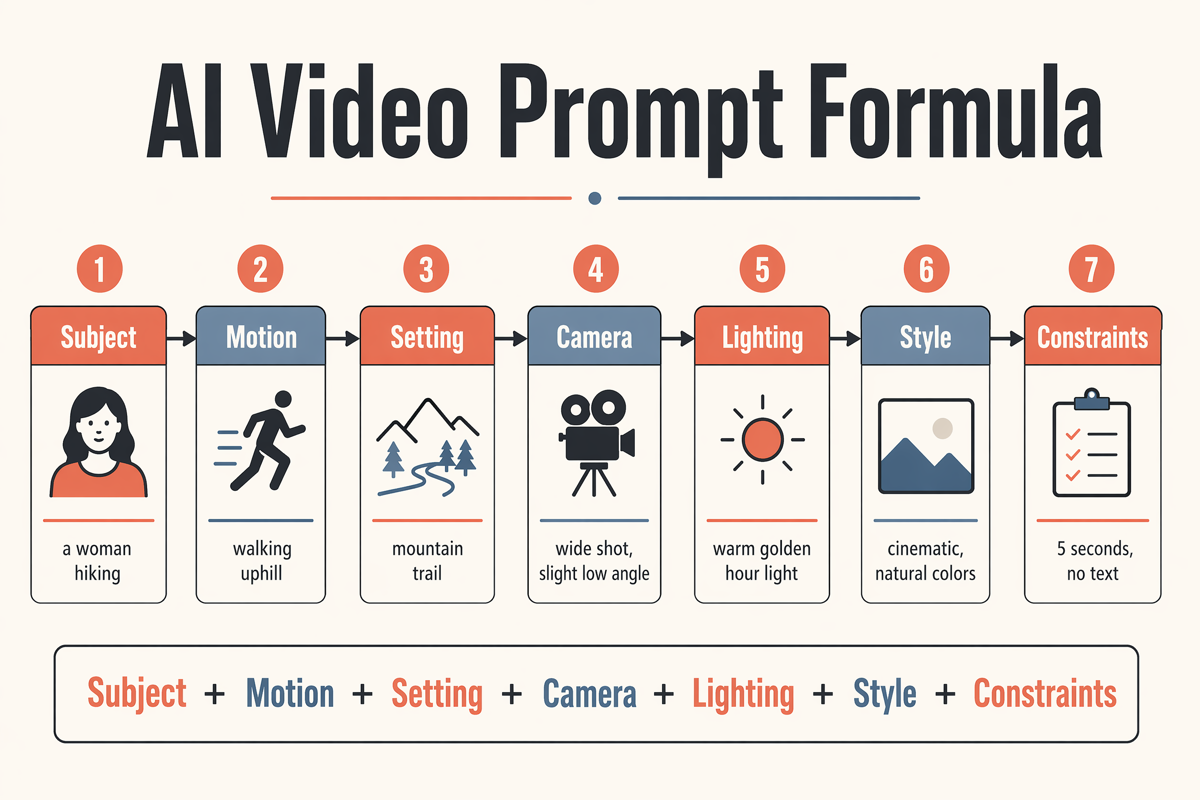
A working prompt answers seven questions: who or what is on screen, what happens, where, how the camera moves, how it's lit, what it should feel like, and what must not change. As a formula:
[Subject] + [action] + [environment] + [camera] + [lighting] + [style and pacing] + [constraints]
A beginner-friendly example:
A golden retriever shakes off water on a wooden lake dock at sunset, droplets catching the light; slow-motion side shot, warm backlight, cheerful outdoor-film style, realistic fur and water, no people in frame.
Try this prompt in SeedVideo AI
Don't overthink the first draft — you'll refine it against real output in the next step. When you want ready-made structures to adapt, copy from the 30 AI video prompt examples, or go deeper with the Text to Video Prompt Guide and the Image to Video AI Guide.
Step 3: draft cheap, then upgrade
This is the habit that separates people who run out of credits from people who don't:
- First runs: lowest settings. 4 seconds, 480P, base model (Seedance 2.0 Mini on the free tier). You're only checking whether the model understands the idea — framing and motion read fine in low resolution.
- Fix one variable per run. If the subject works but the camera doesn't, change only the camera phrase. Changing everything at once tells you nothing.
- Upgrade only the final. A prompt that behaves on the cheap draft almost always performs better on a stronger model — the scene logic is the same, the execution quality is what improves. For longer storytelling (up to 30 seconds with consistent characters across shots), the top model is Seedance 2.5.
The credit cost of your exact settings shows next to the generate button before you run anything, so there are no surprise charges.
Step 4: review like an editor
Check drafts in this order — it isolates the fix:
- Identity — does the subject stay the same object/person throughout?
- Geometry — do straight lines, logos, and proportions hold?
- Motion — is the main action the one you asked for, at a natural speed?
- Camera — one clean move, no drift or shake you didn't request?
- Lighting and mood — does it match the style words you used?
If identity or geometry drifts, add explicit constraints ("logo remains readable", "face stays consistent"). If motion is chaotic, simplify to one action. If the camera fights the subject, lock it ("static camera") and reintroduce movement later.
Step 5: final pass and export
Once the draft behaves:
- Set the real duration and resolution (720P covers vertical social formats; use 1080P for YouTube or client work — available on paid plans).
- Keep the winning prompt word-for-word and change only duration/resolution/model. Rewriting it at the last step is how good drafts get lost.
- Generate, download, done — exports carry no watermark on any tier, including free.
Need several scenes? Generate each shot separately with consistent character and style wording, then cut them together — one prompt per scene beats one prompt asking for a whole storyboard. For plan options and what each tier unlocks, see pricing.
Common beginner mistakes
| Mistake | What happens | Fix |
|---|---|---|
| Asking for a whole story in one prompt | Location, subject, and camera all mutate mid-clip | One shot per generation |
| Drafting at full resolution | Credits gone before the prompt works | Iterate at 480P, finalize once |
| Mood words only ("epic", "cinematic") | The model has no visible action to render | Add subject, action, camera, light |
| Rewriting everything after a bad draft | You can't tell what fixed it | Change one variable per run |
| Overdescribing an uploaded image | The model redesigns your photo | Describe motion + what must stay unchanged |
FAQ
Can I really make AI videos for free? Yes. Welcome credits run on the base models with up to 15-second clips at 720P, with audio and no watermark, and no card is required. Paid plans add longer durations, 1080P, and the newest models.
How long does it take to make one video? A single clip generates in minutes. Budget 15–30 minutes for your first session including prompt iterations; the drafting loop gets fast once you reuse structures.
Do I need video editing skills? No. Generation replaces shooting and animating. Editing only enters if you stitch multiple clips into a longer piece — and any basic cutting app handles that.
What's the best way to animate a photo? Upload it to the Image to Video generator and describe only the motion: what moves, how the camera behaves, and what must stay identical to the photo.
Which model should a beginner start with? Start on the free base model to learn prompting, then move to Seedance 2.5 when you need 30-second multi-shot clips with consistent characters.
Is there a watermark on the free tier? No — exports are watermark-free on every tier.
Short version: one shot, one prompt, cheap drafts, one upgraded final. Start with your free credits in the Text to Video generator and steal structures from the prompt examples library.