How to Use Seedance 2.5: A Step-by-Step Video Guide
Seedance 2.5 is now available on SeedVideo AI. Open the Seedance 2.5 model page, choose the mode that matches your source material, add a focused prompt, set the format, and generate a first draft. Start with one clear subject, one action, one camera move, and a defined final frame. For the first run, keep the duration short and avoid combining several camera moves or scene changes in one prompt. Review the whole clip before changing the prompt. If the subject, motion, or camera drifts, change one variable at a time. A simple first version gives you a clean baseline before you add more shots, references, or sound direction. This guide covers the full workflow on SeedVideo AI, from choosing inputs to reviewing the final clip.
TL;DR
- Seedance 2.5 is available on SeedVideo AI.
- Pick the input mode that matches the material you already have.
- Write the subject, action, camera, timing, sound direction, and fixed details separately.
- Generate a short first draft, review the full clip, then revise one variable.
- Confirm the selected model and visible settings on the platform you use before generating.
Quick Answer
Open the SeedVideo AI Seedance 2.5 page and start with Text to Video if you have no source image. Use Image to Video when one image must define the subject or product. Use first and last frames when the ending composition matters. Use reference mode only when several assets have distinct jobs. Set the aspect ratio before writing camera instructions, keep the first attempt simple, and judge the complete clip before revising.
| Mode | Start with | Best for | Not best for |
|---|---|---|---|
| Text to Video | A written scene brief | New concepts, atmosphere, camera tests | Exact product or character identity |
| Image to Video | One source image | Product motion, portrait motion, composition control | A precisely controlled ending frame |
| First/Last Frame | Opening and ending images | Planned transitions and ending composition | Projects without suitable source images |
| Reference to Video | Images, video, audio, or a storyboard with named roles | Identity, movement, rhythm, and style guidance | A quick first test with no asset plan |
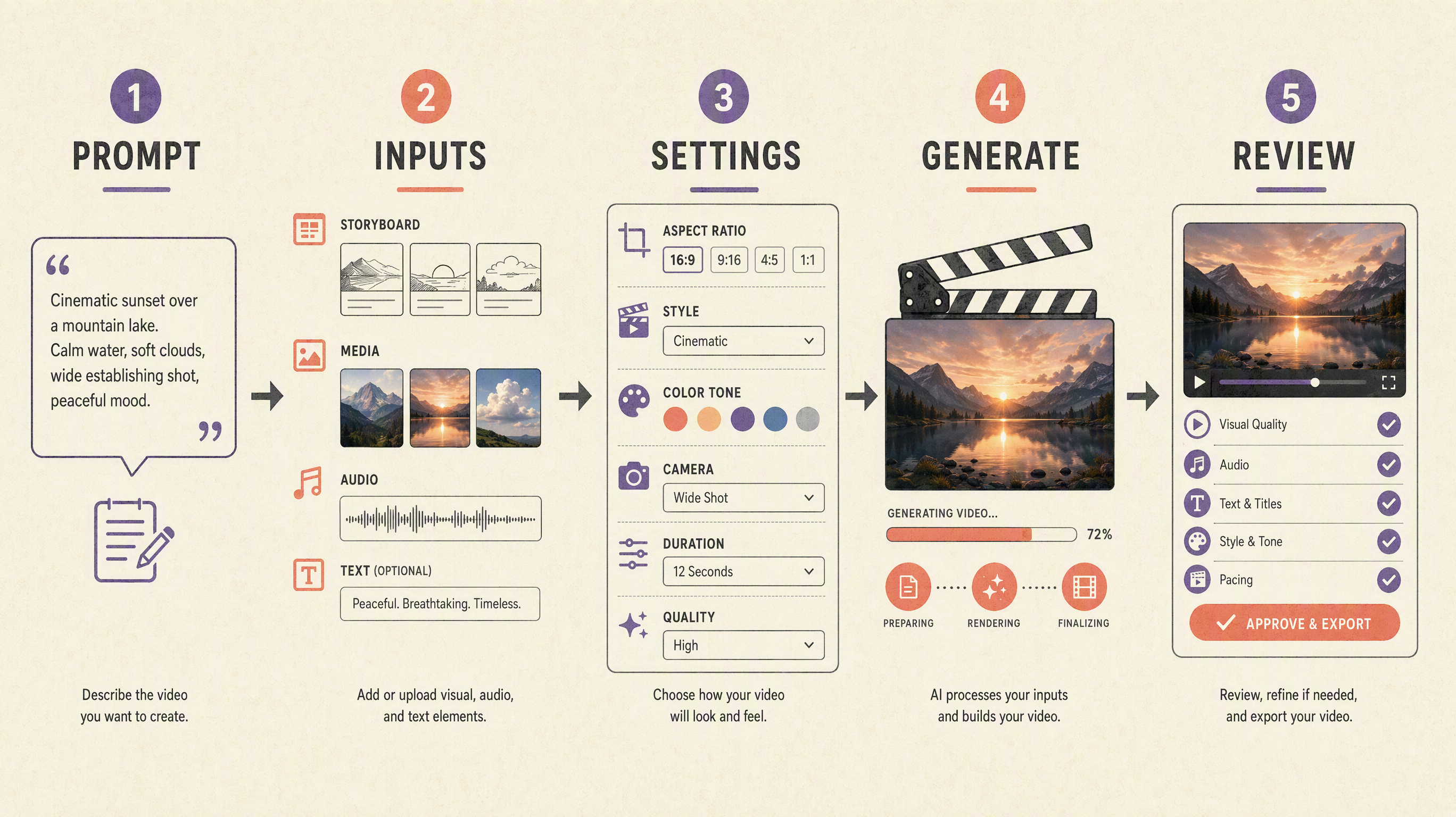
A practical Seedance 2.5 workflow: prepare the brief, assign inputs, choose settings, generate, and review the complete clip.
Use Seedance 2.5 on SeedVideo AI
SeedVideo AI gives you direct access to Seedance 2.5 from the model page. Choose the workflow by asking what must stay consistent: the subject, the opening image, the ending composition, or the movement from a reference clip.
| What you want to make | Start with | Keep fixed | Review first |
|---|---|---|---|
| A new scene from an idea | Text to Video | Subject, action, camera path | Composition and motion |
| A product or portrait animation | Image to Video | Shape, colors, identity | Edges and unwanted changes |
| A clip with a planned ending | First/Last Frame | Opening and ending composition | Transition continuity |
| A scene guided by several assets | Reference to Video | The role of each reference | Conflicting details |
For model updates and access details, see the Seedance 2.5 release and access status.
Choose the right mode
Choose the mode from the material that must remain stable. More references do not automatically produce a better result. Each asset should have one clear job.
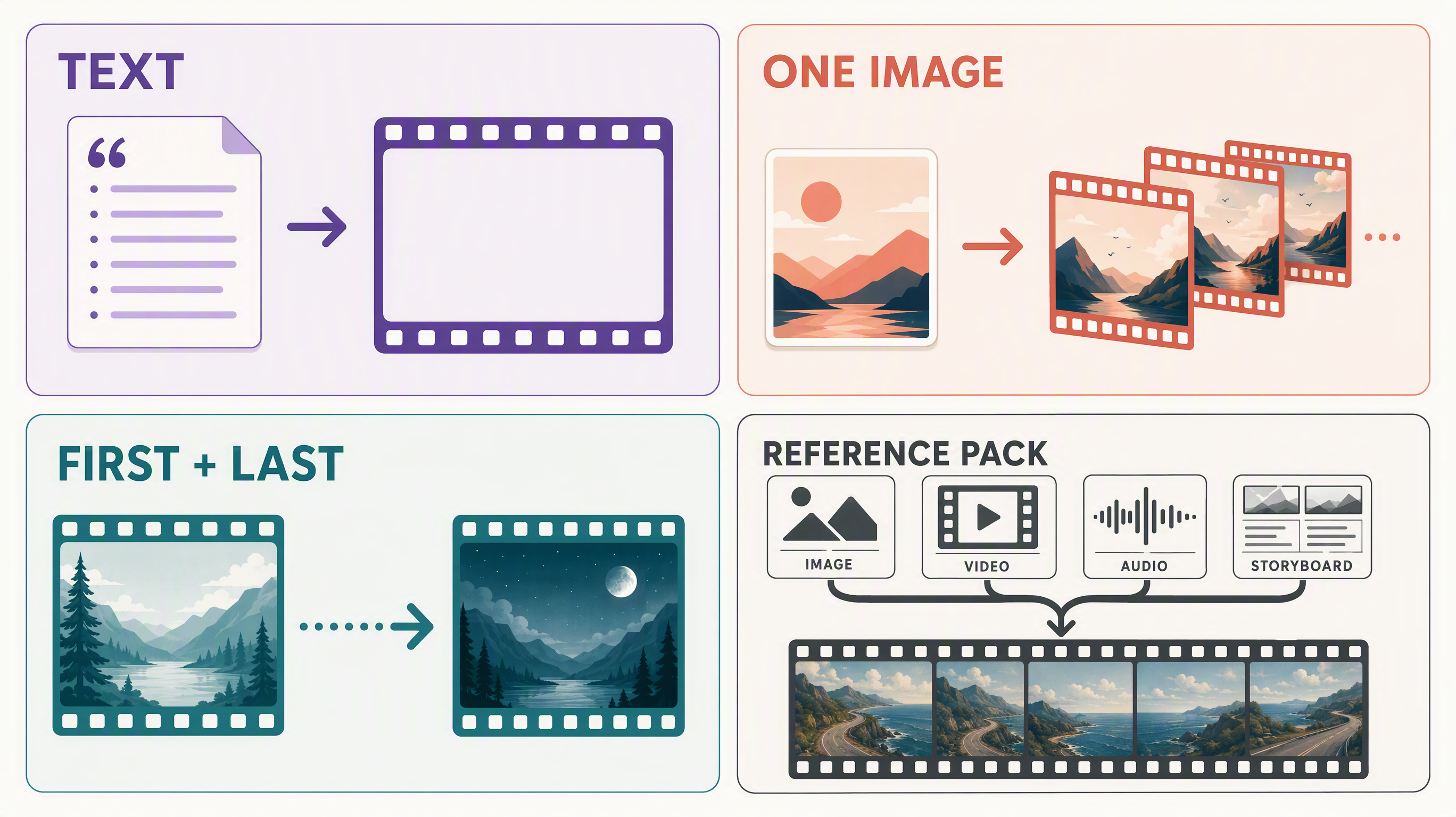
Choose the simplest input path that can preserve the subject, composition, or movement your project needs.
Use Text to Video for a new scene where exact identity is not the main constraint. Use Image to Video when a product, person, or composition must begin from a known image. Use first and last frames when both the opening and ending composition matter. Use reference mode when you can name what every image, clip, or audio file should control.
Step 1: Prepare the brief
A usable brief separates creative decisions that are easy to blur together. Write six short lines before opening the generator:
- Subject: who or what must remain recognizable?
- Action: what changes on screen?
- Camera: where does the camera start, move, and stop?
- Pace: which beat happens first, and how long should the final hold last?
- Sound: should the result follow dialogue, ambience, music, or no audio direction?
- Fixed details: what must not change, such as color, clothing, packaging, or background layout?
A compact text-to-video brief might read:
A red ceramic mug sits on a plain wooden table in soft morning light. The camera begins in a locked wide shot and moves forward slowly. Steam rises naturally. Keep the mug shape and table layout fixed. End on a clean close-up with no text, people, or logos.
Try this prompt in SeedVideo AI
Avoid stacking several actions into the first attempt. A simple clip gives you a clean baseline. Add another beat only after the subject and camera movement hold together.
Step 2: Add inputs
Add only the inputs that have a clear job. Choose Image to Video for one main source image, first and last frames when both compositions matter, or reference mode when several assets control different parts of the result.
For a one-image project, upload the cleanest source image and state what may move. For first and last frames, make sure the subject scale and camera angle can transition plausibly. For a reference pack, name the purpose of every asset in plain language: identity, product detail, camera motion, sound rhythm, or ending composition.
Do not upload five style images and expect the model to decide which one wins. Remove duplicates. If two references conflict, say which detail has priority.
Step 3: Choose duration, quality, and aspect ratio
Set the delivery format before you describe framing. A vertical 9:16 clip and a horizontal 16:9 clip need different subject scale and camera space.
Use the duration, quality, and aspect ratio options shown on SeedVideo AI. Set the output format before you describe framing so the prompt matches the space available in the final video.
For a first test, choose the shortest useful duration and a standard quality setting. Longer clips add more chances for identity, motion, and timing to drift. Prove the scene before spending time on a longer version.
Step 4: Generate and track the task
On SeedVideo AI, confirm the selected model, inputs, aspect ratio, and duration, then click Generate. Keep the task page open until it returns a preview or a clear failure state.
Do not submit the same prompt repeatedly while a task is still processing. If the task fails, save the prompt and input list, then retry once after checking model availability. If the service is unavailable, stop. Switching to another model can test the idea, but it does not validate Seedance 2.5.
Step 5: Review the full video
Watch the clip from the first frame through the final hold. A good opening can hide a broken ending, so do not judge from a poster frame or a short preview loop.
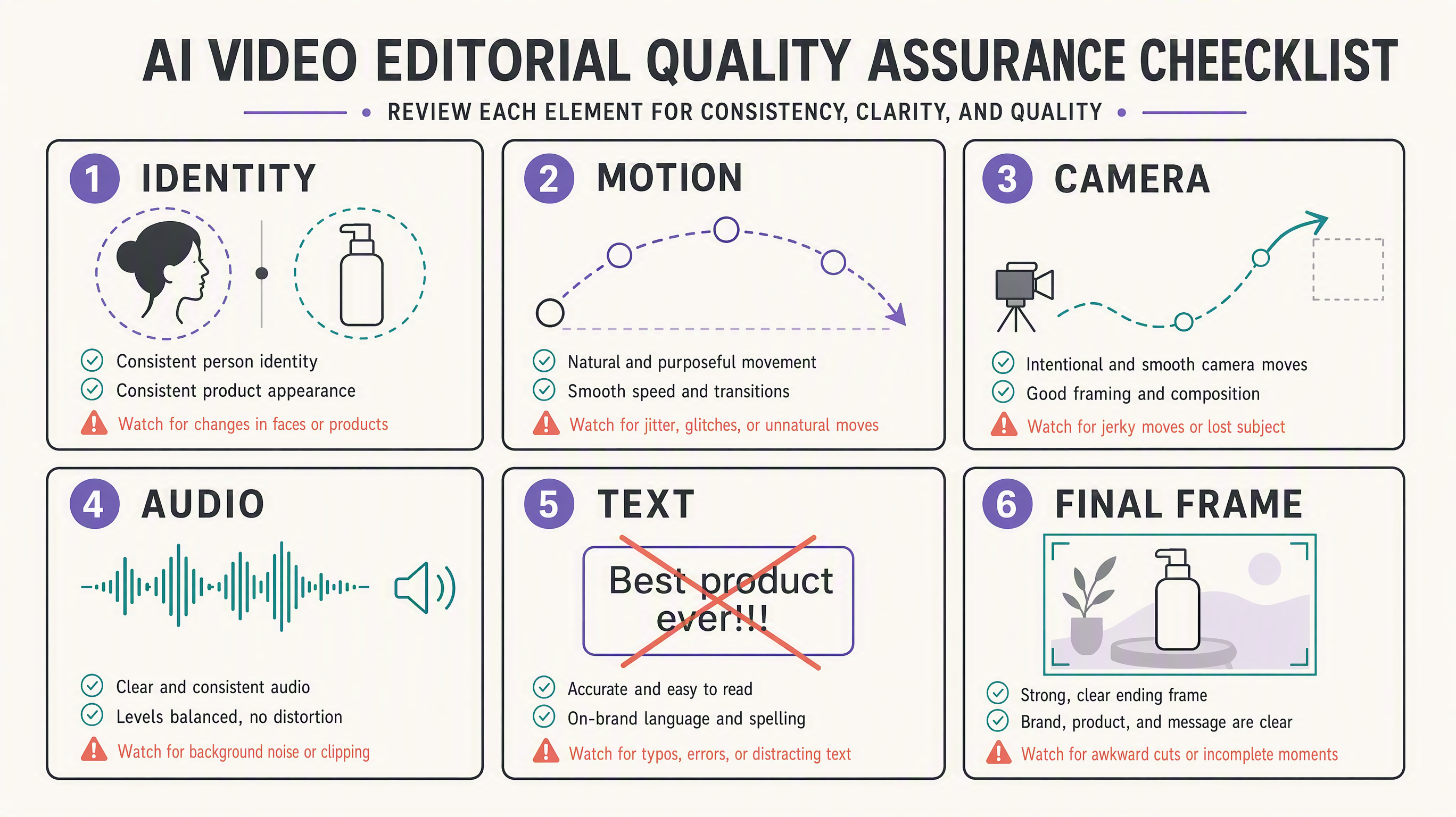
Review the whole clip for identity, motion, camera behavior, sound, accidental text, and the final frame.
Check these points in order:
| Check | What to look for | First revision |
|---|---|---|
| Identity | Face, product shape, clothing, colors | Strengthen one source image or one fixed-detail line |
| Motion | Direction, weight, contact, continuity | Simplify the action or remove a competing movement |
| Camera | Start position, path, speed, stop point | Use one camera move and name the final framing |
| Audio | Timing, unwanted music, unclear speech | Shorten the audio direction or remove it for the next test |
| Unwanted text | Random captions, labels, warped packaging | Request no added text and supply a cleaner product image |
| Final frame | Composition, subject position, usable hold | Describe the ending explicitly or add a last frame |
Three first-project workflows
A text-led scene
Start with one subject and one camera move. Generate a short version. If the subject is stable, add the second beat. This is the fastest way to learn whether the prompt is asking for too much.
A product image animation
Use a clean product image with enough space around the object. Ask for one motion, such as a slow turn or a push-in. Lock packaging colors and label placement. Review for warped edges and accidental text before adding a lifestyle scene.
A reference-led action
Assign one image to identity and one short clip to movement. State which reference controls each part. Keep the background simple for the first version. Add rhythm or style references only after the main action reads correctly.
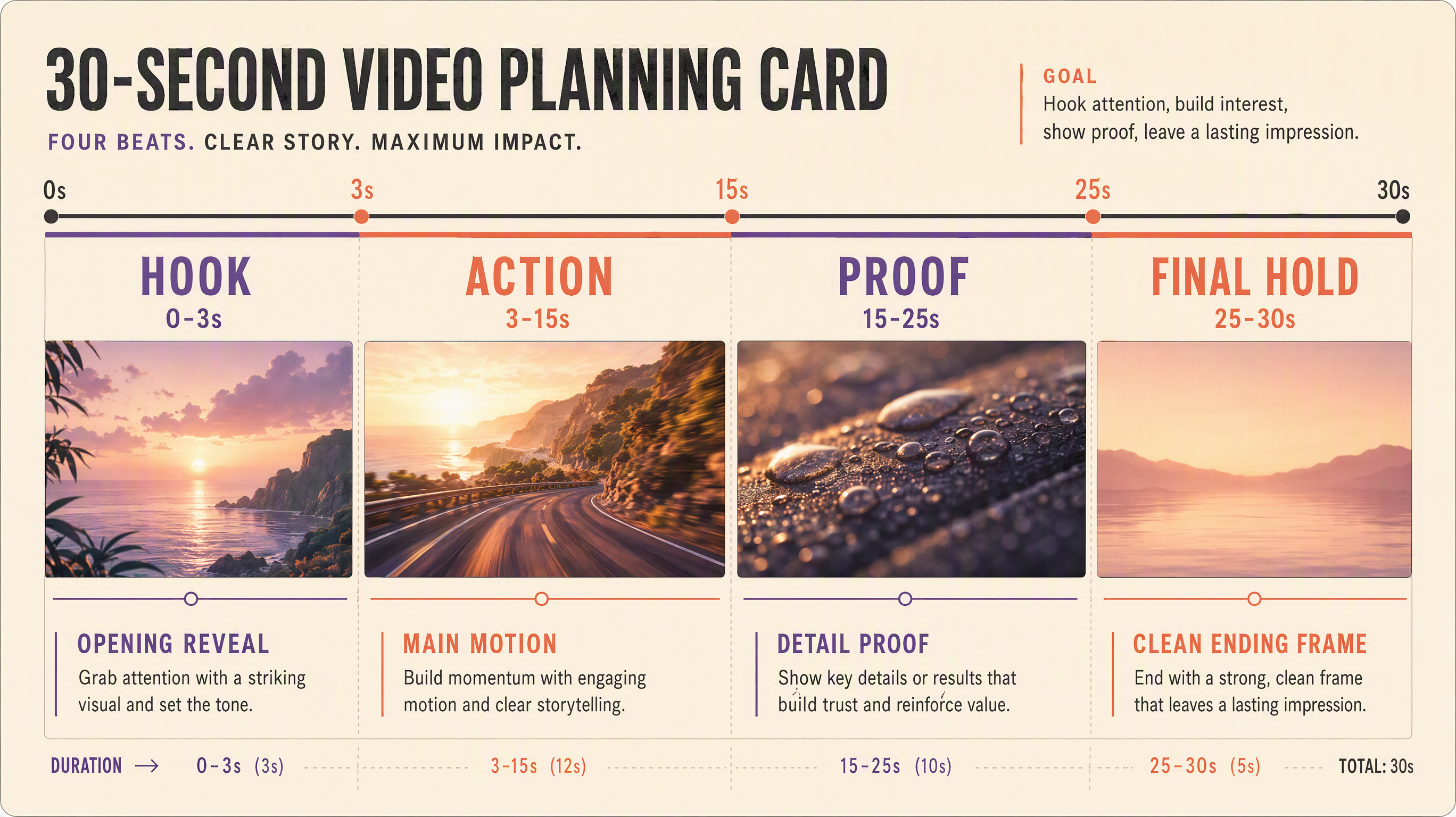
A longer brief can be divided into four readable beats: hook, action, proof, and a final hold.
Common problems and fixes
The model is listed, but generation does not start
Check that Seedance 2.5 is selected, wait for a clear task state, and avoid submitting the same prompt repeatedly. If needed, review the Seedance 2.5 model page for current access details.
The character changes between shots
Reduce the number of style references. Keep one identity image, repeat the same clothing and facial details, and shorten the sequence. Change only the shot that drifted.
The camera ignores the prompt
Replace a list of camera terms with one path: "start wide, move forward slowly, stop at a chest-up frame." Conflicting directions often produce random movement.
The ending feels abrupt
Describe the final composition and ask for a short hold. If the mode supports a last frame, provide one that matches the subject scale and lighting of the opening.
The product label is distorted
Use a larger, cleaner source image and reduce object rotation. Plan to add critical typography during editing rather than asking a generative frame to reproduce small text perfectly.
For broader model choices, see Seedance 2.5 vs Seedance 2.0 and Best AI Video Generators in 2026.
Safety and rights checklist
- Use assets you own, license, or have permission to use.
- Get consent before using a real person's likeness or voice.
- Do not imitate a public figure or copyrighted character without authorization.
- Review product claims, logos, labels, and accidental text before publishing.
- Check the active platform terms for commercial use and export rights.
FAQ
Can I use Seedance 2.5 now?
Yes. Seedance 2.5 is available on SeedVideo AI.
Where should I start?
Open the SeedVideo AI Seedance 2.5 page and begin with a short Text to Video or one-image test.
Does Seedance 2.5 support text to video?
Yes. Choose Text to Video, then start with one subject, one action, one camera move, and a defined ending.
Can I animate one image?
Use Image to Video and state what may move and what must stay fixed. Keep the first camera move simple.
What is first and last frame mode for?
It helps when both the opening and ending composition matter. The two images should have compatible subject scale and camera angle.
When should I use reference mode?
Use it when multiple assets have distinct jobs, such as identity, movement, sound rhythm, and final composition.
How long should my first test be?
Use the shortest duration that can show the intended action. Prove the subject and camera before extending the clip.
Is Seedance 2.5 available on SeedVideo AI?
Yes. SeedVideo AI has integrated Seedance 2.5. Open the Seedance 2.5 model page to start generating.
Sources and methodology
Last checked July 31, 2026, 22:30 Asia/Shanghai.
- ByteDance Seed provides background information about the model family.
- SeedVideo AI, Seedance 2.5, Text to Video, and Image to Video are the product entry points used in this guide.
- The workflow focuses on SeedVideo AI. Settings from other services are not used as product instructions here.
Open the Seedance 2.5 model page, use the mode table above to organize your inputs, and start your first generation.