Seedance 2.5 Text to Video: A Practical Workflow
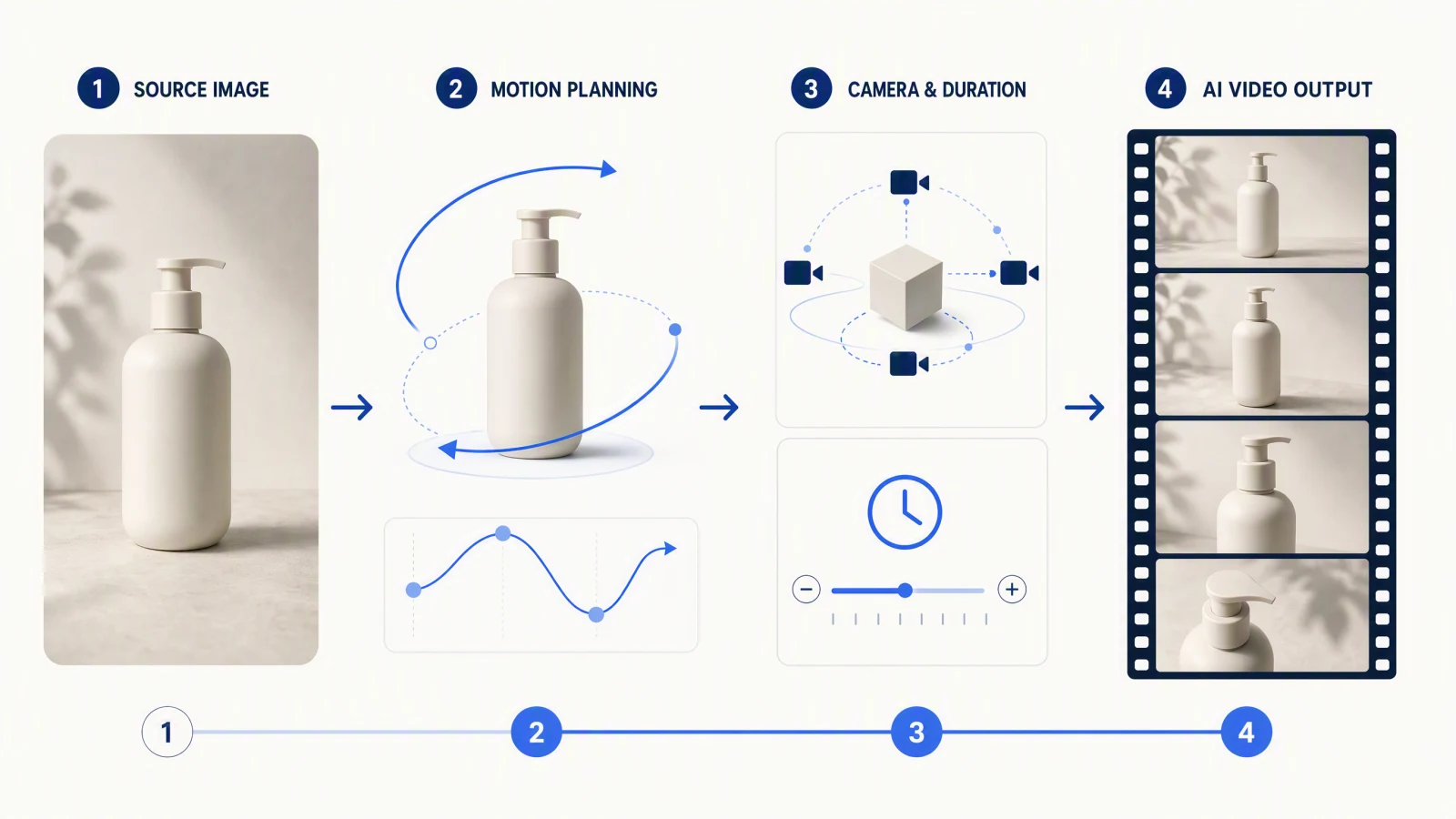
Seedance 2.5 text to video works best when you treat the prompt as a shot plan, not a pile of visual adjectives. Start with a brief, turn it into one clear shot, write the prompt in production order, choose the current settings, generate, then review the whole clip before changing anything. The shortest useful workflow is: brief -> shot plan -> prompt -> settings -> generation -> QA.
In a live SeedVideo AI test on August 3, 2026, I used Seedance 2.5 with a text-only paper-sailboat prompt, adaptive framing, 5 seconds, 720p, and audio on. The result loaded as a playable 5.06-second 1280 x 720 MP4 with an AAC audio track. The boat and low camera angle stayed readable, but the movement was restrained. That is one result from one prompt on the current platform, not a promise that every prompt will behave the same way.
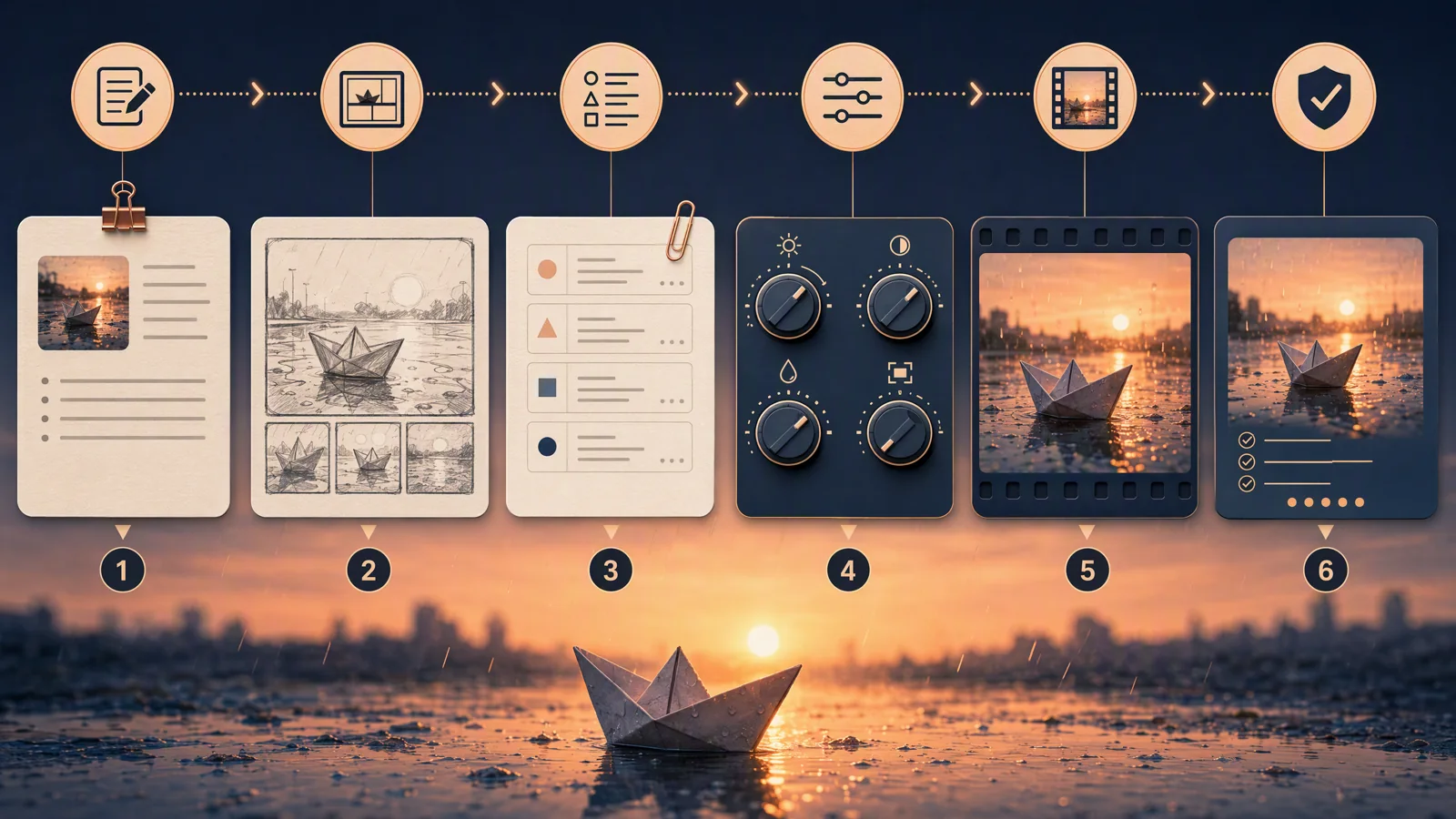
The useful unit of work is the full loop: plan, generate, inspect, and make one focused revision.
TL;DR
- Use text to video when you can describe the shot without matching a specific image, person, product, or motion clip.
- Write the subject, action, setting, camera, pacing, audio direction, and final frame in that order.
- Pick the delivery format before generation. In the tested SeedVideo AI session, Seedance 2.5 showed adaptive framing, 5 seconds, 720p, and audio on.
- Watch the complete clip. Check identity, motion, camera, sound, the ending, and any accidental text.
- If the result misses, change one variable. A complete rewrite makes it harder to know what fixed or broke the shot.
Quick answer
To make a Seedance 2.5 text-to-video clip, open the SeedVideo AI text-to-video workspace, choose Seedance 2.5, and write one shot that can be judged from beginning to end. Set the aspect ratio, duration, resolution, and audio option shown in your account. Generate once, let the task finish, then review the full output before revising. For a first attempt, a concrete single shot is easier to diagnose than a long multi-scene story.
When to use text to video
Text to video is the right starting point when the idea matters more than an exact source frame. It suits early visual development, original cinematic shots, atmosphere tests, and simple social concepts. It is the wrong mode when a product must match a catalog photo, a person must retain a specific face or outfit, or the camera must follow an existing motion reference.
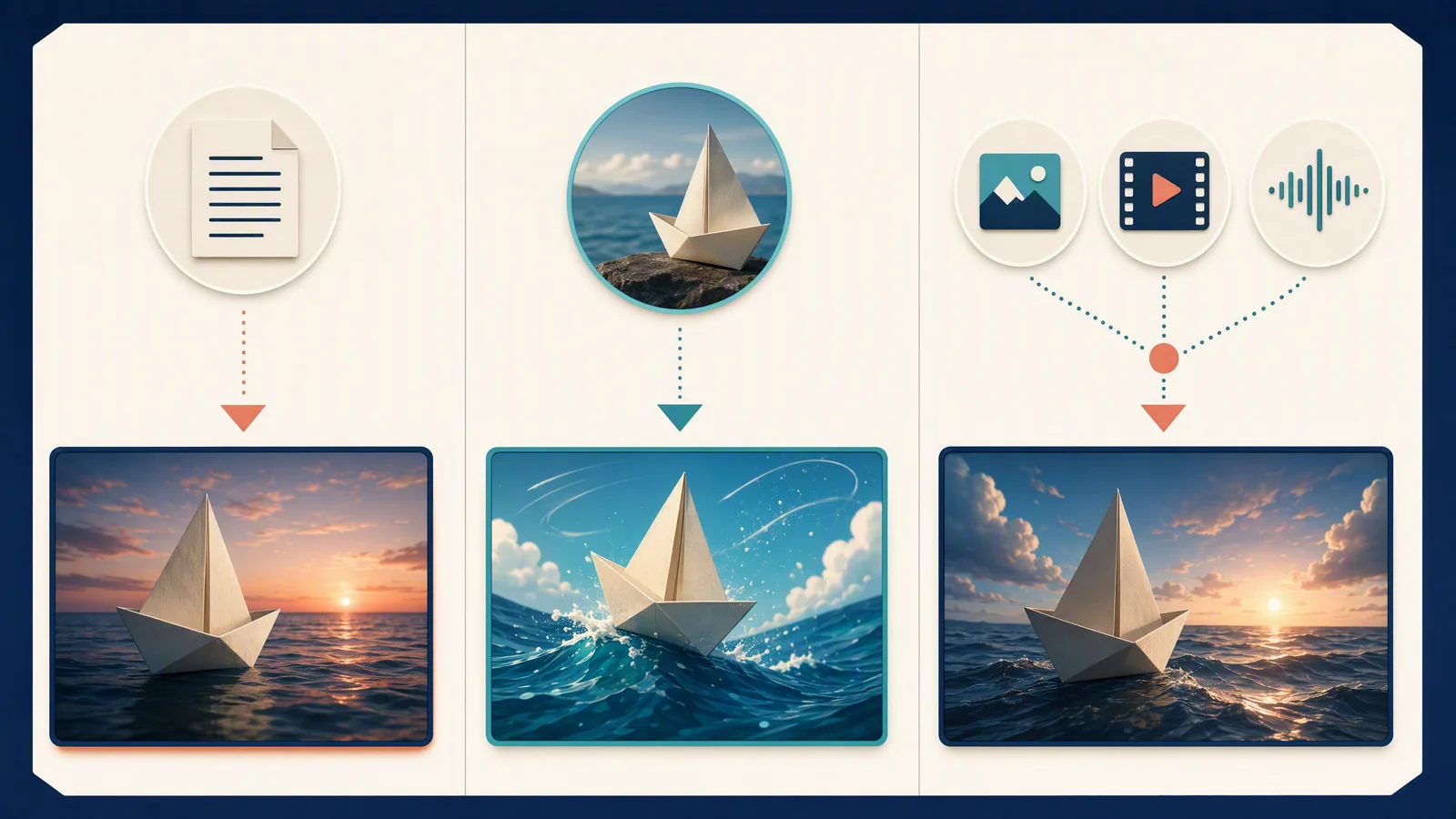
Choose the mode by what must remain fixed. Text is flexible; images and references add visual or motion constraints.
| Mode | Best for | Not best for | What you provide |
|---|---|---|---|
| Text to video | Original shots, mood tests, concept exploration | Exact product, face, composition, or motion matching | A written shot plan |
| Image to video | Preserving a subject, product, style, or opening composition | Ideas where no visual starting point should constrain the shot | One or two images, depending on the workflow |
| Reference to video | Guiding identity, motion, camera behavior, pacing, or sound with existing media | A clean text-only experiment | Reference images, video, or audio supported by the selected model |
SeedVideo AI's current model documentation says requests with no media use text-to-video generation. One image becomes an image-to-video start frame, while larger media sets or supported video and audio inputs move the task into reference generation. If you need a wider model overview before choosing, use Best AI Video Generators in 2026. For the broader Seedance 2.5 interface, see the Seedance 2.5 setup guide.
Turn an idea into a shot brief
A useful brief is short enough to scan and specific enough to judge. Write the creative goal first, then lock the few details that would make the result wrong if they drifted.
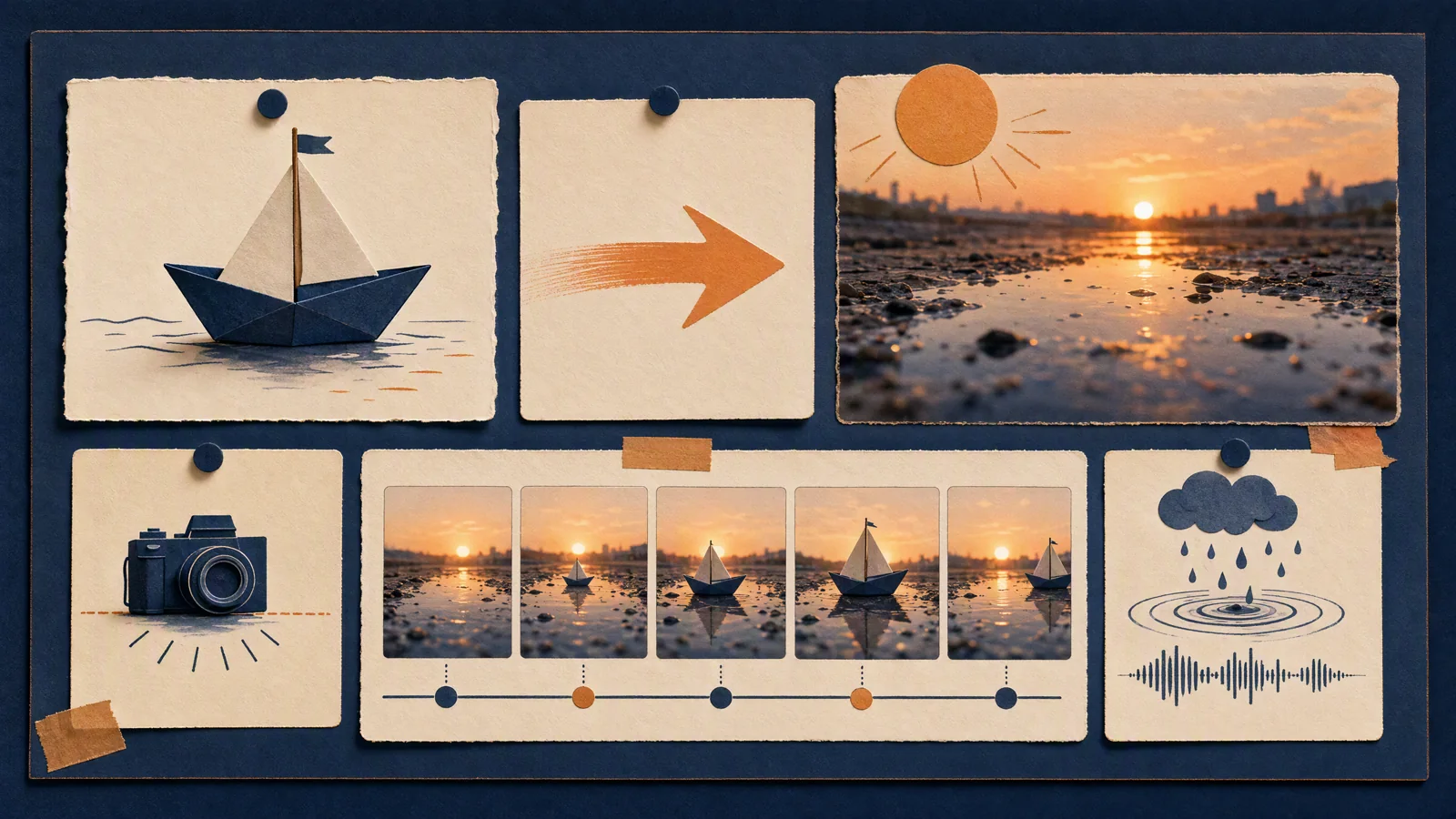
A six-field brief keeps the prompt concrete without turning it into a screenplay.
For the live test, the starting idea was: "A paper sailboat moves through a rain puddle at sunrise."
That sentence has a subject and setting, but it leaves the movement, camera, sound, and exclusions open. The working brief made each one explicit:
| Field | Test brief |
|---|---|
| Subject | One original paper sailboat |
| Action | Moves slowly across a shallow puddle |
| Environment | Sunrise, light rain, soft reflections |
| Camera | Water-level view, gentle forward tracking |
| Pacing | One continuous 5-second shot |
| Audio and exclusions | Light rain and water ripples; no people, logos, or text |
This is enough structure for one generation. It does not prescribe every color, lens characteristic, or surface detail. Extra instructions are useful only when they resolve a real ambiguity.
Write the first prompt
The first draft was too loose:
A cinematic paper sailboat moving through a beautiful puddle at sunrise.
"Cinematic" and "beautiful" do not tell the model what moves or how the shot should end. The tested prompt replaced those adjectives with observable instructions:
Single continuous 5-second shot of an original paper sailboat moving slowly across a shallow rain puddle at sunrise. Camera at water level with a gentle forward tracking move. Soft reflections, natural motion, no people, no logos, no text. Natural ambient sound of light rain and water ripples.
Try this prompt in SeedVideo AI
The order matters because it follows how a reviewer will inspect the result:
- Identify the subject.
- State the action.
- Place it in a scene.
- Define camera position and movement.
- Set the pace and ending.
- Add audio direction and exclusions.
If you want a larger field matrix or reusable prompt patterns, keep those in the Seedance 2.5 prompt guide. This workflow needs one testable prompt, not a template library.
Choose current settings
Settings belong to the platform session you are using. Check them again before every important run because available values and credit costs can change by model, account, and product surface.
The tested SeedVideo AI session showed:
| Setting | Test value | Why it was used |
|---|---|---|
| Model | Seedance 2.5 | The model required by this workflow |
| Aspect ratio | Adaptive | Let the current text-only test choose framing |
| Duration | 5 seconds | Short enough to review one motion clearly |
| Resolution | 720p | The highest option used in this test |
| Audio | On | Request ambient rain and ripple sound |
| Displayed cost | 18 credits | The amount shown before this generation |
The public Seedance API documentation currently lists Seedance 2.5 output from 4 to 30 seconds at 480p or 720p, subject to account support. The Seedance 2.5 model page also lists horizontal, vertical, square, and adaptive framing options. Those documents describe the available model and platform surfaces; they do not mean every account will show every combination in the editor.
Generate and track the task
Submit once. A generation request creates a task, so repeated clicks or retries can create duplicate work. Keep the editor open and wait for the task to move from submission through rendering to the preview state.
In the test, the progress indicator advanced through several intermediate values before the preview appeared. The displayed balance dropped by the same 18 credits shown on the generate button. Generation time varies with prompt complexity, clip length, account state, and platform load, so do not promise a fixed wait.
Review the full clip
Do not judge from the first frame. Play the entire result and check the beginning, middle, and final hold.
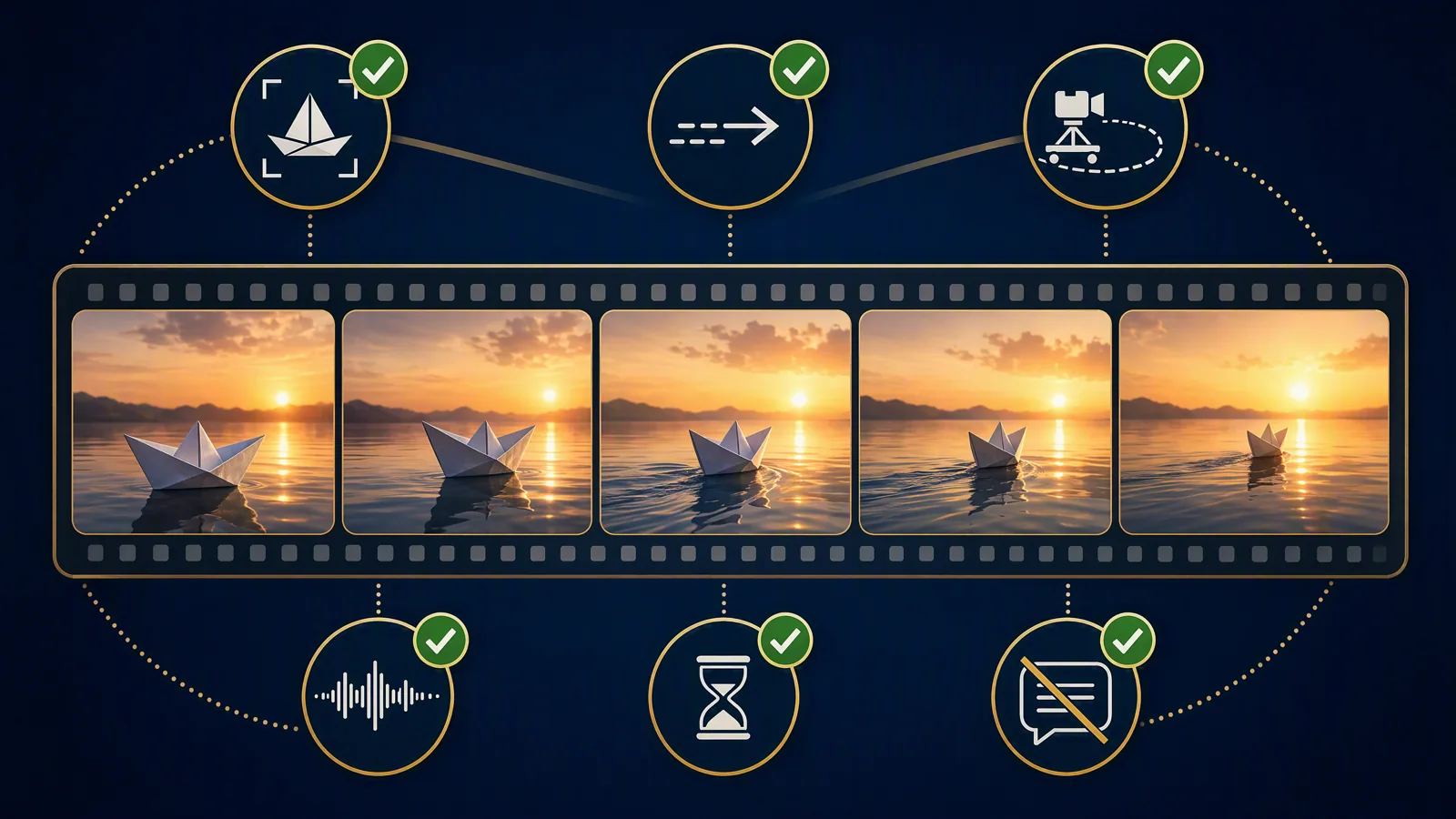
Review the complete clip before revising. A good opening frame can still lead to drift or a weak ending.
Use this pass:
- Subject: Is the intended object recognizable throughout?
- Motion: Does the action happen at the requested speed and direction?
- Camera: Does the framing stay readable, and does the camera move as requested?
- Sound: Is there an audio track, and does the audible result suit the scene?
- Ending: Does the final frame feel intentional rather than cut off?
- Unexpected text: Did labels, captions, watermarks, or letter-like artifacts appear?
The tested clip kept a recognizable paper sailboat and a low water-level composition across five sampled moments. It contained no visible people, logos, or text. The motion was subtle, so the next attempt should revise the action or camera instruction. The file included an audio track, but the presence of a track alone does not prove perfect sound design or synchronization.
Revise one variable at a time
The strongest next revision is the smallest one that addresses the observed miss. For this test, keep the subject, environment, duration, and exclusions fixed. Change only the action and camera sentence:
The sailboat travels clearly from left to right while the water-level camera tracks beside it at the same speed.
Try this prompt in SeedVideo AI
That proposed revision is easier to compare with the first output than a completely new prompt. If the next clip moves well but loses the sunrise reflection, restore or strengthen only the environment line.
| Problem | Change this variable | Focused revision |
|---|---|---|
| Subject drifts | Subject | Repeat one stable name and two defining traits |
| Action is weak or wrong | Action | Add direction, speed, and a visible start-to-end change |
| Camera feels static or erratic | Camera | Choose one position and one movement path |
| Clip feels rushed | Pacing | Reduce events or assign one beat to the available duration |
| Audio does not fit | Audio | Name one ambience or sound cue and where it should occur |
| Ending feels cut off | Final frame | Describe the last pose or hold explicitly |
Avoid changing subject, camera, style, pace, and audio in the same retry. You may get a better clip, but you will not know which instruction caused the improvement.
Three practical text-only workflows
Product concept before a packshot exists
Use text to video to test the scene idea, camera path, and pacing before product photography is ready. Keep the object generic and avoid claims that require a real branded design. Once the packshot exists, move to image or reference generation so the product can remain recognizable.
One-shot cinematic previsualization
Describe a single subject, one action, and one camera move. This is useful for checking whether a shot concept reads before spending time on a multi-shot sequence. If the shot works, build the longer sequence as separate beats instead of asking the first prompt to do everything.
Short social hook
Write the opening visual, the motion that creates curiosity, and a final hold with room for an editor-added headline. Do not depend on generated text for the message. Add legible titles and captions in editing, where spelling and placement are controllable.
Common failures and fixes
| Failure | Likely cause | Fix for the next run |
|---|---|---|
| The subject changes shape | Too many competing subject details | Keep one subject description and remove decorative conflicts |
| Nothing meaningful happens | The prompt names a mood but not an action | Add a visible verb, direction, and endpoint |
| The camera ignores the shot | Several camera commands compete | Keep one shot size and one camera movement |
| A short clip contains too many events | The beat plan exceeds the duration | Cut to one action or select a longer supported duration |
| Audio feels generic | The prompt only says "with sound" | Name a specific ambience, cue, or rhythm |
| The clip ends mid-motion | No final state was described | Add a final hold, pose, or composition |
| Words look wrong | Generated video is being asked to typeset | Remove in-scene text and add titles in post-production |
FAQ
How long should a Seedance 2.5 text prompt be?
Use enough words to specify the subject, action, setting, camera, pacing, audio direction, and final frame. For one short shot, a compact paragraph is usually easier to review than a long screenplay. The current SeedVideo AI field shows a 10,000-character limit, but that is a technical ceiling, not a target.
Can one prompt create multiple shots?
Seedance 2.5 supports longer and multi-shot planning, but each transition adds another place for continuity to fail. Start with one shot. For a longer clip, name the shot order, transition, and details that must remain fixed.
Does Seedance 2.5 text to video support audio?
The tested SeedVideo AI editor offered an audio-on setting, and the resulting MP4 included an AAC audio track. Prompt the ambience, sound cue, or rhythm you want, then listen to the output. Do not assume an audio track guarantees exact synchronization.
Should I ask the model to generate subtitles?
No, not for text you need to publish accurately. Leave visual space for captions and add the final wording in an editor. Generated letterforms can be unstable.
What duration should I choose?
Use the shortest duration that can contain the action and final hold. The current API documentation lists 4 to 30 seconds for Seedance 2.5, while the live test used 5 seconds. Available choices depend on the active product surface and account.
Which aspect ratio is best?
Choose the delivery channel first. Use 16:9 for horizontal video, 9:16 for vertical feeds, or 1:1 for square placements when those options are available. Adaptive is useful for exploration, but fixed delivery work should use the target ratio before generation.
Does SeedVideo AI offer 4K Seedance 2.5 output?
The current SeedVideo AI documentation lists 480p and 720p for Seedance 2.5, and this test used 720p. Other provider surfaces may advertise different output options. Check the settings on the platform where you will generate.
How many retries should I expect?
There is no reliable fixed number. Generate one version, identify the largest visible miss, and change one variable. Stop when the clip meets the delivery goal, not when every frame is theoretically perfect.
Sources and methodology
This guide was checked against the live SeedVideo AI text-to-video workspace, the current Seedance 2.5 model page, the Seedance model and input documentation, and the provider's Seedance 2.5 overview on August 3, 2026. The practical notes come from one text-only generation on SeedVideo AI. Platform options can change, and a single output does not establish a universal success rate.
Make your first text-only clip
Open SeedVideo AI or go straight to the text-to-video generator. Start with one shot, keep the first run easy to judge, and save broader prompt patterns for the Seedance 2.5 prompt guide.