How to Create AI Portrait Videos with Seedance (2026 Guide)
AI portrait video turns one well-prepared portrait into a short, character-focused clip with blinks, small head movements, changing expressions, and controlled camera motion. To create one with Seedance, start with a sharp image that you have permission to use, keep the face large and unobstructed, then describe one modest action and one camera move. Generate a short first pass, inspect the eyes, mouth, hairline, skin texture, hands, and clothing edges frame by frame, and simplify the motion if any feature drifts. The best portrait workflow is deliberately restrained. A slow blink and slight push-in usually preserve identity better than a wide head turn, energetic gesture, moving background, and dramatic zoom packed into the same clip. This guide covers source-image preparation, prompt structure, the current SeedVideo AI image-to-video controls, iteration, quality checks, commercial-use planning, and delivery for social, spokesperson, editorial, and campaign work.
TL;DR
- Use a clean, high-resolution portrait with the face clearly visible and enough room around the head.
- Ask for one facial action, one body action at most, and a simple camera move.
- Keep the first clip short and judge identity stability before adding style or background motion.
- Check every frame around the eyes, mouth, hairline, hands, collar, and background boundary.
- Use only portraits you own or are licensed to animate, and confirm that your SeedVideo AI plan supports the intended use.
Quick Answer
Prepare a rights-cleared portrait, animate a portrait image, separate expression, action, camera, and light in the prompt, then review the result before making a more ambitious version. The person should remain recognizable through the full motion. Add visual drama only after the face, hair, and body edges stay stable.
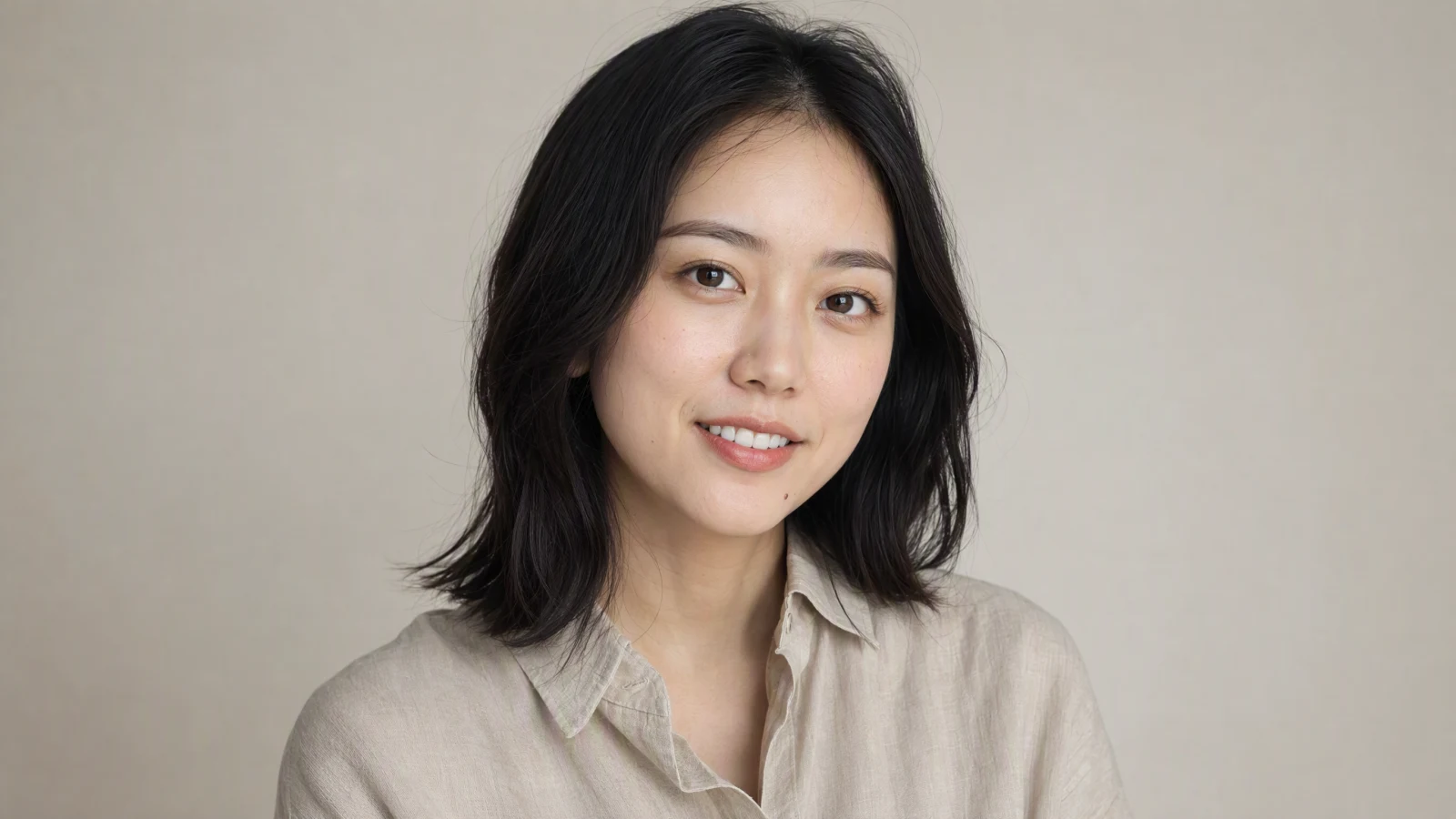
Image prompt: Photorealistic close-up of an original fictional 28-year-old East Asian woman with an oval face, deep brown eyes, shoulder-length black hair, and a beige linen shirt, calm direct eye contact, soft north-window light, natural skin texture and individual hair strands, 85mm portrait lens, shallow depth of field, neutral studio background, 16:9 with headroom.
What makes a portrait video different?
A portrait video keeps a human face at the center of the frame. Close framing makes small defects obvious. A shifting pupil, jawline, or hair boundary can distract more than a larger error in a wide shot.
The source image carries most of the identity information. When the source and prompt disagree, the model has to invent more detail. A tightly cropped headshot cannot reliably supply the body, clothing, and new viewing angle required for a walking scene. Use a medium portrait with visible shoulders for that idea.
Portrait generation works best when you decide which variable matters most:
| Goal | Source image | Motion direction | Camera direction |
|---|---|---|---|
| Professional profile | Clean head-and-shoulders portrait | Small blink and slight nod | Static or gentle push-in |
| Creator introduction | Medium close-up with hands visible | Natural speaking gesture | Locked eye-level camera |
| Editorial mood | Three-quarter portrait with side light | Slow gaze shift and breathing | Subtle lateral drift |
| Social loop | Vertical portrait with background space | Hair movement and small smile | Very light handheld feel |
These are starting patterns, not guarantees. The model still has to infer intermediate frames, so every output needs a visual review.
Clear the portrait rights before you upload
Use your own photograph, licensed stock, approved campaign talent, or a fictional synthetic person created for the project. If a real person appears, get permission that covers image animation, the intended channels, the region, and commercial use. A general photo release may not cover synthetic motion or an AI-generated spokesperson.
Do not imply that a generated portrait records something a person actually said or did. Testimonials, political messages, health claims, and financial endorsements require especially clear consent and disclosure.
Account terms matter too. SeedVideo AI currently provides free signup credits, while commercial use and watermark rules vary by plan. Check the live Seedance pricing page and the checkout terms before publishing client work. A free test account is useful for learning the interface. It should not be treated as automatic clearance for a paid campaign.
Choose a source portrait that can survive motion
Resolution alone does not make a strong source. The useful detail needs to be on the subject.
Keep the face readable
Choose an image where both eyes are visible, the eyelids are not caught mid-blink, and the mouth is closed or only slightly open. The face should occupy enough of the frame to preserve eye corners, nostrils, lip edges, and skin texture after the image is resized.
A clean head-and-shoulders composition is the safest default. Leave space above the hair and to the side of the gaze. That room gives the model somewhere to move without cutting into the forehead, chin, or shoulder.
Prefer honest skin and hair detail
Heavy beauty filters remove the pores, fine lines, and small color changes that make skin look stable in motion. Over-sharpening creates bright halos around hair and eyelashes. Both problems can become visible flicker in a generated clip.
Use a clear boundary between hair and background. Dark hair against a dark wall or flyaways against a busy pattern demand more reconstruction, so keep the camera steady.
Show the body parts you want to move
If the subject will gesture, include complete hands in the source. If you want a shoulder turn, use a medium portrait that shows the shoulders. If the prompt calls for walking, begin with a full or three-quarter body image rather than asking a close-up to invent everything below the chest.
Match the initial frame to the delivery format
Use 9:16 for Reels, Shorts, TikTok, and story placements when the final frame is vertical. Use 16:9 for landing pages, YouTube, presentations, and horizontal ads. A 1:1 source can work for feed posts, but aggressive conversion from square to vertical may crop hands or force the background to be extended.
Plan the motion before writing the prompt
Write a one-sentence shot brief before opening the generator. Name the subject's emotional state, the physical action, the camera behavior, and the environment. If that sentence contains four different actions, split it into separate shots.
A practical portrait prompt has five parts:
subject and identity + expression + micro-movement + camera + light and environment
Try this prompt in SeedVideo AI
For example:
The woman maintains calm eye contact and gives one small, natural smile.
She blinks once and tilts her head a few degrees.
The camera makes a very slow push-in.
Soft window light stays constant on her face.
The neutral office background remains gently out of focus.
Try this prompt in SeedVideo AI
Plain wording works best. "Natural" helps only when it modifies a specific action.
One motion priority per shot
Choose one priority:
- expression, such as a blink, smile, or gaze change;
- body motion, such as a nod or hand gesture;
- camera motion, such as a push-in or slow drift;
- environment motion, such as curtains moving or rain sliding down glass.
You may include a second quiet motion, but avoid making every layer active. A gentle smile with a slow push-in is manageable. Add a laugh, head turn, hand wave, orbiting camera, windblown hair, and moving crowd, and the face has too many chances to change.
Describe limits positively
State the behavior you want to see: "the camera remains at eye level," "her lips stay softly closed," or "the background stays out of focus." Positive constraints give the generator a visual target. Long lists of errors can distract from the shot.
Copy-ready portrait prompt patterns
These patterns are meant to be adapted. Replace the subject description with what is actually visible in your licensed source image.
Professional profile loop
The subject maintains relaxed eye contact with a small confident smile.
One natural blink, a slight breath, and a subtle head tilt.
Locked eye-level camera with an almost imperceptible push-in.
Soft daylight from camera left remains constant.
Clean office background, shallow depth of field, realistic skin and hair.
Try this prompt in SeedVideo AI
Creator or spokesperson shot
The subject looks into the lens with an approachable expression.
One gentle hand gesture at chest level, followed by a small nod.
Static medium close-up, no change in focal length.
Bright window light and neutral home-office background.
Natural mouth shape, stable facial proportions, realistic fabric movement.
Try this prompt in SeedVideo AI
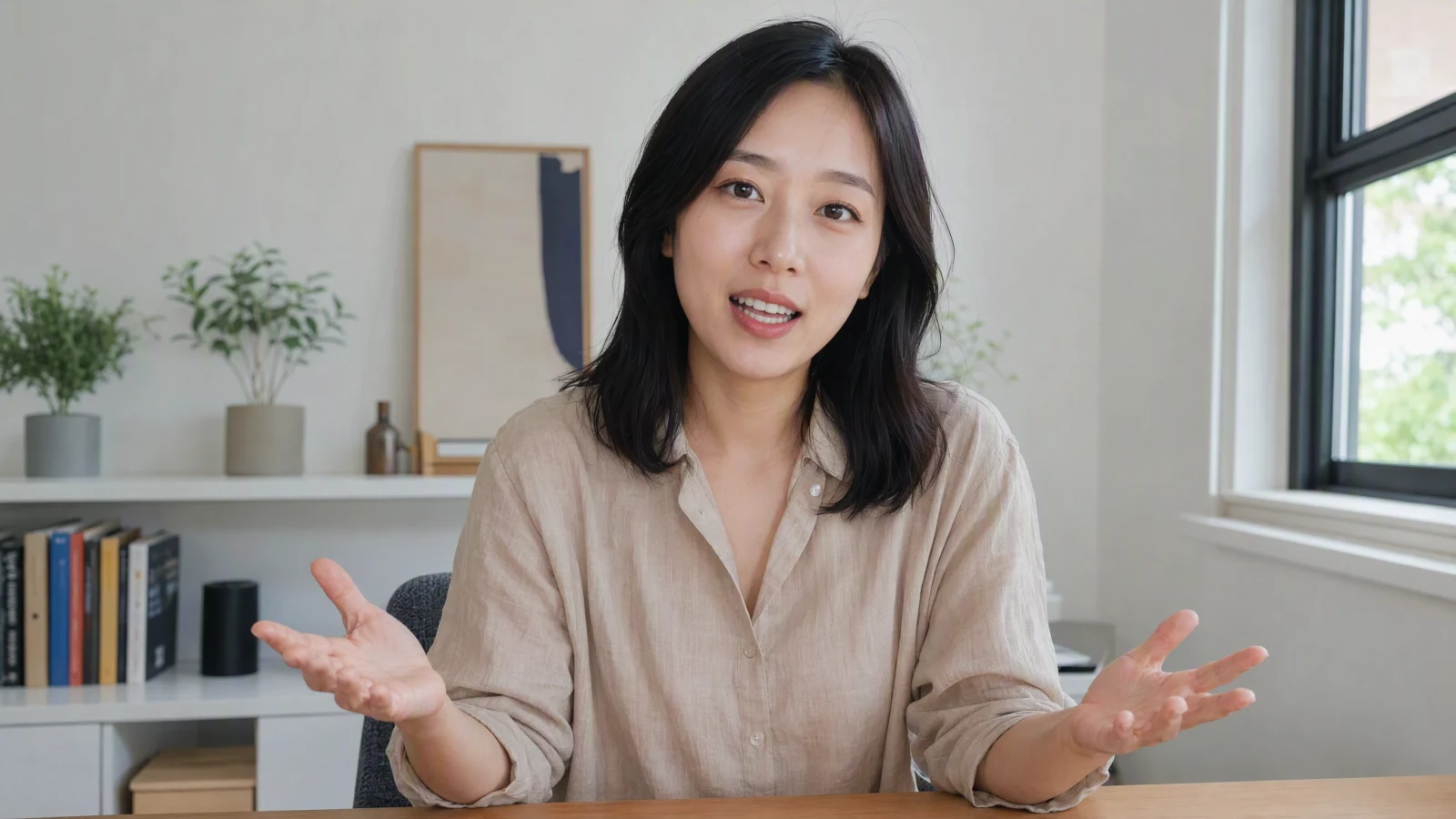
Image prompt: Photorealistic creator-video frame of the same original fictional East Asian woman in a beige linen shirt, speaking naturally to camera in a bright modern home office, medium close-up, believable mouth and teeth, both hands visible in a gentle open gesture, soft daylight, realistic skin and fabric, eye-level 16:9 composition.
Editorial blue-hour portrait
The subject looks through a rain-streaked window with a quiet, thoughtful expression.
Her eyes refocus once while her breathing creates minimal shoulder movement.
The camera drifts a few centimeters to the right.
Blue-hour light from the window mixes with a warm practical light indoors.
Wet city bokeh moves softly behind her while the face remains sharp.
Try this prompt in SeedVideo AI
Vertical social portrait
The subject walks slowly toward camera with a relaxed smile.
Hair moves lightly in the breeze and her gaze stays near the lens.
The camera tracks backward at matching speed.
Warm late-afternoon backlight, quiet street, soft background separation.
Vertical 9:16 composition with safe space above the head for platform text.
Try this prompt in SeedVideo AI
Create the portrait in SeedVideo AI
The current SeedVideo AI workspace places video and image generation in the same creator panel. In video generation, the image input control sits above the prompt field. The visible settings include aspect ratio, resolution, duration, sound, advanced settings, and the model selector.
- Open the AI image-to-video generator.
- Select the image input and add the rights-cleared portrait.
- Confirm that the preview uses the crop you prepared.
- Paste a short motion prompt. Remove any action that is not essential to the shot.
- Choose the delivery aspect ratio before generation.
- Select the available resolution, duration, sound, and model options that fit the project.
- Generate a short identity check before attempting a more active version.
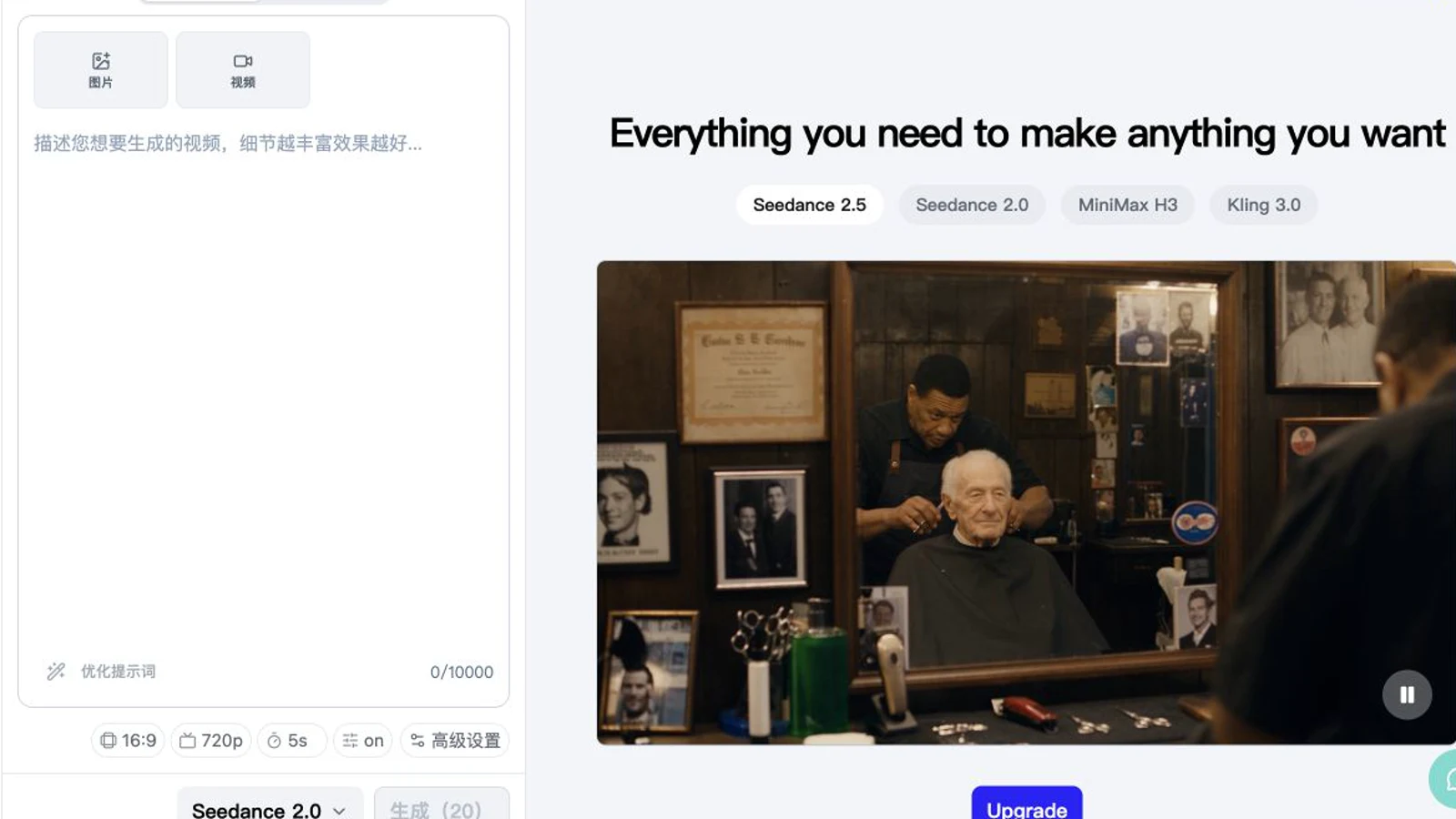
The current SeedVideo AI creator workspace shows image input, prompt entry, aspect ratio, resolution, duration, sound, advanced controls, and model selection in one panel.
If your concept does not depend on a specific existing face, you can also create a spokesperson scene from a prompt. Text-to-video is useful for inventing a person and environment together. Image-to-video is the better starting point when the source portrait defines the identity, wardrobe, or campaign look.
Start with an identity check
The first version should answer one question: does the person remain recognizable? Keep the camera static or use a very slow push-in. Ask for a blink, breath, or small gaze shift. A clean identity check gives you a baseline for later versions.
If the face drifts in this simple shot, changing to a more dramatic prompt will usually add risk. Improve the source crop, reduce shadow complexity, or use a quieter expression.
Change one variable at a time
For version two, change one element: add a small camera drift, replace the blink with a nod, or change the background motion.
Keep the source crop, prompt, settings, and a one-line review for each useful version.
Review portrait quality frame by frame
Watch the clip once at normal speed for overall feel. Then scrub slowly through the beginning, middle, and end. Pause around every blink, mouth change, head turn, hand movement, and camera transition.
| Area | Pass condition | Common warning sign | Practical correction |
|---|---|---|---|
| Eyes | Size, direction, and spacing stay stable | One eye narrows, slides, or reflects light differently | Reduce head rotation and ask for one soft blink |
| Mouth | Lip shape changes smoothly | Teeth merge, lips smear, or smile grows unevenly | Keep lips closed or request a smaller smile |
| Jaw and ears | Face proportions stay recognizable | Jaw melts into neck or an ear disappears | Reduce camera orbit and body turn |
| Skin | Texture and tone remain consistent | Pores flatten, color pulses, or cheeks become waxy | Simplify lighting and lower motion |
| Hair | Strands follow head and air movement | Hair sticks to background or changes length | Use a cleaner background and gentler breeze |
| Hands | Finger count and shape remain plausible | Fingers merge during gestures | Start with hands visible and reduce gesture range |
| Collar and shoulders | Fabric follows the body | Edge crawling or shirt texture changes | Limit shoulder motion and simplify patterns |
| Background | Subject remains clearly separated | Objects grow into hair or face | Blur or simplify the background |
Many portrait errors appear when motion reverses or settles near the final frame. Check the ending if the clip will loop.
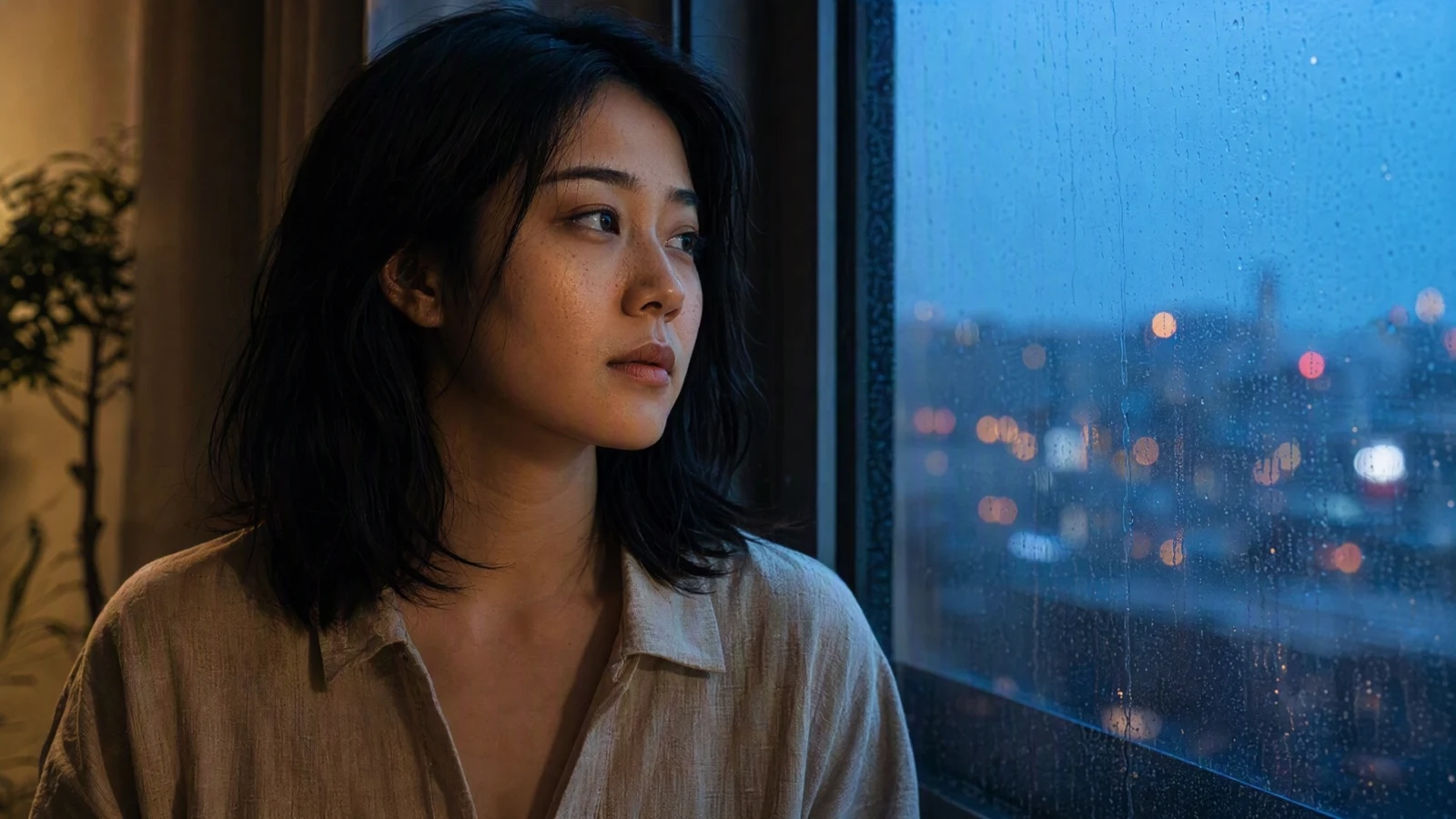
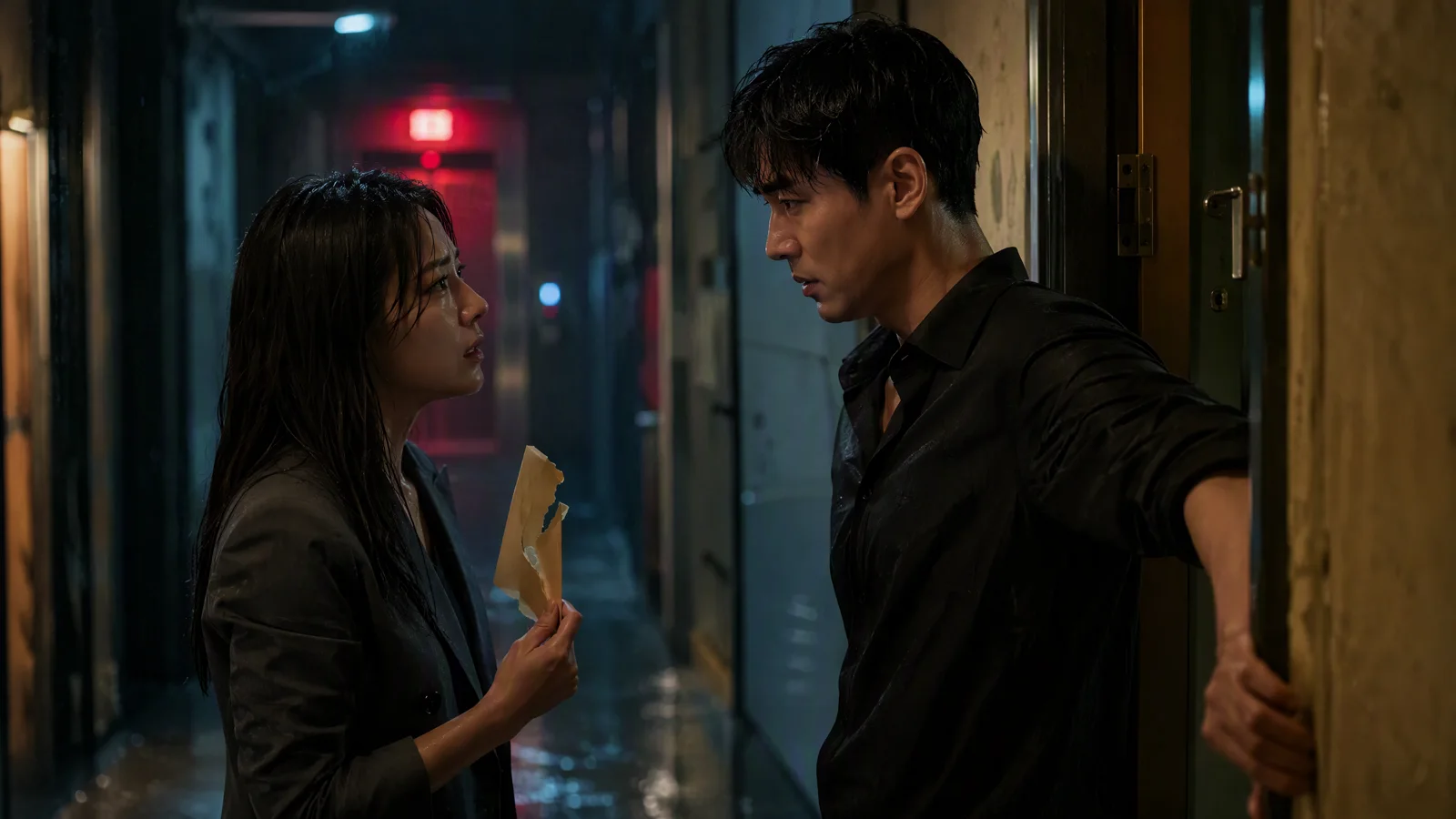
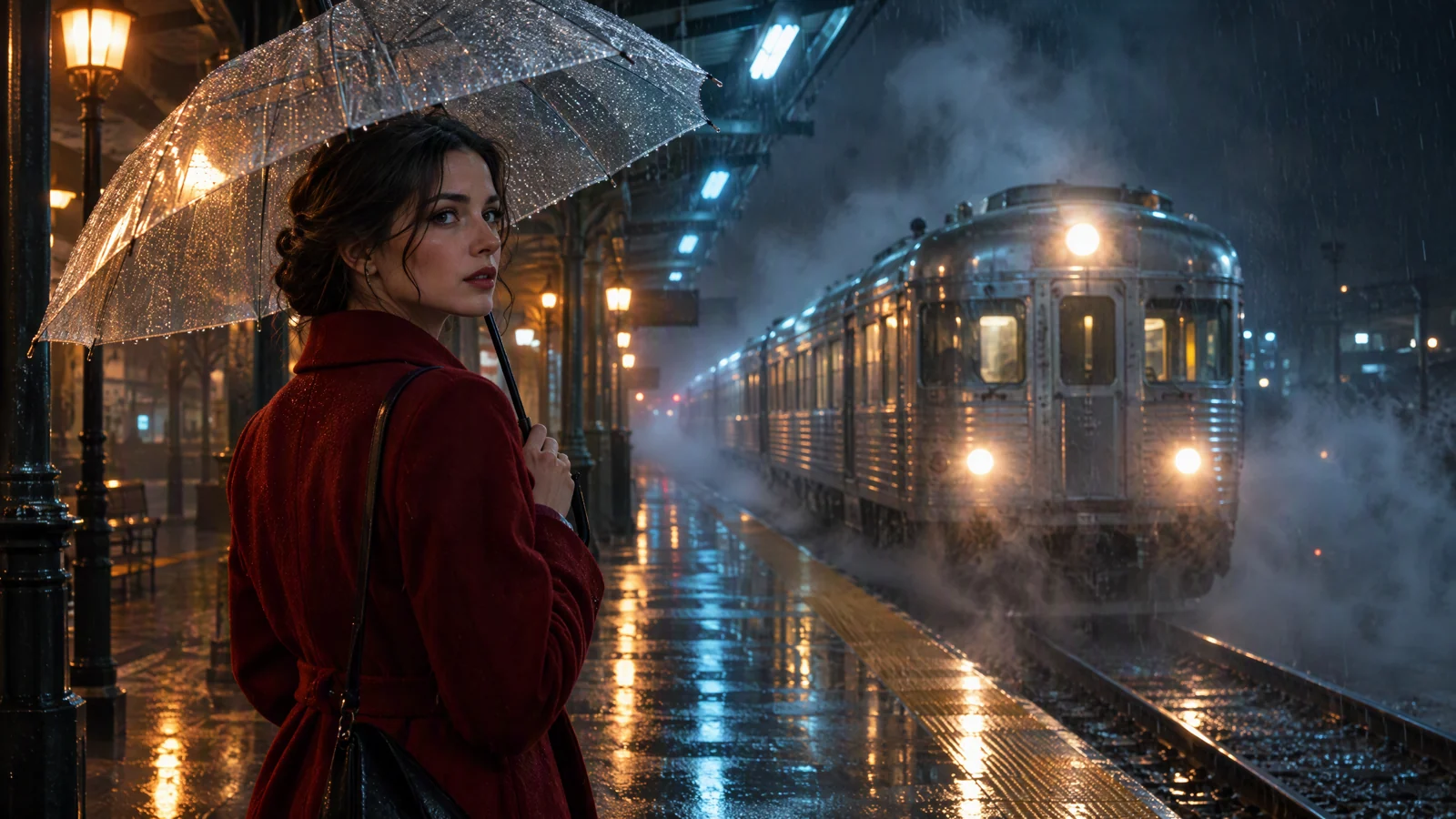
Image prompt: Photorealistic cinematic portrait of the same original fictional East Asian woman in a beige linen shirt beside a rain-streaked window at blue hour, thoughtful expression, realistic skin texture and hair strands, warm indoor side light mixed with cool window light, wet city bokeh, medium close-up, 16:9.
Fix the most common portrait problems
The face changes during a head turn
Reduce the turn to a few degrees and keep both eyes visible. Replace an orbiting camera with a slow push-in. If the source is almost frontal, do not ask the model to reveal a strong profile that is absent from the image.
Blinks look uneven
Ask for one soft, natural blink rather than repeated blinking. Keep the head steady during the blink. Strong side light can make one eyelid harder to reconstruct, so try a more even source or simpler lighting direction.
The mouth or teeth smear
Begin with a closed-mouth expression and request a small smile. Large speech-like mouth changes are demanding because teeth, tongue, lip shape, cheeks, and jaw all move together. For exact dialogue, build the visual shot first and add narration, captions, or a dedicated lip-sync stage in post-production.
Hair merges into the scene
Increase separation between hair and background in the source image. Reduce wind and camera motion. Fine flyaways can look good in a still but become unstable when the background also moves.
Skin turns smooth or plastic
Use a source without heavy retouching. Keep the light direction stable and avoid asking for a dramatic move from warm indoor light into cold outdoor light within one short portrait.
Hands break during a gesture
Make sure the full hand is visible in the source. Ask for a small gesture with a clear start and end. If hands are not important to the message, crop to a tighter head-and-shoulders frame.
Keep the same person across several clips
Use the same master portrait and derive all delivery crops from it. Keep hair, wardrobe, age, and defining features consistent in every prompt.
The character consistency guide explains how to control identity across a larger sequence. For a portrait series, add these practical rules:
- Hold the lens position and framing constant for related clips.
- Reuse the same identity sentence at the start of every prompt.
- Change expression or action in small steps.
- Keep the lighting family consistent across the sequence.
- Review all clips side by side before editing.
If one clip produces a noticeably different jawline, hairstyle, or skin tone, remove it from the sequence even if the motion looks polished. Identity continuity matters more than saving an individual generation.
Build a multi-shot portrait sequence
A short social piece can be assembled from three controlled shots:
| Shot | Purpose | Suggested motion |
|---|---|---|
| 1. Recognition | Establish the person and setting | Direct gaze, one blink, static camera |
| 2. Expression | Add personality or message energy | Small smile or nod, slight push-in |
| 3. Resolution | Create an ending or CTA moment | Gaze shifts toward product or text space |
Generate every shot from the same source. Cut at changes in gaze or gesture, then add audio, captions, branding, and disclosures in the editor.
For deeper source-image and motion guidance, follow the Seedance 2.5 image-to-video guide. The same discipline applies even when you select another available model in the workspace: protect the source identity, keep motion specific, and inspect the full result.
Match the workflow to the use case
Personal brands and spokesperson concepts
Use a medium close-up with direct eye contact and one restrained gesture. Leave clean space for captions, then edit several quiet variations under a real voiceover. For brand work, use approved talent photography or a fictional character, and secure specific approval if the final piece implies an endorsement.
Editorial, education, and event promotion
For editorial work, let lighting, gaze, hair, and camera rhythm carry the shot. For a course, podcast, or event, animate an approved speaker portrait with minimal movement and add names, dates, and titles in the editor. Keeping text outside the generated frame also makes localization easier.
Campaign previsualization
Use a fictional subject or cleared reference to compare framing, mood, camera direction, and lighting concepts before a live shoot.
Export and publish responsibly
Choose the highest useful resolution available to your plan and match the aspect ratio to the destination. Avoid repeated resizing. Export a clean master, then create platform versions from that master.
Before publishing, check:
- the portrait source license and model release cover animation and distribution;
- the selected account plan covers watermark and commercial requirements;
- the final clip does not imply an unapproved statement, endorsement, or event;
- the face, eyes, mouth, hair, hands, clothing, and background pass review;
- captions and disclosures are readable in the platform crop;
- music, voice, logos, products, and background artwork are licensed;
- the last frame works as an ending or loop.
Save the source, prompt, settings, release, and approved export together for later revisions.
A practical portrait workflow
Start with a portrait that already looks close to the frame you want. Define one expression change, a small physical action, and a restrained camera move. Generate short versions that are easy to compare. Review the full face and body boundary, then add style where the identity remains stable.
SeedVideo AI puts image input, prompt, aspect ratio, resolution, duration, sound, advanced controls, and model choice in one workspace. Open the AI image-to-video generator, begin with an identity check, and build the finished portrait one controlled change at a time.