Seedance 2.5 Image to Video: A Practical Workflow
To use Seedance 2.5 image to video well, start with a clean source image, describe only the motion you want, choose the input role that matches your goal, generate a short first pass, and compare the whole clip against the original. The source image carries most of the visual information. Your prompt should control subject motion, camera movement, environmental motion, and the ending instead of repainting the scene in words. Use one image when the opening frame matters, two when both the opening and ending must be guided, and reference mode when several assets should influence identity, style, or objects. After generation, inspect shape, face, hands, text, background, and the final second. If one area fails, change one variable at a time. This workflow reduces avoidable drift, but it does not guarantee that every product edge, face, hand, label, or logo will remain unchanged.
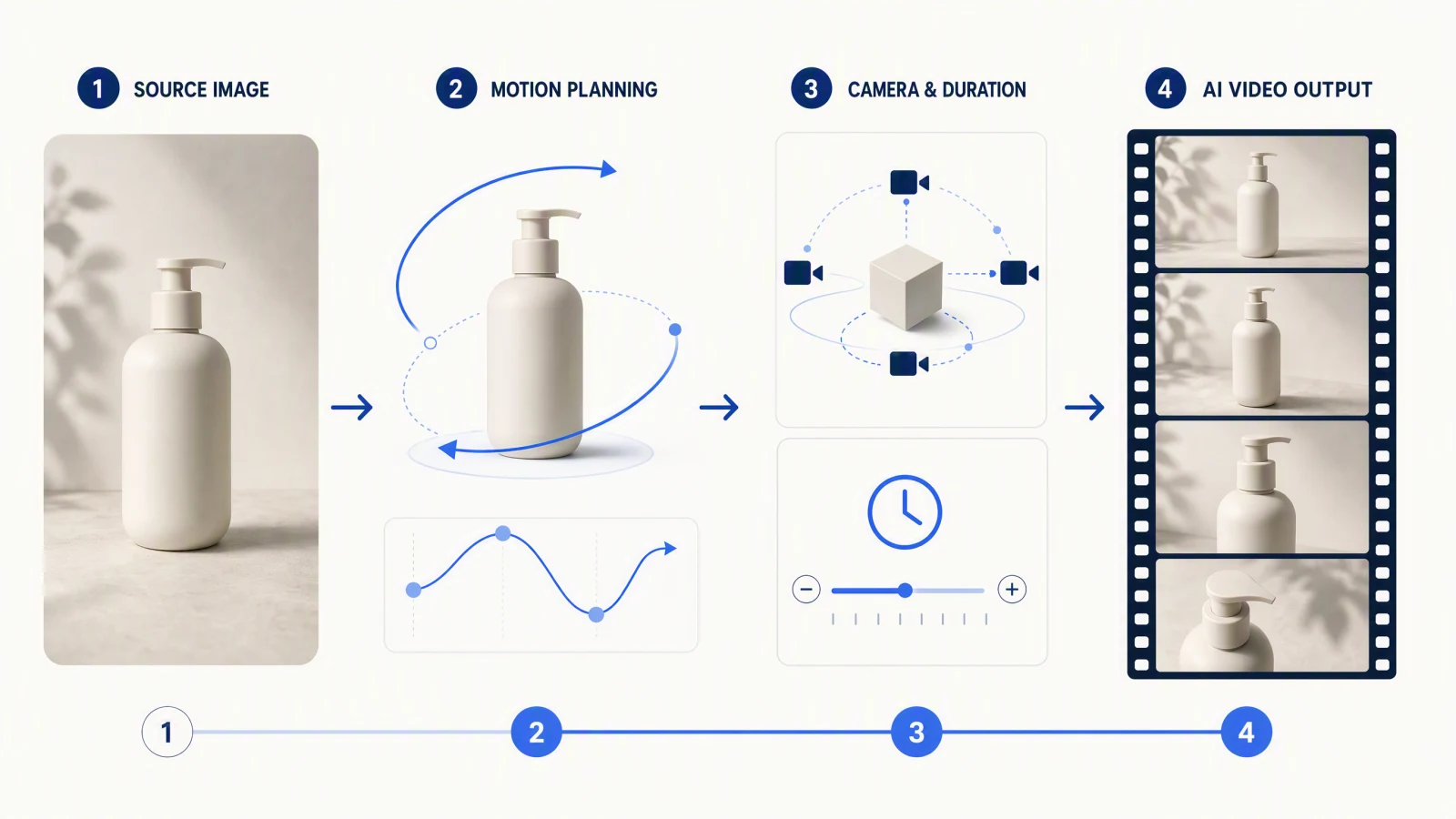 A practical image-to-video workflow starts with the source, defines motion, selects settings, and ends with a frame-by-frame review.
TL;DR
- Use a sharp source image with one clear subject and enough room for the intended movement.
- Treat source, start frame, end frame, and reference images as different roles.
- Write motion instructions. Do not redescribe or redesign the source image.
- Begin with restrained subject and camera movement, then increase one variable per revision.
- Review the entire clip against the original, especially faces, hands, labels, edges, background, and the ending.
Quick Answer
Open the SeedVideo AI image-to-video generator, choose Seedance 2.5, add a start image, optionally add an end image, describe the motion, select duration, resolution, aspect ratio, and sound, then generate. On the SeedVideo AI web interface checked on October 11, 2026, the Seedance 2.5 image-to-video form uses a required start image and an optional end image. Its model controls support 4 to 30 seconds, 480p, 720p, or 1080p (1080p on Pro, Premium, or credit packs), a 480p draft mode for cheap previews, common aspect ratios plus adaptive framing, and optional synchronized audio. The earlier 15-second and 720p ceilings noted here in August no longer apply. The SeedVideo AI API uses separate routing rules: one image selects image-to-video, two images select first-and-last-frame mode, and three or more images select reference mode.
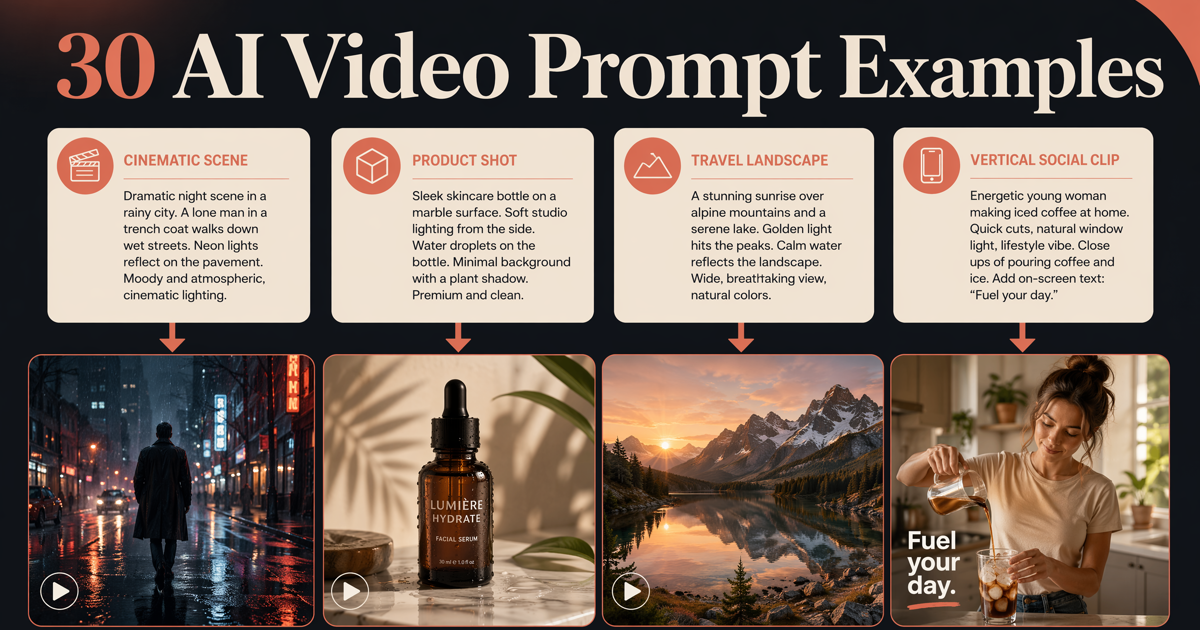
If you came for prompts rather than the workflow, the companion post Seedance 2.5 Image-to-Video Prompts: 25 Copy-Paste Examples has 25 ready prompts grouped by source image type. Six quick starters are also further down this page.
Last verified: October 11, 2026, against the SeedVideo AI image-to-video generator and the Seedance 2.5 model page.
What Seedance 2.5 image to video means
Image to video starts with visual evidence rather than a blank canvas. The model receives the composition, subject, colors, lighting, and texture from an image, then predicts how those elements could move over time. That makes the source image more influential than a long prompt.
It works well when you already have a product photo, character portrait, illustration, architectural rendering, food image, or vertical social asset. A blurry source, a tight crop, small text, or contradictory geometry gives the model less reliable material to animate.
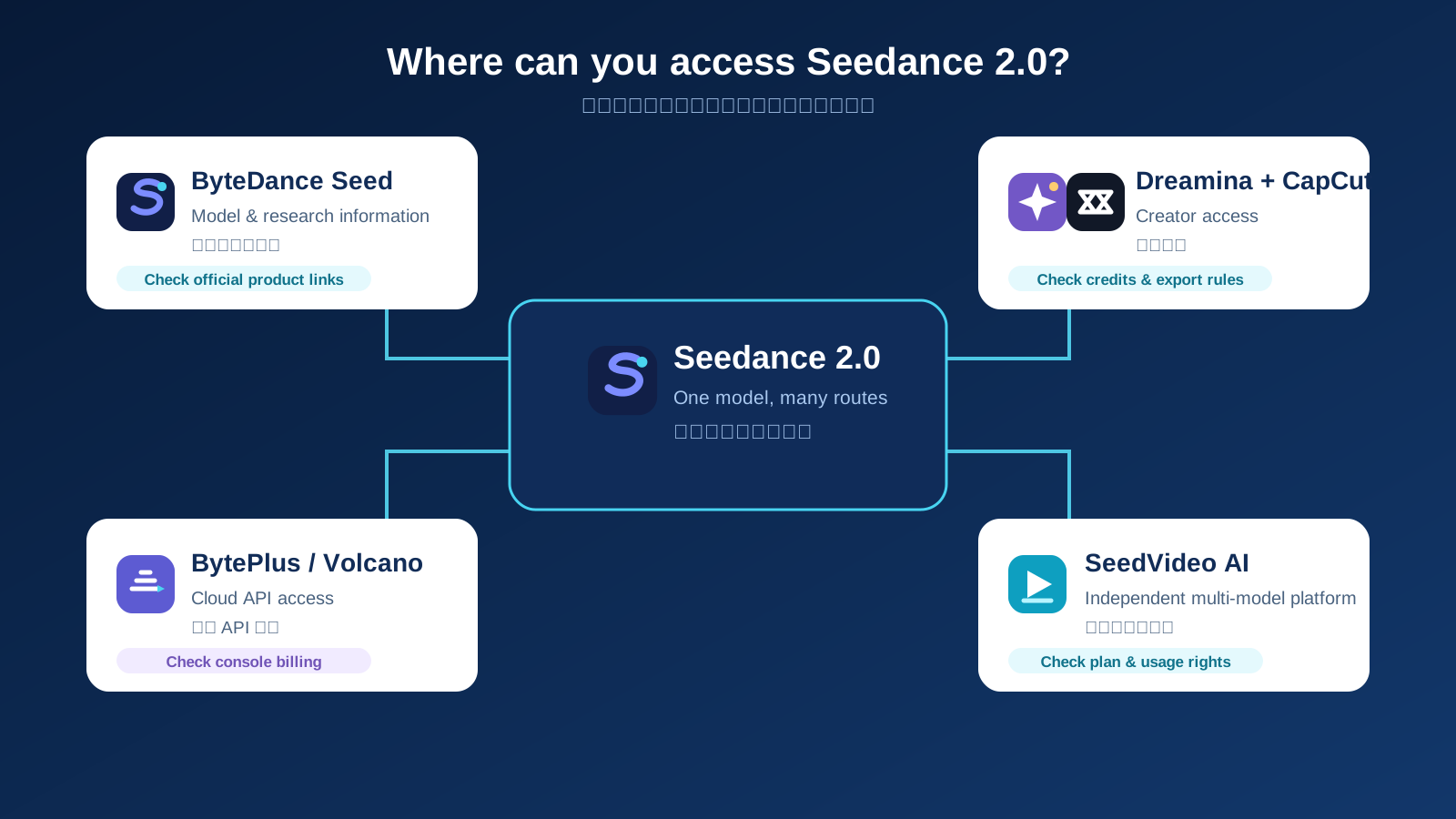
SeedVideo AI exposes Seedance 2.5 through both a web workflow and an API. Keep their controls separate when following specifications. The web page provides a start-image field and an optional end-image field. The API accepts image URL arrays and routes them by count unless reference mode is explicitly selected. If you need the broader model setup, read How to Use Seedance 2.5.
Choose the correct input role
The word "image" can describe four different jobs. Choosing the wrong job often produces a clip that moves in the wrong direction or treats a style reference as the first frame.
| Input role | What it controls | Use it when | Main risk |
|---|---|---|---|
| Source image | The asset you begin with before assigning a model role | You are preparing, cleaning, or evaluating the visual | Assuming the source automatically becomes a reference rather than a frame |
| Start frame | The visible opening state and composition | The video should begin from this exact setup | Large motion can quickly pull the subject away from the source |
| End frame | The intended final state or composition | You need a planned reveal, turn, transition, or final hold | An incompatible end image can force abrupt motion or cropping |
| Reference image | Identity, object, wardrobe, palette, or style guidance | Several assets should influence the result without becoming literal timeline frames | The model may blend references or prioritize some details over others |
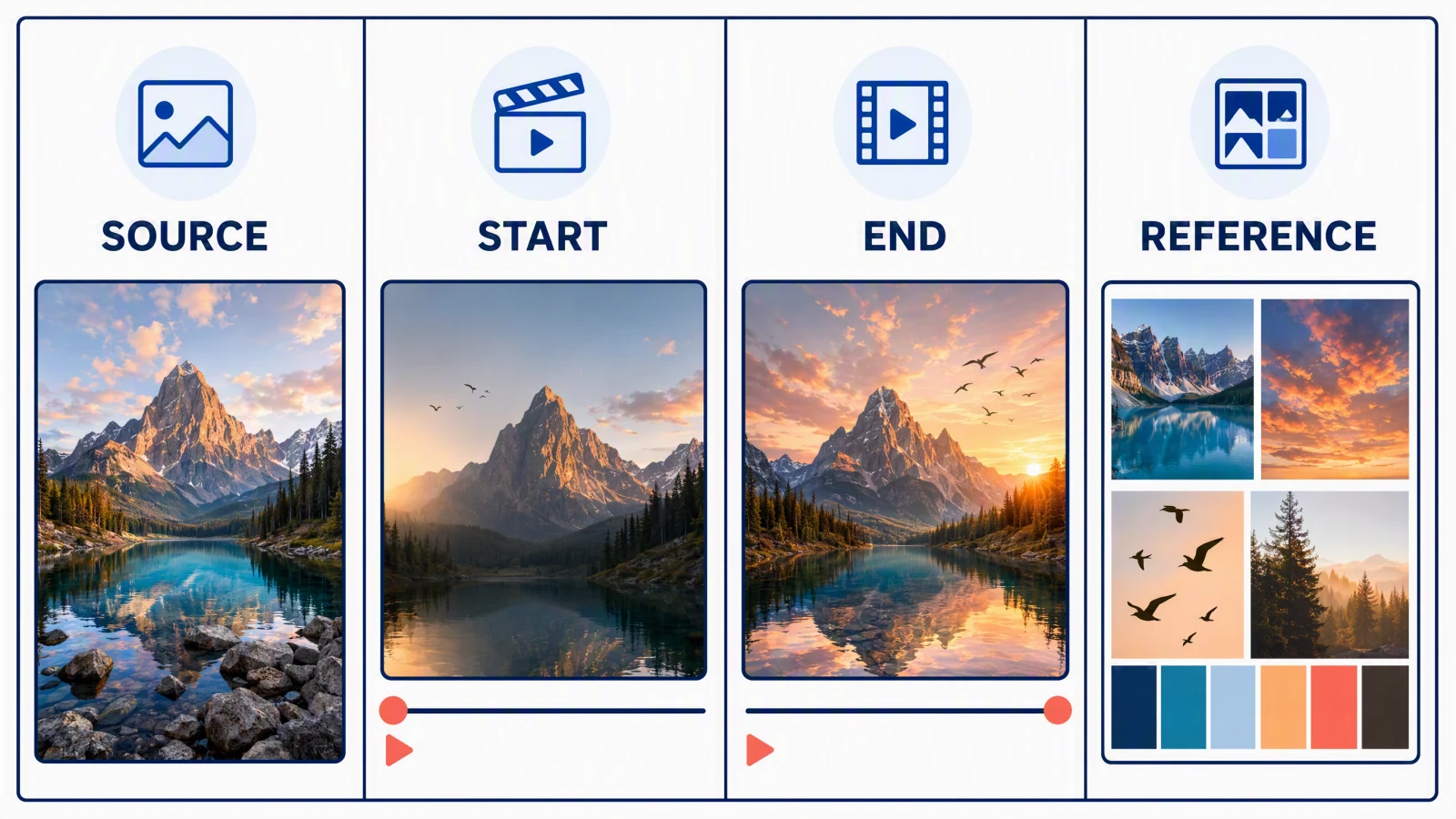 The same image can serve different purposes, but each route gives it a different kind of control.
SeedVideo AI web route
On the web interface checked on August 4, 2026, the image-to-video form asks for a start image and allows an optional end image. Use this route when you want a direct first-frame workflow or a first-and-last-frame transition. Do not describe a multi-image reference workflow as if it were the same control surface.
SeedVideo AI API route
The API documentation checked on August 4, 2026, defines these image-only routes:
| Image count | API behavior |
|---|---|
| 1 | Image to video; the image is the start frame |
| 2 | First-and-last-frame mode; order matters |
| 3 or more | Reference mode |
The same API documentation allows up to 30 image URLs for Seedance 2.5. Each image must be a public HTTPS JPEG, PNG, or WebP, 300 to 6000 pixels per side, between 0.4 and 2.5 in aspect ratio, and no larger than 30 MB. These are SeedVideo AI API limits, not a promise that every web interface accepts the same number of files.
Prepare the source image
Before you write the prompt, inspect the source:
| Check | What to look for | Why it matters |
|---|---|---|
| Subject | One obvious focal subject; no accidental duplicate | Competing subjects increase identity and motion ambiguity |
| Composition | Enough space in the direction of travel or camera movement | Tight crops leave no room for a pan, push, turn, or reveal |
| Background | Clean depth cues and no broken geometry | The background also has to remain coherent while the frame moves |
| Light | Direction and shadow are readable | Sudden lighting changes can make the subject feel replaced |
| Edges | Hair, fingers, product contours, and transparent materials are visible | Soft or merged edges are more likely to warp |
| Text and logos | Large, legible, and limited | Small text often changes across frames and must be checked manually |
| Rights | You own the asset or have permission, consent, and brand clearance | A usable technical input is not automatically cleared for commercial use |
A clean image does not need to be sterile. Natural texture, asymmetry, and depth can help. The practical rule is simple: remove visual problems that you would not want the model to animate.
Write motion, not a new picture
A Seedance image prompt should describe what changes over time. This order keeps the instructions easy to revise:
subject lock + subject motion + camera motion + environment motion + final frame
For example:
Keep the bottle shape, label placement, cap, and color unchanged. Condensation beads slide slowly down the surface. The camera makes a gentle 10-degree arc from left to right. Soft highlights move across the glass while the background stays fixed. End on a stable three-quarter view and hold for the final half second.
Try this prompt in SeedVideo AI
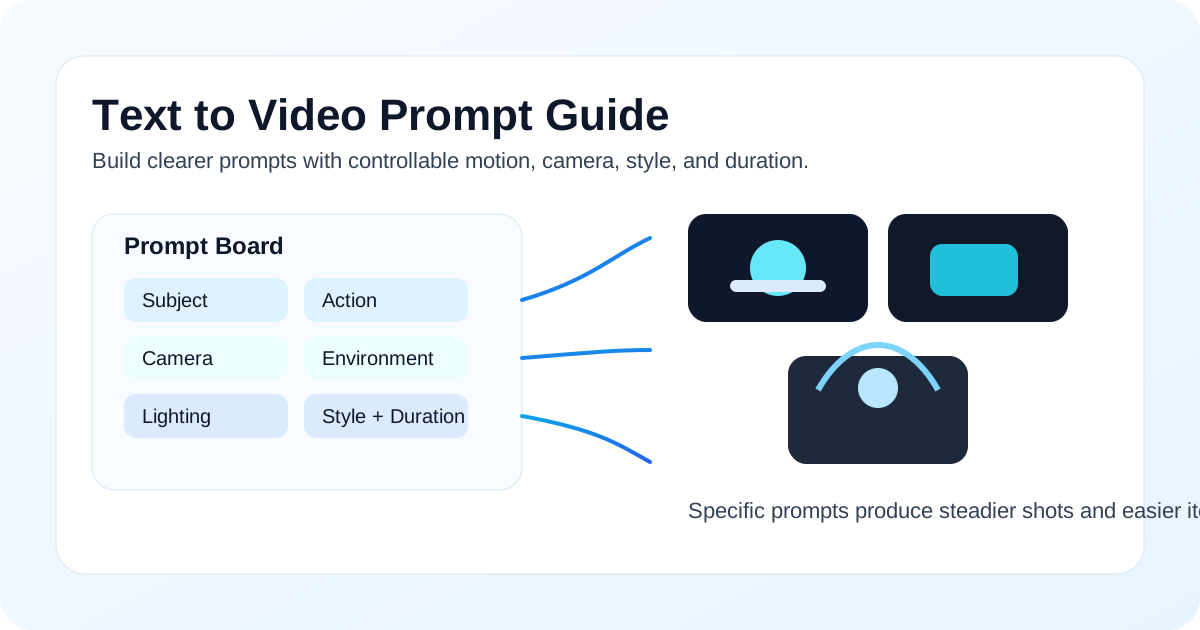
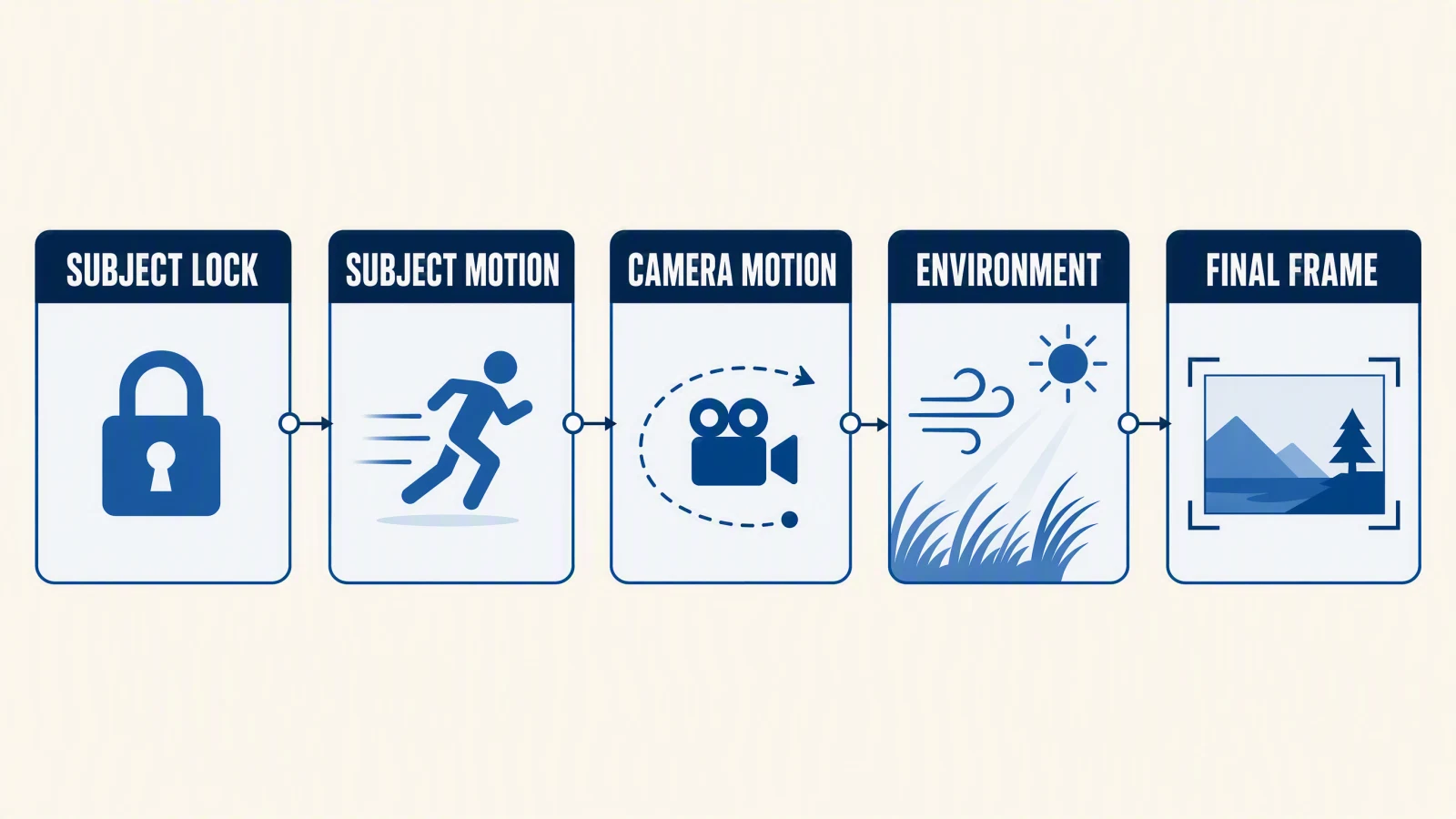 Separating motion into layers makes it easier to revise one source of drift at a time.
Avoid prompts that repaint the whole source, such as a long list of appearance adjectives already visible in the image. Avoid contradictory camera instructions such as "locked camera" and "fast orbit" in the same request. If the first result fails, shorten the prompt before adding more detail.
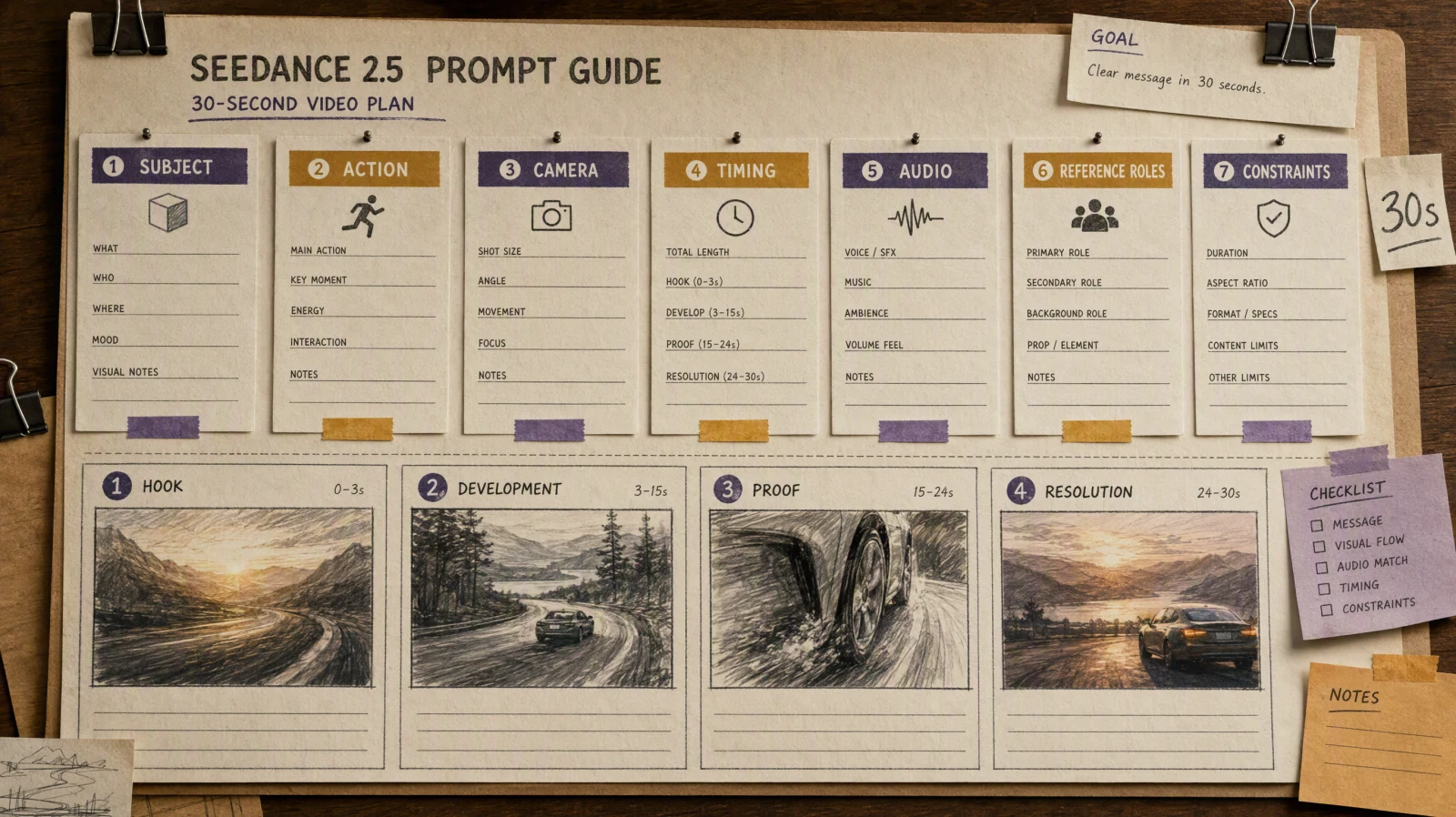
For more prompt structure, use the Seedance 2.5 prompt guide without turning this workflow into a large prompt library.
Step-by-step workflow
- Open the image-to-video workspace and select Seedance 2.5.
- Add the start image. Add an end image only when the final composition genuinely matters.
- Write one sentence for the subject lock and one or two sentences for motion.
- Choose the aspect ratio for the destination. Use adaptive framing only when you want the source to guide the closest output shape.
- Start with a short duration and moderate movement. On the SeedVideo AI web model configuration checked on August 4, 2026, Seedance 2.5 supports 4 to 15 seconds and 480p or 720p.
- Decide whether the clip needs synchronized audio. The current control can turn sound on or off.
- Generate, then watch the full clip at normal speed and again frame by frame.
- Compare the result with the source and change one variable for the next pass.
The first pass has one job: show whether the intended motion works without breaking the subject. Save the large camera move, complicated body action, changing light, and scene transition for later passes.
Six use cases and prompt templates
Product photo
Prompt template:
Keep [product shape, material, label, and color] unchanged. [Small product motion]. The camera [controlled move]. [Light or environment motion]. End with [final angle] and hold.
Try this prompt in SeedVideo AI
Check the silhouette, cap or buttons, label spelling, reflections, contact shadow, and last frame.
Person or character
Prompt template:
Keep the same face, hairstyle, clothing, proportions, and accessories. The subject [small action]. The camera [small move]. The background remains stable. End with the face fully visible and both hands in a natural position.
Try this prompt in SeedVideo AI
Check the face during turns, fingers, teeth, earrings, clothing seams, and body proportions. Avoid large rotations in the first attempt.
Illustration
Prompt template:
Preserve the original line work, color blocks, and character design. Animate [specific element] with [speed]. Add [small secondary motion]. Keep the camera [locked or gently moving]. End on the original composition.
Try this prompt in SeedVideo AI
Check line thickness, eye shape, color boundaries, and whether flat art gains unwanted realistic texture.
Architecture
Prompt template:
Preserve the building geometry, window rhythm, materials, and horizon. The camera [dolly, crane, or slow orbit]. Add subtle movement in [trees, flags, water, or people]. Keep vertical lines stable. End on [planned view].
Try this prompt in SeedVideo AI
Check columns, windows, railings, roof edges, reflections, and parallax. A wide orbit creates more hidden geometry and more room for invention.
Food
Prompt template:
Keep the dish shape, plating, garnish, and table arrangement unchanged. Add [steam, pour, drizzle, or small utensil motion]. The camera makes a slow push in. Keep color and texture natural. End before the action obscures the dish.
Try this prompt in SeedVideo AI
Check utensil contact, liquid direction, steam origin, plate edges, garnish count, and texture changes.
Vertical social clip
Prompt template:
Keep the main subject centered within the vertical safe area. Begin with [clear hook motion]. The camera [short push or tilt]. Leave clean space at [top or bottom] for later text. End on a stable frame suitable for a call to action.
Try this prompt in SeedVideo AI
Check the 9:16 crop, headroom, text-safe space, hook timing, edge clipping, and final hold.
Product photo workflow
Product clips fail most often when several kinds of motion compete. Start with a locked product, then add one motion layer.
- Protect the shape, label position, finish, cap, ports, and brand colors in the prompt.
- Choose either product movement or camera movement for the first pass.
- Keep reflections slow enough to review.
- Ask for a stable ending and a short hold.
- Compare the first, middle, and final frames with the original photo.
Do not promise that lettering or logos will remain exact. If exact packaging is legally or commercially important, plan to replace or composite the final label in post-production after reviewing the clip.
Character workflow
Identity drift is easier to spot than to fix. Reduce the motion range before adding descriptive words.
- Lock face, hair, clothing, accessories, and proportions.
- Use a small action such as breathing, a glance, or a half turn.
- Keep the camera move modest.
- Avoid asking for hands to enter from outside the frame on the first pass.
- Review the face whenever it turns away and returns.
If the face changes, reduce rotation or camera movement first. If hands fail, simplify the action. If clothing changes, remove environment or lighting changes before rewriting the identity description.
Six copy-paste image-to-video starters
Each starter assumes one start image and describes only motion, camera, and what must stay unchanged. Replace the bracketed nouns with what is actually in your image, then generate a 5-second draft before changing anything else.
The [product] stays perfectly still while the camera pushes in slowly from a medium shot to a close-up on the label. Soft studio light, no new objects, label text stays sharp and unchanged, clip ends on a held frame.Try this prompt in SeedVideo AI
The person in the photo breathes naturally, blinks once, and turns their head a few degrees toward the camera. Hair and clothing move slightly. Face, hairstyle, and outfit stay identical to the source image. Static camera.Try this prompt in SeedVideo AI
The illustrated landscape gains gentle parallax: clouds drift right, foreground grass sways, distant water shimmers. Line art, colors, and composition stay exactly as drawn. Slow lateral camera drift, no characters added.Try this prompt in SeedVideo AI
Slow dolly forward through the room in the photo. Curtains move in a light breeze and sunlight shifts a little across the floor. Furniture, walls, and layout stay unchanged. End on a steady wide frame.Try this prompt in SeedVideo AI
Steam rises from the dish and the camera arcs a quarter turn around the plate at table height. Plating, garnish, and colors stay as in the photo. Warm restaurant light, no hands or cutlery enter the frame.Try this prompt in SeedVideo AI
Vertical 9:16. The model in the photo shifts weight to the other foot and the fabric of the outfit sways. Camera tilts up slowly from shoes to face. Outfit colors, logo placement, and background stay unchanged.Try this prompt in SeedVideo AI
If a starter fails, change one field only: tighten the stillness instruction when the subject warps, simplify the camera move when framing drifts, and shorten the clip when the ending breaks.
Common failures and single-variable fixes
| Symptom | Possible cause | Change one variable |
|---|---|---|
| Product or body warps | Motion range is too large for the visible geometry | Reduce subject rotation or camera arc |
| Identity drifts | Face leaves the source view or too many attributes compete | Reduce head turn and camera movement |
| Text changes | Small lettering is being regenerated across frames | Shorten motion, enlarge source text, or plan post-production replacement |
| Background changes | Prompt asks for a new scene or camera reveals unseen areas | Lock the background or reduce camera travel |
| Motion feels empty | Prompt describes appearance but not time-based action | Add one explicit subject action and one camera instruction |
| Ending snaps | No final state is defined or the end frame conflicts with the start | Add a final hold or simplify the end-frame transition |
| Reflections crawl | Moving camera, light, and product create too many changing surfaces | Lock either the light or the camera |
| Subject leaves frame | Crop is too tight for the action | Add directional space or reduce travel |
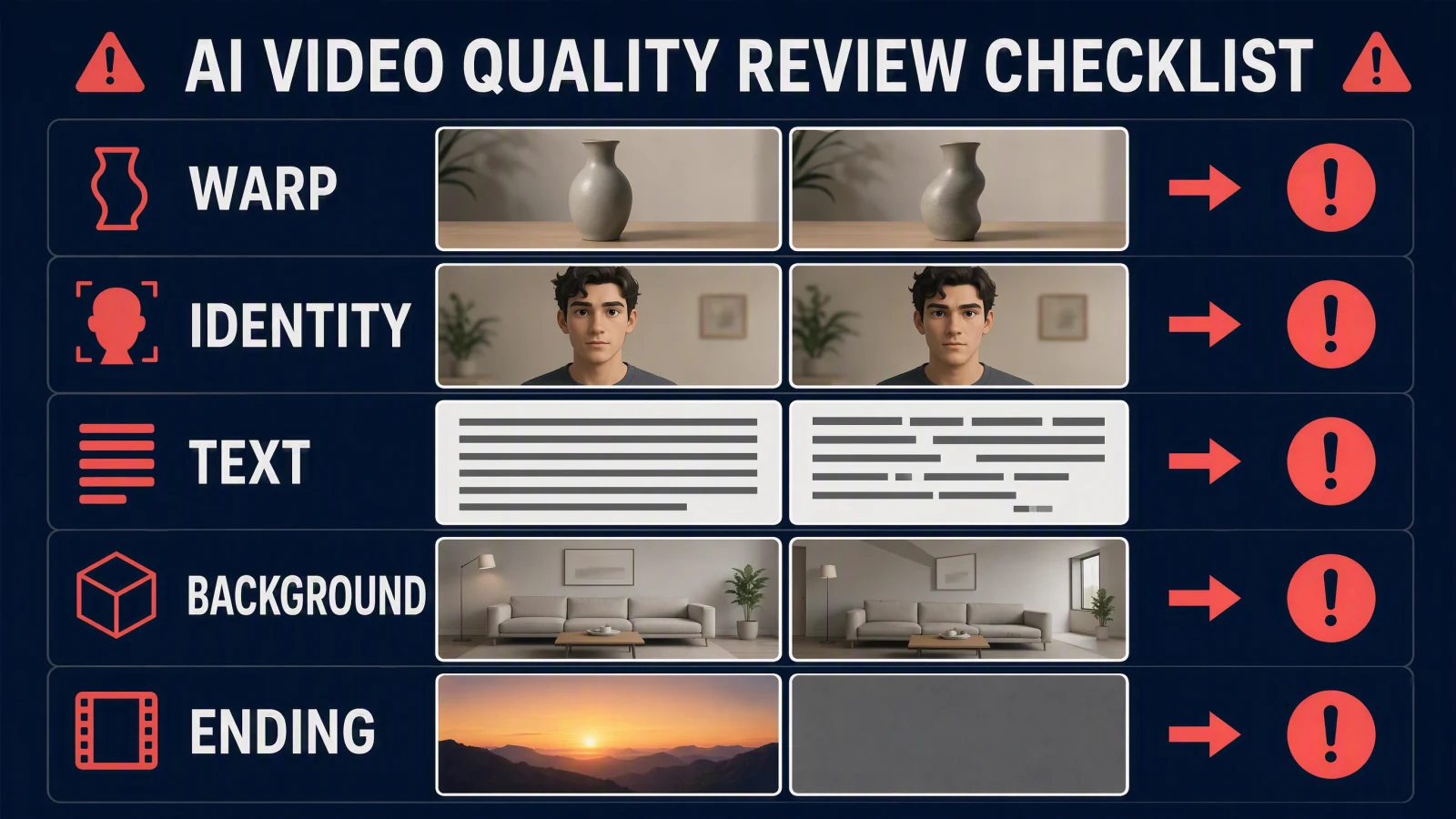 A failure checklist turns vague dissatisfaction into one specific change for the next pass.
No single edit guarantees a repair. The table is a diagnostic order: reduce complexity, regenerate, and compare.
Full-clip QA checklist
Watch the first, middle, and final sections, then scrub every transition.
- Does the first frame match the intended source role?
- Does the subject keep the same identity, proportions, material, and color?
- Do hands, teeth, hair, thin edges, and transparent parts remain plausible?
- Does text stay readable, or has it changed enough to require replacement?
- Does the camera move in one understandable direction?
- Does the background remain coherent when new areas appear?
- Are lighting and reflections consistent with the motion?
- Does the final second settle instead of snapping or dissolving unexpectedly?
- Is the crop safe for the delivery platform?
- Do you have permission to publish the source and any recognizable person or brand?
Rights and consent
Technical access to an image does not establish the right to animate or publish it. Before generation, confirm ownership or a license, model or portrait consent for recognizable people, and permission to use trademarks or branded packaging. Do not use celebrity images, film characters, or brand assets merely because they are easy to download.
For client work, record where the source came from and what the license allows. Review the generated clip for new elements that could create a false endorsement or misleading product claim.
FAQ
Can I animate one image with Seedance 2.5?
Yes. On the SeedVideo AI API, one image selects image-to-video and becomes the start frame. The web image-to-video form also requires a start image.
What is the difference between a start frame and a reference image?
A start frame is the opening timeline state. A reference image guides identity, object details, palette, or style without necessarily appearing as the first frame.
When should I add an end frame?
Add one when the final composition matters, such as a product turn, reveal, camera landing, or planned transition. Skip it when a natural continuation is enough.
How many images does the SeedVideo AI API accept for Seedance 2.5?
The API documentation checked on August 4, 2026, allows up to 30 images. One image selects image-to-video, two select first-and-last-frame mode, and three or more select reference mode.
Which image formats and sizes are supported by the API?
SeedVideo AI documents JPEG, PNG, and WebP URLs, 300 to 6000 pixels per side, a 0.4 to 2.5 aspect ratio, and a 30 MB maximum per image for Seedance 2.5.
How do I reduce identity drift?
Use a clear source, keep the first motion small, reduce head or camera rotation, and change one variable per revision. Check the full clip rather than only the opening frame.
How do I keep product text or a logo unchanged?
You cannot assume exact preservation. Use large, clean source lettering, limit motion and reflections, inspect every frame, and plan a post-production replacement when exact typography is required.
Should I describe everything already visible in the image?
No. Lock only the details that must not change, then spend most of the prompt on subject motion, camera movement, environmental motion, and the ending.
Does the SeedVideo AI web interface use the same limits as the API?
Do not assume that it does. The web route and API are separate control surfaces. Follow the visible web controls for browser work and the current API documentation for API requests.
Sources and methodology
Specifications were checked on August 4, 2026. The SeedVideo AI web interface was used for web-control descriptions. The SeedVideo AI model documentation and API contract were used for API image counts, routing, formats, dimensions, aspect ratio, file size, duration, resolution, and audio controls. Dreamina's official Seedance 2.5 pages were reviewed separately for Dreamina-specific positioning and were not used to infer SeedVideo AI web limits.
Start your image-to-video workflow
Open the SeedVideo AI image-to-video generator, choose the input role that matches your goal, and begin with one controlled motion. Keep the source nearby. The fastest useful review is still a direct comparison between the original image and every part of the generated clip.