How to Create Explainer Videos with Seedance AI (2026)
An effective explainer video gives one audience a clear answer to one problem. Start by writing the result in a single sentence, then build a short script around five beats: hook, problem, mechanism, proof, and call to action. Use AI-generated scenes for ideas that do not need exact product evidence, such as a stressed operator or a cleaner future state. Use real screen recordings or screenshots whenever the viewer must trust a button, setting, workflow, or result inside your product. In SeedVideo AI, you can turn each visual beat into a separate text-to-video prompt, review the clips, and assemble the strongest takes with narration, captions, and real interface footage. A 30-second version should usually explain one mechanism and one proof point. A 60-second version has room for context, a short walkthrough, and an objection. The workflow below is designed for SaaS, apps, and business processes, but the same planning method works for onboarding, sales, and support videos.
TL;DR
- Define one viewer, one costly problem, and one visible outcome before writing scenes.
- Build the script as hook, problem, mechanism, proof, and CTA.
- Generate conceptual scenes with AI, but show the real product when accuracy matters.
- Write one prompt per shot. Keep subject, action, camera, light, and style consistent.
- Add narration and captions in the edit, then check every product claim against the current interface.
Quick answer
To create an explainer video with Seedance, write a one-sentence promise, turn it into a five-part script, and split the script into short visual beats. Generate the conceptual beats in the SeedVideo AI text-to-video generator. Capture real product footage for the mechanism and proof sections. Edit the clips to a timed voiceover, add captions, and finish with one action the viewer can take.

Image prompt: A fictional adult product manager and motion designer review a polished SaaS explainer scene in a bright modern studio, with storyboard cards, a camera and microphone, warm daylight, realistic materials, a wide cinematic frame, and premium commercial photography.
Start with the explanation, not the generator
The fastest way to waste time is to open a generator before deciding what the viewer must understand. A good brief fits into three lines:
- Viewer: the specific person who has the problem.
- Problem: the friction they already recognize.
- Result: the change they should believe is possible after watching.
For example:
Operations managers at small ecommerce brands lose hours reconciling orders across spreadsheets. Our app puts orders, stock, and fulfillment exceptions in one view, so the team can act before a shipment is delayed.
Try this prompt in SeedVideo AI
That sentence also sets a useful boundary. The video does not need every report or setting. It needs to show why scattered order data creates delay and how one shared view changes the work. If the sentence contains several audiences or outcomes, split the project.
Turn the promise into five beats
The five-beat structure keeps a short explainer moving without becoming a feature list.
| Beat | Job | Useful visual | 30-second timing | 60-second timing |
|---|---|---|---|---|
| Hook | Name the situation in the viewer's language | A recognizable moment of friction | 0-3s | 0-5s |
| Problem | Show the cost of the current process | A specific failure, delay, or repeated task | 3-8s | 5-15s |
| Mechanism | Explain how the product changes the process | Real UI or a faithful screen recording | 8-18s | 15-35s |
| Proof | Make the outcome visible and credible | Real result, example, or before-and-after state | 18-25s | 35-52s |
| CTA | Give one next action | Product page, signup, demo, or download | 25-30s | 52-60s |
The hook does not need a dramatic claim. It needs recognition. "Still checking three sheets before you can answer a customer?" is more useful than "Work smarter with the future of operations." The first line points to a real behavior. The second could describe almost any software.
The mechanism is the center of the video. Spend your most accurate footage there. If the product sorts incoming requests, show the real sort control. If it flags an exception, show a genuine example. A polished invented dashboard may look attractive, but it weakens trust when a viewer arrives and finds a different interface.
Separate concept scenes from product proof
AI video is good at atmosphere, people, objects, camera movement, and transitions. It should not be asked to reproduce exact interface text or a multi-step product workflow that the viewer needs to follow.
| Scene type | Recommended source | Why |
|---|---|---|
| Frustrated user, busy team, delayed shipment | Text-to-video scene | The idea matters more than exact controls |
| Metaphor for speed, organization, or handoff | Text-to-video scene | You can create a clear visual without inventing product evidence |
| Button, menu, setting, form, or workflow | Real screen recording | Viewers need the actual interface |
| Product result, report, export, or generated asset | Real output or traceable example | The proof must match what the product can do |
| Logo, legal text, price, or plan terms | Real brand asset or current page capture | Small inaccuracies can change the claim |

Video prompt: A fictional adult operations manager sits at a cluttered desk, comparing scattered invoices and several dense spreadsheet windows, with cool late-evening office light and a slow camera push toward a tired expression, filmed as a realistic widescreen commercial scene.
Use a concept scene like this to establish the problem. Then cut to the real product for the mechanism. That change in source material is useful: the opening creates emotion, while the product footage answers "How does this actually work?"
For product-led videos, read the product-video workflow for turning source assets into ads. The same rule applies here: preserve the parts the customer must recognize, and generate the surrounding scene when creative flexibility is helpful.
Write the voiceover before the scene prompts
Narration controls pacing. If you generate clips first, you may end up forcing a script around attractive footage that does not explain the product.
Use this compact draft:
- Hook: "Still [repeated frustrating task] before you can [important outcome]?"
- Problem: "That creates [specific consequence] whenever [common trigger]."
- Mechanism: "[Product] brings [inputs] into [one process or view]."
- Proof: "Now [viewer] can see [evidence] and take [action] before [bad outcome]."
- CTA: "[One action] to [one immediate benefit]."
Read the draft at a natural pace. Conversational English often lands near 125 to 155 words per minute, but the speaker and language matter more than a universal number. Record a scratch track and time it. Leave short gaps for the viewer to inspect real UI. Do not solve an overlong script by making the voice unnaturally fast.
A 30-second example
Still checking three sheets before you can answer a shipping question? Order updates, stock changes, and fulfillment notes fall out of sync, so small exceptions become late deliveries. Northstar puts the signals in one queue and shows the next action beside each order. Your team can spot a stock mismatch, assign the fix, and update the customer from the same view. See how Northstar handles your next busy day.
Try this prompt in SeedVideo AI
This example uses a fictional product and avoids unverified numbers. Replace the mechanism with what your product really does. If you cannot show the action in your current product, do not say it.
Expand to 60 seconds without adding a feature tour
Use the extra time for one of these:
- a second example of the same mechanism;
- a short real-interface walkthrough;
- an objection, such as setup effort or who owns the next step;
- a stronger proof point with its source visible.
Build one shot per sentence
Treat each sentence as a production decision. Some sentences need two shots, but combining unrelated ideas in one generated clip makes motion harder to control.
A dependable prompt includes:
- subject and setting;
- one visible action;
- camera position and movement;
- lighting and time of day;
- composition and visual style;
- duration or pacing when the selected model supports it;
- constraints that protect continuity.
The Seedance 2.5 prompt guide shows how to turn scene intent into specific camera and motion directions. Keep the wording plain. "Camera slowly pushes from a medium shot to a close-up" gives the model a clearer instruction than "dynamic cinematic movement."
Prompt for the problem beat
A fictional adult customer support manager sits at a desk with three monitors showing dense, non-legible tables. They switch between windows, pause, and rub their forehead. Cool overhead office light, medium shot, slow camera push, realistic commercial photography, five-second pacing, consistent navy shirt and dark desk.
Try this prompt in SeedVideo AI
Prompt for a mechanism transition
Close-up of scattered paper order slips sliding into one neat stack on a clean desk, then the camera tilts toward a monitor with simple abstract charts and no readable interface text. Neutral daylight, controlled motion, white and light gray palette, widescreen product-film style.
Try this prompt in SeedVideo AI
Prompt for the outcome beat
The same fictional manager works at an organized desk in warm morning light, calmly reviewing a clear visual result on one monitor while packed orders sit ready nearby. Medium side profile, gentle camera pullback, realistic textures, relaxed expression, widescreen commercial scene.
Try this prompt in SeedVideo AI

Video prompt: A fictional adult operations manager works at an organized desk in warm morning light, calmly reviews abstract non-legible charts on one monitor, with packed orders nearby, a medium side profile, gentle camera pullback, realistic textures, and a polished widescreen commercial look.
If a person appears in several shots, reuse the same reference image where the selected mode permits it, and repeat the defining details. Keep clothing, hair, age range, desk, and light consistent. Even then, check every clip. Reference input can guide a result, but it does not remove the need for review.
Generate scenes in SeedVideo AI
Open the AI text-to-video generator and create one scene at a time. The current interface shows a prompt field with a 10,000-character counter, aspect ratio, resolution, duration, sound, advanced settings, and model selection controls. The visible defaults in the captured view are 16:9, 720p, 5 seconds, sound on, and Seedance 2.0 selected. Treat those as interface state, not a promise that every model or account has identical options.
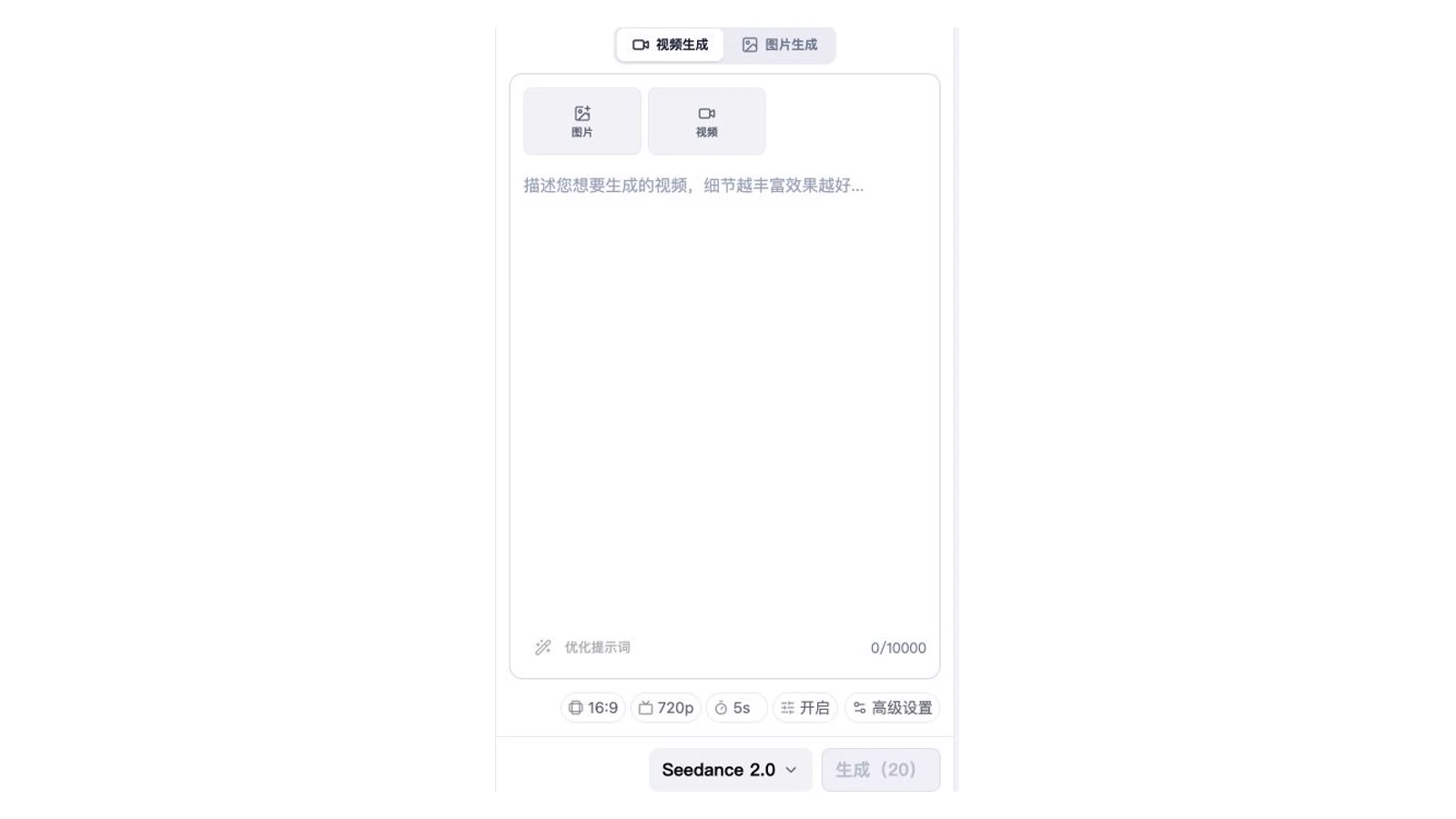
SeedVideo AI text-to-video interface captured on August 20, 2026, showing the prompt field and visible generation controls.
Set the aspect ratio for the final placement, paste one shot prompt, and check the selected model and visible cost before generating. Review motion, anatomy, background text, brand details, and continuity. Keep the strongest take and revise only the part of the prompt that failed. The text-to-video production test guide shows how to evaluate one controlled result without turning it into a general performance claim.
Edit around narration, captions, and real UI
Place the scratch narration on the timeline first. Then fit each generated shot or real screen recording under the sentence it supports.
For real product footage, crop out private data, enlarge the action the narration describes, and slow down enough for a first-time viewer to follow the cursor. Replace stale footage when the interface changes.
Add captions after the timing is stable. Keep each caption line short enough to read without pausing. Break lines at natural phrases, not in the middle of a product name or action. For multilingual versions, time captions to the localized voiceover instead of forcing translated text into English cue lengths.
Music should sit under the explanation. Lower it around dense product steps and leave room for notification sounds or deliberate transitions. If sound is generated inside a clip, check that it does not fight the voiceover.
QA for 30-second and 60-second cuts
Use the appropriate column, then watch the final video once without sound and once without looking at the screen.
| Check | 30-second cut | 60-second cut |
|---|---|---|
| Promise | Clear by 3 seconds | Clear by 5 seconds |
| Problem | One recognizable friction point | One problem with brief context |
| Mechanism | One product action | One workflow with up to two supporting actions |
| Proof | One visible result | Result plus source or short example |
| Product footage | Accurate and readable | Accurate, readable, and paced for a first-time viewer |
| Captions | Complete, concise, and safe within frame | Complete, naturally broken, and synchronized |
| Continuity | Subject and style hold across every generated shot | Subject, style, and timeline remain coherent |
| CTA | One action | One action with a clear reason |
The sound-off pass reveals whether the visuals and captions can carry the explanation. The audio-only pass reveals missing logic. If the narration jumps from problem to result without explaining the mechanism, another beautiful shot will not fix it.
Check cost and usage terms before publishing
Generation cost can change with the model, duration, resolution, and settings. The current pricing page says new users receive signup credits without a card and distinguishes commercial-use eligibility by purchase type and plan. Check the current pricing and usage terms before a paid campaign or client delivery.
Common problems and direct fixes
The video feels like a list of features
Return to the one-sentence promise. Keep the feature that explains the mechanism and remove the rest. Move secondary capabilities to another video.
The opening looks polished but says nothing
Replace an abstract montage with a recognizable behavior. Show the viewer waiting, checking, copying, correcting, or asking for help.
Generated scenes do not match
Fix the reference, subject description, wardrobe, light, and camera language. Generate fewer variables at a time. If continuity remains weak, use generated video for one self-contained beat and rely on real footage elsewhere.
The product footage is hard to follow
Crop tighter, reduce cursor travel, hide irrelevant panels, and give the action more screen time. One readable interaction is better evidence than a fast tour.
The script makes claims the screen cannot prove
Cut or narrow the claim. A current interface recording should support the narration. If the proof depends on a result, show the real result and state the conditions that produced it.
FAQ
How long should an AI explainer video be?
Use 30 seconds when one problem, one mechanism, and one result are enough. Use 60 seconds when the viewer needs context, a short walkthrough, or an objection answered. Choose the shortest cut that makes the mechanism understandable.
Should I use text-to-video or image-to-video?
Text-to-video works well for conceptual problem and outcome scenes. Image-to-video is useful when you have a controlled source image, character, product shot, or composition that should remain recognizable. Use real screen recording for exact interface instructions.
Can I generate the product interface with AI?
Do not use a generated interface as product proof. It may change labels, layout, or behavior. Record the current product instead. A generated device or abstract dashboard can work as atmosphere if the video does not imply that it is the real interface.
Should narration or visuals come first?
Write and time the narration first. It defines the explanation and gives every shot a job. Then generate or capture the visual that supports each sentence.
How do I keep a character consistent?
Use the same source image when the selected mode supports references. Repeat the fixed traits in every prompt, keep the setting and lighting stable, and reject clips where the face, clothing, or proportions drift.
Do I need captions if the video has a voiceover?
Yes for most web, social, onboarding, and support placements. Captions help viewers who watch without sound and make product names or steps easier to follow. Review the localized caption timing separately for each language.
Create the first scene
Write the one-sentence promise, draft the five beats, and mark every sentence as concept, real UI, or proof. Then use the SeedVideo AI text-to-video workspace for the concept shots and capture the product steps that must remain exact. A clear explanation is the goal. The generator is one part of the production plan.