Kling 2.6 Motion Control takes two files, a still of your character and a video of someone moving, and returns a new clip where your character performs that exact movement. It runs on SeedVideo AI as its own model, next to Kling 3.0 Motion Control, at a lower credit rate. You choose 720p or 1080p, and you set one option, Character Orientation, which decides whether the character keeps the pose of your still or turns with the reference. A prompt is optional; use it for clothing, setting and camera, because the movement always comes from the video. Clips follow the length of your motion video: up to 10 seconds when orientation follows the image, up to 30 seconds when it follows the video. The sound of your motion video carries over, and the model does not generate new audio. This guide shows where to find it, what to upload, which setting to pick and what a clip costs.
TL;DR
- Kling 2.6 Motion Control moves a character image with a reference video. Both files are required.
- Character image: JPG or PNG, up to 10 MB, at least 300 px per side, upper or full body visible.
- Motion video: MP4 or MOV, up to 100 MB, 3 to 30 seconds, one continuous shot works best.
- Character Orientation:
imagekeeps the still's facing (video up to 10 s);videofollows turns (video up to 30 s). - Base rate: 2 credits per second at 720p and 3.2 at 1080p, charged on the length of your motion video.
- It needs a paid plan or a credit pack from Creator up.
Quick Answer
To use Kling 2.6 Motion Control, open the Kling 2.6 Motion Control generator, attach one character image and one motion video, set Character Orientation to image for front-facing moves or video for turns, pick 720p or 1080p and press Generate. The button shows the credit cost before you submit. A 10-second motion video costs 20 credits at 720p at the base rate.
What Kling 2.6 Motion Control does
Motion control is a narrow tool with a clear job: the performance already exists on video, and you want a different character to perform it. The model reads body movement, gestures and timing from your reference clip and applies them to the character in your still. The look of the result (face, outfit, art style) comes from the image. The movement comes from the video. Your optional prompt adds the details around them, such as the background, lighting or a camera move.
That makes it different from a normal AI image-to-video generator, where you describe the motion in words and the model invents it. With motion control you show the motion instead of describing it, which is why it works well for dances, gestures and any move that is hard to put into a sentence.
Kling 2.6 Motion Control is the motion-control model from Kuaishou's Kling 2.6 generation. SeedVideo AI also runs the newer Kling 3.0 Motion Control; the comparison further down covers when each one makes sense. The Kling 2.6 Motion Control model page lists the full specifications.
What you need before you start
| Input | Requirement | Tip |
|---|---|---|
| Character image | JPG or PNG, up to 10 MB, at least 300 px on each side, aspect ratio between 1:2.5 and 2.5:1 | Show the upper body or full body; keep the joints that will move inside the frame |
| Motion video | MP4 or MOV, up to 100 MB, 3 to 30 seconds | One performer, one continuous shot, no cuts |
| Prompt | Optional, up to 2,500 characters | Describe outfit, setting and camera, not the movement |
| Character Orientation | image or video |
image for front-facing moves, video when the subject turns |
| Resolution | 720p or 1080p | Test at 720p, finish at 1080p |
The character image matters most. A sharp, evenly lit still with the full body in view gives the model the limbs it needs to move. If the still crops off the hands, the model has to guess them when the reference starts waving.
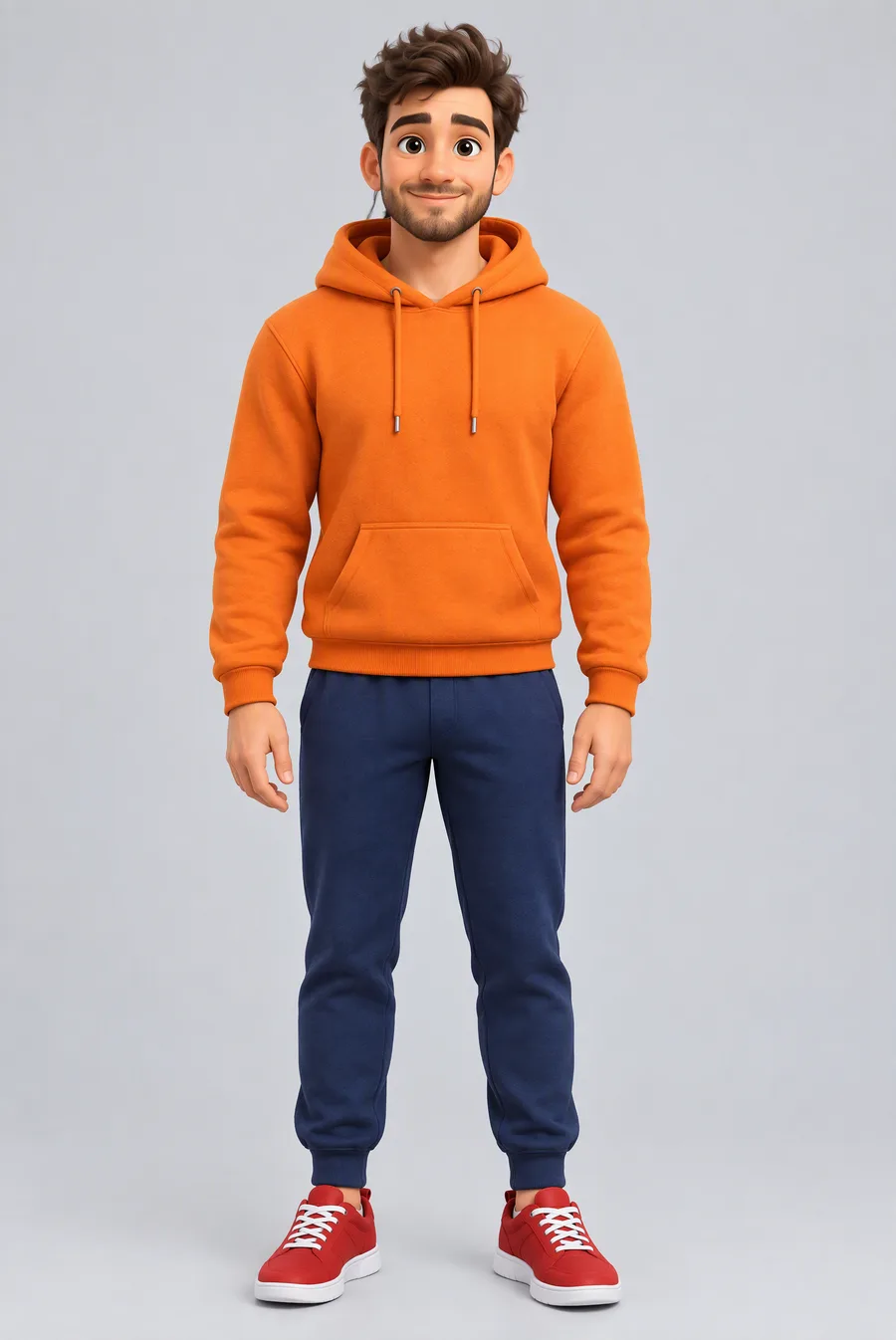
Image prompt: Full-body character reference portrait of a fictional adult man in a clean stylized 3D look, friendly face, orange hoodie, navy joggers and red sneakers, standing upright facing the camera with arms relaxed at his sides, whole body visible from head to shoes, plain light gray studio background, even soft lighting, sharp focus, centered composition.
How to use Kling 2.6 Motion Control on SeedVideo AI
- Pick the model. Open the generator, click the model button at the bottom of the composer, type "motion" in the search box and choose Kling 2.6 Motion Control.
- Attach the character image. Use the image picker or drop the file onto the composer. It appears as the reference image.
- Attach the motion video. Add the clip with the movement. The composer reads its length and updates the credit cost on the Generate button.
- Set Character Orientation. Click the orientation chip under the prompt box and choose
imageorvideo. - Add details and pick a resolution. Optionally describe the outfit, setting or camera, choose 720p or 1080p, check the number on the Generate button and submit.
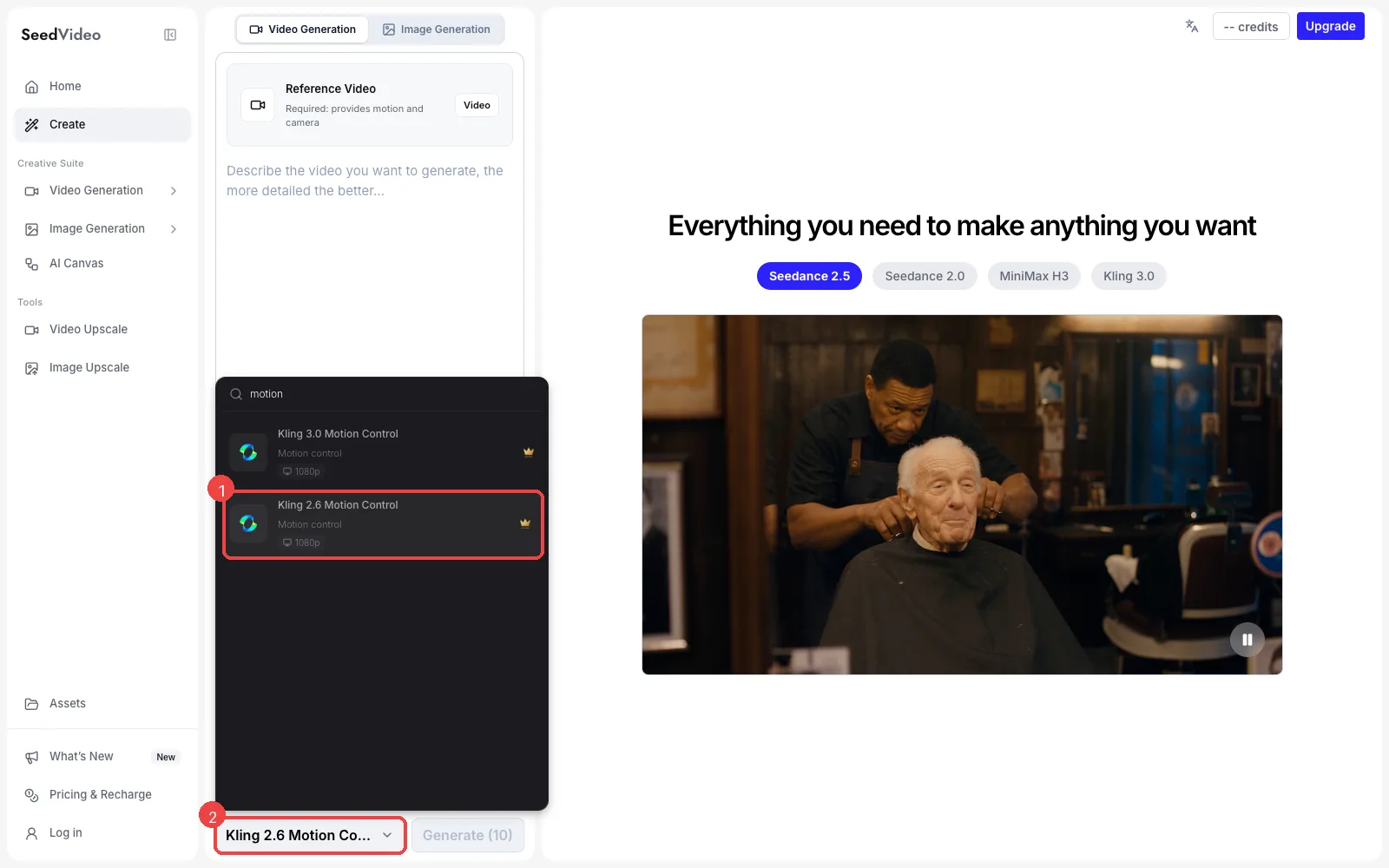
Model menu in the SeedVideo AI generator: (1) Kling 2.6 Motion Control in the search results, (2) the selected model.
The generate button stays disabled until both files are attached, so you cannot spend credits on a half-finished request. Once both are in place, the composer looks like this:
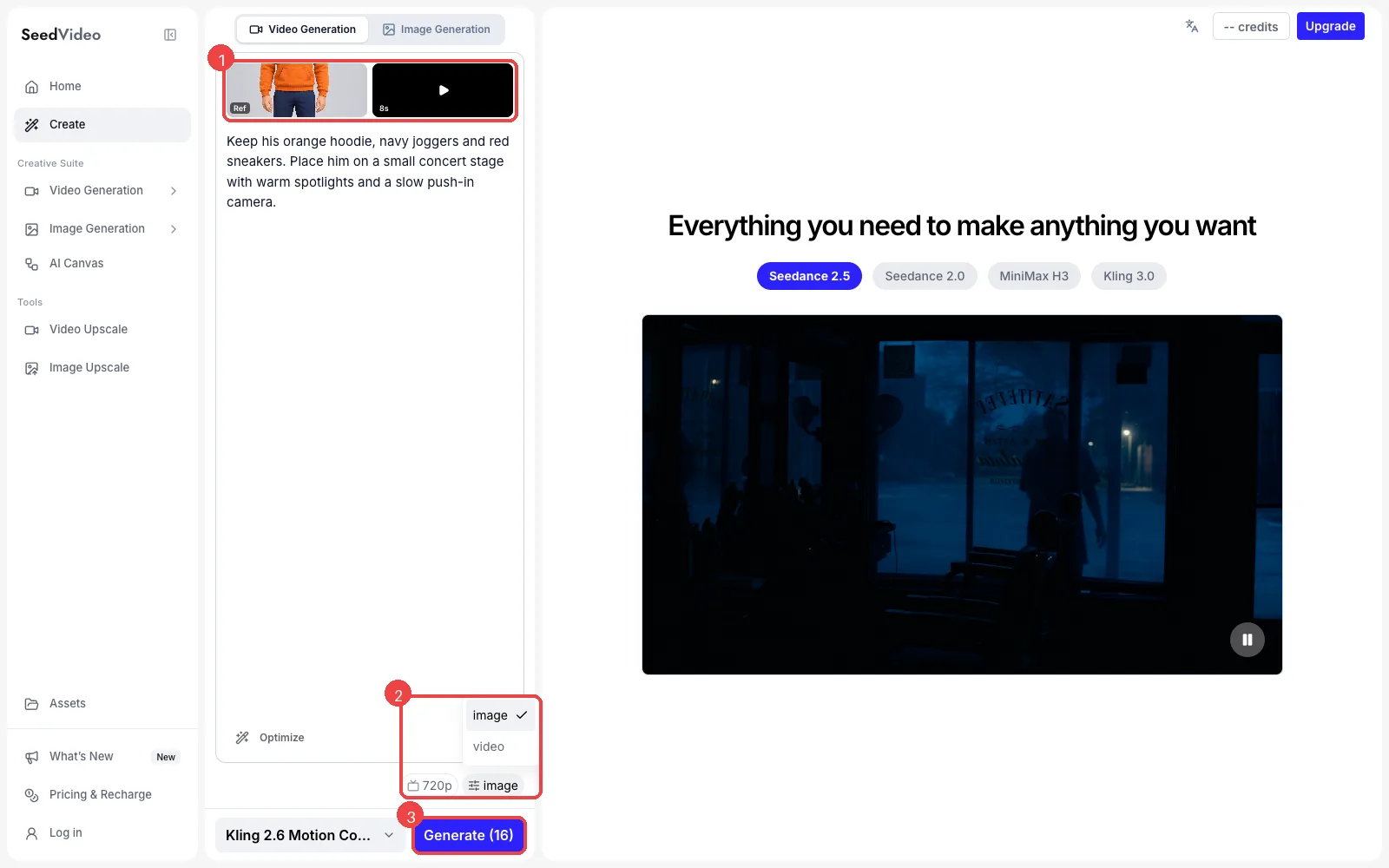
Composer with Kling 2.6 Motion Control: (1) character image and 8-second motion video, (2) Character Orientation set to image, (3) Generate showing the credit cost.
You can open this exact setup from the Kling 2.6 Motion Control generator, which preselects the model for you.
Character Orientation: image or video
| Setting | What the character does | Motion video length | Best for | Not for |
|---|---|---|---|---|
image |
Keeps the facing and framing of your still | 3 to 10 seconds | Front-facing dances, presenter gestures, talking-head moves | Spins, turns, walking away from camera |
video |
Follows the turns and direction in the reference | 3 to 30 seconds | Full-body choreography, turns, longer performances | Shots where the still's exact framing must hold |
Start with image when the performer mostly faces the camera. Switch to video when the reference turns around or moves across the frame; forcing a turning performance into the still's pose is the most common cause of twisted limbs.
Prompts for the optional prompt field
The prompt does not control the movement, so keep it to the scene around the character. These examples fit the character above; swap in your own outfit and setting.
Keep his orange hoodie, navy joggers and red sneakers. Place him on a small concert stage with warm spotlights and a slow push-in camera.
Try this prompt in SeedVideo AI
Same character dancing on a sunny city rooftop at golden hour, soft lens flare, handheld camera that follows him at chest height.
Try this prompt in SeedVideo AI
Keep the outfit and art style. Set the scene in a bright studio with a plain white background and even soft light, static camera, full body in frame.
Try this prompt in SeedVideo AI
If the result drifts from your character's look, shorten the prompt and describe less. The still already carries the appearance.
Credits and resolution
Kling 2.6 Motion Control is charged per second of your motion video. The base rate is 2 credits per second at 720p and 3.2 credits per second at 1080p.
| Motion video length | 720p (base) | 1080p (base) |
|---|---|---|
| 5 seconds | 10 credits | 16 credits |
| 10 seconds | 20 credits | 32 credits |
30 seconds (orientation: video) |
60 credits | 96 credits |
The exact amount for your account depends on your plan and appears on the Generate button before you submit. Failed generations are not charged. Plans and credit packs are on the SeedVideo AI pricing page; Kling 2.6 Motion Control works with any paid plan or a credit pack from Creator up.
Very fast or complex movement can come back a little shorter than the reference, so trim long clips to the part you actually need.
Kling 2.6 vs Kling 3.0 Motion Control
Both models take the same two inputs and follow the same length limits in this generator. The rate per second is the clearest difference.
| Kling 2.6 Motion Control | Kling 3.0 Motion Control | |
|---|---|---|
| Model generation | Kling 2.6 | Kling 3.0 |
| Base credits per second, 720p | 2 | 3 |
| Base credits per second, 1080p | 3.2 | 4 |
| Inputs | One character image and one motion video | One character image and one motion video |
| Length | Up to 10 s (image) or 30 s (video) |
Up to 10 s (image) or 30 s (video) |
| Sound | Keeps the motion video's sound | Keeps the motion video's sound |
Kling 2.6 Motion Control is best for: testing several references or characters, longer clips where the per-second rate adds up, and drafts before a final render.
Not for: cases where you have already compared both on your own files and prefer the 3.0 result.
Kling 3.0 Motion Control is best for: final renders where the newer generation's output wins on your material.
Not for: high-volume testing on a tight credit budget.
The quickest way to decide is to run the same image and video through both at 720p. For the wider Kling line-up, the Kling 3.0 model page covers text-to-video and image-to-video, and our Seedance 2.5 vs Kling 3.0 comparison explains when a prompt-driven model is the better fit.
Tips for better motion transfer
- Match the framing. If the reference shows the full body, use a full-body still. A head-and-shoulders still with a full-body dance forces the model to invent legs.
- Use one continuous shot. Cuts and scene changes break the motion track. Trim the reference to a single take.
- Keep one performer in frame. A second person or a crowd confuses which body to follow.
- Avoid motion blur. Fast spins filmed at low shutter speed blur the limbs; the result degrades there first.
- Keep the character consistent across clips. Reuse the same still for every shot; our guide to character consistency in AI video covers the rest of the workflow.
More step-by-step guides are collected under AI video workflows.
FAQ
What is Kling 2.6 Motion Control?
It is the motion-control model in Kuaishou's Kling 2.6 generation. You give it a character image and a reference video, and it produces a video of that character performing the movement from the reference.
Is the prompt required?
No. The image and the video are required; the prompt is optional and works best for outfit, setting and camera details.
How long can a Kling 2.6 Motion Control video be?
As long as your motion video, from 3 seconds up to 10 seconds with Character Orientation set to image, or up to 30 seconds with video.
Does the result have sound?
It keeps the original sound of your motion video. The model does not create new audio, so a silent reference gives a silent result.
Can I use a cartoon or 3D character?
Yes. Illustrated, 3D and photographic characters all work, as long as the body is clearly visible and the image meets the size and aspect-ratio limits.
Is Kling 2.6 Motion Control free on SeedVideo AI?
It needs a paid plan or a credit pack from Creator up. New accounts get starter credits for the entry Seedance models, which are a good way to try the platform first.
Try Kling 2.6 Motion Control
Pick a clear full-body still, trim your reference to one clean take and start at 720p. Open the Kling 2.6 Motion Control generator, attach both files and check the credit cost on the Generate button before you submit.