How to Create AI Game Cutscenes with Seedance 2.5
Last verified: September 12, 2026.
An AI game cutscene generator can turn concept art and a short scene plan into footage for previsualization, pitch decks, store pages, and campaign edits. It works best when the team treats the sequence as a stack of shots. Decide what the player must learn, prepare original character and environment references, then give each shot one clear action. Seedance 2.5 currently supports clips up to 30 seconds, plus image, video, and audio references. That gives a small game team room for an establishing shot, an approach, a reaction, a reveal, and a final hold. Treat the result as a visual draft or marketing asset. Build engine animation, gameplay logic, collision, cameras, and interactive timing inside the game production pipeline.
TL;DR
- Write the story purpose before writing a visual prompt.
- Use original or licensed character, environment, prop, and audio references.
- Split a 20 to 30 second scene into five simple beats with one state change in each beat.
- Generate shots separately when continuity matters, then assemble dialogue, sound, subtitles, and timing in an editor.
- Lock a short list of identity details across every prompt: face, costume, weapon, screen direction, light, palette, and weather.
Quick Answer
Start with a five shot plan: establish the location, move the character toward a goal, show the character's reaction, reveal the threat or discovery, and hold on an ending frame. Prepare one approved reference pack for the character, costume, weapon, location, and color script. Open the SeedVideo AI image-to-video generator, select Seedance 2.5, attach the source image for the current shot, and describe only the movement, camera, timing, and details that must remain fixed. Generate each shot as a reviewable piece. Edit the selected takes into one 20 to 30 second sequence and add final dialogue, effects, music, and subtitles in your normal editor.
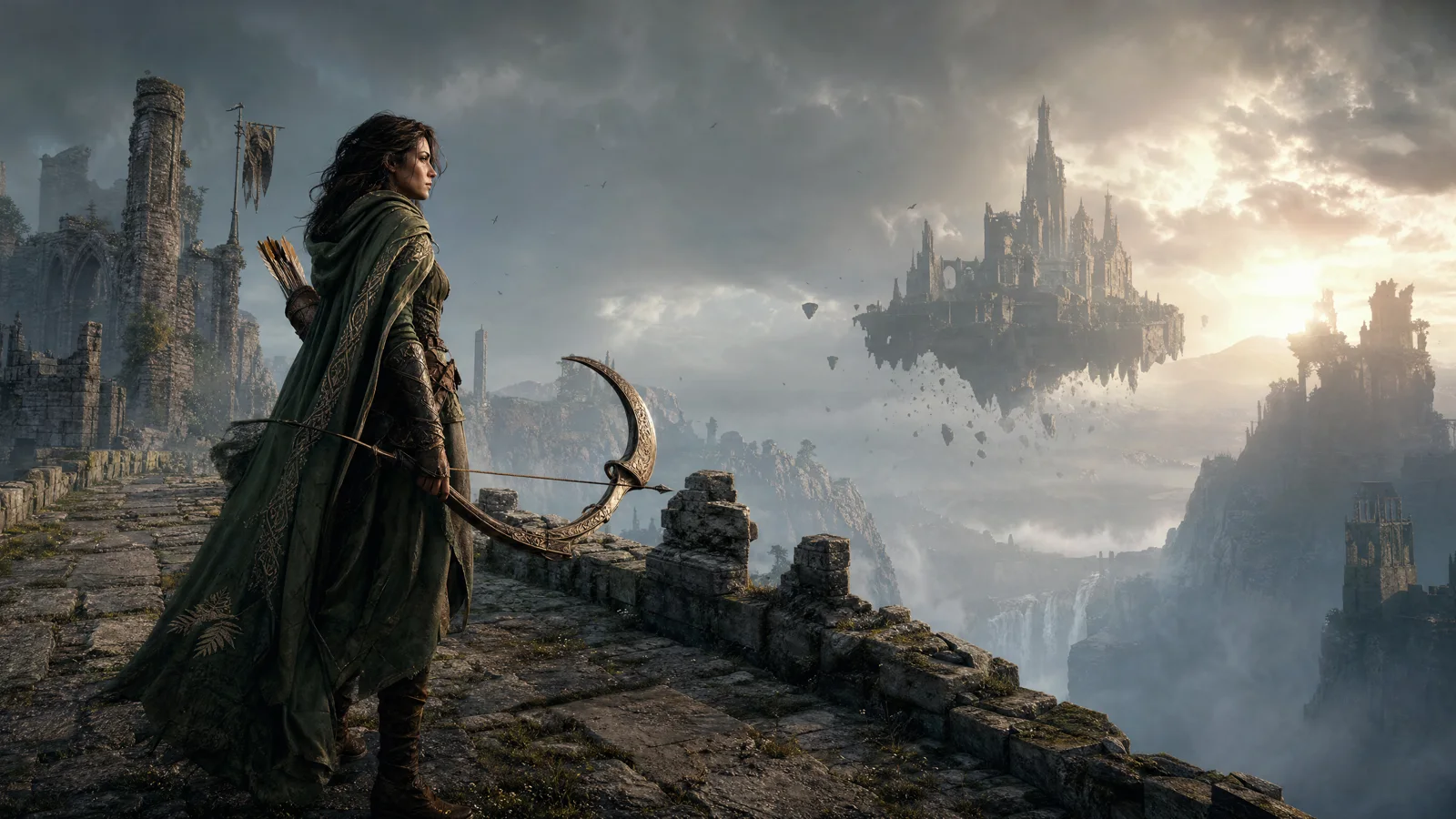
Video prompt: An original adult ranger in a weathered green cloak pauses on a ruined stone bridge above a mist canyon, raises a crescent-shaped bronze bow, and looks toward a floating fortress as the camera tracks slowly at waist height; overcast sunset, restrained wind, realistic fantasy game cinematic, wide composition, steady final hold.
Decide what the cutscene must do
A cutscene needs a story job. It may introduce a place, reveal a character's intention, explain why the next objective matters, or give a campaign audience one memorable visual. Write that job in one sentence. For example: "The player learns that the abandoned fortress is still active and the ranger chooses to enter."
That sentence gives every shot a test. A beautiful close-up that does not help the reveal is optional. A plain wide shot that establishes the bridge, fortress, and travel direction may be essential. Small teams save time when they judge shots by information instead of surface polish.
Define the delivery context at the same time. A Steam page trailer may need a clean 16:9 frame and a readable last image. A vertical social edit needs extra space above and below the subject. An in-game previsualization needs shot length and eyeline notes that a cinematic designer can rebuild later. Pick the target frame before generating so the character scale and camera path do not fight a late crop.
Use a short planning card:
| Decision | Example for this scene |
|---|---|
| Story purpose | Reveal that the floating fortress has reactivated |
| Player information | The bridge is the only visible path forward |
| Emotional turn | Caution becomes commitment |
| Final image | Ranger steps toward the fortress |
| Delivery | 16:9 previsualization and trailer insert |
Prepare an original reference pack
Reference quality affects continuity more than a longer adjective list. Build a compact pack from material your team owns or has permission to use. One character turnaround, one costume close-up, one prop image, one environment key frame, and one palette frame are usually easier to direct than a crowded collage.
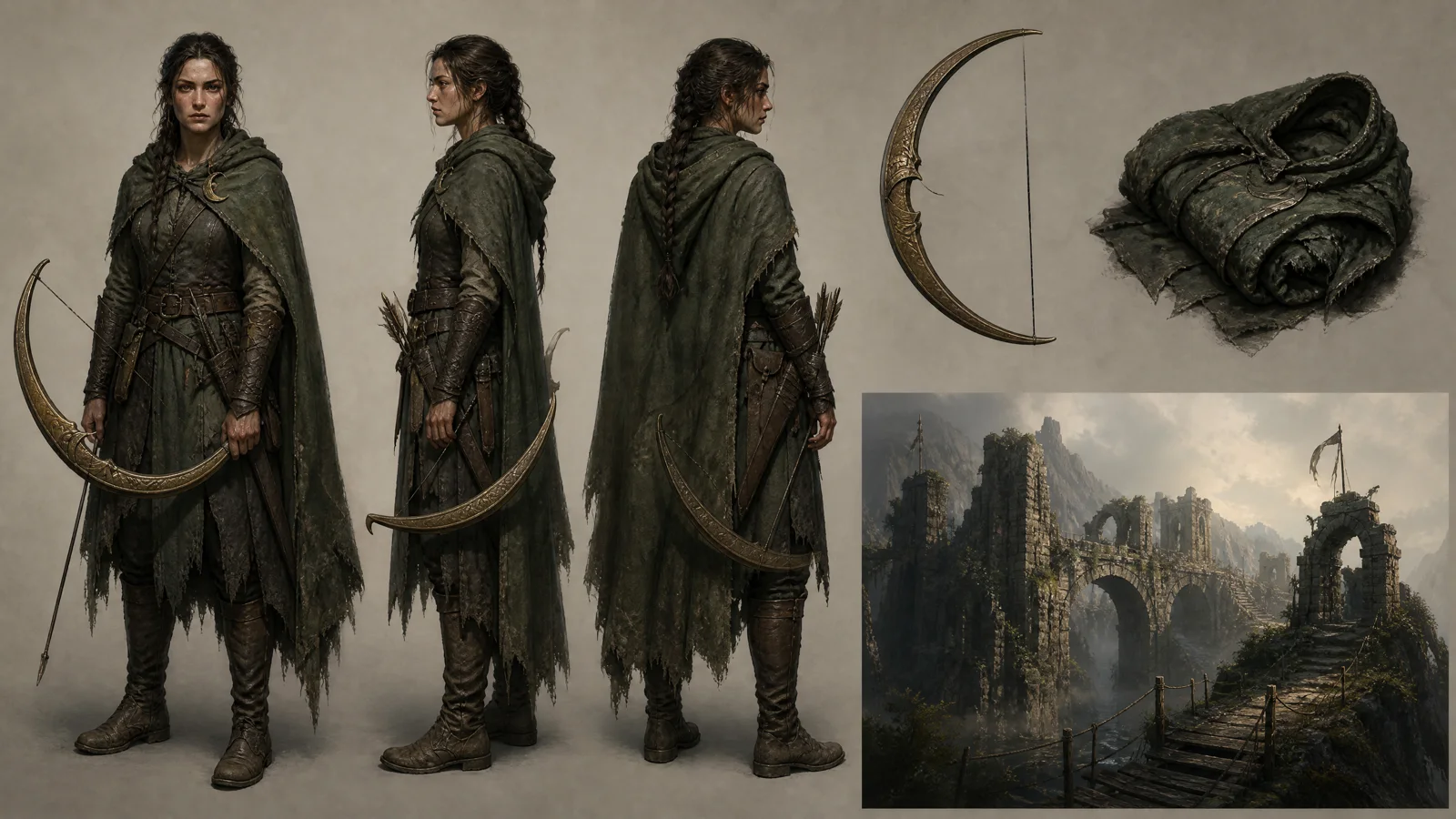
Image prompt: Original fantasy game concept sheet for a fictional adult woman ranger, front, side, and three-quarter views, weathered green cloak, crescent-shaped bronze bow, ruined bridge environment key frame and prop studies, warm gray production-board background, consistent face and materials, soft studio light, wide composition.
Choose a few details that must survive every shot. For this example, they are the green cloak, the crescent bow, the ranger's dark braided hair, the broken bridge parapet, cool gray fog, and warm sunset from camera right. Put the same phrases in every shot prompt. Keep optional texture notes separate so they can change without changing identity.
Name each reference by purpose in your own notes. "Character identity" is more useful than "image 1." "Camera pace" is more useful than "video 2." Seedance 2.5's current model page lists up to 30 images, 10 videos, and 10 audio files within a reference-led workflow. That capacity is a ceiling, not a target. A small, well-assigned pack is easier to audit.
Avoid using another game's character sheet, cinematic frame, logo, voice, or music as a shortcut. A style can be described through lighting, lens, material, color, and pacing without copying a protected character or a recognizable franchise design.
Break 20 to 30 seconds into five beats
Five shots are enough to give a short scene a beginning, a turn, and an ending. More important, they keep one generation from carrying too many state changes. The exact timing can move during the edit. An AI storyboard generator can help you see those five beats as frames before generating footage, making it easier to check shot order and character continuity.
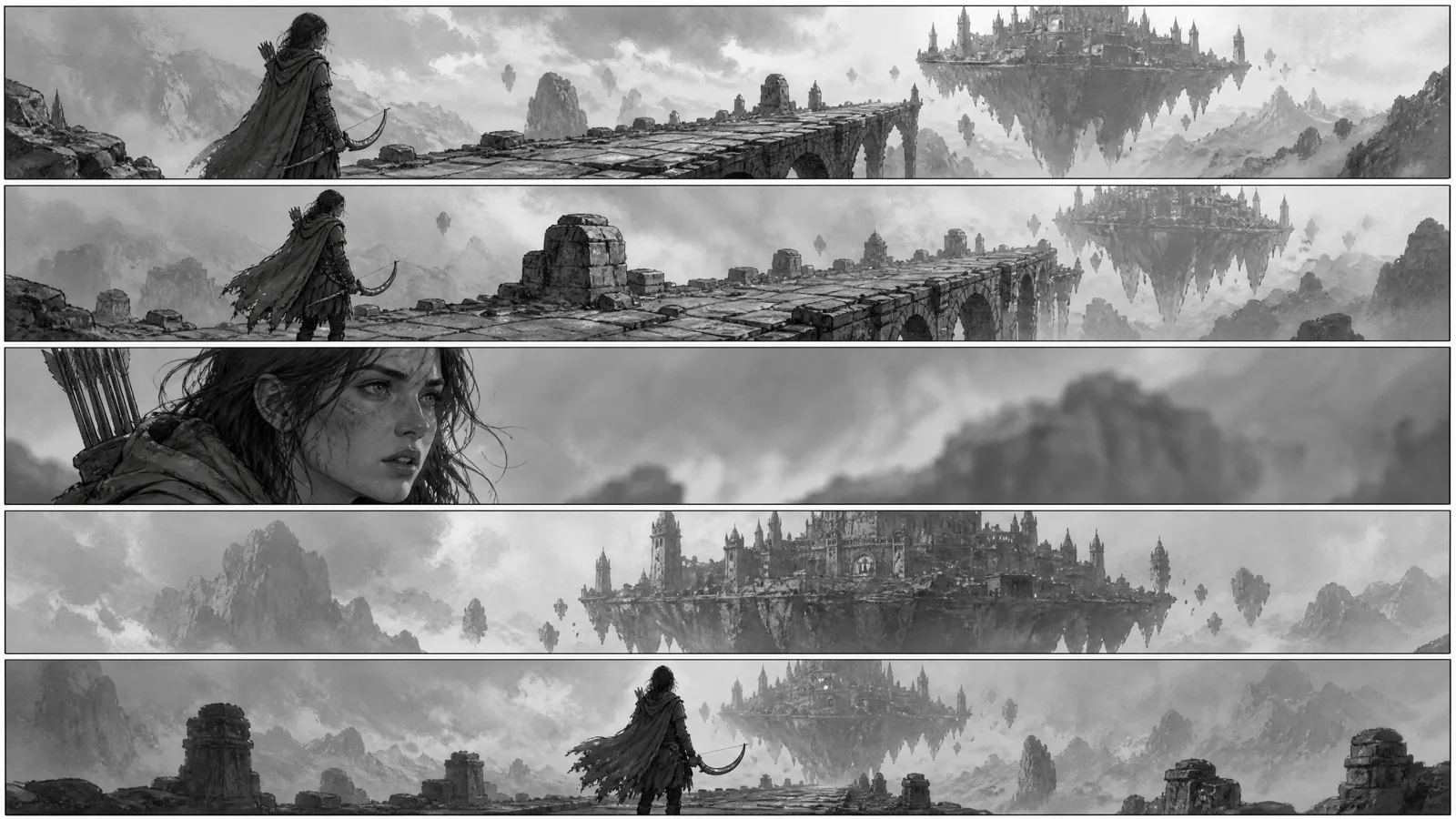
Image prompt: Five-panel grayscale storyboard for an original fantasy game cutscene, the same adult ranger with a green cloak and crescent bow crossing a ruined bridge toward a floating fortress; establishing wide shot, cautious walk, close reaction, fortress reveal, final silhouette hold, pencil and marker previsualization, clear framing.
| Beat | Suggested length | What changes | Camera job |
|---|---|---|---|
| Establish | 4 to 6 seconds | The location and travel direction become clear | Slow wide push |
| Approach | 4 to 6 seconds | The ranger enters the dangerous space | Low tracking move |
| Reaction | 3 to 5 seconds | The ranger hears or sees the activation | Controlled close-up |
| Reveal | 5 to 7 seconds | The fortress wakes and lights appear | Tilt or pull back |
| Resolve | 3 to 5 seconds | The ranger chooses to continue | Stable silhouette hold |
Write one state change for each beat. "The fortress is dark, then three windows glow" is direct. "The fortress awakens while the ranger runs, fires an arrow, turns, and a storm begins" asks the middle of the shot to carry several unrelated actions. Move extra events into their own shot.
For a dialogue scene, count turns rather than sentences. A glance, a line, and a response can already fill one beat. Keep speaker positions and eyelines stable. If the scene contains two characters, assign each one a screen side and preserve it until the cut intentionally crosses the line.
The multi-shot storytelling workflow covers longer shot planning in more detail. Use it when the cutscene needs parallel action or a larger sequence than this five-beat structure.
Choose the right input mode for each shot
Use image to video when the approved visual already exists. A character key frame, environment painting, or composed storyboard panel gives the shot a specific starting state. This is usually the safest route for concept art animation and character-led cutscenes.
Use text to video for an establishing insert that does not depend on an exact character or prop. It can help with fog moving through an empty ruin, a sky transition, or a distant landscape. Keep these shots connected to the same palette and lighting plan.
Use reference-led generation when identity, motion, environment, and rhythm each need their own source. Give every reference one job. A turnaround can guide identity, a short camera clip can guide pace, and an audio cue can guide timing. Do not ask one image to define face, action, environment, lens, and edit rhythm at once.
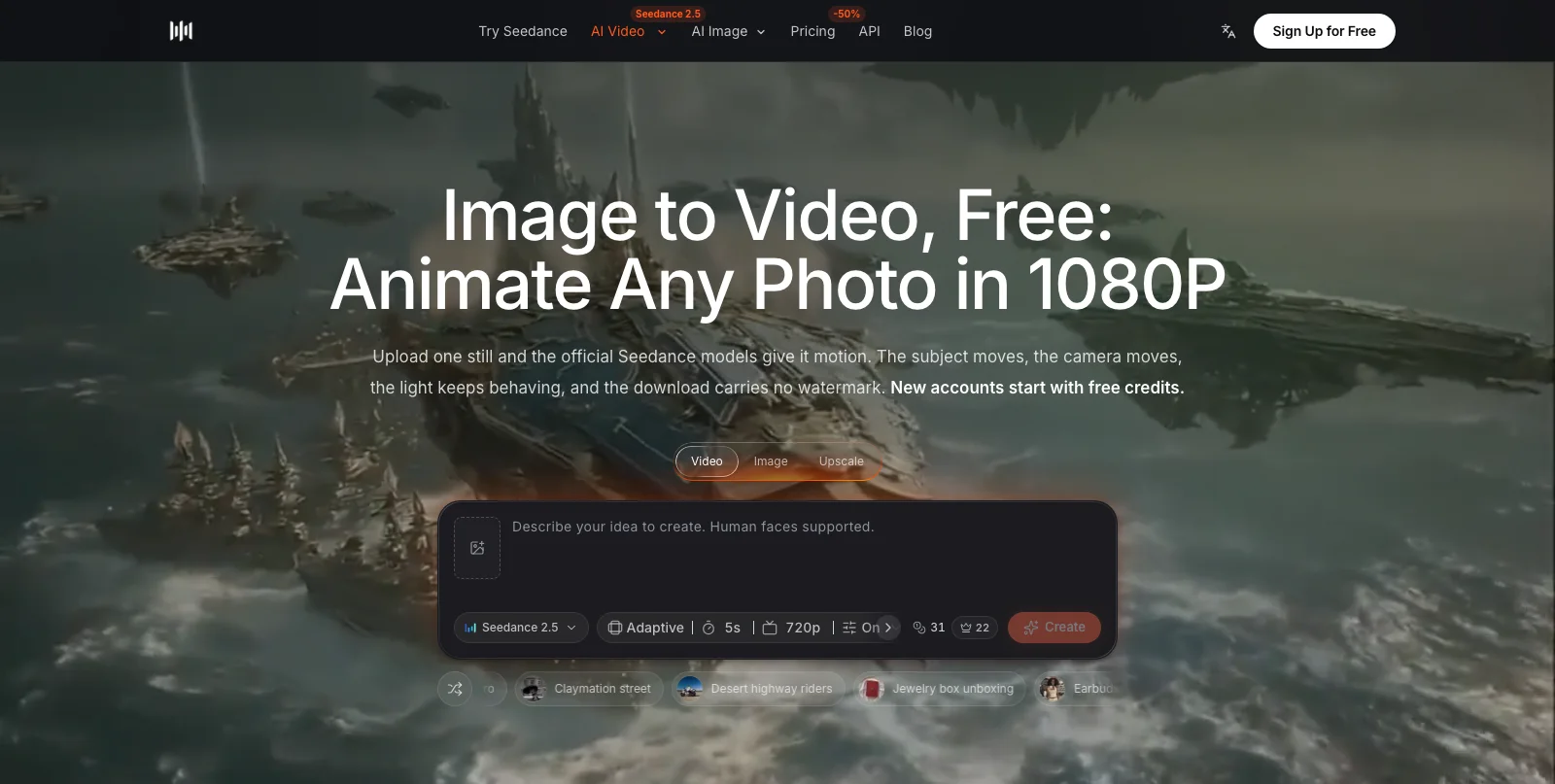
Current SeedVideo AI image-to-video workspace with Seedance 2.5 selected, an attachment control, prompt field, adaptive framing, five-second duration, 720p, and audio enabled.
The current Seedance 2.5 model page lists up to 30 seconds per clip, 480p or 720p output in MP4 or MOV, aspect ratios including 16:9, 9:16, 1:1, 4:3, 3:4, 21:9, and adaptive, plus text, image, video, and audio references. The live workspace showed five seconds, 720p, audio on, and adaptive framing after selecting Seedance 2.5. Controls and credit estimates can change, so confirm the live workspace before a production batch.
Write prompts like shot instructions
A useful cutscene prompt reads like a compact call sheet. Put the subject and fixed identity first, then describe the action and the camera. Finish with timing, light, and the ending frame. Keep the instruction tied to one shot.
Use this template:
Subject and fixed details: [character, costume, prop, identity details] Starting frame: [position, pose, environment, screen direction] Action: [one visible state change] Camera: [shot size, movement, speed, lens feel] Timing: [what happens early, middle, and late] Light and palette: [direction, contrast, weather, color] Final frame: [the image the editor needs for the cut] Keep fixed: [face, costume, prop shape, background landmarks]
For the reaction shot, the filled prompt could be:
The same adult ranger with dark braided hair, weathered green cloak, and crescent-shaped bronze bow stands on the ruined bridge, facing screen right. She hears a low mechanical pulse, stops, and turns her eyes toward the floating fortress. Medium close-up, slow ten-centimeter push in, steady shoulders, cool gray fog, warm sunset from camera right. In the final second, three distant windows glow and she holds her gaze. Keep her face, cloak clasp, bow shape, bridge stones, and light direction unchanged.
Save the prompt with the selected take. If a later shot drifts, compare the fixed-detail lines before adding more style words. The cinematic video prompt guide provides more camera and lighting patterns that can be adapted to an original game world.
Keep character and world continuity visible
Continuity needs a checklist that an editor can see, not a general request for consistency. Review the same items in every take.
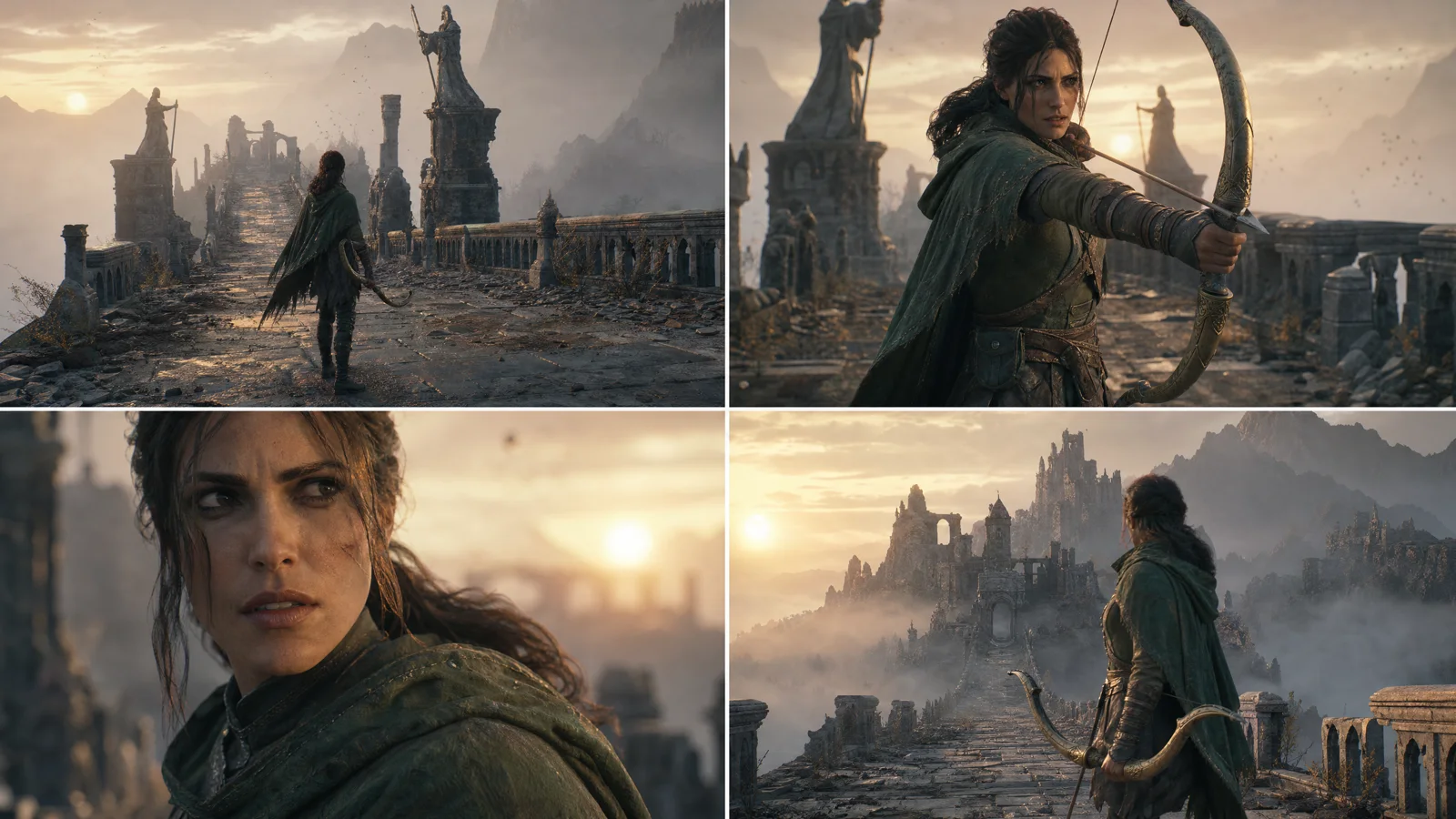
Video prompt: Four connected shots of the same fictional adult ranger in a weathered green cloak with a crescent bronze bow on one ruined bridge, consistent face, costume seams, weapon orientation, fog color, sunset direction, and screen direction; wide approach, medium action, close reaction, final fortress reveal, realistic game cinematic, controlled camera motion.
| Continuity item | Lock before generation | Review in every take |
|---|---|---|
| Character | Face, hair, age, body scale | Eyes, jaw, hands, silhouette |
| Costume | Cloak color, clasp, boots, layers | Seams, fasteners, damage pattern |
| Prop | Crescent bow shape and handedness | Curve, grip, orientation, scale |
| Geography | Bridge edge, fortress position, travel direction | Landmark placement and screen side |
| Light | Sunset from camera right, cool fog fill | Shadow direction and color temperature |
| Motion | Cautious pace and restrained wind | Foot speed, cloth movement, camera speed |
Review frames at the start, midpoint, and end. A shot may look convincing in motion while the bow changes shape for half a second. Freeze-frame review catches this before the edit is built around it. Compare the character consistency guide if the face, costume, or prop changes between otherwise usable shots.
Do not fix every problem by regenerating the entire scene. If the wide shot works but the close-up drifts, keep the wide shot and revise the close-up. If the ending frame is the problem, shorten the take or cut earlier. Editorial choices are part of the workflow.
Plan dialogue, sound, and subtitles separately
Seedance 2.5 supports audio references and audio-aware planning, but a game cutscene still benefits from separate sound control. Build a timing track with temporary dialogue, ambience, music pulse, and key effects before the final edit. It gives each generated shot a clear length and prevents visuals from dictating every pause.
For dialogue, protect meaning and editability. Record or generate approved voices in a separate voice workflow, then cut reactions around the line. If the visual generation includes spoken performance, review lip movement, speaker identity, and line timing as distinct items. Keep subtitles editable instead of baking important text into source images.
Use sound cues to motivate cuts. A distant pulse can lead into the reaction close-up. A metal groan can start before the fortress reveal. Footsteps can bridge two shots and make separately generated takes feel like one scene. Music should support the turn rather than hide a confusing picture.
Assemble and review the cutscene
Place the five selected shots on a timeline before adding transitions. Trim each one to the useful action and remove unstable openings or endings. Most game cutscenes need clean cuts more than decorative transitions.
Review the rough cut in three passes:
- Story pass: can a viewer understand the location, goal, turn, and decision without narration?
- Continuity pass: do character, prop, geography, screen direction, light, and weather remain coherent?
- Delivery pass: are dialogue, subtitles, music, effects, aspect ratio, and final frame correct for the target channel?
Show the rough cut to someone who did not write the scene. Ask what they think happened and what the character decided. Their answer is more useful than asking whether the footage looks cinematic.
For a marketing edit, add the game title, platform, release window, and call to action only after the scene reads clearly. Use approved brand assets and keep enough hold time for the final card. Check the current SeedVideo AI pricing and commercial-use options before producing client or paid campaign work, and confirm the rights for every uploaded image, voice, music track, logo, and reference clip.
Know where previsualization ends
Generated cutscene footage can help a director choose framing, pacing, mood, and shot order. It can also work as an illustrative trailer insert when the team has approved the footage and cleared its inputs. The game build still needs assets and behavior made for the engine.
| AI cutscene output can guide | Engine production still owns |
|---|---|
| Shot composition and lens choice | Runtime camera rig and constraints |
| Character mood and broad movement | Rig, animation graph, root motion, collision |
| Environment color and atmosphere | Level geometry, materials, lighting, optimization |
| Story beat timing | Trigger logic, branching, save state, localization |
| Trailer or pitch presentation | Playable performance and platform testing |
Label the asset correctly inside the team. "Cutscene previs v2" is clearer than "final cinematic." Keep the approved script, references, prompt, selected take, and review notes together. When an animator or cinematic designer rebuilds the shot, they can see which choices were intentional and which details came from the draft.
Production checklist
Before generation:
- Confirm the story purpose, target format, and five shot beats.
- Confirm that the team owns or has permission to use every reference.
- Create one fixed-detail list for character, costume, prop, geography, and light.
- Select Seedance 2.5 and verify the current duration, aspect ratio, resolution, audio, and credit settings.
Before publishing or handing off:
- Review the start, midpoint, and end of every selected shot.
- Check hands, face, costume, prop shape, eyelines, and screen direction.
- Replace temporary dialogue, music, and subtitles with approved assets.
- Mark the sequence as previsualization, marketing footage, or another accurate production state.
- Confirm commercial-use terms and all input rights for the account and project.
FAQ
Can Seedance 2.5 make a complete 30-second game cutscene?
The current model page lists generation up to 30 seconds. A controlled sequence is usually easier to review when it is planned as several simple shots and assembled in an editor, even when the model can create a longer clip.
Should I use text to video or image to video for game concept art?
Use image to video when a character design, environment painting, or storyboard panel must guide the starting frame. Use text to video for inserts where exact identity and layout matter less.
How do I keep the same character across shots?
Reuse the same approved identity references and repeat a short fixed-detail block in every prompt. Review face, hair, costume seams, prop shape, screen direction, and light at the start, middle, and end of each take.
Can I upload art from another game as a reference?
Use material you own or have permission to use. Build style direction from lighting, color, lens, materials, and pacing instead of copying a protected character, logo, environment, or cinematic frame.
Does Seedance 2.5 support audio references?
The current model page lists text, image, video, and audio references, including audio guidance for rhythm, music direction, sound cues, and dialogue pacing. Keep final dialogue, music, effects, and subtitles editable in the production timeline.
Can I import the generated footage directly as real-time game animation?
Use the footage as previsualization or an approved rendered marketing asset. Runtime animation still needs an engine-ready rig, animation data, camera logic, collision, triggers, branching, optimization, and platform testing.
What aspect ratio should I choose?
Choose the delivery format before generation. Use 16:9 for a typical trailer or cinematic presentation, 9:16 for vertical social delivery, and leave safe space if both versions will be cut from the same source.
What should I do when one shot drifts?
Keep the shots that work. Revise the prompt or reference assignment for the weak shot, shorten an unstable ending, or cut to a reaction or environment insert. A focused repair is easier to control than regenerating the full sequence.
Build the first five-shot draft
Write the one-sentence story purpose, prepare the approved reference pack, and turn the scene into five beats. Then open the AI image-to-video workspace, select Seedance 2.5, and generate one reviewable shot at a time. The goal of the first pass is a cut that communicates the scene. Polish comes after the story, continuity, and asset boundaries are clear.