How to Use Seedance 2.0 Video Reference in CapCut
Seedance 2.0 video reference is currently available through Dreamina by
CapCut. In the public web interface checked on July 23, 2026, the practical
path was AI Video → Dreamina Seedance 2.0 → Omni reference. Add a short
clip in the Reference area, then tell the prompt exactly what to borrow from
that clip, such as the action, camera path, timing, or visual treatment. Do not
ask the model to copy everything at once. A clean reference with one readable
action usually gives you a clearer test than a finished montage with cuts,
music, titles, and several subjects. The reference guides the generation, but
it does not lock every frame or preserve a person's identity automatically.
Treat the first output as evidence: compare it with your target, identify what
the model followed, and revise either the clip or the prompt. The steps below
separate ByteDance's model limits from the controls visible in the current
CapCut/Dreamina product.
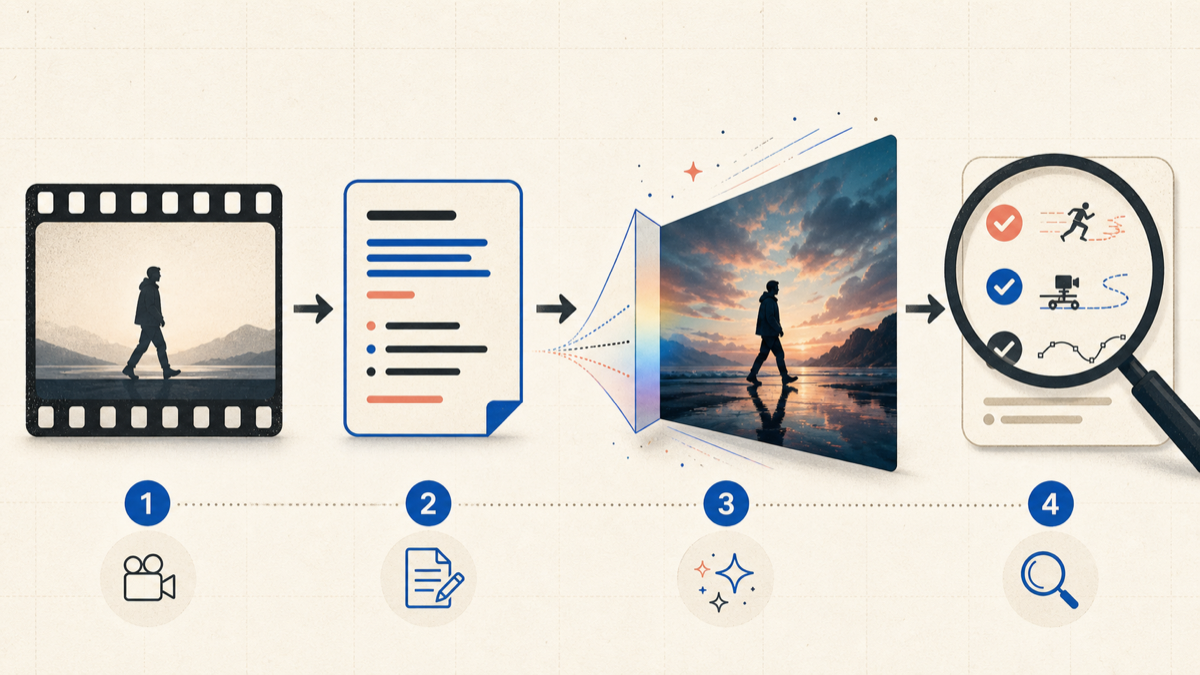
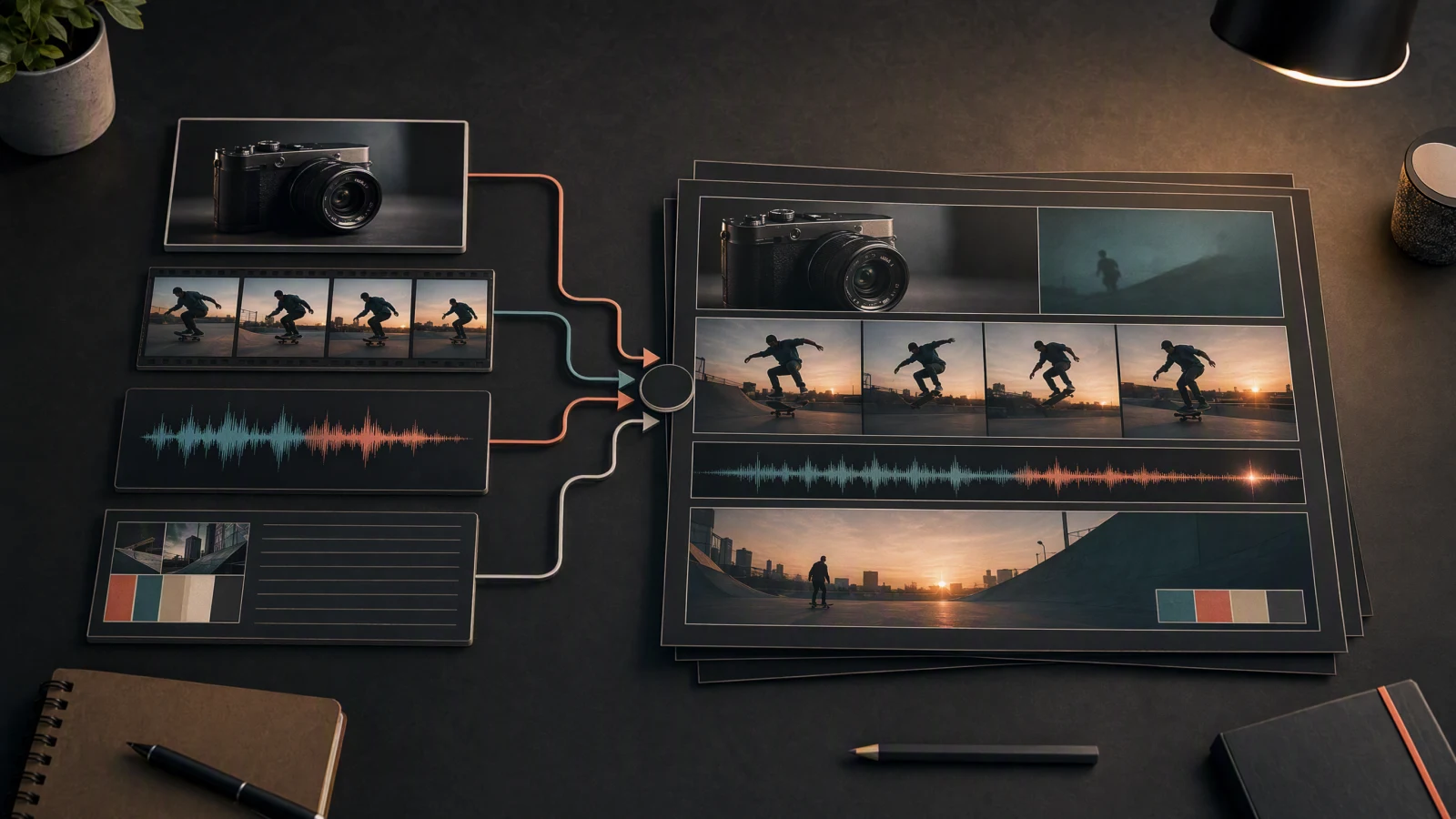
A reference clip supplies a motion, camera, timing, or style cue. The prompt
defines what the new shot should keep and what it may change.
TL;DR
- Open Dreamina by CapCut, choose
AI Video, select
Dreamina Seedance 2.0, and useOmni reference. - Upload a short clip that has one clear subject and one clear motion or camera
idea. Use footage you own or have permission to use. - Assign the clip one job in the prompt: motion, camera, timing, or style.
- Judge the generated result by observable details, not by whether it feels
vaguely similar. - ByteDance's model limit is not the same thing as the current consumer UI
limit. Check the controls shown in your account before committing to a
workflow.
Quick Answer
Start with this prompt pattern:
Use Video 1 only for the subject's walking rhythm and arm swing. Keep the
character, wardrobe, location, lighting, and camera framing described below.
Do not copy the reference person's face or background. Create a medium-wide
shot of a courier crossing a rainy station platform at dusk. The camera
tracks from the side at walking speed.
Try this prompt in SeedVideo AI
This tells Seedance what the reference owns and what the text prompt owns. If
you write only "use this video as reference," the model has to guess whether
you meant the action, camera movement, editing rhythm, subject, or overall
look.
What video reference does in Seedance 2.0
ByteDance's Seedance 2.0 page
describes a model that accepts text, image, audio, and video inputs. Its
official launch post
says those inputs can guide composition, motion, camera movement, visual
effects, and audio.
A reference clip can take on four different jobs:
- Motion reference: the order, direction, and pace of an action.
- Camera reference: a push-in, orbit, pan, tracking move, or handheld feel.
- Timing reference: when an action starts, pauses, accelerates, or cuts.
- Style reference: color, lighting, texture, or an editing treatment.
Each job needs a different instruction. Video-to-video usually means
transforming or editing an existing clip. Motion reference uses movement as
guidance. Style reference borrows a visual treatment.
First and last frames and Multiframes are separate modes in the checked
Dreamina interface. A normal input clip can also be source material without
being assigned as a reference. Use the label shown in your interface and
describe the role in your prompt.
The model still interprets the input. ByteDance's own evaluation notes room
for improvement in detail stability, multi-subject consistency, text
rendering, and complex editing effects. The model rebuilds the motion instead
of playing the reference back frame by frame.
Model capability vs current CapCut product limits
The model specification and the product interface answer different questions.
The first describes what Seedance 2.0 can accept in principle. The second
describes what your current account can submit.
| Item | ByteDance model statement | Public Dreamina interface checked July 23, 2026 | What to rely on |
|---|---|---|---|
| Input types | Text, images, video clips, and audio clips | The file picker advertised common image formats, MP4/MOV, and MP3/WAV | Use the current file picker for format acceptance |
| Reference count | Up to 9 images, 3 video clips, and 3 audio clips | No authenticated upload-count test was performed | Do not promise a consumer upload limit |
| Reference modes | Multimodal reference at the model level | Omni reference, First and last frames, and Multiframes were visible |
Pick the mode that matches the job |
| Aspect ratio | Not a CapCut UI specification | 21:9, 16:9, 4:3, 1:1, 3:4, and 9:16 were visible | Check the choices in your account |
| Resolution | Not a CapCut UI specification | 720P, 1080P, and 4K were visible | Availability may depend on the account or credit tier |
| Duration | The launch post says the model supports 15-second output | The checked control covered 4 to 15 seconds | Use the visible control, then verify the generated clip |
| Login and region | Not specified by the model page | The public tool showed Sign in; no official region list was visible |
Sign in and confirm access in your own region |
There is also a documentation conflict worth knowing about. The
Dreamina Seedance 2.0 landing page
lists 9 images, 3 videos, and 3 audio files in one section, but its tutorial
text says up to 9 videos. The same page says 5 to 12 seconds and 720P to 1080P,
while the interface checked for this guide showed 4 to 15 seconds and a 4K
option. When landing-page copy and the live control disagree, follow the
control in your account and avoid building a production plan around an
unverified maximum.
Prepare your reference video
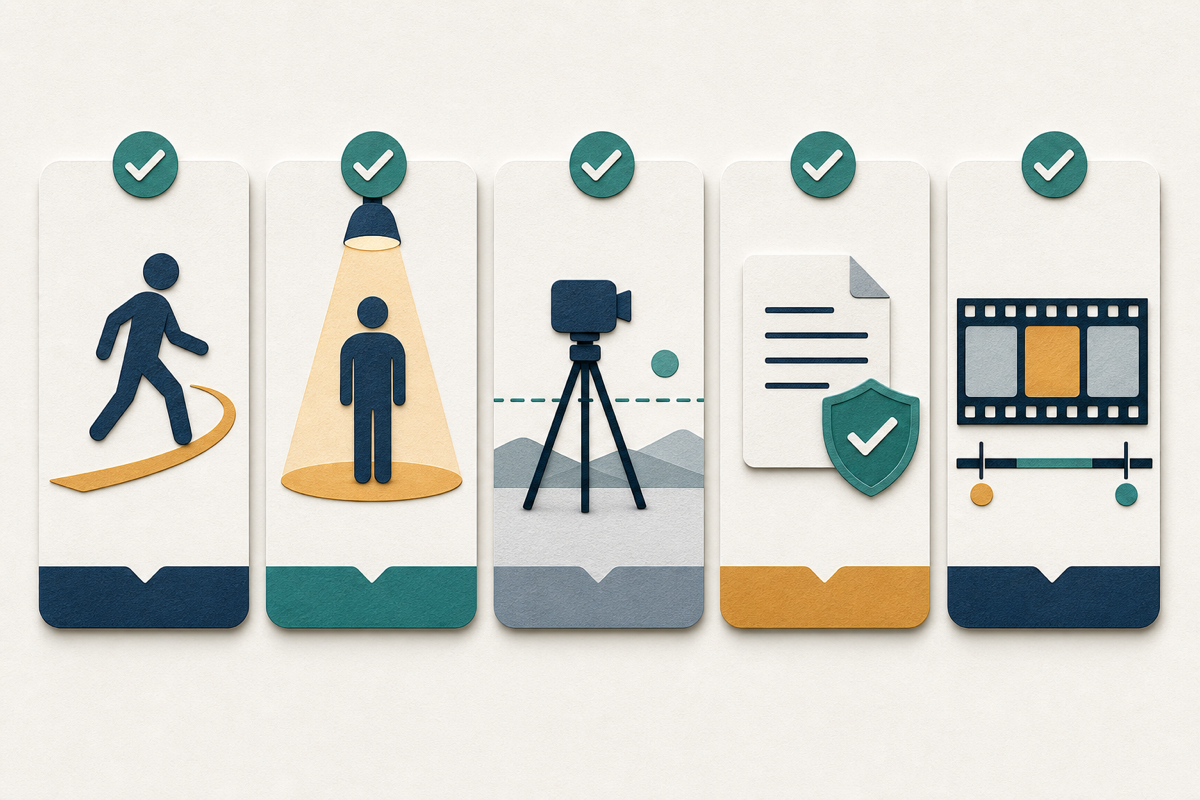
A useful reference is easy to read. Remove competing actions before asking
the model to interpret the clip.
Use this checklist before upload:
- Rights: use a clip you recorded, licensed, or have clear permission to use.
ByteDance says real-person portrait references may require identity
verification or prior legal authorization. - One main action: walking, turning, pouring, opening, or lifting is easier to
diagnose than a sequence of unrelated movements. - One primary subject: crop out background people when they are not part of
the intended motion. - Readable silhouette: hands, feet, props, and body direction should not
disappear behind foreground objects. - Stable duration: include the useful motion and a little context before and
after it. Remove dead time. - Simple camera language: if motion is the goal, avoid an aggressive camera
move. If the camera path is the goal, keep the subject action simple. - Clean edit: remove titles, transitions, overlays, and rapid cuts unless they
are the exact feature you want to reference. - Audio decision: mute irrelevant audio. Keep audio only when timing or sound
is part of the intended guidance and your account accepts it.
The checked browser file picker advertised JPG/JPEG, PNG, WebP, BMP,
HEIC/HEIF, GIF, TIFF, MP4, MOV, MP3, and WAV. That proves which extensions the
picker offered at the time of checking. It does not prove every codec,
file-size limit, frame rate, or upload combination. If the upload fails,
export a short MP4 with a standard H.264 video track and try again, but follow
the exact error shown by CapCut rather than assuming the file is too large.
Step by step in CapCut and Dreamina
1. Open the current entry
CapCut's
official general guide
describes CapCut Desktop or Browser → Video studio → Create new. The
more specific public entry checked on July 23, 2026 was
Dreamina's Seedance 2.0 workspace.
Sign in before you expect to generate. Menu names can vary by country,
account, app version, or rollout. If you cannot see Seedance 2.0, do not use an
old screenshot to guess a hidden route. Check the current model menu and
official availability for your account.
2. Select the model and reference mode
Choose AI Video, then Dreamina Seedance 2.0. In the checked interface, the
next menu offered:
Omni referencefor mixed reference material and prompt-led generation.First and last framesfor endpoint control.Multiframesfor several image checkpoints.
For one reference video that should guide motion, camera, timing, or style,
start with Omni reference.
3. Add the clip in Reference
Use the Reference control and choose the clip. The upload itself was not
completed for this guide, so the authenticated upload count, file-size cap,
credit cost, and post-upload labels remain unverified. Read any role selector
that appears after upload. If the interface lets you name or mention the
asset, use the exact reference name in the prompt.
4. Give the reference one job
Use this formula:
Use Video 1 for: [motion, camera path, timing, or visual treatment]. Keep from the prompt: [subject, identity, wardrobe, setting, lighting]. Ignore from Video 1: [face, background, text, audio, or unwanted movement]. Create: [new shot with a clear action, framing, duration, and endpoint].
Avoid requests such as "copy this exactly." They are vague, can conflict with
the new scene, and may create rights or identity problems. Describe the
observable result you need.
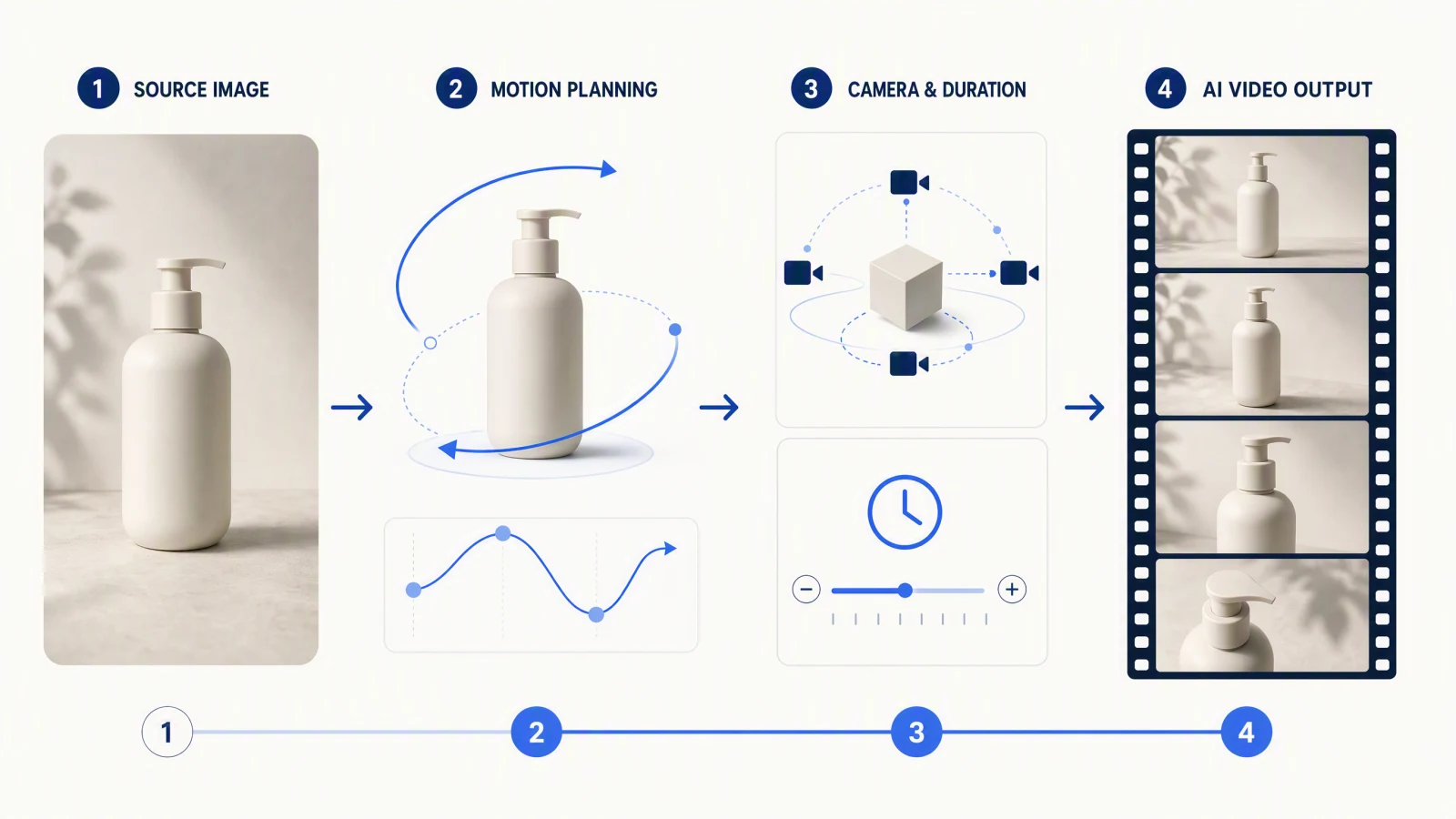
5. Set output controls
Choose aspect ratio, resolution, and duration. The checked interface showed
21:9 through 9:16, 720P through 4K, and 4 to 15 seconds. Those controls can
change and may not be available on every account.
Pick duration from the action rather than from a preset habit. A single turn
and reveal may need five seconds. A walk, pause, and product handoff may need
ten. Leave enough time for the motion to finish.
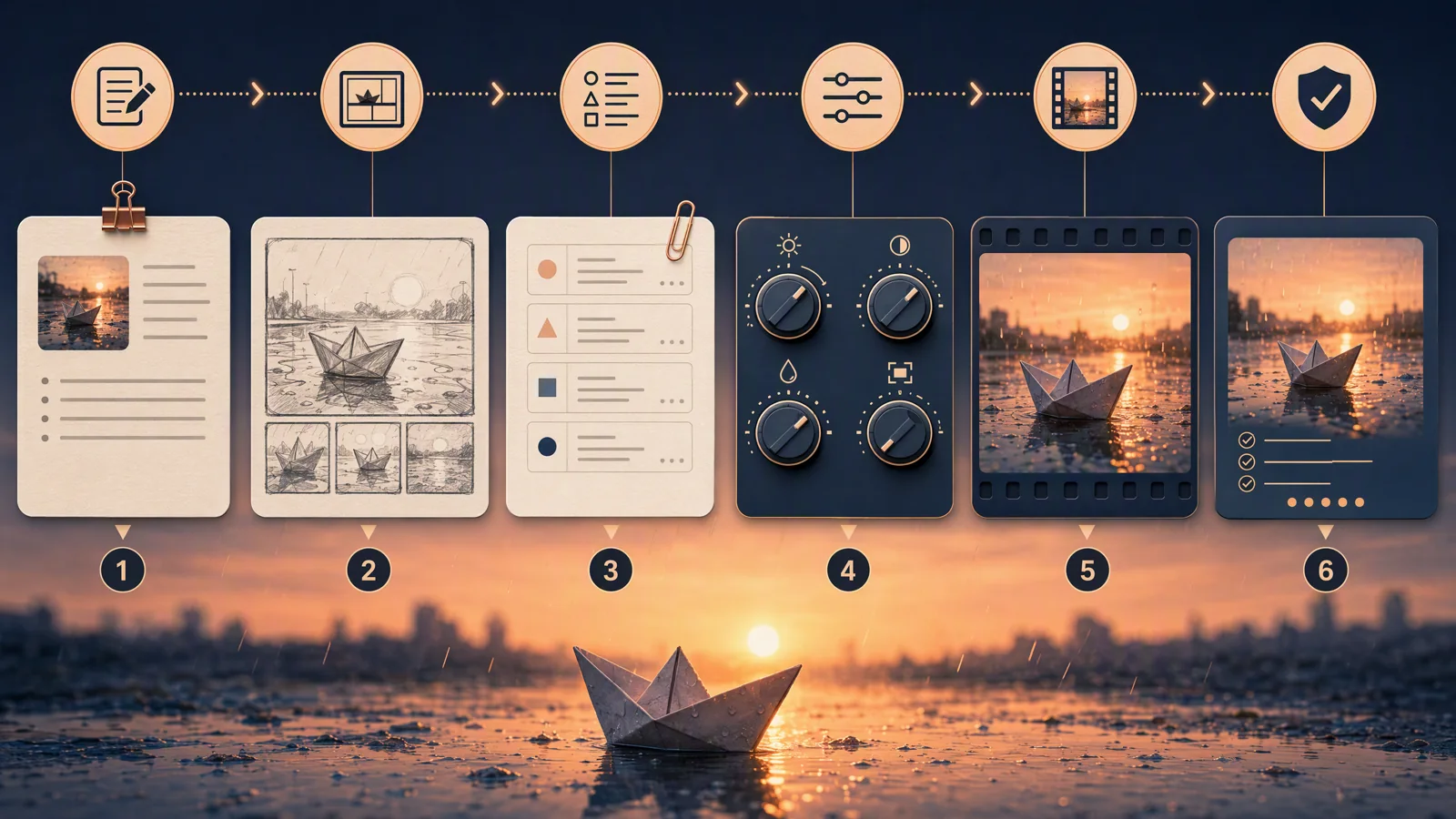
6. Generate and review
Generate one version, then compare it with a written checklist. This guide did
not perform a paid generation, so it does not claim a generation time, cost,
success rate, or reference-strength control. Revise one variable at a time:
the clip, the reference role, the text instruction, or the duration.
Reference and prompt formula
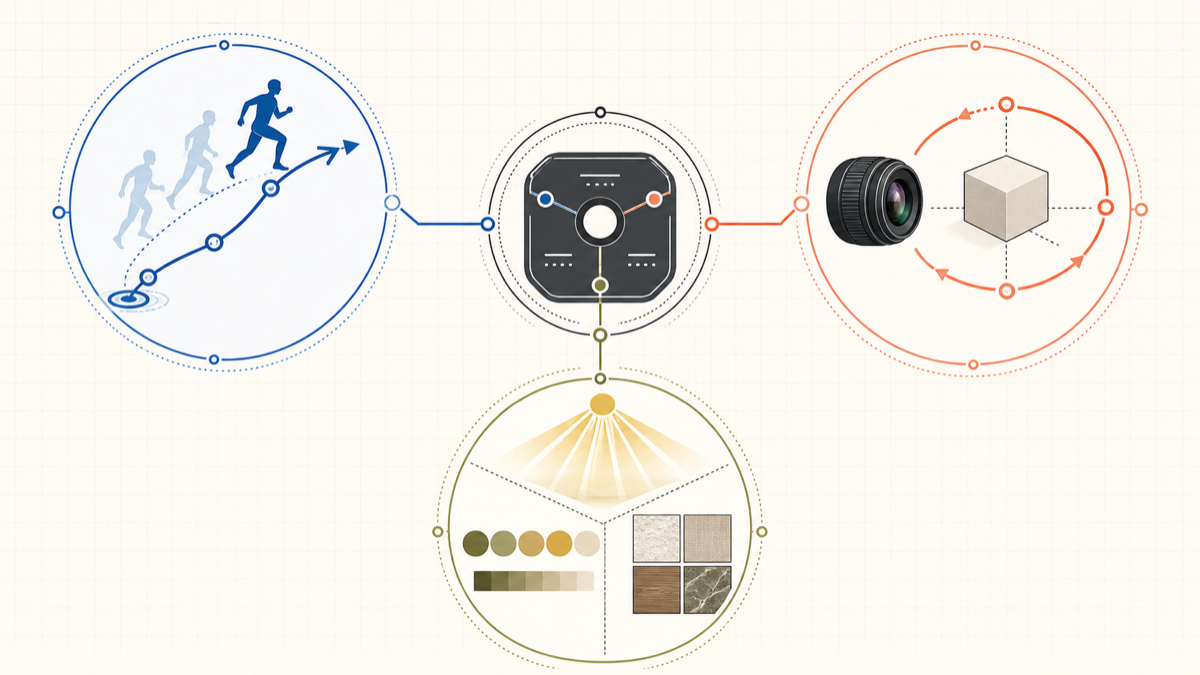
Separate the reference's job from the prompt's job. That makes a failed
result easier to diagnose.
| Reference should control | Put in the reference clip | Put in the prompt | Do not assume |
|---|---|---|---|
| Motion | One readable action with visible joints and props | New subject, setting, direction, and endpoint | Exact pose on every frame |
| Camera | A clean push, orbit, pan, or track | Subject action, framing, speed, and final composition | The background will be copied |
| Style | Stable lighting, texture, palette, or effect | Content, subject identity, and exclusions | Logos or text will stay accurate |
| Timing | A clear start, pause, beat, and finish | Which event should follow each beat | Audio and motion will sync perfectly |
A good prompt names ownership:
Video 1 controls the slow clockwise camera orbit and the two-second pause at the rear three-quarter view. The prompt controls the product, room, lighting, and final framing. Do not copy the reference background, brand marks, people, or audio. End on a centered front view with the product label readable.
If the result follows the camera but loses the subject, strengthen subject
constraints. If it preserves the subject but ignores the camera, simplify the
subject's action or use a reference with a cleaner camera path.
Motion, camera, style, and timing examples
These examples are prompt patterns, not measured generation results.
| Scenario | Reference material | Prompt target | What to observe |
|---|---|---|---|
| Walking rhythm | One person walking four steps, pausing, then turning | Apply only cadence and turn timing to a courier in a new location | Foot contact, arm swing, turn order, and whether the pause survives |
| Product orbit | A slow camera orbit around an unbranded object | Transfer the orbit to a new product while keeping a fixed studio setup | Orbit direction, speed, distance, label stability, and final angle |
| Hand action | A close shot of hands folding fabric once | Reuse the action sequence with a different object and neutral background | Finger count, grip, contact, object deformation, and action order |
| Lighting style | A static clip with a warm window-to-shadow transition | Borrow the light change but keep camera and subject motion from the prompt | Shadow direction, color temperature, exposure, and skin or material texture |
| Music timing | A rights-cleared clip with three visible beats | Align three scene events to the same beat spacing | Event timing, cut points, audio drift, and whether the last event completes |
| Handheld camera | A short, restrained handheld follow shot | Apply only camera energy to a new walking subject | Horizon drift, subject framing, motion sickness, and unwanted body jitter |
For each test, write down one pass condition before generating. "The camera
completes one clockwise orbit and ends front-on" is testable. "Make it more
cinematic" is not.
Common failures and fixes
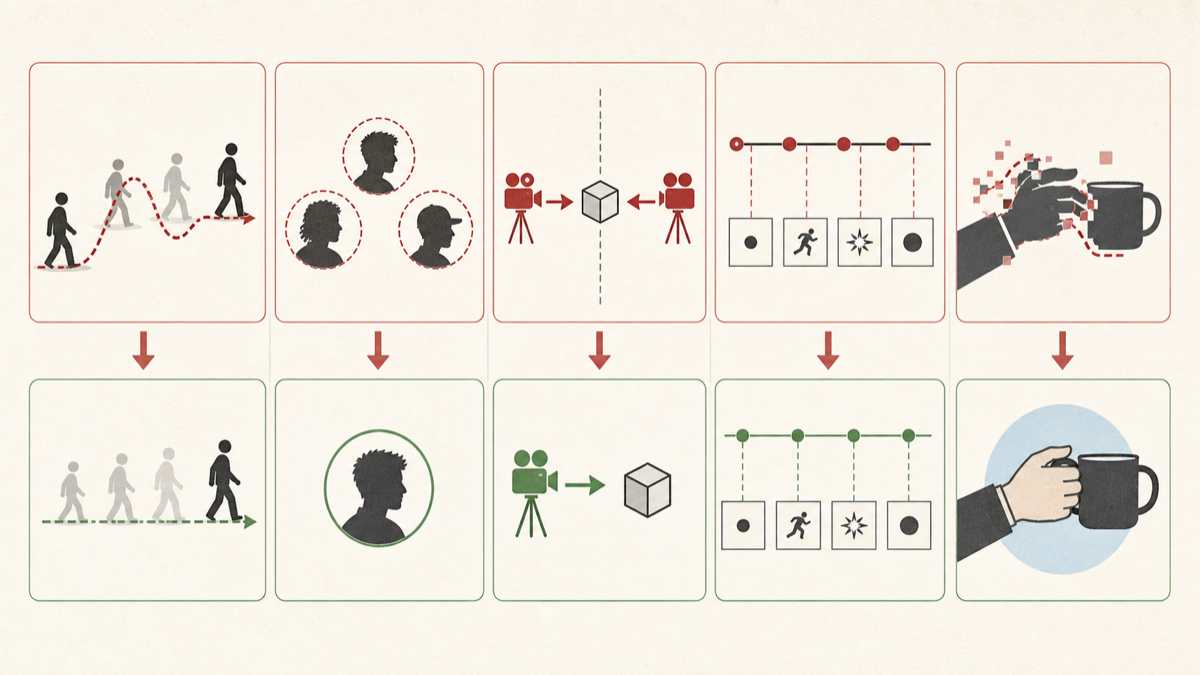
Change one input at a time. Otherwise you will not know which change fixed
the result.
| Symptom | Likely cause | Change to try | Evidence status |
|---|---|---|---|
| Action drifts halfway through | The clip contains several actions or occluded joints | Trim to one action and state the endpoint | Workflow recommendation; not generation-tested here |
| Identity changes | The motion clip also contains a prominent face or conflicting wardrobe | Say not to copy the reference person; use a separate authorized identity image if the product allows it | Model can interpret multiple references; identity outcome not tested here |
| Camera move is ignored | Subject action is too complex or the camera cue is weak | Use a simpler subject action and a clearer camera-only clip | Model supports camera reference; fix is a diagnostic recommendation |
| Camera and subject fight each other | The reference camera and prompt camera point in different directions | Assign camera ownership to one source only | Prompt-structure recommendation |
| Timing feels rushed | Requested events exceed the selected duration | Remove an event or increase duration | Current UI duration control verified; output not tested |
| Style overwhelms content | The reference has strong effects, text, or rapid edits | Use a calmer clip and list the elements to ignore | Model supports style/effect reference; fix not tested |
| Hands, faces, or props deform | Complex interaction exceeds the model's stable detail handling | Reduce subjects, simplify contact, and shorten the action | ByteDance acknowledges remaining detail and multi-subject limits |
| Upload is rejected | Unsupported encoding, file size, account rule, or region rule | Follow the displayed error; try a short standard MP4 when the error points to format | File picker formats verified; size and account limits unverified |
How to evaluate the result
Review the output at normal speed, then frame by frame around the hardest
moment.
Action
- Does the action start, progress, and finish in the right order?
- Do hands and feet make believable contact?
- Does the prop keep its shape and position?
Subject
- Does the intended person or object remain recognizable?
- Do clothing, color, and proportions stay stable?
- Did the model copy an unwanted face, background, or mark from the reference?
Camera
- Is the direction correct?
- Does the camera maintain a usable distance and horizon?
- Does it end at the requested framing?
Timing and audio
- Do pauses and beats occur where expected?
- Does the final action complete before the clip ends?
- If audio matters, does it stay aligned without distortion?
Artifacts and safety
- Check hands, teeth, eyes, text, logos, reflections, and object intersections.
- Confirm you have rights to every supplied reference.
- Do not use workarounds to bypass identity checks, region restrictions, or
platform safety controls.
Save the checklist with the version name. If you generate another version,
change one cause at a time and compare against the same pass condition.
FAQ
Where is Seedance 2.0 video reference in CapCut?
On July 23, 2026, the clearest public web entry was Dreamina by CapCut. Choose
AI Video, Dreamina Seedance 2.0, then Omni reference. CapCut's general
resource page also describes a Video studio → Create new route. Labels can
vary by account and rollout.
Is video reference the same as video-to-video?
No. A video reference can guide motion, camera, timing, or style while the
prompt creates a new shot. Video-to-video usually transforms an existing clip.
The exact distinction depends on the mode shown in the current interface.
How many video references can I upload?
ByteDance says the model layer supports up to 3 video clips alongside 9 images
and 3 audio clips. The authenticated consumer upload limit was not verified
for this guide, and Dreamina's own landing page contains conflicting copy.
Follow the limit shown in your account.
What video formats does Dreamina accept?
The checked file picker advertised MP4 and MOV for video, plus several image
formats and MP3/WAV audio. Codec, file-size, frame-rate, and account limits
were not verified.
Can a reference video copy an action exactly?
Do not count on it. Seedance interprets the clip along with the prompt and
other references. Use an observable pass condition and expect some
reconstruction, especially around contact, fast motion, occlusion, or several
subjects.
Can I use a clip of a real person?
Use only material you own or have permission to use. ByteDance says
real-person portrait references may require identity verification or prior
legal authorization. Do not bypass those controls.
Should I put motion, camera, and style in one reference?
Only when those elements already work together and you want the combination.
For diagnosis, one job per reference is easier. A camera-only test with a
simple subject gives you a clearer result than a complex finished edit.
What should I change first when the result is wrong?
Change the variable connected to the failure. Trim the clip for motion drift,
remove a conflicting camera instruction for camera drift, or increase duration
for rushed timing. Keep the other inputs fixed so the next output teaches you
something.
Sources and methodology
This guide separates official model statements from a public product-interface
check performed on July 23, 2026. No paid generation or authenticated upload
was performed, so upload count, file size, price, credit use, generation time,
and output quality are not presented as tested facts.
- ByteDance Seed: Seedance 2.0,
accessed July 23, 2026. - ByteDance Seed: Seedance 2.0 Official Launch,
published February 12, 2026; accessed July 23, 2026. - Dreamina by CapCut: Seedance 2.0,
accessed July 23, 2026. - Dreamina Seedance 2.0 workspace,
interface checked July 23, 2026. - CapCut: How to Use Seedance 2.0 for AI Video Generation,
accessed July 23, 2026.
When you have a clean reference and a clear prompt, you can test the same
motion-first workflow with
SeedVideo AI's image-to-video generator.
For broader setup, read the
Seedance 2.0 guide, then
use the
Seedance prompt guide or
AI video prompt examples
to tighten the text side of the test. If you are comparing tools before
choosing a workflow, see the
best AI video generators in 2026.