TL;DR
- Seedance 2.5 does four separate jobs: text to video, image to video, reference to video, and editing a clip you already have. They take different inputs and behave differently.
- Editing happens in the Video to Video tab. Upload a source clip, then write a prompt that says what should change.
- There is no mode dropdown. The verb you use decides whether the model edits your clip or extends it. Remove, replace, erase and mute run an edit. Extend, prolong and continue run an extension.
- Editing needs a source clip of at least 4 seconds. Source clips are MP4 or MOV, 2 to 30 seconds, up to 200 MB.
- Trimming to an exact frame, stacking clips on a timeline, titles and audio mixing still belong in a normal editor. Seedance changes what happens inside a shot. It does not assemble a sequence.
Quick Answer
Seedance 2.5 video editing means changing the contents of a clip you already have by writing an instruction instead of working on a timeline. You open the Video to Video tab in the generator, upload a source clip of 2 to 30 seconds, and describe the change you want: remove an object, replace a jacket, mute a sound, or carry the action past the last frame. The model reads the verb in your prompt and picks the operation itself, which is why wording matters more here than it does in text to video. Editing needs a source clip of at least 4 seconds, and the model decides how long the result runs. Anything structural, such as cutting between two shots, adding captions or balancing audio levels, still needs a conventional editor afterwards.
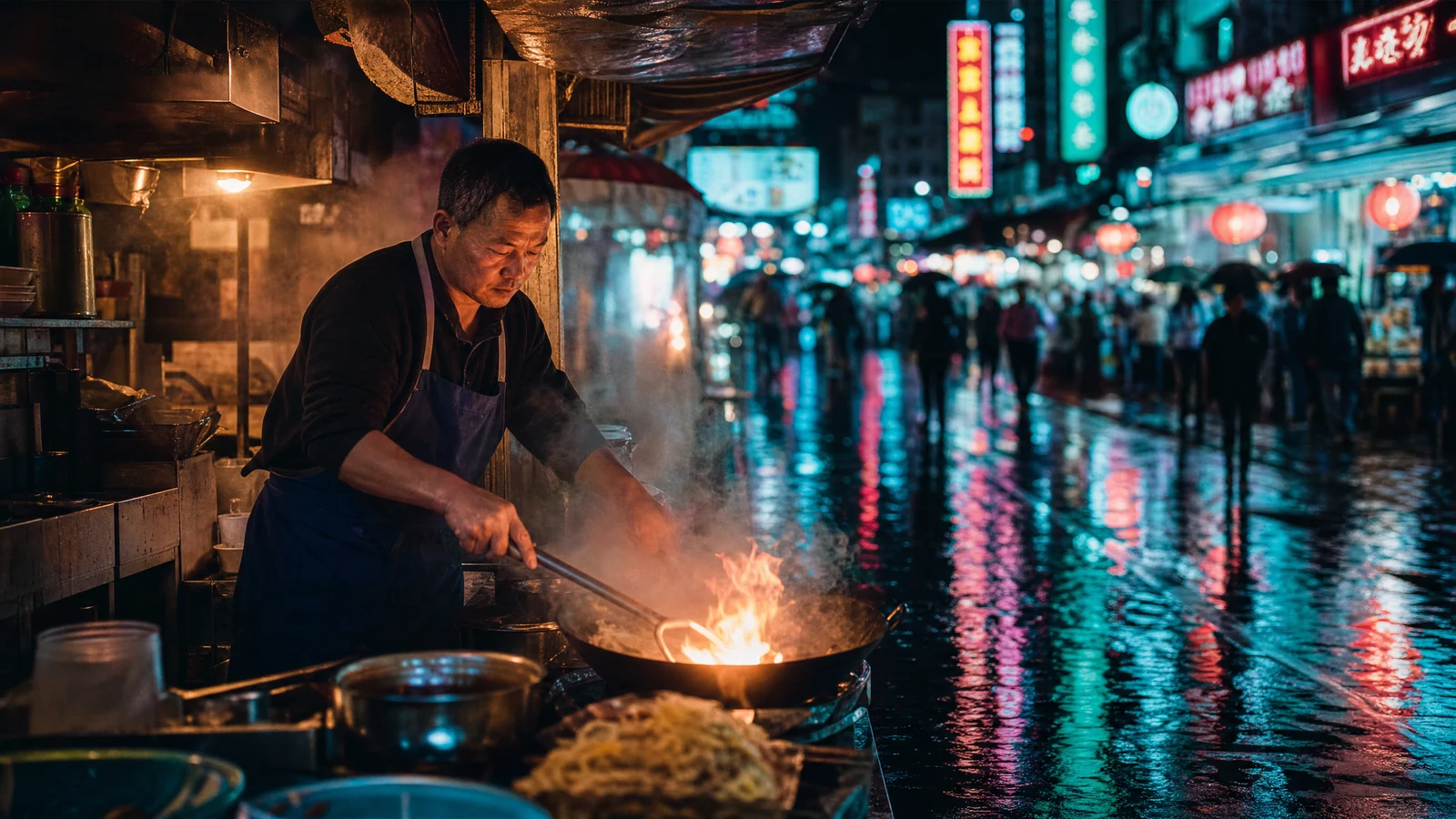
Video prompt: Wide establishing shot of a busy night market street at 9pm after light rain. A middle-aged vendor in a navy apron leans over a wok, orange flame flaring, thick steam rising. Wet asphalt mirrors magenta and teal neon into long vertical streaks. Slow push-in on the vendor, crowd blurred behind. 35mm anamorphic look, f/2.0, warm key on his face, cool rim from behind, filmic grain, teal and orange grade.
Where Seedance 2.5 sits in an editing chain
People arrive at this topic with one of two very different questions, and confusing them wastes a lot of credits.
The first is "can I fix something inside a shot I already generated?" That is what Seedance 2.5 editing does. The clip stays one continuous shot. The model repaints part of it, or carries the motion further in time.
The second is "can I cut my five clips together, add a title card and balance the music?" That is timeline work, and no prompt will make it happen here. You export the shots and finish them in an editor.
Keeping those apart gives you a clean division of labour. Generation and in-shot repair happen in the AI video generator. Assembly, captions and the final mix happen downstream. If you are building a production process rather than chasing one clip, the repeatable AI video production workflow for Seedance 2.5 covers how the two halves hand off to each other.
The four things Seedance 2.5 can do with your inputs
What you upload decides which operation runs. There is no setting for it.
| You provide | What runs | Typical use |
|---|---|---|
| Prompt only | Text to video | Build a shot from nothing |
| One or two images | Image to video | Animate a still; a second image sets the last frame |
| More than two images, or an audio file | Reference to video | Hold a character, product or voice consistent across shots |
| A source video and a change instruction | Video edit | Remove, replace or clean something inside the clip |
| A source video and a continuation instruction | Video extend | Carry the shot past its current last frame |
Two things follow from that. Upload three reference images expecting a first-and-last-frame animation and you get reference behaviour instead. Upload a video but write a prompt with no edit or extend verb in it, and the request is treated as a reference job rather than an edit.
SeedVideo AI exposes all of these through the same workspace, so switching between them comes down to what you drop in and how you phrase the instruction.
Setting up: the controls that exist before you generate
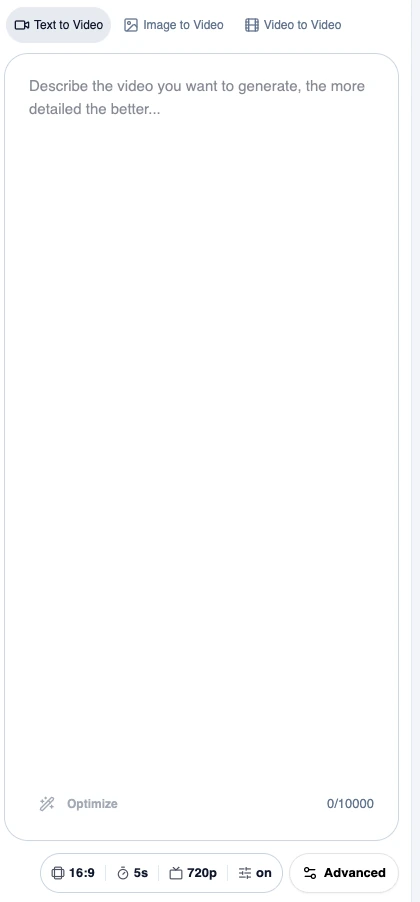
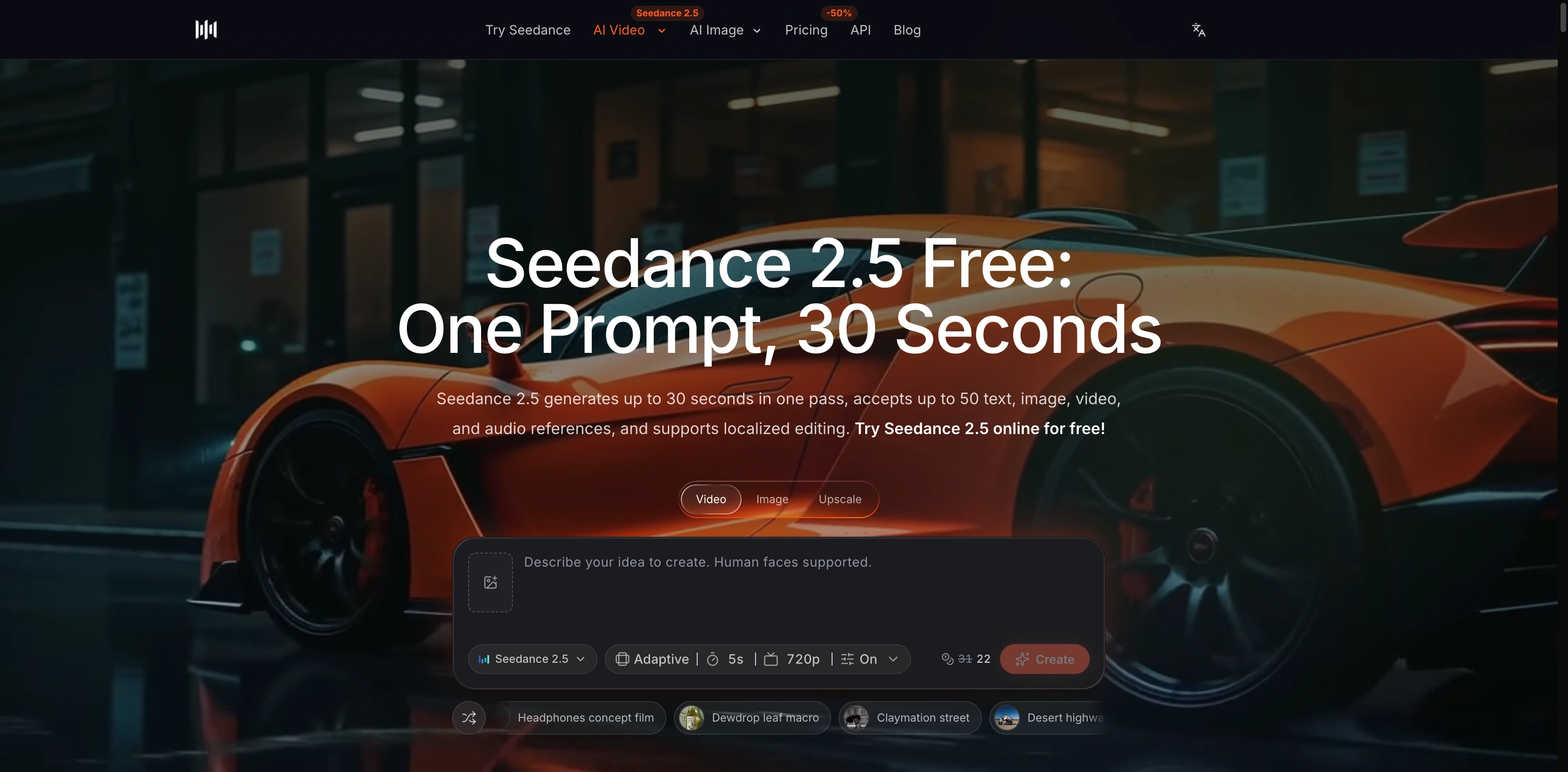
The generator workspace: the three mode tabs sit above the prompt box, and the parameter row underneath holds aspect ratio, duration, resolution and sound.
The tab strip at the top is the entry point, and Video to Video is the one you want for editing. From the same workspace you can also jump into the AI image-to-video generator when your starting point is a still frame rather than a clip.
The parameter row under the prompt box gives you:
| Control | Options | Default |
|---|---|---|
| Aspect ratio | 16:9, 9:16, 1:1, 4:3, 3:4, 21:9, adaptive | Adaptive |
| Duration | 4 to 30 seconds | 5 seconds |
| Resolution | 480p, 720p, 1080p | 720p |
| Sound | On or off, generated in sync with the picture | On |
| Prompt length | Up to 10,000 characters | No default |
Two of those behave differently once a source clip or image is involved. Aspect ratio locks to adaptive, because the output inherits the shape of whatever you uploaded. In edit mode the duration control disappears completely: the model decides how long the result runs, up to the 30 second maximum.
Plan around that second one. If you need a clip of an exact length after an edit, expect to trim the result rather than dial the length in beforehand.
Edit mode: changing what is inside the clip
Edit is for anything that leaves the shot's length and framing alone but changes its contents.
Your source clip has to be at least 4 seconds. Shorter clips get rejected for editing, though they still work as reference material. The format limits are MP4 or MOV, 2 to 30 seconds, up to 200 MB.
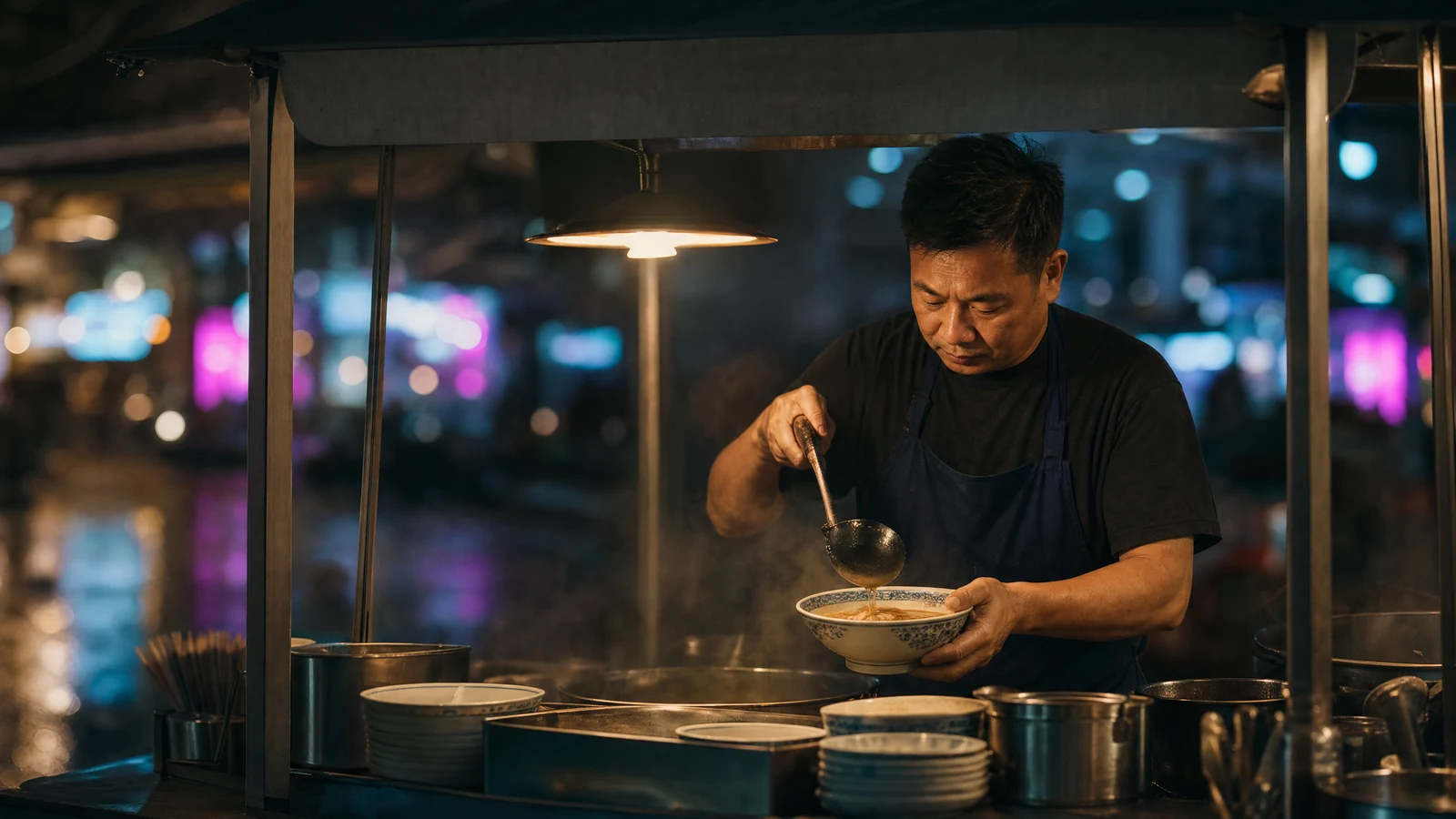
Video prompt: Medium shot of a night market noodle stall, awning plain dark canvas with nothing hanging above the counter. The vendor in a navy apron ladles broth into a ceramic bowl, steam curling up. Background neon defocused into smooth magenta and teal orbs. 50mm, f/1.8, warm practical key from the stall lamp, cool blue ambient fill, filmic grain, teal and orange grade.
Prompts that run an edit pair a change verb with a specific target:
Remove the red banner hanging above the stall and keep the steam and neon reflections unchanged.Replace the vendor's navy apron with a dark green one, same fabric and folds.Erase the parked scooter on the right side of the frame.Mute the background music and keep the ambient street noise.Change the sky to overcast grey, keep the lighting on the subject the same.
The shape that works is one verb, one target, and one sentence about what must stay the same. That third part matters more than people expect. Leave it out and the model is free to reinterpret the whole frame, so you end up with a picture that is technically correct and tonally nothing like your other shots.
Edits that pack several unrelated changes into one prompt tend to land only partially. Run them as separate passes instead, feeding the output of one into the next.
Extend mode: carrying the shot forward
Extend takes your clip and generates what happens next, holding the subject, lighting and camera language steady.
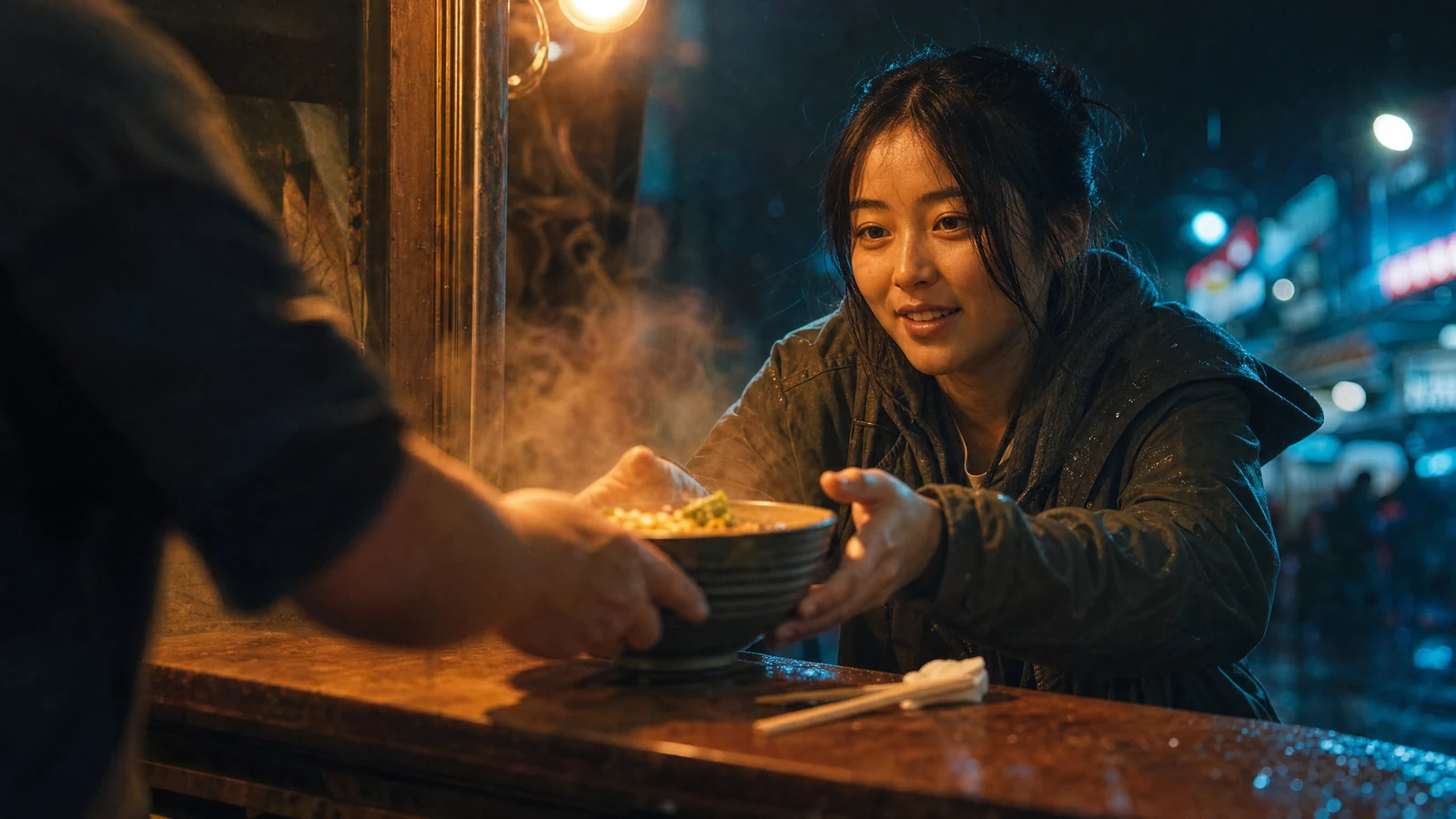
Video prompt: Close-up at a night market noodle stall. The vendor's hands slide a steaming bowl across a worn wooden counter toward a young woman in a rain-flecked olive jacket; she reaches out with both hands and starts to smile. Chopsticks and a folded napkin beside the bowl. 85mm, f/1.4, warm amber key from the stall lamp, cool blue rim from neon behind, visible steam catching the light.
Extend prompts describe the continuation rather than a fix:
Extend the shot: the vendor slides the bowl across the counter and the customer takes it with both hands.Continue forward for a few seconds as the camera keeps pushing in slowly.Prolong the scene; the steam settles and the customer lifts the chopsticks.
One rule catches people out. If a prompt contains both an extension verb and an edit verb, the extension wins. "Extend the video and remove the watermark" runs an extension and leaves the watermark exactly where it was. The two operations cannot run in one call, so split them: extend first and edit the longer result, or the other way round.
A workflow that holds up over a whole project
| Step | What you do | Why |
|---|---|---|
| 1 | Generate or shoot your base shot | The edit tools need something to work on |
| 2 | Watch it once and write down every change as its own sentence | One change per pass beats one long prompt |
| 3 | Fix contents first with edit passes | Repairing a 5 second clip costs less than repairing a 20 second one |
| 4 | Extend once the contents are right | Extending a flawed shot propagates the flaw |
| 5 | Regenerate instead of editing when three passes have not landed it | Some changes are faster to prompt from scratch |
| 6 | Export and assemble in an editor | Cuts, titles and the audio mix live there |
Step 5 is the one people skip. Editing is repair work, and repair has a point of diminishing returns. If a shot needs its composition, its camera move and its subject changed, you have stopped editing and started describing a different shot. Write it as a new prompt. The guide to Seedance 2.5 text to video covers how to land the base shot closer on the first attempt, which is the cheapest way to cut down on editing at all.
For sequences rather than single shots, continuity is much easier to plan up front than to repair afterwards. Multi-shot storytelling with Seedance 2.5 goes through keeping a character and a look stable across several generations.
Prompt tips that decide which operation runs
Because the operation gets inferred from your wording, phrasing is a functional choice here, not a stylistic one.
Use a verb the model recognises. Edit responds to remove, delete, erase, replace, swap out, cut out, get rid of, edit, retouch, mute, and "change the …". Extension responds to extend, prolong and continue. These work in every interface language, so a Spanish prompt using quita or a Japanese prompt using 削除 routes the same way an English one does.
Do not bury the verb inside a polite construction. "It would be great if the banner were not there" contains no edit verb at all. Write "Remove the banner."
Name the target precisely. "Remove the sign" is ambiguous in a frame holding six signs. "Remove the red vertical sign on the left edge" is not.
Protect what should not move. A short clause such as "keep the lighting, camera move and everything else unchanged" is the single highest-value habit in editing prompts.
Keep edit and extend prompts apart, since mixed prompts quietly become extensions.
And write an instruction, not a scene. Edit prompts are commands about a clip that already exists. A full cinematic scene description belongs in text to video.
What still needs a conventional editor
Being honest about the boundary saves time.
Seedance 2.5 editing is best for removing or replacing an object inside a shot, cleaning up a distracting background element, changing a colour or material, muting or isolating audio, and extending a shot that ends too early.
It is not best for trimming to a specific frame, cutting between shots, transitions, titles and lower thirds, subtitles, grading a whole sequence to one look, mixing and levelling audio tracks, or exporting to platform-specific presets. Those are timeline jobs, and a standard editor does them faster and with frame-accurate control.
A reasonable rule: if the task is about what happens inside one shot, prompt it. If it is about how shots relate to each other, edit it downstream.
How editing is billed
Editing and reference work cost differently from a plain generation, and it is worth understanding why before you upload a long clip.
A normal text-to-video or image-to-video job is charged on the length of the output. Jobs that take a source video are charged on the source length plus the output length, because the model has to read your clip as well as produce a new one. Resolution moves the rate too, so 480p, 720p and 1080p are priced differently.
Edit mode has one extra wrinkle. Since the model chooses the output duration and can run up to the 30 second maximum, the reservation gets made against that maximum rather than against a length you picked.
Which gives you one practical habit: edit short clips. A 30 second source costs considerably more to edit than a 5 second one, and the fix is usually just as visible in both. The Generate button always shows the exact credit cost for your current settings before you commit, so check it after uploading rather than guessing.
FAQ
Does Seedance 2.5 have a timeline editor?
No. It edits the contents of a single continuous shot. Cutting, arranging and exporting a sequence happen in a conventional editor after you download the clips.
Why did my edit prompt generate a whole new scene?
The prompt probably had no edit verb in it, so the upload was treated as reference material rather than a clip to repair. Rewrite it as a direct instruction starting with a verb such as "Remove" or "Replace".
What is the minimum clip length for editing?
Four seconds. Shorter clips can still be uploaded as reference material for a new generation, but the edit operation will not run on them.
Can I extend a clip and remove something in the same request?
No. When a prompt contains both kinds of verb, the extension runs and the edit is ignored. Run them as two passes, in whichever order suits the shot.
Can I set the output length of an edit?
No. The model chooses it, up to 30 seconds. If you need an exact length, trim the result afterwards.
Which file formats can I upload as a source clip?
MP4 and MOV, between 2 and 30 seconds, up to 200 MB. Editing additionally needs at least 4 seconds.
Start editing your own shots
The fastest way to feel where the line between prompting and editing falls is to run one clip through both. Generate a five second shot, remove a single object from it, then extend it by a few seconds and watch what stays consistent. Open the AI text-to-video generator to build the base shot, then switch to the Video to Video tab and edit it with a single-verb instruction.