How to Make Music Videos with Seedance AI (2026 Guide)
You can make a music video with Seedance AI by breaking the song into short visual beats, generating one shot at a time, and editing those clips against the final audio track. Start with the song structure, not a pile of unrelated prompts. Give the intro, verse, chorus, and bridge their own visual job. Keep the performer, wardrobe, color palette, and lens language fixed where continuity matters, then change only the action and camera move for each shot. SeedVideo AI gives musicians a practical place to create text-to-video clips, review variations, and build enough coverage for a full edit. The best results still depend on planning: a clear treatment, a timed shot list, reference frames when needed, and a final quality check for faces, hands, lip timing, cuts, and usage rights. This guide turns that process into a repeatable workflow for landscape videos, Shorts, and Reels.
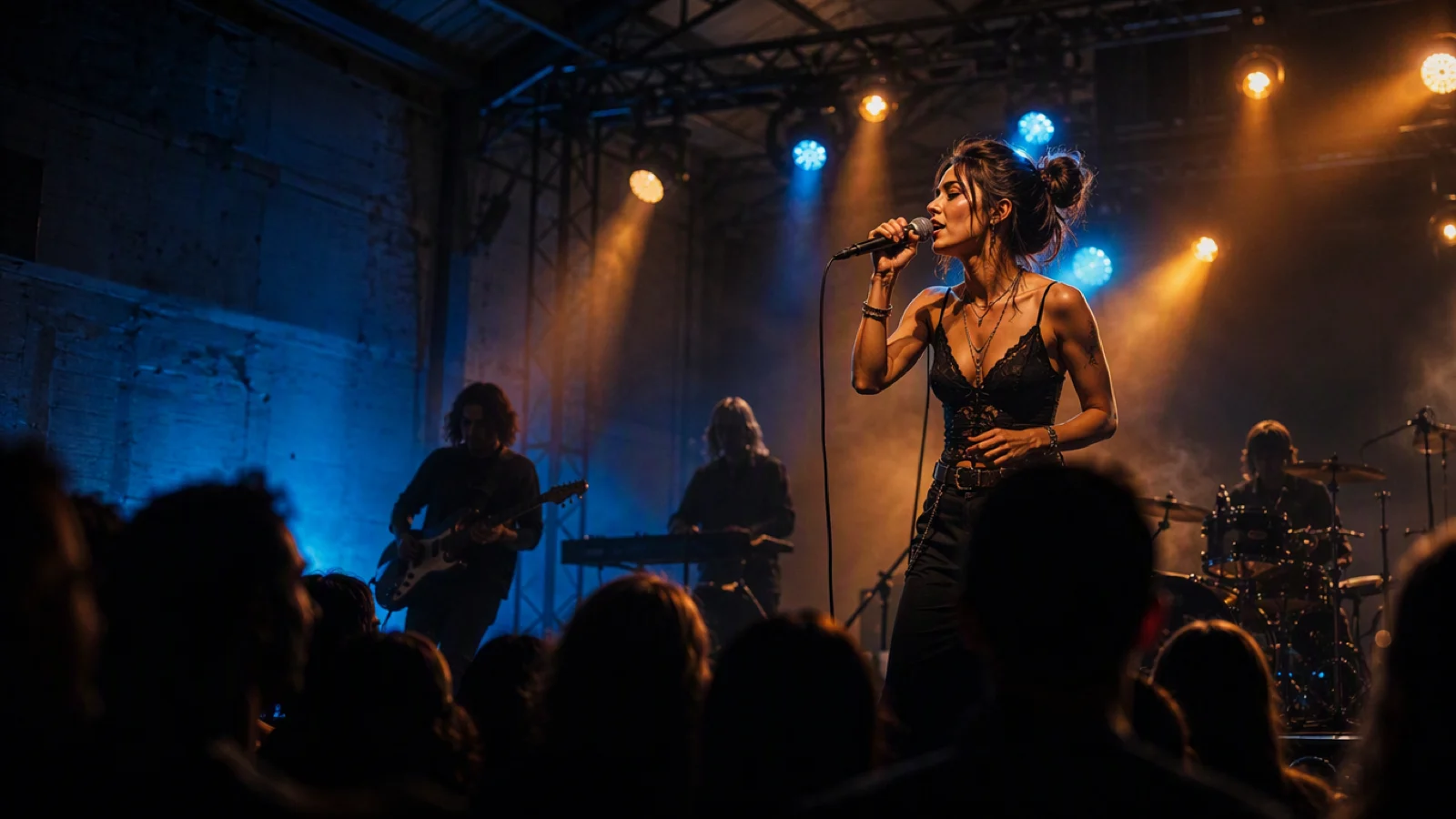
Video prompt: A fictional adult indie singer performs on a compact warehouse stage with a live band behind her, subtle haze and audience silhouettes in front, warm amber and cool blue practical lights, a slow handheld push-in from a wide shot to a medium close-up, realistic concert photography, natural skin and fabric detail, cinematic 35mm lens, 16:9.
TL;DR
- Map the song into sections and assign each section a visual purpose.
- Generate short, editable shots instead of asking for a complete music video in one prompt.
- Lock the performer description, wardrobe, palette, and camera language across related shots.
- Cut to musical phrases and accents in an editor; generation and beat editing are separate jobs.
- Prepare a landscape master, then reframe selected shots for vertical delivery.
- Check music, likeness, location, asset, and commercial-use rights before publishing.
Quick answer
Write a one-page treatment, turn the song into a timed shot list, and create each shot with a prompt that names the subject, action, location, camera move, light, mood, and duration. Use the SeedVideo AI text-to-video generator for shots that can begin from a written concept. Save your strongest visual facts as a continuity block and paste that block into every related prompt. Once you have enough coverage, place the final song in an editor, mark section changes and strong beats, then trim clips to those markers. Export a 16:9 master first and make separate 9:16 versions from shots that keep the performer near the center.
Start with the song, not the generator
A music video needs a visual argument. It can follow a literal story, build a performance world, or alternate between both. Pick one sentence that explains what changes from the beginning of the song to the end. That sentence is the treatment's spine.
For example: "A singer rehearses alone in a dark warehouse; each chorus adds light, band members, and an audience until the room becomes a full concert." The idea gives every section a job and creates a finish the viewer can feel.
Listen through the mastered song and note exact timecodes for:
- the first instrumental entrance;
- every verse and chorus boundary;
- the bridge, breakdown, or solo;
- major drum hits, pauses, and vocal pickups;
- the final sustained note or hard stop.
Do not plan a cut on every beat. A constant stream of fast edits can flatten the chorus because nothing feels bigger. Use longer shots in verses, more movement or tighter cuts in choruses, and a distinct visual change for the bridge.
Build a one-page treatment
The treatment keeps prompts from drifting. It should be specific enough to guide production but short enough to read while generating.
| Treatment field | Decision to make | Example |
|---|---|---|
| Core idea | What changes across the video? | Empty rehearsal becomes a live show |
| Performer | Stable visual description | Adult singer, short dark hair, silver jacket |
| Locations | One primary set plus one contrast | Warehouse stage and rooftop at blue hour |
| Palette | Two or three recurring colors | Cyan, amber, black |
| Camera language | Repeated movement and lens feel | Slow push-ins, chest-height tracking, 35mm |
| Chorus rule | What makes the chorus bigger? | Wider movement, stronger backlight, full band |
| Bridge rule | What creates contrast? | Quiet locked shot with cool window light |
| Ending | Final image | Performer alone after the lights cut out |
If you need several versions of the same performer, prepare a short continuity block:
Fictional adult singer, short dark hair with one silver streak, angular black jacket, narrow silver chain, natural skin texture, calm direct gaze. Keep facial proportions, hairstyle, jacket, and necklace consistent.
Try this prompt in SeedVideo AI
Repeat the block without cycling through synonyms. A "black jacket" in one prompt and a "charcoal leather coat" in the next may encourage a costume change.
For deeper prompt construction, the Seedance 2.5 prompt guide shows how to separate subject, action, camera, lighting, and timing instead of packing everything into a loose paragraph.
Turn the song structure into a shot list
Plan more usable seconds than the final video needs. A three-minute song may require dozens of short clips because some generations will have distracting motion, continuity changes, or weak endings. Coverage also gives the editor room to choose cuts that fit the music.
| Song section | Visual job | Shot ideas | Edit rhythm |
|---|---|---|---|
| Intro | Establish place and tone | Empty stage, instrument detail, performer enters | Hold longer shots |
| Verse 1 | Introduce the performer | Medium performance, side profile, slow walk | Cut on phrases |
| Chorus 1 | Expand energy | Full band, wider lens, tracking move | Cut on accents |
| Verse 2 | Add a new layer | Rooftop or backstage contrast | Return to longer takes |
| Chorus 2 | Escalate | Faster movement, audience, brighter backlight | Tighter coverage |
| Bridge | Reset attention | Locked close-up, silhouette, slow orbit | Fewer cuts |
| Final chorus | Deliver the peak | Best performance angles and widest scene | Mix wide and close |
| Outro | Resolve the idea | Lights fade, empty microphone, final look | Let the last image breathe |
Number every planned shot. Record the prompt, aspect ratio, selected output, continuity notes, and intended timeline position. A simple spreadsheet is enough. Without this record, it is easy to regenerate a shot that already works while forgetting the missing transition.
Write prompts for intro, verse, chorus, and bridge
A practical music video prompt has seven parts:
performer or subject + action + location + camera position and move + lighting + mood and texture + duration or ending behavior
Try this prompt in SeedVideo AI
Write one dominant action and one dominant camera move per shot. Complex prompts that ask the performer to walk, dance, turn, pick up an instrument, sing, and hit a final pose often produce muddled motion.
Intro prompt
Empty warehouse stage before a show, one microphone under a narrow amber spotlight, cables and a compact synthesizer visible in soft blue shadow, low camera slowly dollying forward, faint haze moving through the light, restrained cinematic realism, the shot ends as a hand enters frame and touches the microphone stand.
Try this prompt in SeedVideo AI
Verse prompt
Fictional adult singer with short dark hair and a silver jacket walks slowly between rehearsal lights while singing toward the lens, chest-height camera tracks backward at the same pace, cool cyan background with warm skin light, natural body motion, intimate performance mood, medium shot, steady ending frame.
Try this prompt in SeedVideo AI
Chorus prompt
Fictional adult singer performs with a two-person band in a rain-slick warehouse, bright amber and cyan tube lights reflect across the floor, camera tracks backward as the singer moves forward, coat and hair respond to motion, energetic live-performance feeling, clear faces and hands, wide 16:9 composition, finish on a stable full-band frame.
Try this prompt in SeedVideo AI
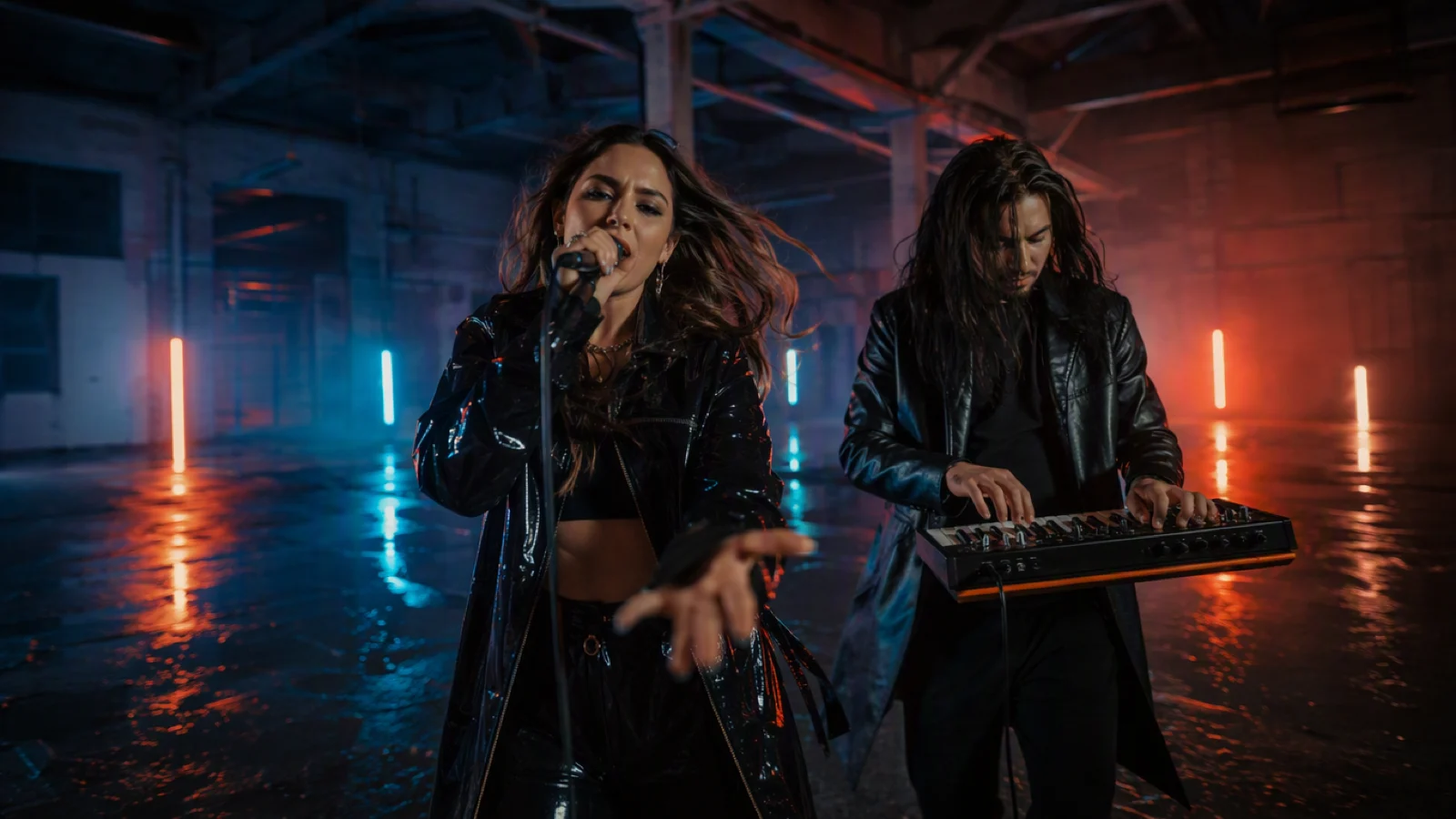
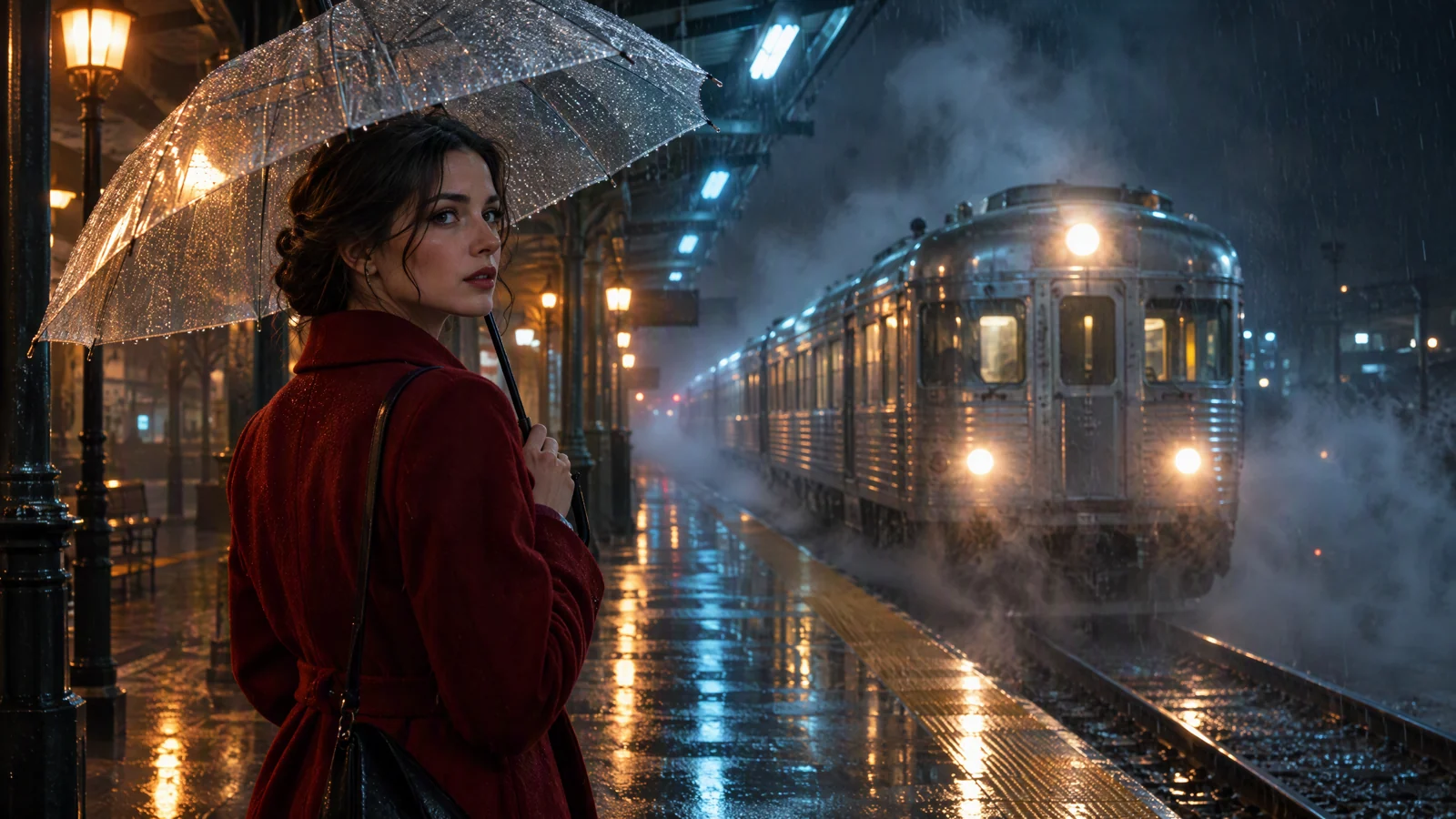
Video prompt: Two fictional adult electronic performers move through a rain-slick warehouse during a chorus, one singing toward the lens and one playing a compact synthesizer, chest-height camera tracks backward, cyan and amber tube lights reflect on the floor, coats and hair move naturally, strong foreground depth, crisp faces, cinematic 16:9 realism.
Bridge prompt
Fictional adult singer stands alone beside a high warehouse window after the band disappears, cool dawn light outlines the face and silver jacket, locked medium close-up with only a very slow orbit, quiet breath and subtle eye movement, muted colors, reflective mood, hold the final two seconds without a pose change.
Try this prompt in SeedVideo AI
Camera terms work best when they describe a visible move. If you need examples for pan, dolly, orbit, zoom, and tracking shots, use the AI video camera movement prompt guide as a vocabulary reference.
Generate shots in SeedVideo AI
Open the AI text-to-video generator, choose the video workflow, enter one shot prompt, and review the controls shown for the selected model. The current interface exposes image and video input modes, a prompt field, aspect ratio, resolution, duration, sound, advanced settings, and model selection. Available values and credit costs can change with the model and plan, so read the controls shown in your session before generating.
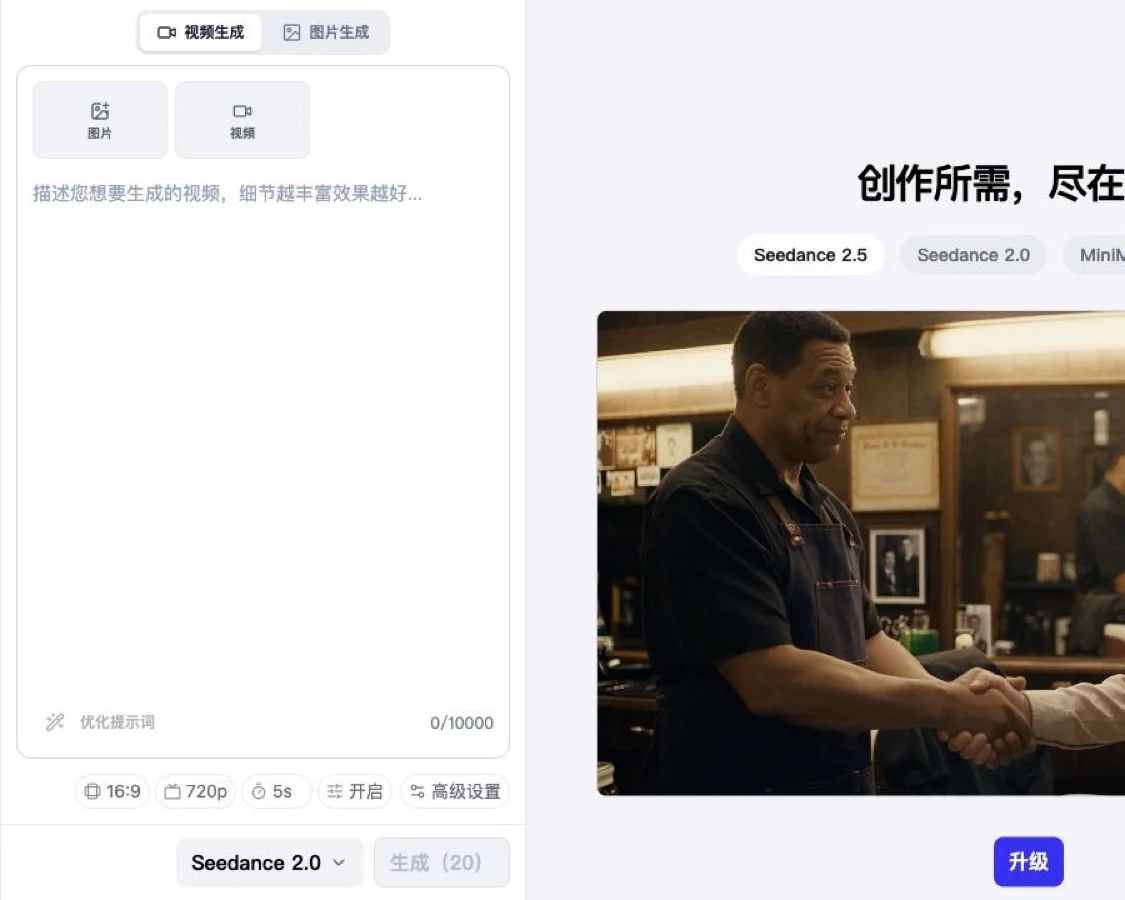
Current SeedVideo AI generator interface with the prompt area and generation controls visible.
If a performance shot needs to run longer or follow the track more closely, try Seedance 2.5. Its model page lists single clips of up to 30 seconds and up to 50 text, image, video, and audio references, so check which inputs your session exposes before you plan around them.
Use a small review loop:
- Generate one shot with a narrow goal.
- Watch the whole clip, including the last second.
- Decide whether the problem is subject, motion, camera, continuity, or ending.
- Change only the phrase connected to that problem.
- Keep the better version and record why it works.
The pricing page currently lists a free plan with starter credits and no card requirement. Paid tiers add broader model access and different output or commercial-use terms. Check the current SeedVideo AI pricing and license details before a client release. Do not treat a free preview as proof that a particular export is cleared for commercial use.
Keep performers and locations consistent
Continuity is easier when you reduce the number of variables. Use one lead performer description, one wardrobe, one hero location, and a small palette. Generate establishing shots early because they define the visual rules for later close-ups.
When a shot drifts, diagnose the exact change:
- Face drift: shorten the shot, simplify head movement, and strengthen the stable facial description.
- Wardrobe drift: repeat garment color, material, and silhouette in the same words.
- Set drift: name two or three fixed landmarks, such as a high window, amber tubes, and a wet concrete floor.
- Lighting drift: specify practical light sources rather than a broad mood word.
- Camera drift: use one move and state where the camera begins and ends.
Cutaways hide small continuity jumps. Hands on an instrument, shoes crossing a wet floor, a cable vibrating near an amplifier, or an audience silhouette can bridge two performance takes without forcing a direct face match.
Handle lip sync and beat sync separately
Lip sync needs a clear, front-facing mouth, restrained head turns, and enough facial detail. Wide dance shots are poor candidates for precise lyric matching. Reserve close and medium shots for lines where the mouth matters, then use profile shots, silhouettes, instruments, and location details between them. When a close-up needs to follow an existing vocal track, AI lip sync can match the mouth movements to the audio before you add the shot to the edit.
If your chosen workflow supports audio or dialogue controls, confirm the current model settings in the interface. Otherwise, build the visual performance first and align it to the mastered song in an editor. The Seedance AI lip-sync guide covers mouth visibility, timing, and common failure patterns in more detail.
Beat sync belongs in the edit. Place markers on section boundaries, downbeats, fills, and pauses. Then choose cuts based on musical meaning:
- cut to a wide shot when the chorus opens;
- use a motion match across a drum fill;
- hold a close-up through a sustained vocal;
- cut to silence or black on a hard stop;
- let camera direction continue across adjacent shots.
Audio waveforms help with timing, but listening still matters. A vocal pickup may feel more important than the nearest drum transient.
Edit one master, then make vertical versions
Finish the 16:9 master before building social cuts. Keep titles, subtitles, and essential action inside safe margins. For vertical delivery, choose shots with one clear subject near the center. Wide band scenes often lose meaning when cropped to 9:16, so use separate medium or close coverage for Shorts and Reels.
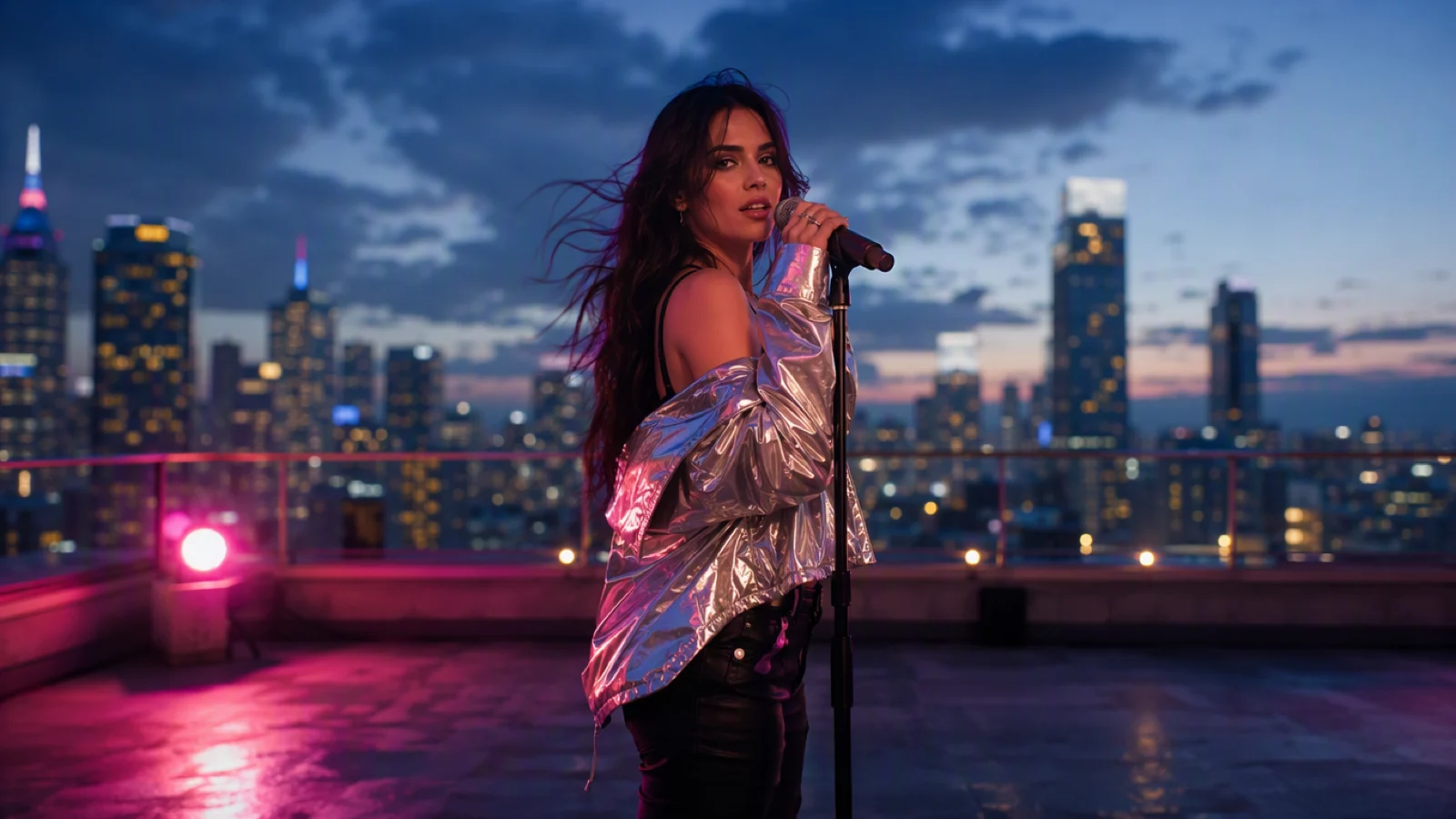
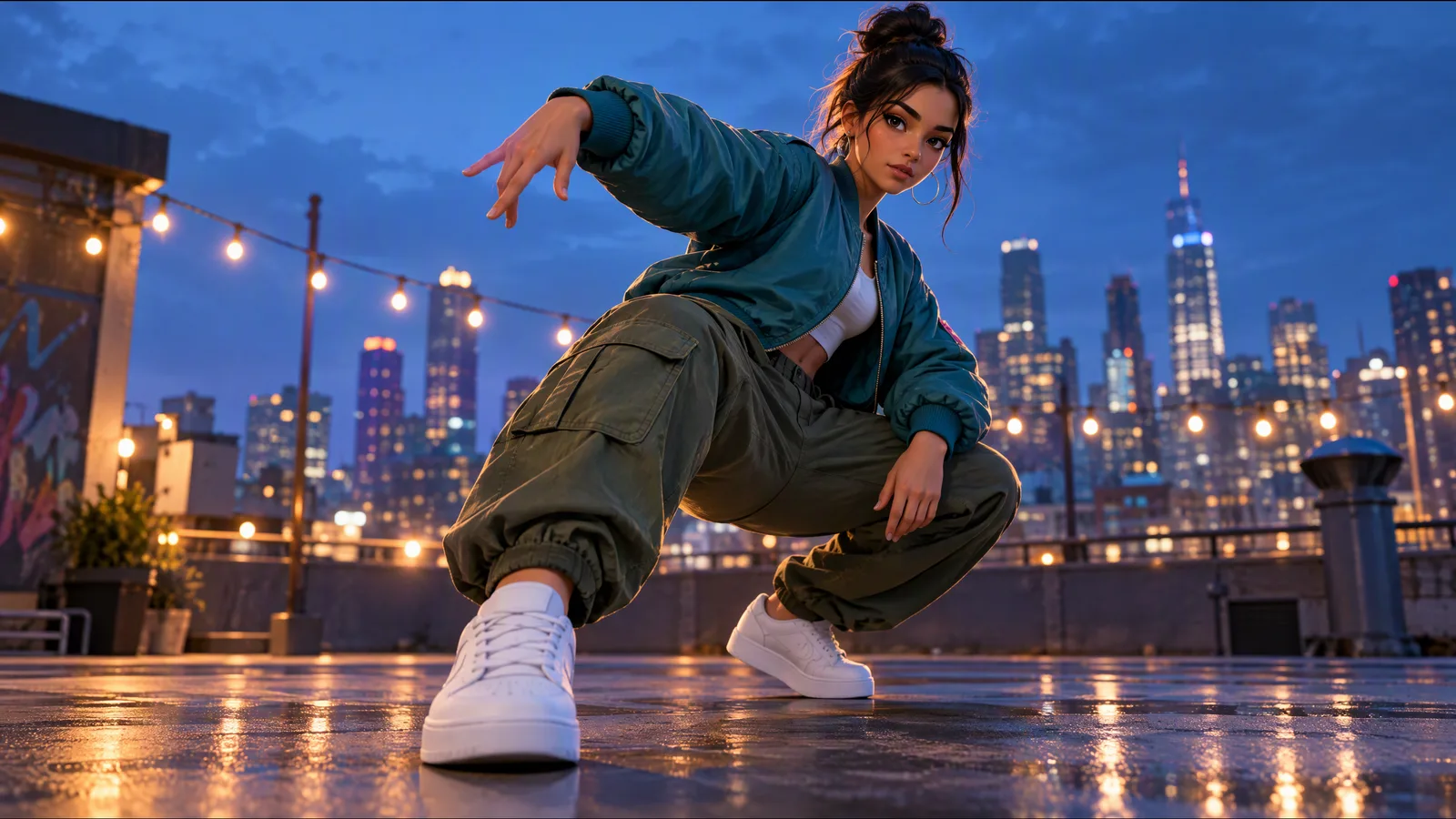
Video prompt: A fictional adult singer performs on a city rooftop at blue hour, silver jacket moving in the wind, medium camera slowly orbiting, soft skyline bokeh, magenta side light and cool dusk fill, singer and microphone kept inside the central 9:16 safe area of a 16:9 frame, polished editorial realism.
| Deliverable | Frame | Editing choice |
|---|---|---|
| Main music video | 16:9 | Full narrative and performance arc |
| YouTube teaser | 16:9 | Strong hook, title, release date |
| Shorts/Reels/TikTok | 9:16 | Centered close coverage, faster opening |
| Square feed preview | 1:1 | Chorus highlight with readable captions |
| Looping canvas | Platform-specific | Simple motion with a clean loop point |
Do not stretch a landscape frame into portrait. Reframe, crop, or use a dedicated vertical shot. Watch the vertical version full-screen on a phone before publishing.
Clear rights before release
The visual workflow does not replace rights clearance. Confirm that you control or have permission for:
- the master recording and composition;
- featured performers and recognizable likenesses;
- logos, artwork, clothing graphics, and props;
- locations and visible private property;
- stock footage, fonts, overlays, and editing assets;
- the commercial-use terms attached to the generation plan and model.
Use fictional adult performers unless you have written permission for a real person's likeness. Avoid celebrity lookalikes and protected characters. Save receipts, licenses, releases, prompts, selected files, and edit decisions in the project folder so the release has a clear record.
Run a final music video QA pass
Watch the export three ways: once with sound, once muted, and once while looking only at the frame edges. The muted pass reveals weak visual storytelling. The edge pass catches hands, faces, subtitles, and props that are clipped in a crop.
Check every item before delivery:
- the opening image earns attention within the first few seconds;
- verse and chorus sections feel different;
- face, hair, wardrobe, and key props remain coherent;
- hands, instruments, and microphones do not deform distractingly;
- mouth movement is believable in shots that show lyrics;
- edits land on musical phrases rather than arbitrary intervals;
- no shot ends with an accidental morph or abrupt camera jump;
- subtitles are accurate and inside platform safe areas;
- all visual, music, likeness, location, and commercial rights are cleared;
- landscape and vertical exports have been watched at final resolution.
When this workflow fits
Seedance through SeedVideo AI is best for musicians who can build a video from short shots, accept an edit-and-review loop, and want to explore several visual directions without organizing a full live-action shoot for every scene. It also suits lyric teasers, performance inserts, visualizers, and social cutdowns.
It is not the best fit when a project requires a single uninterrupted performance with exact choreography, frame-perfect product details, guaranteed identity continuity across many minutes, or legally sensitive replicas of real people. Those productions may need live footage, motion control, VFX, or a hybrid workflow. When the choreography is already filmed, Kling 2.6 Motion Control can transfer that performance onto a character still.
FAQ
Can Seedance make a complete music video from one prompt?
You will have more control by generating short shots and editing them to the song. A single long request gives you fewer ways to fix timing, continuity, or one weak section.
How long should each generated shot be?
Use the duration options shown for your selected model and plan. In the edit, many useful shots may appear on screen for only a few seconds. Generate enough handle length before and after the action so you can trim cleanly.
How do I keep the same singer across shots?
Repeat the same concise performer description, wardrobe, hairstyle, and accessories. Reduce large pose changes, reuse references when the selected workflow supports them, and cover small jumps with cutaways.
Does Seedance automatically sync cuts to the beat?
Treat beat sync as an editing step. Mark downbeats, fills, pauses, and section changes in your editor, then trim and arrange generated clips around those markers.
Can I make both YouTube and vertical social versions?
Yes. Finish a 16:9 master, then create separate 9:16 edits from centered medium and close shots. Plan vertical-safe coverage before generation instead of relying on aggressive crops later.
Can I use the result commercially?
Commercial rights depend on the current plan, model, source assets, music rights, and local law. Review the pricing and license terms shown at purchase time and clear every third-party asset before release.
Build the first shot list
Choose one song and write eight rows: intro, two verse shots, two chorus shots, bridge, final chorus, and outro. Then open the SeedVideo AI text-to-video workspace and generate the establishing shot first. Once its performer, location, palette, and camera language feel right, use those choices as the continuity block for the rest of the video.