Seedance AI Lip Sync: How to Create Better Dialogue Videos
The Seedance AI lip sync feature works best when you treat dialogue as part of the shot, not as a voice track added to a finished face. Seedance 1.5 Pro can generate synchronized speech and video from text or an image, while Seedance 2.0 adds text, image, audio, and video references at the model level. The controls you can use still depend on the product surface. On July 25, 2026, the SeedVideo AI text-to-video page showed Seedance 2.0 with a prompt field, a 5-second duration, 720p output, and synchronized audio enabled. It did not show an audio-reference upload in that text-to-video view. For a cleaner first test, use one visible speaker, one short sentence, a medium close-up, and a steady camera. State the exact line, language, delivery, room sound, and shot length. Then evaluate pronunciation, mouth timing, identity, facial motion, and audio quality separately instead of judging the clip by overall visual polish.
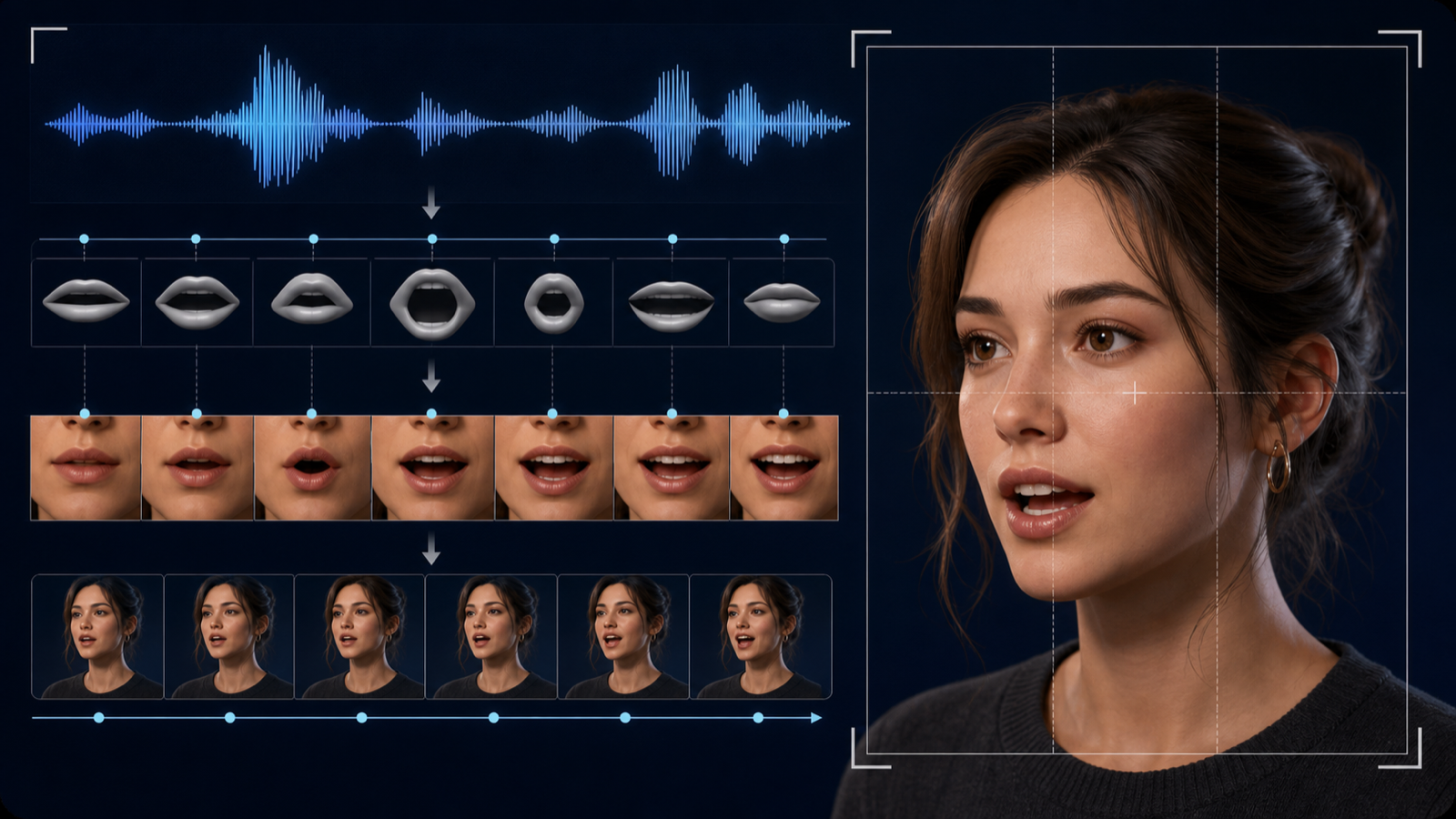
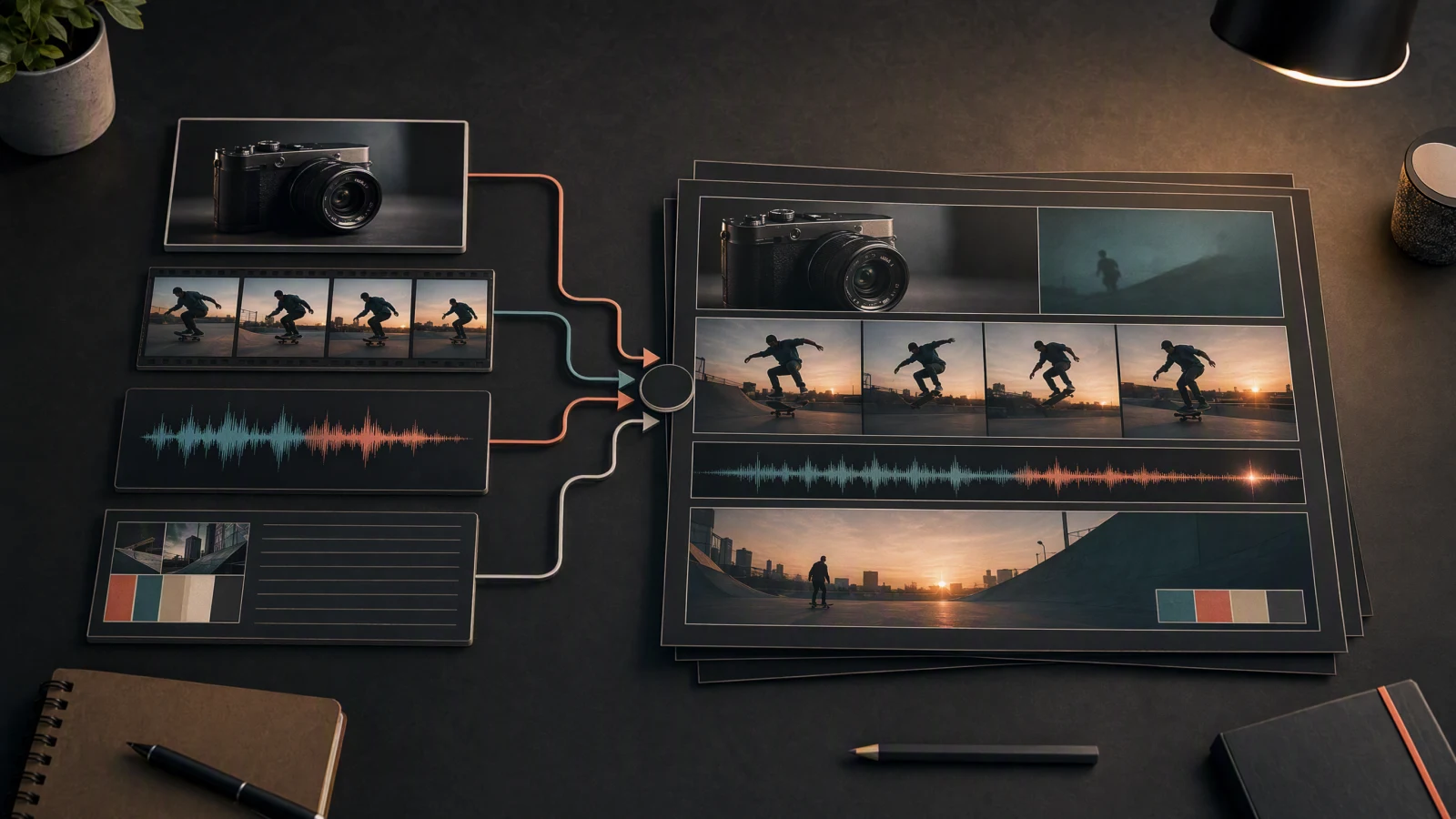
A useful lip-sync test follows the whole chain: spoken sound, phoneme timing, mouth shape, facial performance, and the final framed shot.
TL;DR
- Seedance lip sync is native audio-video generation in some models, not automatically "upload audio and animate any face."
- Seedance 1.5 Pro supports joint audio-video generation from text and image inputs. Seedance 2.0 supports text, image, audio, and video inputs at the model level.
- Product controls vary. The current SeedVideo AI text-to-video entry exposes text prompting and synchronized audio, but its visible text-to-video view does not expose an audio-reference upload.
- Start with one speaker and a short line. Multi-character dialogue, singing, side profiles, occlusion, fast cuts, and long sentences are harder.
- Never promise perfect lip sync. Check timing, identity, facial motion, sound, and shot continuity after every generation.
Quick answer
To use Seedance AI lip sync on the current SeedVideo AI text-to-video page, choose Seedance 2.0, keep synchronized audio on, use a short shot, and write the spoken line directly inside a structured prompt. Name the speaker, quote the line, specify the language and delivery, choose a camera distance that keeps the mouth visible, describe ambient sound, and add one or two constraints. Generate one controlled draft, inspect it, and change one variable at a time.
What Seedance lip sync actually means
"Lip sync" can describe three different workflows. They solve different problems.
| Workflow | What happens | Best for | Main limitation |
|---|---|---|---|
| Native audio-video generation | The model creates the picture, speech, sound effects, and timing together from a prompt or source image. | New dialogue shots where the voice and performance can be generated together. | The generated voice may not match a pre-existing performance or exact brand voice. |
| Reference-driven generation | The model uses image, audio, or video references to guide identity, motion, timing, sound, or camera behavior. | Shots that need tighter control over a character, performance, or audio mood. | The exact inputs and limits depend on the model and product surface. |
| Post-production dubbing | A finished or silent video is paired with recorded or synthetic speech in a separate dubbing or editing step. | Existing footage, approved voice recordings, or precise localization. | It is a different workflow from native Seedance generation and may need a dedicated dubbing tool. |
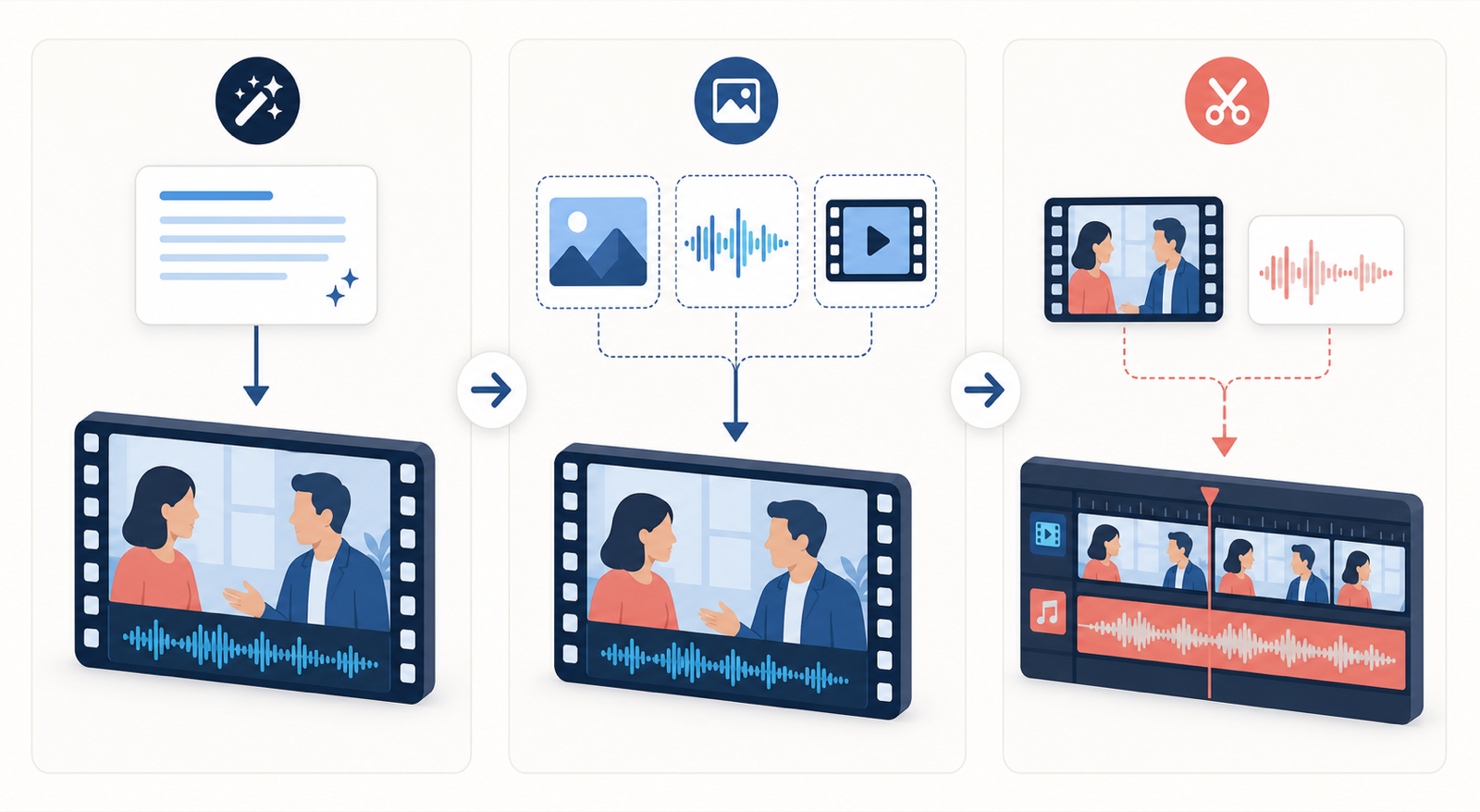
These are three alternative routes, not three required steps. Pick the route that matches the assets and control you already have.
Calling all three routes "upload audio for automatic lip sync" creates bad expectations. Native generation asks the model to invent the voice and face movement together. Reference-driven generation uses supplied material as direction. Dubbing fits new speech to an existing performance after the visual exists. For an approved video that needs another language, you can dub a video with AI to replace the original speech with a translated voiceover.
Which Seedance models support audio-video generation?
Official sources confirm the following model capabilities. Product controls are a separate question.
| Model | Confirmed audio-video capability | Inputs confirmed by official sources | Important boundary |
|---|---|---|---|
| Seedance 1.0 | The 1.5 Pro release describes 1.0 as visually focused rather than a joint audio-video model. | Text or image workflows are discussed in contrast with 1.5 Pro. | Do not assume native dialogue or lip-sync support from the Seedance name alone. |
| Seedance 1.5 Pro | Native joint audio-video generation with synchronized speech, sound, and visuals. | Official sources describe text-to-video and image-driven generation. | ByteDance notes that multi-character dialogue, singing, and motion stability still need improvement. |
| Seedance 2.0 | Native multimodal audio-video generation and reference-based control. | Official sources list text, image, audio, and video inputs. | Model-level support does not prove that every integration exposes every reference upload. |
ByteDance's 1.5 Pro release names Chinese, English, Japanese, Korean, Spanish, and Indonesian examples, plus Chinese regional accents such as Sichuanese and Cantonese. That statement belongs to Seedance 1.5 Pro. It should not be copied into a blanket promise for every Seedance version or every interface.
The Seedance 2.0 model card describes 4 to 15 second output at 480p or 720p on its documented open-platform configuration. It also lists up to 9 image, 3 video, and 3 audio references. Treat those as model-card limits for that configuration, not permanent controls across all products.
Seedance 2.5 is the newer option on SeedVideo AI. Its model page lists single clips of up to 30 seconds and up to 50 references, including up to 10 audio files, which gives longer dialogue shots more room. Confirm the controls in your session before relying on an audio-reference upload.
Choose the right workflow
| What you have | Recommended route | Why |
|---|---|---|
| A script, but no recorded voice or final character image | Native text-to-audio-video generation | The model can create speech and performance together. |
| A character image and a short line | Image-driven audio-video generation, if the chosen surface supports it | The image anchors appearance while the prompt directs speech and motion. |
| An approved voice clip, timing reference, or performance clip | Reference-driven generation, if audio or video reference input is visible | The reference can guide timing, tone, motion, or camera behavior. |
| Existing footage that must keep its exact visuals | Post-production dubbing | Regenerating the whole shot creates unnecessary identity and motion risk. |
| Two speakers with overlapping lines | Split into short alternating shots first | Speaker assignment and mouth timing are easier to inspect one turn at a time. |
If you are still choosing a model or product for each route, compare the options in Best AI Video Generators in 2026. For a broader model overview, read the Seedance 2.0 guide.
Dialogue prompt formula
Use this order:
speaker + exact line + language + delivery + camera + sound + constraints
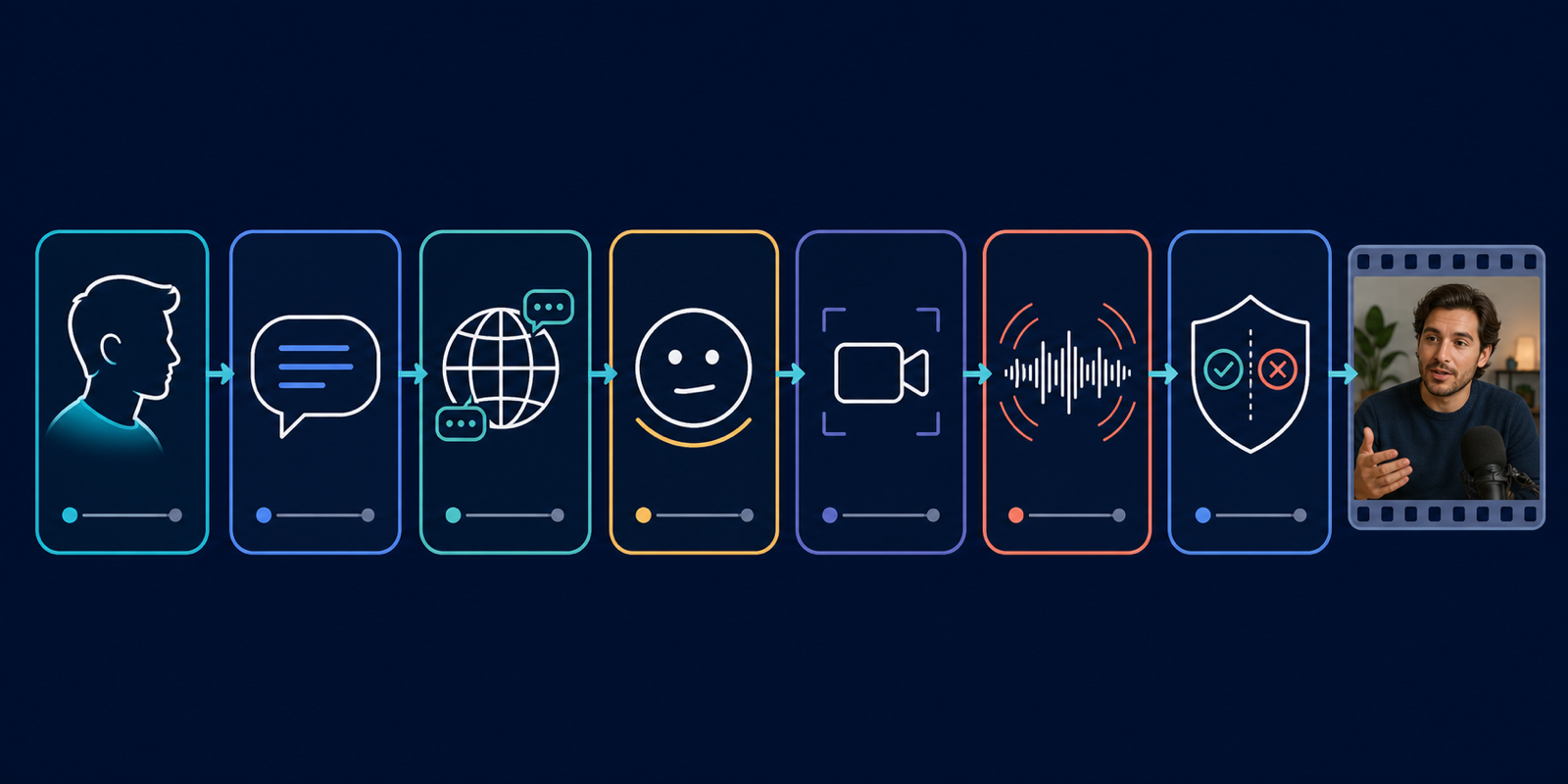
A dialogue prompt is easier to debug when each field has one clear job.
One compact prompt looks like this:
One adult bakery owner stands behind the counter and looks into the camera. She says in English, "The first batch comes out at seven." Her delivery is warm, conversational, and unhurried. Medium close-up, eye-level camera, one continuous 5-second shot. Quiet room tone with a soft oven fan. Keep her mouth visible, preserve the same face, and do not add background music.
Try this prompt in SeedVideo AI
Each instruction can be checked on its own:
- The speaker is unambiguous.
- The spoken line is short enough for one shot.
- The language and delivery are explicit.
- The framing keeps the mouth readable.
- The sound request leaves room for speech.
- The constraints target likely failure points.
Avoid invented control syntax such as [AUDIO: 5s] unless the interface or official documentation explicitly requires it. Natural-language instructions are safer than a made-up token that the model may ignore or render as content.
Step-by-step workflow in SeedVideo AI
These steps reflect the live text-to-video entry checked on July 25, 2026.
- Open SeedVideo AI text to video.
- Choose Seedance 2.0 in the model control.
- Stay in text-to-video mode for a native first test.
- Keep synchronized audio on.
- Start with the visible 5-second and 720p settings. A short shot is easier to diagnose.
- Paste a prompt that names one speaker and quotes one short line.
- Use a medium close-up or close-up with a stable, eye-level camera.
- Generate one draft and review it with the evaluation checklist below.
- Change only one variable for the next draft, such as sentence length, camera distance, or background sound.
The live page also describes Seedance 2.0's broader four-modality model capability. The text-to-video view itself did not expose an audio-reference upload during this check. If you need an approved recording to drive timing or tone, use a product surface that visibly offers audio reference input, or move the approved recording into a separate dubbing workflow.
Eight dialogue prompt examples
Each example uses natural language instead of undocumented timing tokens. Replace the fictional names and lines with material you have the right to use.
1. Single-person close-up
One adult train conductor faces the camera in a quiet station office. He says in English, "The last service leaves at eleven fifteen." Calm, matter-of-fact delivery. Medium close-up, eye-level lens, steady camera, one continuous short shot. Clear voice, low room tone, no music. Keep the same face and keep the mouth unobstructed.
Try this prompt in SeedVideo AI
2. Two people speaking in turns
Two adult coworkers stand beside a whiteboard. Maya speaks first and says, "We can ship the short version today." She closes her mouth. Daniel waits, then replies, "Send me the final cut by four." Medium two-shot, stable camera, no overlap between lines. Keep each voice assigned to the correct speaker and avoid cutting during either sentence.
Try this prompt in SeedVideo AI
If speaker assignment drifts, generate each line as a separate shot and edit the exchange afterward.
3. Off-camera narration
A close shot follows a ceramic cup moving through a small workshop. An off-camera narrator says in English, "Each handle is shaped and checked by hand." The people on screen do not speak and do not move their mouths. Slow tracking shot, natural workshop sound, restrained narration, no background music.
Try this prompt in SeedVideo AI
4. Product spokesperson
An original adult presenter holds an unbranded desk lamp in a simple studio. She says, "Tap once for warm light, and hold to dim it." Friendly product-demo delivery. Medium shot, one continuous take, clear view of her face and the lamp. Soft button click, quiet room tone, no logo, no on-screen text.
Try this prompt in SeedVideo AI
5. English and Spanish versions
Create these as separate clips:
An adult museum guide looks into the camera and says in English, "The east gallery closes in ten minutes." Neutral, helpful delivery. Medium close-up, steady camera, quiet gallery ambience.
Try this prompt in SeedVideo AI
The same fictional guide says in Spanish, "La galería este cierra en diez minutos." Neutral, helpful delivery. Match the framing, wardrobe, lighting, and speaking pace of the English clip.
Try this prompt in SeedVideo AI
Generate and inspect each language separately. A model's multilingual claim does not guarantee that every name, accent, or dialect will be pronounced correctly.
6. Image-driven dialogue
Use this only where image-driven audio-video generation is available:
Use the supplied image as the appearance reference for the original fictional chef. Preserve the face, hairstyle, apron, and kitchen lighting. The chef looks toward the camera and says, "Taste the sauce before you add more salt." Natural English, gentle instructional tone, medium close-up, one short take. Keep the mouth visible and avoid a camera cut during the line.
Try this prompt in SeedVideo AI
7. Audio-reference workflow
Use this only where the interface visibly supports an audio reference:
Use the approved audio clip as the timing and delivery reference. The original fictional speaker faces the camera in a medium close-up. Preserve the pauses and calm tone from the audio while keeping facial movement natural. Do not add a second voice, music, or a camera cut during the sentence.
Try this prompt in SeedVideo AI
Do not claim that the current SeedVideo AI text-to-video view accepts this input unless the audio control is actually visible when you use it.
8. Short interview exchange
An adult interviewer asks, "What changed after the first rehearsal?" The adult guest waits until the question ends, then says, "We shortened the opening and slowed the final scene." Quiet studio, medium two-shot, locked camera, clean dialogue, no overlap, no music. Keep both identities stable and show only the active speaker making speech movements.
Try this prompt in SeedVideo AI
For more general prompt patterns, use 20 Seedance prompt examples. If camera motion is the main problem, see the AI video camera movement prompt guide.
Common lip-sync problems and fixes
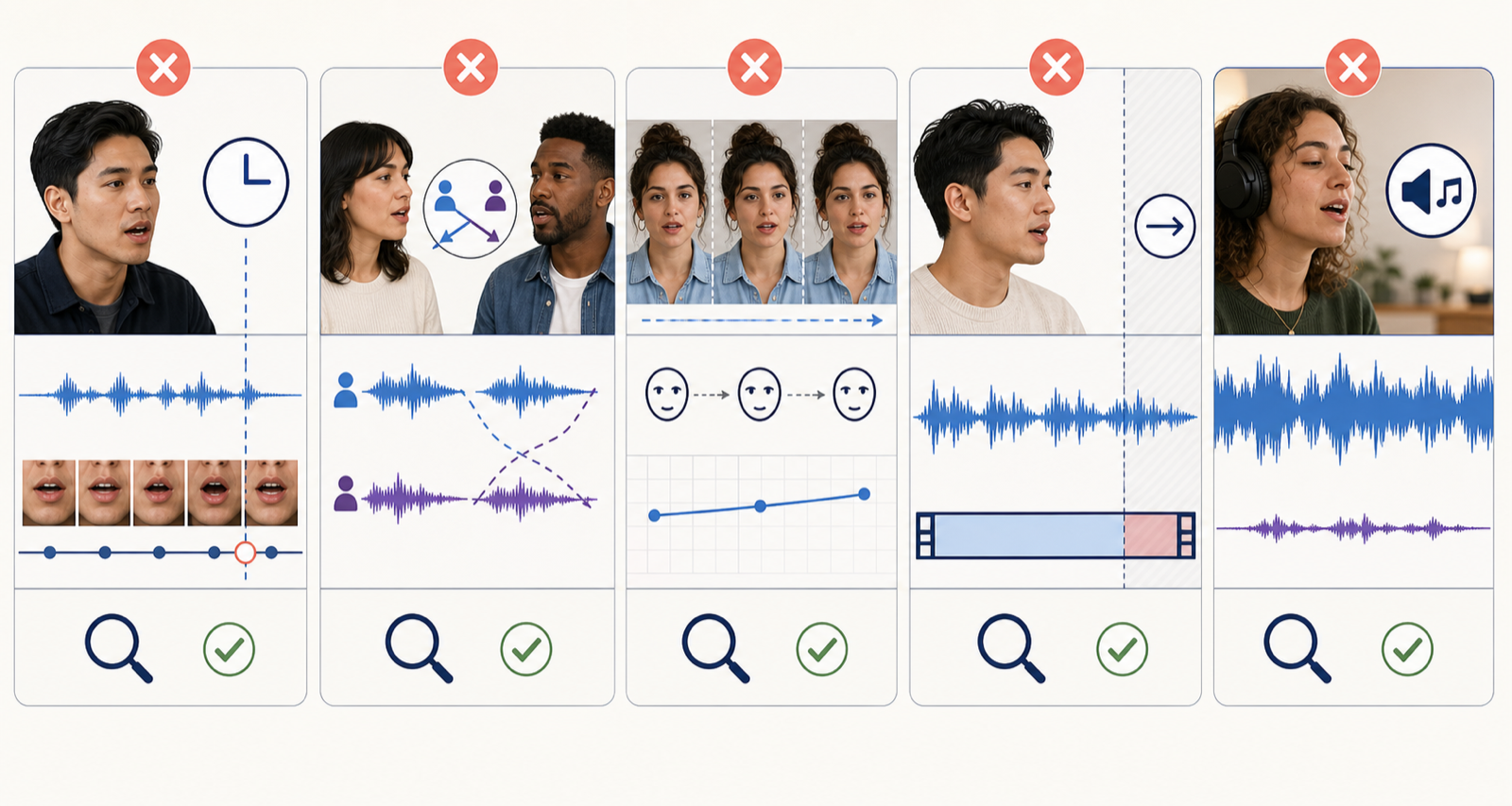
Diagnose the visible or audible failure before rewriting the whole prompt.
| Symptom | Likely cause | Suggested change | Evidence status |
|---|---|---|---|
| Mouth movement starts late or ends early | The sentence is too long for the shot, or the delivery and duration conflict. | Shorten the line, slow the delivery instruction, or use a longer supported shot. Change one variable first. | Editorial diagnostic; not a measured benchmark. |
| The wrong person appears to speak | Two speakers overlap, their turn order is vague, or the shot cuts during dialogue. | Name each speaker, state the order, prohibit overlap, and split the exchange into separate clips if needed. | ByteDance notes multi-character dialogue as a 1.5 Pro limitation; the fix is editorial guidance. |
| The face changes while speaking | The shot combines difficult motion, a long line, occlusion, or a loose identity reference. | Use a closer, steadier shot; keep the face visible; reduce body motion; provide a permitted appearance reference where supported. | Editorial diagnostic; not a measured benchmark. |
| Consonants look weak in a side profile | The mouth is too small or partly hidden for reliable visual evaluation. | Move to a medium close-up or three-quarter view and avoid hand, hair, or prop occlusion. | Editorial diagnostic based on inspection needs. |
| Speech is hard to understand | Music, effects, room noise, or stylized delivery competes with the voice. | Remove music for the first test, request quiet room tone, and add effects after speech is clear. | Editorial diagnostic; official sources confirm joint sound generation but not this exact mix. |
| Singing or rapid dialogue drifts | Dense phonemes, melody, multiple voices, and fast cuts raise the timing burden. | Test spoken dialogue first, shorten the phrase, remove cuts, and treat singing as a separate high-risk case. | ByteDance explicitly says singing and multi-character dialogue still need improvement in 1.5 Pro. |
How to evaluate lip sync
Watch the clip several times with a different purpose each pass.
| Pass | What to check | A useful failure signal |
|---|---|---|
| 1. Pronunciation and timing | Do visible mouth closures and openings roughly match the heard syllables? | Speech continues after the mouth stops, or the mouth moves before the voice begins. |
| 2. Speaker identity | Does the same face, hair, and age remain stable through the line? | Facial structure shifts during a phoneme or after a blink. |
| 3. Facial motion | Do jaw, cheeks, eyes, and expression support the delivery? | Only the lips move, the smile freezes, or emotion conflicts with the line. |
| 4. Audio quality | Is speech intelligible without music masking, clipping, or abrupt room-tone changes? | The voice sounds buried, distorted, or detached from the space. |
| 5. Shot continuity | Does the camera keep the speaker readable for the full sentence? | A cut, occlusion, or rapid turn hides the mouth at the hardest phrase. |
Do not judge the clip only at normal speed with music on. Mute the audio once to inspect facial motion. Then listen without looking to check pronunciation and mix. Finally, watch the full clip as a viewer would.
Rights and consent checklist
- Use a fictional adult character, your own likeness, or a person who has given clear permission.
- Get permission for the voice recording and the intended use, especially for advertising or public distribution.
- Do not imitate a celebrity, coworker, customer, or private person without authorization.
- Avoid scripts that could mislead viewers about what a real person said or endorsed.
- Store reference material only where your team is allowed to process it.
- Recheck local rules for biometric data, voice cloning, political content, and commercial likeness rights.
- Label synthetic or altered media when the platform, contract, or context requires it.
ByteDance's Seedance 2.0 release also warns that real human portrait references require identity verification or prior legal authorization. Treat consent as an input requirement, not a note added after the clip is finished.
FAQ
Does Seedance have a lip-sync feature?
Seedance 1.5 Pro and Seedance 2.0 support native audio-video generation according to ByteDance's official sources. Seedance 2.0 also supports audio and video references at the model level. The controls available to you depend on the product surface.
How do I use Seedance AI lip sync in SeedVideo AI?
Open the text-to-video page, choose Seedance 2.0, keep synchronized audio on, and write the exact short line inside a structured prompt. Start with one speaker, a medium close-up, a steady camera, and a 5-second test.
Can I upload an audio file for automatic lip sync?
Seedance 2.0 supports audio references at the model level, but the SeedVideo AI text-to-video view checked on July 25, 2026 did not show an audio-reference upload. Use a surface that visibly exposes audio input, or use a separate dubbing workflow.
Does Seedance 2.0 support multiple languages?
ByteDance documents multilingual and dialect lip-sync capability specifically for Seedance 1.5 Pro and describes Seedance 2.0 as a native multimodal audio-video model. Test each language, proper name, accent, and dialect yourself. Do not turn a model-level statement into a guarantee for every integration.
Why does the wrong character speak?
The prompt may not define turn order clearly, or two lines may overlap. Name each speaker, quote each line, specify "no overlap," and split the exchange into separate shots if the assignment still drifts.
Is Seedance lip sync perfect?
No. Official ByteDance material identifies room for improvement in multi-character dialogue, singing, and some stability cases. Side profiles, occlusion, long lines, fast cuts, and dense sound mixes can make evaluation harder.
Should I use text-to-video or dubbing?
Use native text-to-audio-video generation when you are creating a new shot and can let the model generate the voice. Use dubbing when the visuals already exist or the approved recording must remain exact.
What is the best first lip-sync test?
Use one fictional adult speaker, one sentence of about eight to twelve words, a medium close-up, a steady camera, quiet room tone, no music, and one continuous short shot.
Sources and methodology
This guide uses model-level claims from ByteDance Seed and the two technical reports, plus a live check of the SeedVideo AI text-to-video controls on July 25, 2026. We did not run a comparative generation benchmark for this article. The troubleshooting changes are practical editorial diagnostics unless a row explicitly cites an official limitation.
- ByteDance Seed, Sound and Vision, All in One Take: The Official Release of Seedance 1.5 Pro, published December 16, 2025; accessed July 25, 2026.
- Team Seedance et al., Seedance 1.5 Pro: A Native Audio-Visual Joint Generation Foundation Model, arXiv:2512.13507; accessed July 25, 2026.
- ByteDance Seed, Seedance 2.0 model page, accessed July 25, 2026.
- ByteDance Seed, Seedance 2.0 Official Launch, published February 12, 2026; accessed July 25, 2026.
- Team Seedance et al., Seedance 2.0: Advancing Video Generation for World Complexity, arXiv:2604.14148; accessed July 25, 2026.
- SeedVideo AI text-to-video workspace, interface checked July 25, 2026.
Create a controlled dialogue test
Start with one short line and one visible speaker in SeedVideo AI text to video. Keep the first draft simple enough that you can identify whether the next change belongs in the script, delivery, camera, sound, or shot length.