How to Create AI Commercial Videos with Seedance (2026 Guide)
To create AI commercial videos with Seedance, start with one product promise and one delivery format, then turn the idea into a short list of shots. Use text-to-video when you need to invent a setting or action from scratch. Use image-to-video when the product, packaging, color, or composition must stay close to an approved source image. Write one prompt per shot, keep the product description consistent, and review every clip for shape, text, motion, and framing before editing. SeedVideo AI gives you both workflows in one workspace, so you can build a concept from a prompt or animate an existing product image without changing tools. The strongest result usually comes from several controlled shots assembled in an editor, not from asking one generation to deliver a finished 15- or 30-second ad with every message, logo, and transition already in place.
TL;DR
- Start with the placement, audience, product promise, and desired action.
- Plan a small shot list before writing generation prompts.
- Use text-to-video for new scenes and image-to-video for product-led shots.
- Keep each prompt focused on one subject action and one camera move.
- Add precise logos, prices, claims, subtitles, and calls to action during editing.
- Check the current usage rights on your SeedVideo AI plan before running paid ads.
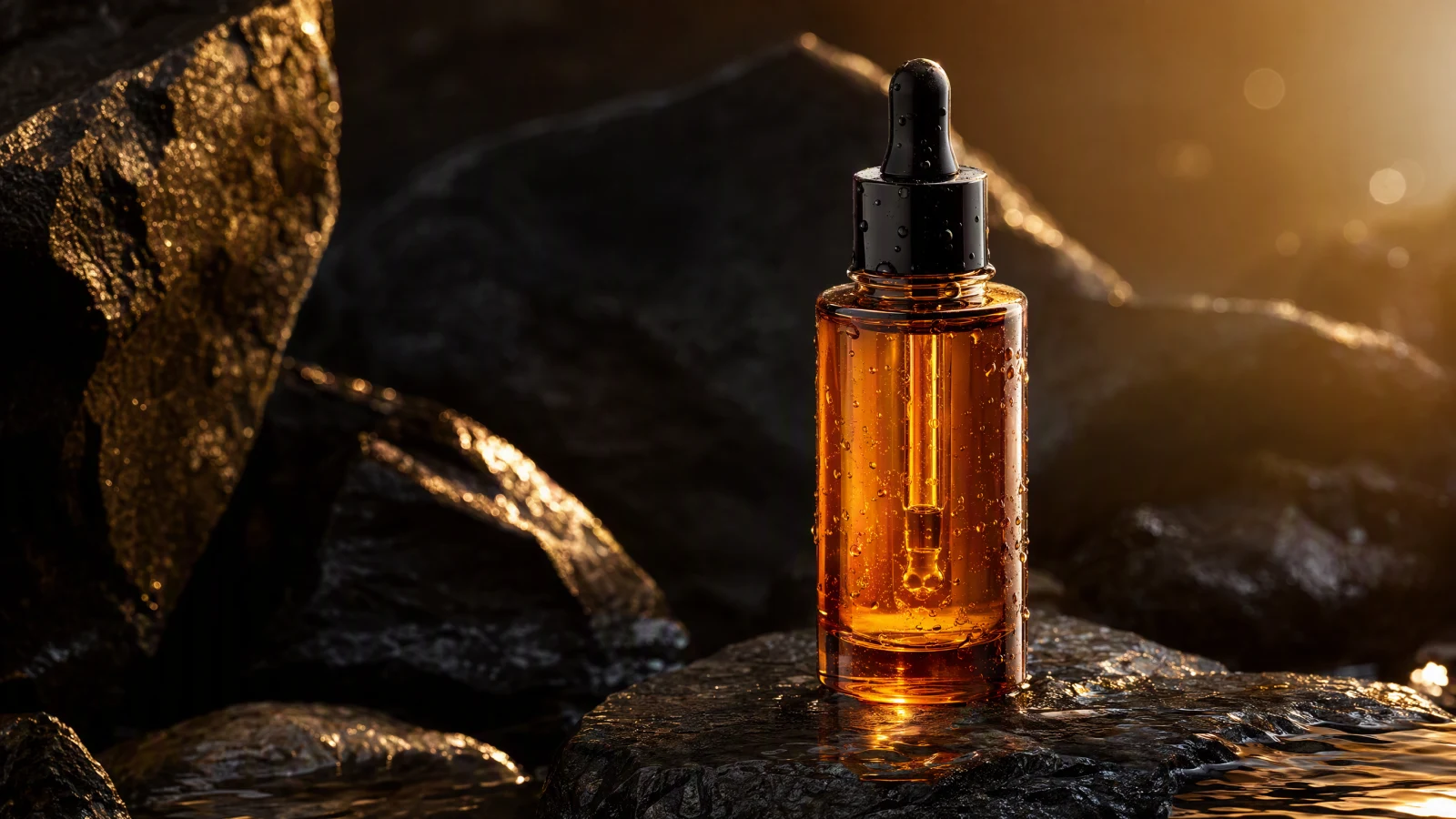
Video prompt: An original unbranded amber serum bottle stands on wet black stone as fine water droplets collect on the glass. The camera makes a slow 30-degree orbit and settles into a close-up of the dropper, with warm rim light, realistic refraction, controlled highlights, shallow depth of field, and premium beauty-commercial pacing. Keep the bottle shape stable and leave clean negative space on the left for later copy.
Quick Answer
Write the brief, choose text-to-video or image-to-video, generate one shot at a time, run visual QA, and finish the ad in an editor. For a product with approved photography, begin with the AI image-to-video generator so the composition starts from a real product frame. For a concept that needs a new environment, use the AI text-to-video generator and describe the product, action, camera, setting, light, and visual tone. Keep branding out of the generated footage when exact typography matters. Add the logo, offer, legal line, captions, and final button copy after you choose the cleanest take. The model handles the visual problem. The editor keeps control of everything that must be exact.
Choose the right Seedance commercial workflow
The input determines how much control you have over the product. A text prompt can create a new scene quickly, but it leaves more visual decisions to the model. A source image gives the model a stronger starting point for product shape, color, and framing. Most commercial projects benefit from using both.
| Starting point | Best use | Main advantage | Main risk | Practical approach |
|---|---|---|---|---|
| Text only | Mood films, lifestyle concepts, abstract service ideas, establishing shots | Fast exploration of settings and camera ideas | Product details may change between takes | Keep the subject generic or unbranded, then add exact brand elements in post |
| Product image | Pack shots, e-commerce clips, product reveals, landing-page loops | Starts from an approved composition | Aggressive motion may bend packaging or labels | Use a clean source image and ask for restrained product or camera movement |
| Character or lifestyle image | Creator ads, fashion, fitness, hospitality | Preserves the initial person, wardrobe, and location more reliably | Hands, faces, and small accessories still need close review | Use a clear adult subject and limit each clip to one simple action |
| Several short clips | Paid social, launch ads, landing-page stories | Each shot has one job and can be replaced independently | Continuity must be managed across prompts | Reuse a continuity block and assemble the sequence in an editor |
Use text-to-video for shots that do not need a specific product photograph: a sunrise city opener, a ribbon of citrus mist, or an abstract light transition. Use image-to-video for the moments where viewers inspect the item itself. If you already have an approved hero photograph, animate the product image with a slow orbit, push-in, controlled light change, or simple environmental motion.
Turn the campaign brief into a shot plan
A concrete brief produces better prompts. Before opening the generator, write down the following decisions in plain language:
- What should the viewer remember after one viewing?
- Where will the video run?
- What action should the viewer take?
- Which visual details are legally or commercially sensitive?
- Which assets already exist and have been approved?
"Make a cool product ad" gives you no way to judge the output. "Create a 12-second vertical teaser that makes a citrus drink feel cold, energetic, and suitable for summer social ads" is usable. It defines the product impression, length, format, and channel while leaving room for visual ideas.
Match the shot to the placement
The placement affects framing before it affects editing. A wide landing-page loop can hold a product on one side and copy on the other. A 9:16 social ad needs the subject near the center so interface overlays do not cover it. A marketplace product clip should show the item clearly and avoid a long atmospheric opening.
| Placement | Suggested master frame | Opening priority | Typical edit concern |
|---|---|---|---|
| TikTok or Reels | 9:16 | Product, face, or motion in the first beat | Leave safe space for captions and app controls |
| YouTube pre-roll | 16:9 | Establish the product and category quickly | Front-load the brand idea before a skip point |
| Landing-page hero | 16:9 or responsive crop | Readable silhouette and restrained loop | Protect text space and create a smooth loop point |
| E-commerce listing | 1:1, 4:5, or marketplace spec | Product clarity | Avoid crops that hide form, texture, or scale |
| Sales deck or concept review | 16:9 | Clear creative direction | Label concept status outside the generated image |
Do not assume one master clip will crop cleanly into every format. Rebuild the prompt around the final composition. A vertical version may need a closer camera, a centered product, and less lateral motion than the wide version.
Prepare product images that animate cleanly
Image-to-video works best when the source frame already solves the still-image problems. The product should be sharp, large enough to inspect, separated from the background, and shown at the intended angle. If the photograph contains tiny label copy, a reflective logo, a complicated cap, or several overlapping objects, motion can make those details drift.
Prepare a clean version for motion and keep the approved branded version for the edit. That does not mean erasing the identity of the campaign. It means assigning each tool the job it handles well. The generated clip supplies movement, light, atmosphere, and camera behavior. The editor restores exact brand marks and mandatory copy with predictable timing.
For the first test, choose restrained motion. A slow camera push, a gentle orbit, moving condensation, fabric motion, steam, or a controlled background light sweep gives the model fewer opportunities to alter the object. Large rotations, fast impacts, pouring liquids, and objects passing in front of the label deserve extra QA or separate VFX work.
You can use the AI product video guide to plan product-image preparation in more detail. The same principle applies here: fix composition before generation instead of asking motion to repair a weak source image.
Write prompts for commercial shots
A useful prompt is closer to a shot instruction than a campaign summary. It should tell the model what appears in this clip and how the viewer sees it. Keep the slogan, discount, legal line, and media plan outside the generation prompt unless they directly affect the scene.
Use this order:
- Name the subject with stable visual details.
- Describe one main action.
- Specify one camera behavior.
- Define the environment and light.
- Add composition, pace, and material cues.
- State the details that must remain stable.
A reusable formula looks like this:
[Subject and fixed appearance]. [Single action]. Camera [movement and framing]. [Environment and light]. [Pacing and visual finish]. Keep [critical details] stable and reserve [screen area] for later copy.
The fixed appearance block matters when you generate several shots. Repeat the same product material, shape, color, cap, and scale. Do not rename an amber cylindrical bottle as a golden glass vial in the next prompt and expect continuity.
Beauty product prompt
An original unbranded cylindrical amber serum bottle with a black dropper stands on wet black stone. Fine droplets gather on the glass while a narrow warm light travels across the bottle. Camera makes a slow 30-degree orbit from medium shot to close-up. Dark studio environment, realistic refraction, soft background bokeh, controlled luxury-beauty pace. Keep the bottle proportions and dropper shape stable. Leave the left third clean for later title copy.
This shot works as a hero because the action is small and the product remains readable. The prompt reserves copy space without asking the model to render the copy.
Beverage action prompt
An original unbranded citrus drink can rises through cold clear water as orange slices and small droplets move around it. Camera tracks upward with the can and slows at label height. Bright summer backlight, crisp condensation, blue-sky background, high-speed beverage-commercial detail. Keep the can cylindrical and centered. End on a clean upright product frame.
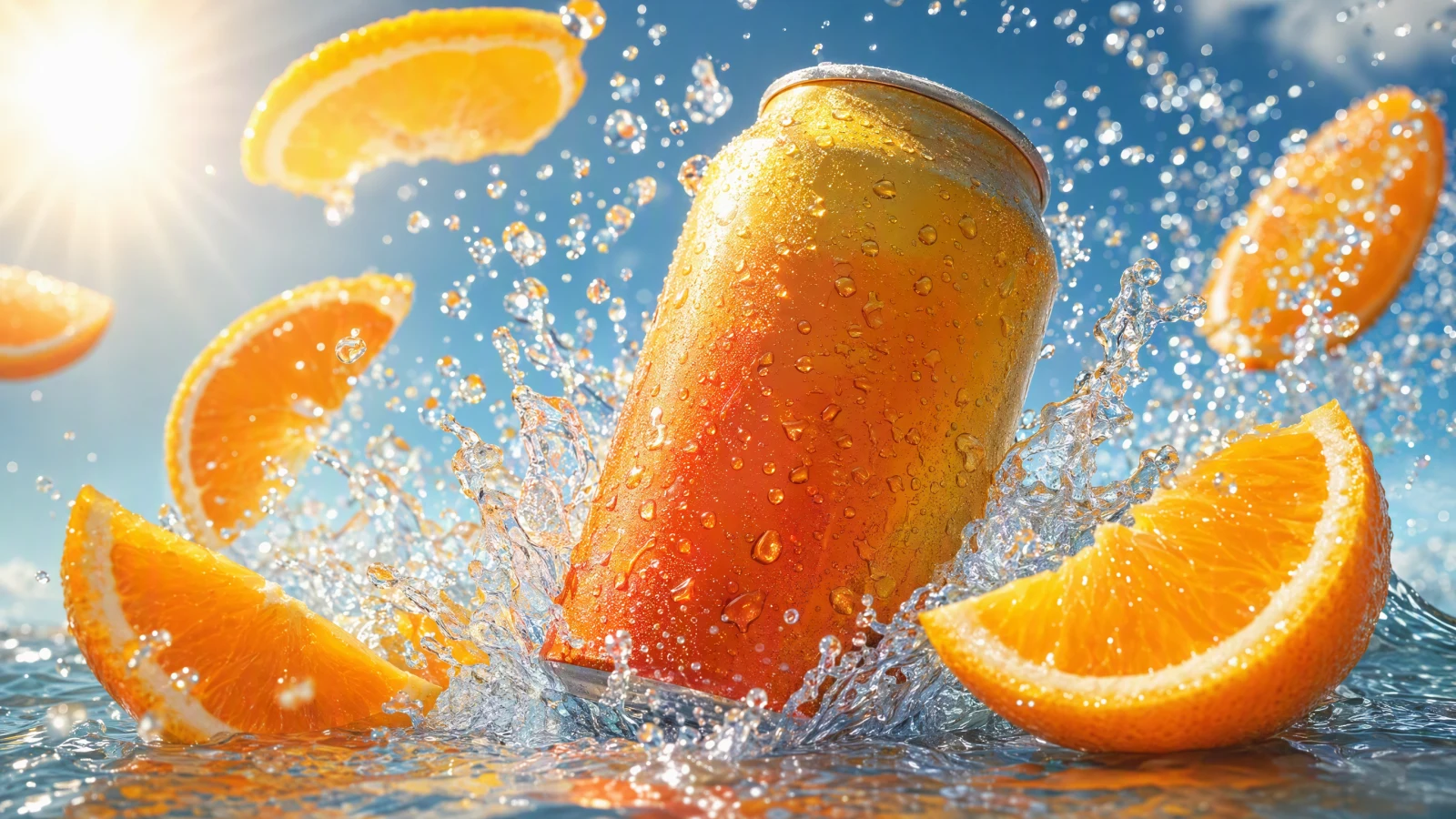
Video prompt: An original unbranded citrus drink can rises through cold clear water while orange slices and small droplets arc around it. The camera tracks upward, then slows at label height. Use bright summer backlight, crisp condensation, a blue-sky palette, high-speed beverage-commercial detail, and an upright end frame with the can centered.
Water creates energy, but it also creates a harder simulation problem. Review the can edge, top rim, orange slices, and splash direction frame by frame. If the shape bends, reduce the splash and use a tighter camera move. A composited splash layer may be more efficient than forcing every effect into one generation.
Athletic footwear prompt
An original unbranded gray running shoe lands on a rain-slick city street at dawn. A small realistic splash spreads from the sole. Camera tracks beside the foot at ankle height, then settles into a low three-quarter product view. Cool city shadows with warm sunrise backlight, believable knit and rubber materials, energetic athletic-commercial pace. Keep the shoe panels, sole thickness, and lace pattern stable.
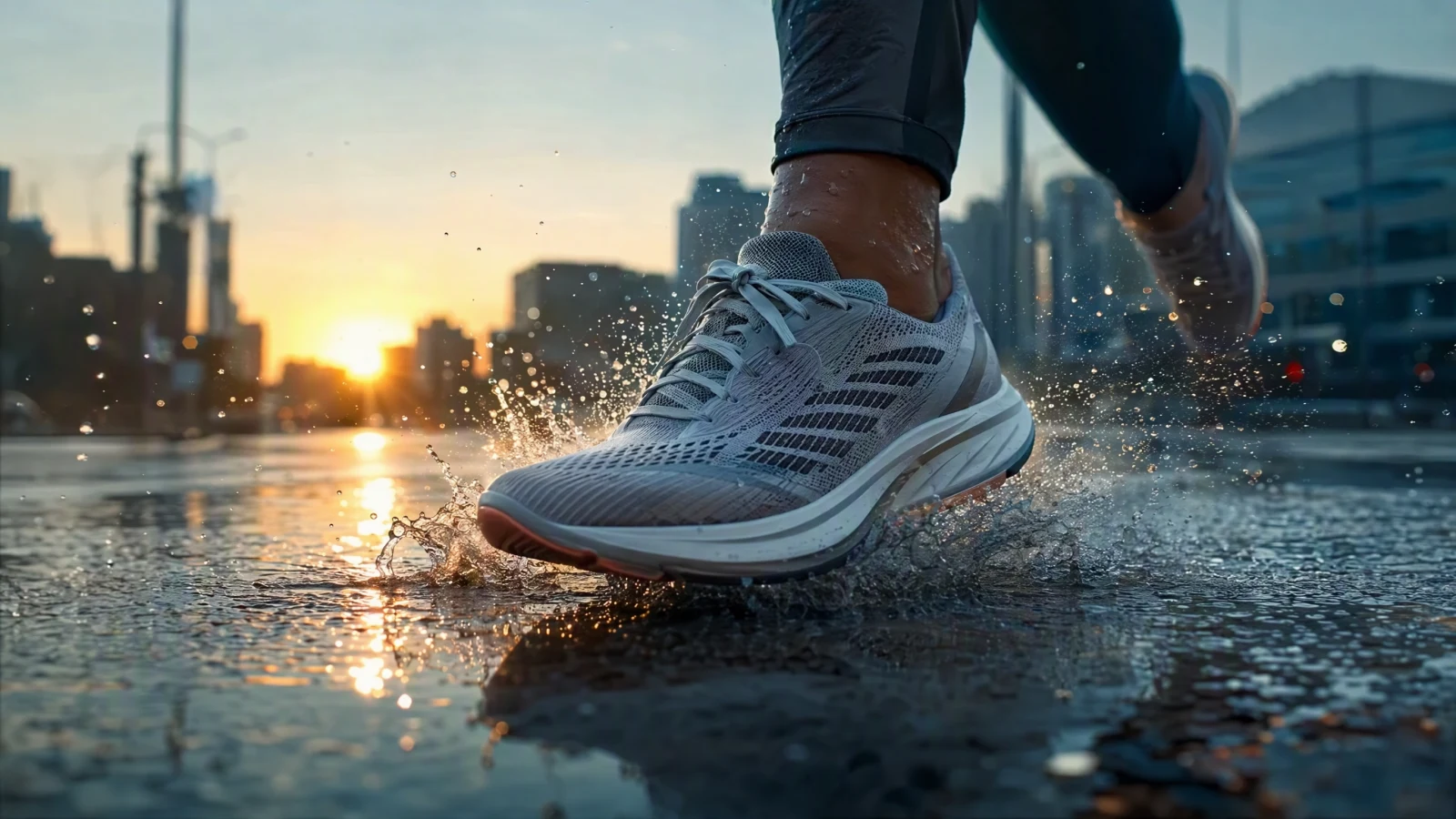
Video prompt: An original unbranded gray running shoe lands on a rain-slick city street at dawn and creates a small realistic splash. Track beside the foot at ankle height, then settle into a low three-quarter product view. Use cool city shadows, warm sunrise backlight, believable knit and rubber materials, energetic pacing, and stable shoe panels, sole thickness, and laces.
For footwear, continuity is easier when the shoe occupies a similar share of the frame across related shots. A wide running shot and an extreme macro can still belong together, but repeat the material and color details in both prompts.
The Seedance 2.5 prompt guide has more detail on subject, motion, camera, and constraint wording. Treat those components as controls you can adjust, not a sentence you must make longer every time.
Create the clips in SeedVideo AI
Open the SeedVideo AI workspace and choose the input mode that matches the shot plan. The current text-to-video workspace exposes the prompt field plus aspect ratio, resolution, duration, audio, advanced settings, and model selection controls. Available options can change, so confirm the visible settings before committing a campaign to a particular output format.
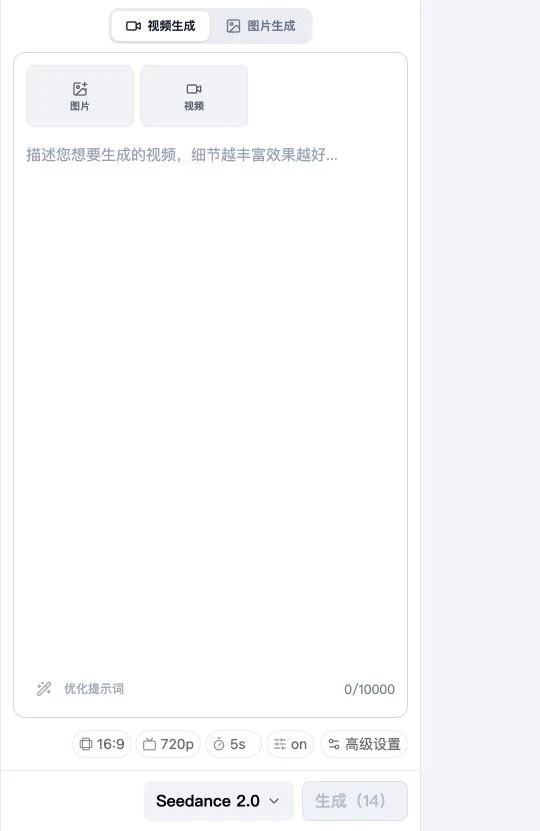
SeedVideo AI text-to-video workspace captured on August 11, 2026, showing the prompt field, 16:9 aspect ratio, 720p, 5-second duration, audio setting, advanced settings, Seedance 2.0 selection, and Generate control.
Use the following sequence:
- Open the AI video generator and choose video generation.
- Select text-to-video for a new scene or image-to-video for an approved source frame.
- Set the target aspect ratio before generating.
- Choose the model, duration, resolution, audio option, and advanced controls visible for that model.
- Paste one shot prompt, not the entire campaign script.
- Generate a take and compare it with the acceptance criteria for that shot.
- Change one or two variables when you revise so you can tell what improved the result.
Do not change the camera, lighting, action, environment, and product wording at the same time. If the first take is too busy, simplify the action and background before switching models. If the composition is good but the motion is abrupt, keep the visual description and rewrite only the camera instruction.
Build a 15-second commercial from short shots
A short ad still needs a beginning, development, and payoff, but each section can be only a few seconds. A modular shot list is easier to generate, review, and replace than a single prompt containing five scene changes.
Here is a 15-second example for the fictional amber serum:
| Time | Shot job | Picture | Motion | Edit note |
|---|---|---|---|---|
| 0:00-0:02 | Stop the scroll | Water drop strikes black stone beside the bottle | Macro push-in | Start on motion, keep product recognizable |
| 0:02-0:05 | Establish the product | Bottle in a clean three-quarter hero view | Slow orbit | Hold enough time for the eye to read the shape |
| 0:05-0:08 | Show sensory detail | Dropper lifts and one drop forms | Controlled close-up | Inspect glass and liquid continuity |
| 0:08-0:12 | Create the benefit mood | Warm light travels across bottle and wet stone | Gentle light sweep | Add approved benefit copy in the edit |
| 0:12-0:15 | Land the message | Stable bottle with clean copy space | Nearly static | Add logo, CTA, and legal line in post |
Generate each row as a separate clip. Reuse the same continuity block for the bottle and environment. The editor can trim the best one or two seconds from a longer take and match motion across cuts. If the dropper shot changes the bottle, replace that shot without discarding the rest of the sequence.
For a social version, the first shot may need the product larger and closer to center. For a landing-page loop, remove the CTA end card and create an ending that can return smoothly to the opening frame. The campaign idea stays the same, but the edit and composition respond to the placement.
Review every take before editing
An attractive thumbnail is not enough. Scrub through the entire clip at normal speed and frame by frame around fast motion. Commercial QA should focus on the details that affect trust, brand accuracy, and usability.
| Check | What to inspect | Typical repair |
|---|---|---|
| Product geometry | Bottle neck, cap, can rim, shoe sole, corners, proportions | Reduce rotation or action; return to a stronger source image |
| Surface and material | Glass refraction, metal reflections, fabric weave, liquid behavior | Simplify light movement or separate the effect into post |
| Text and marks | Accidental letters, changing label shapes, logo drift | Generate a clean surface and add approved artwork in the edit |
| Camera motion | Sudden speed changes, wobble, horizon drift, unintended zoom | Use one named move with a clear start and end |
| Background | Objects appearing, disappearing, or crossing the product | Simplify the setting and request a stable background |
| Human detail | Face, hands, fingers, clothing, contact with the product | Shorten the action or use a cleaner reference frame |
| Composition | Cropping, safe areas, product scale, room for copy | Regenerate for the actual aspect ratio |
| End frame | Whether the last usable frame supports the next cut or CTA | Ask for a centered, stable finish and trim before artifacts appear |
Create shot-specific acceptance criteria before generation. The serum hero might require a stable cylindrical bottle, readable glass edge, warm rim light, and clear left-side copy space. The beverage shot might require an upright can, coherent rim, believable droplets, and a clean end frame. "Looks premium" is too vague for a pass or fail decision.
Add branding, copy, audio, and claims in the edit
Use generation for picture and motion. Use editing for accuracy.
Add the approved logo as a vector or high-resolution overlay. Set product names, prices, offer terms, subtitles, and calls to action with the real brand font. Keep mandatory disclosures on screen long enough to read and place them inside the safe area for each channel. If the product has regulated or measurable claims, use only approved wording and retain the evidence required by your legal or compliance process.
Sound changes how expensive a commercial feels. Build it deliberately: a small impact for the product landing, a controlled whoosh for a camera move, room tone for the environment, and music licensed for the intended use. Mix for phone speakers as well as headphones. Captions should work with sound off, especially for social placements.
Export a clean master before making placement variants. Preserve the highest practical resolution and frame rate from your chosen output, then create 16:9, 9:16, 4:5, or 1:1 versions with their own copy layout. Do not stretch a landscape frame into portrait. Reframe or regenerate the shot when the product cannot survive the crop.
Usage rights belong in the preflight, not at the end of the campaign. The current Seedance pricing page says new accounts receive free credits without a card. It also states that commercial use is included with one-time credit packs, Pro, Premium, and yearly subscription plans, while Lite monthly does not include commercial use. Check the current checkout terms for the account and plan you intend to use before publishing paid media or client work.
Adapt the workflow to different commercial types
Product launch teaser
Lead with one distinctive material or action, then reveal the full product. A close-up of condensation, a reflected light line, a fabric fold, or a silhouette can create curiosity without hiding the category for too long. Keep the final product frame stable enough for the launch date and CTA to be added in post.
E-commerce product clip
Clarity matters more than atmosphere. Show the product at a useful scale, use restrained movement, and include angles that answer purchase questions. If texture, size, ports, closures, or fit matter, create separate detail shots rather than a single elaborate camera move.
Paid social variant
The opening must communicate quickly. Create several hooks by changing one variable: the first action, opening crop, background color, or copy line. Keep the body of the edit stable so performance differences are easier to interpret. A creative test is useful only when you know what changed.
Creator-style commercial
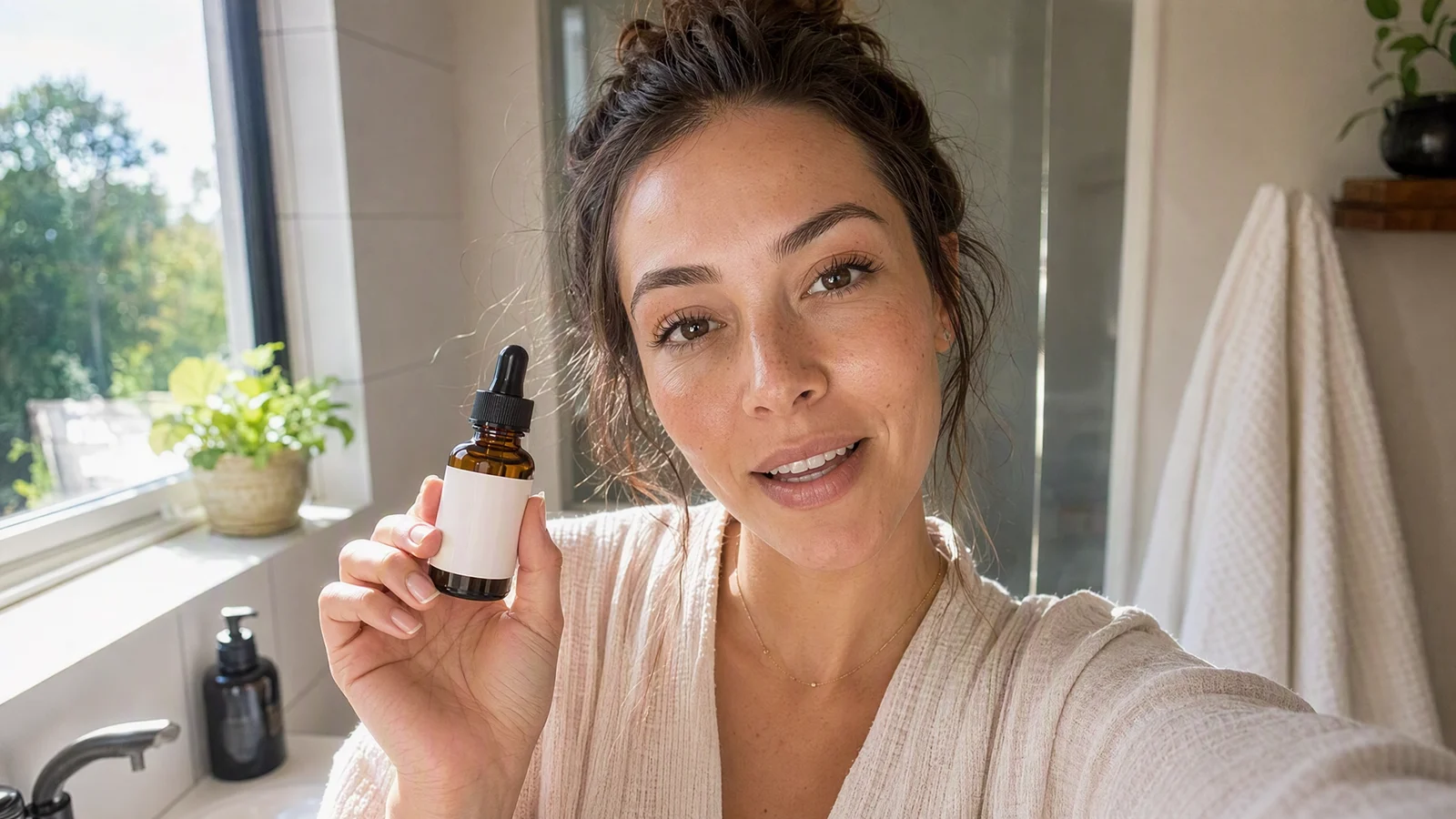
Start from a consented image of a fictional or authorized adult and use simple actions. Keep the product interaction believable. Generate the clean lifestyle plate, then add precise on-screen text and spoken claims in the edit. Review the face, hands, product contact, and room geometry across every frame.
Landing-page loop
Use a restrained camera move and a composition with space for the page headline. The final motion should return naturally to the opening or support a hidden crossfade. Test the crop at the real responsive breakpoints because desktop and mobile may show different portions of the same asset.
Common mistakes and direct fixes
Asking one prompt to make the whole ad
A prompt containing a product reveal, actor scene, ingredient macro, logo animation, offer card, and CTA forces too many transitions into one generation. Split it into shots. You gain control over pacing and can replace the weak section.
Generating exact packaging copy
Small generated text can drift or change. Use a clean product surface when needed and add the approved package artwork or end-card copy in post. If the printed label must remain visible throughout a moving shot, use restrained image-to-video motion and inspect every frame.
Using vague camera language
"Dynamic cinematic camera" does not define a path. Write "slow dolly forward from medium shot to close-up" or "low lateral tracking shot that ends in a three-quarter product view." One clear move is easier to judge and revise.
Ignoring the final crop
A beautiful wide frame can fail as a vertical ad. Set the aspect ratio before generation, reserve safe areas for platform overlays, and keep the product at the correct scale. Regenerate the composition when cropping removes the visual idea.
Changing too many variables between takes
If every revision changes the model, subject, action, light, camera, and duration, you learn nothing from the comparison. Hold the approved parts steady and change the most likely cause of the failure.
Treating visual polish as claim approval
The model can create a convincing product mood, but it does not verify a benefit, price, comparison, or endorsement. Keep claims in the approved copy workflow and use the generated footage as visual material.
Measure and improve the commercial
Connect each creative decision to one measurement question. For paid social, compare hook retention, click-through rate, and downstream conversion using the same audience and offer where practical. For a landing page, monitor whether the video affects load time, engagement, and the primary conversion path. For e-commerce, examine product-page engagement and add-to-cart behavior without assuming the video caused every change.
Name variants by the single idea being tested: splash-hook, macro-hook, warm-light, or creator-open. Keep the shot list, prompts, source assets, settings, and edit notes together. That record makes successful creative reusable and prevents a team from guessing which prompt produced which shot.
When a clip fails, record the failure in visual terms. "Bottle neck changes at 1.8 seconds" leads to a useful prompt or shot revision. "The ad feels off" does not. Over time, these notes become a practical prompt library tied to products and placements.
Create your Seedance commercial
Start with one placement and one product promise. Write a five-shot plan, choose the correct input mode for each shot, and define acceptance criteria before generating. Keep exact branding and claims for the edit. This workflow gives you small, replaceable pieces instead of one fragile generation.
You can create an AI commercial from a prompt for a new visual concept or start from an approved product frame with image-to-video. Build the first version around clarity, then add complexity only where it improves the commercial.