Free AI Background Remover: Remove Background from Image Online

Remove the background from any image and download a transparent PNG in seconds. Choose Person or Product for cleaner edges on those shots. Free credits to start, 1 credit per image.

After
Before
BeforeAfterSample

Remove the Background from Any Image Instantly

A busy background makes a good subject harder to see and harder to reuse. Our AI background remover finds the person, product or object in your photo and cuts it out to a transparent PNG, edges and all. Drop the cut-out onto a white backdrop for a marketplace, a bold colour for a thumbnail, or a new scene in your design tool.

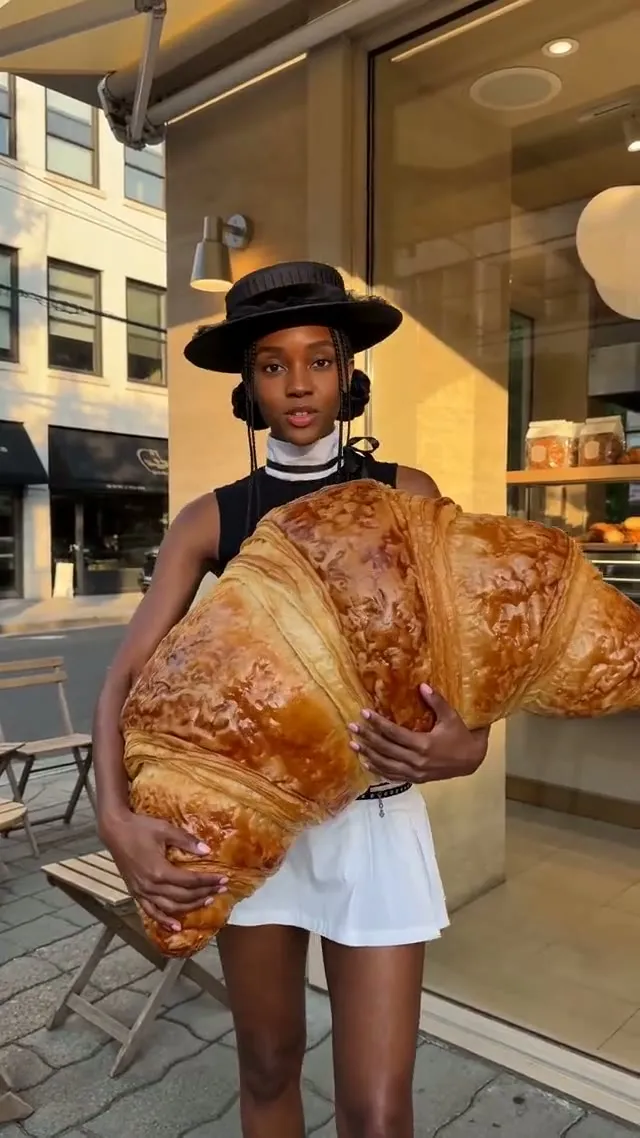
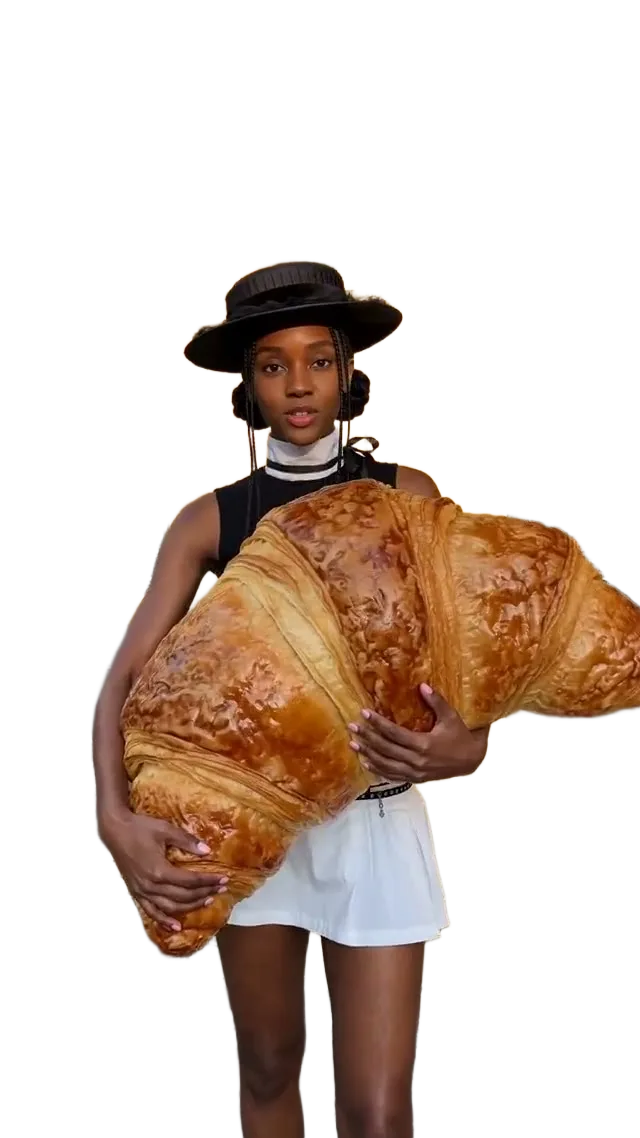
Woman holding a giant croissant cut out from a street scene: BeforeWoman holding a giant croissant cut out from a street scene: AfterBeforeAfter

Auto, Person or Product

Auto keeps the main subject whatever it is. Person and Product keep only that kind of subject, which gives cleaner edges when you know what is in the shot.

A real transparent PNG

You download a PNG with an alpha channel at the size that was processed, ready to place over any colour, photo or layout.

1 credit, a few seconds

Each cut-out costs one credit and usually takes 10 to 20 seconds. If a run fails, the credit goes back to you automatically.

01

Make Product Photos Ready for Any Store

Product mode keeps only the item and drops the table, props and backdrop, so you can put a bottle, bag or gadget on the plain white background marketplaces ask for, or on a seasonal colour for a sale banner.

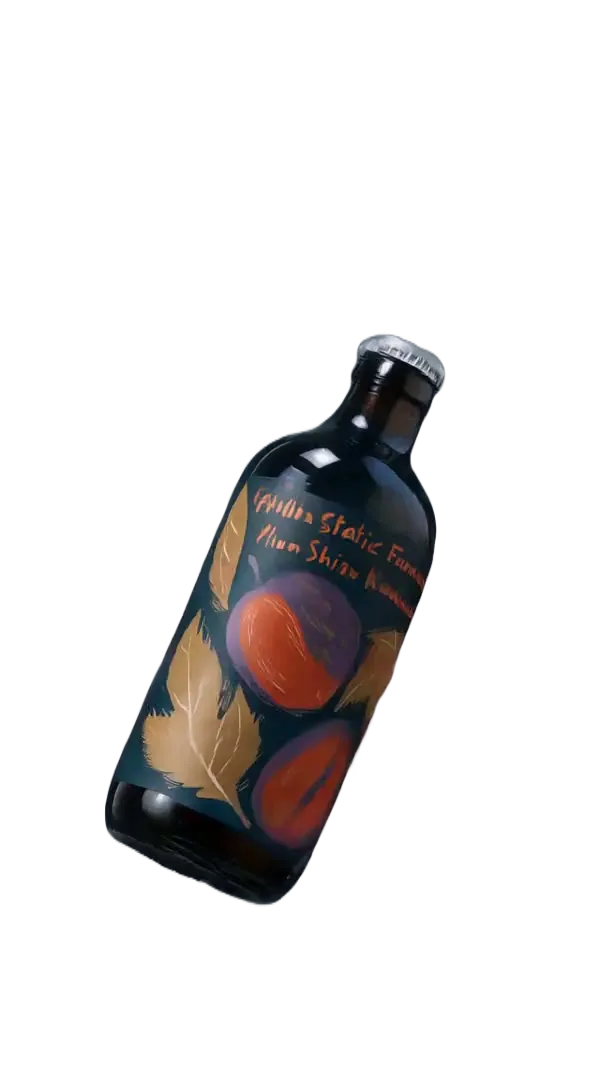
Glass bottle cut out from a grey studio splash shot: BeforeGlass bottle cut out from a grey studio splash shot: AfterBeforeAfter

02

Create Clean Portraits and Headshots

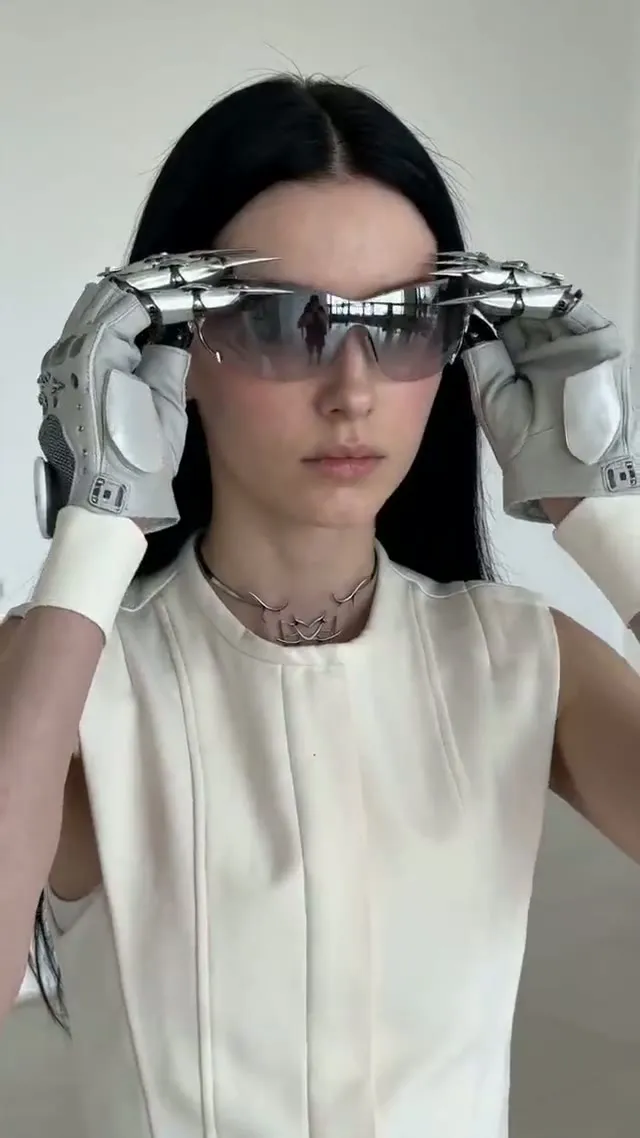
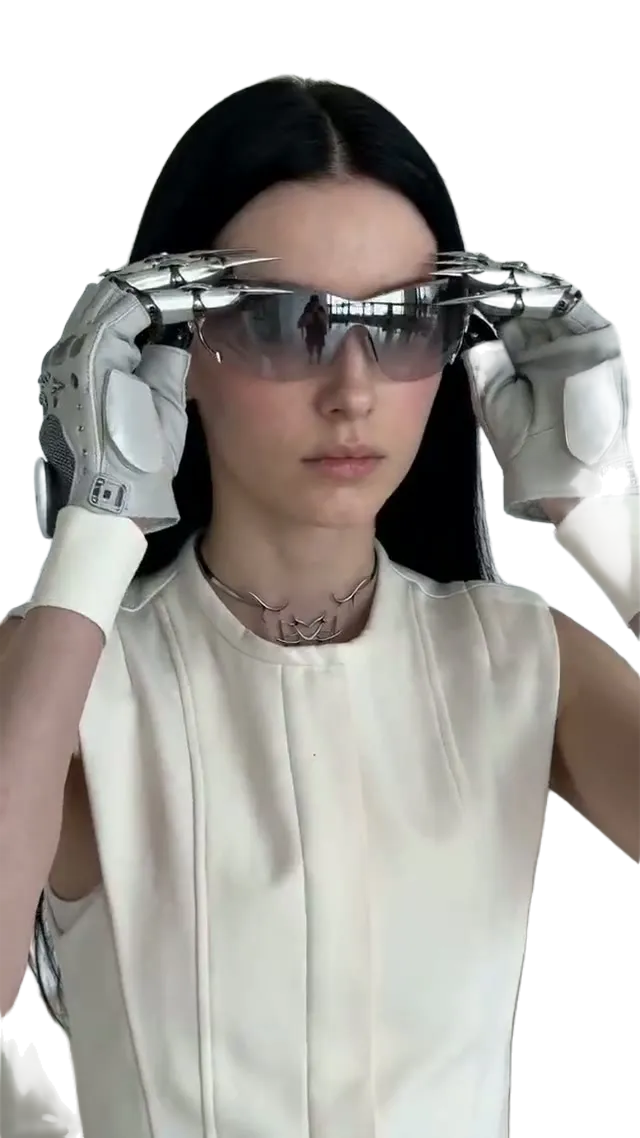
Person mode follows hair, glasses and loose clothing, so a photo taken at home or in the office becomes a clean profile picture, team-page headshot or speaker card without a reshoot.

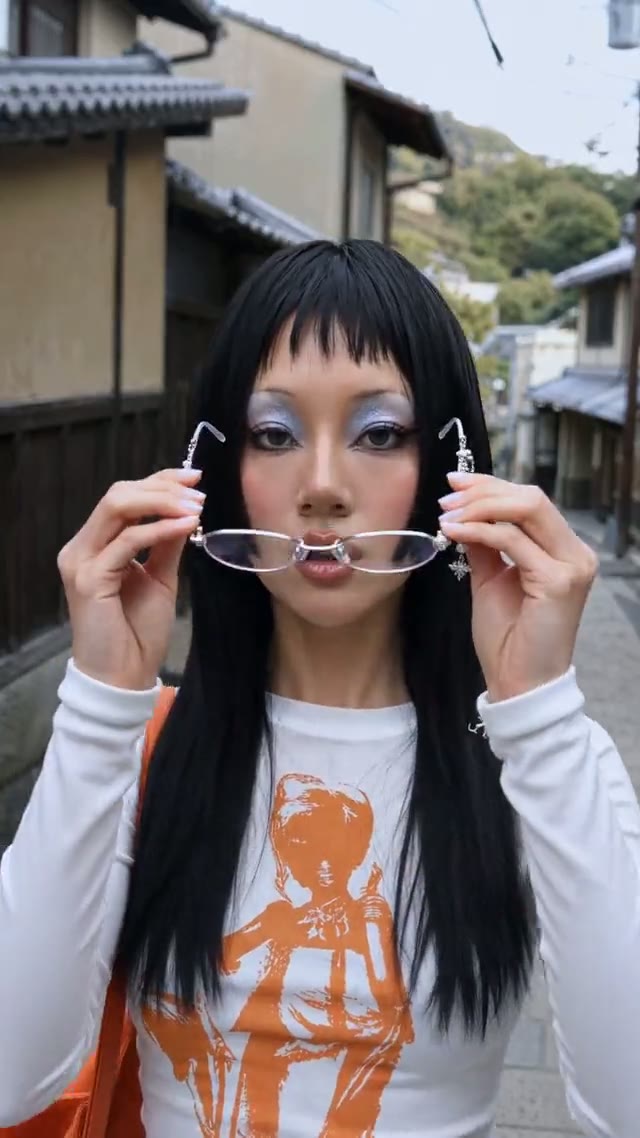
Woman with tech glasses and metal gloves cut out from a white wall: BeforeWoman with tech glasses and metal gloves cut out from a white wall: AfterBeforeAfter

03

Turn Busy Shots into Social Media Cut-outs

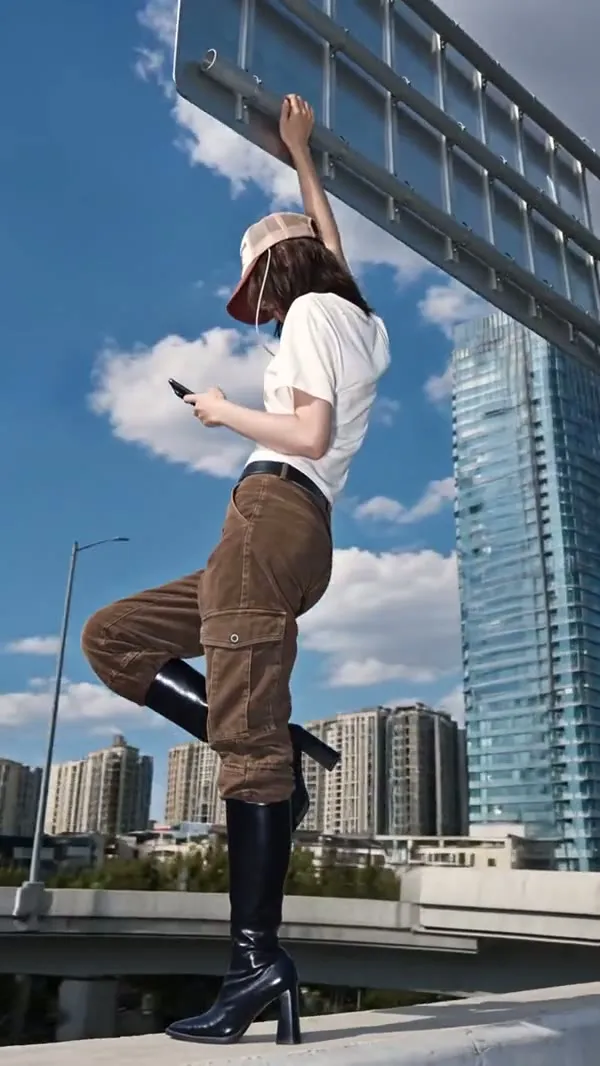
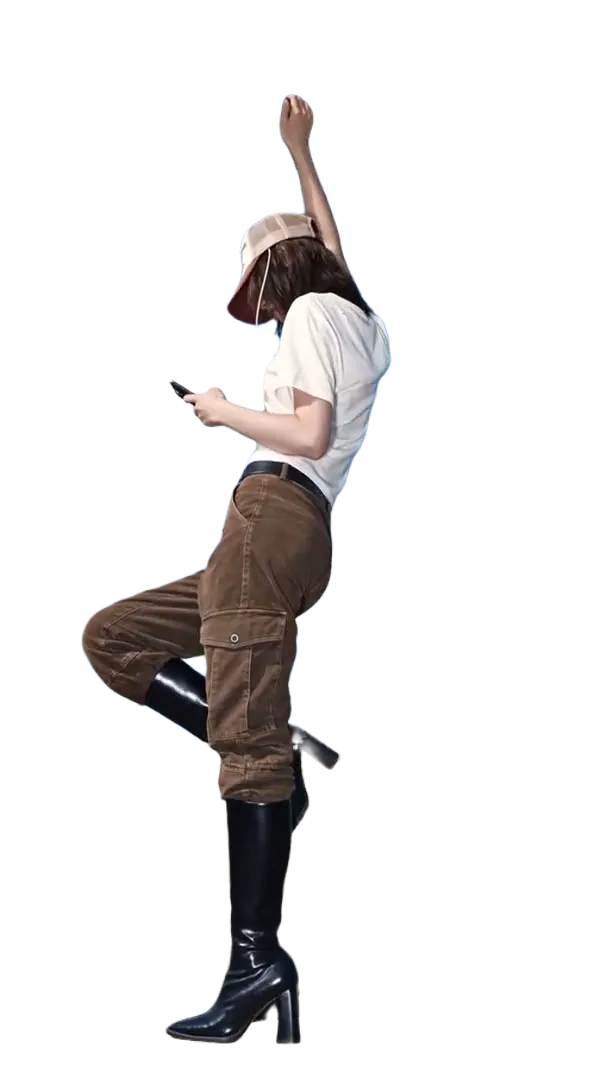
Lift a person out of a street, a skyline or a crowded room and drop them onto a bold background for a thumbnail, a story or a meme template, with the whole pose kept intact.

Woman posing on a rooftop cut out from a city skyline: BeforeWoman posing on a rooftop cut out from a city skyline: AfterBeforeAfter

04

Isolate Objects for Design Projects

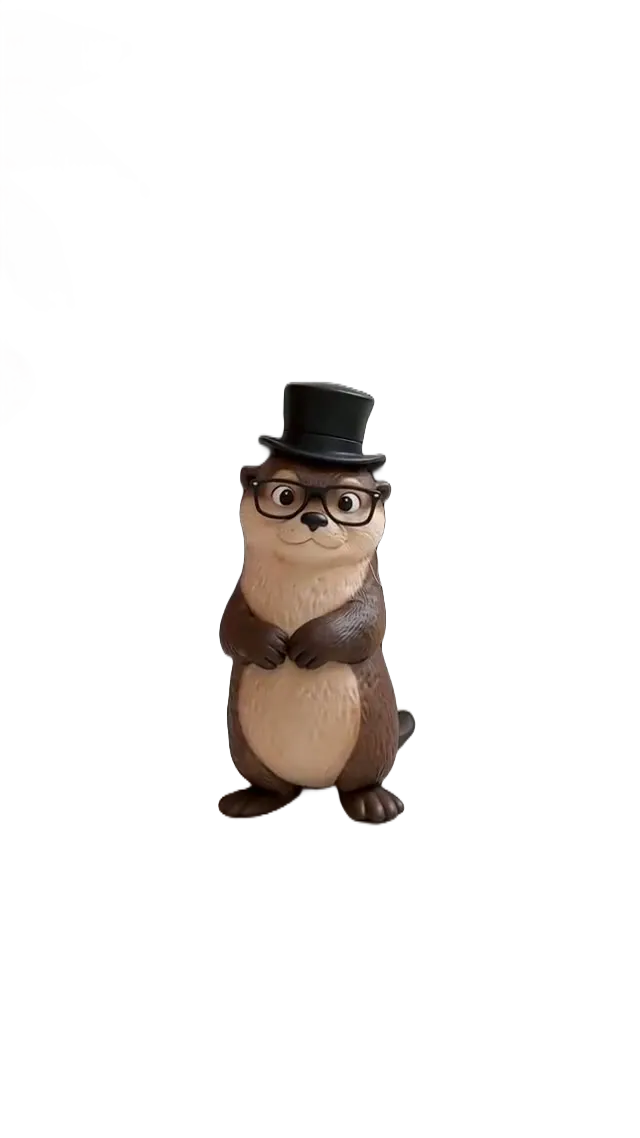
Figures, toys, food and packaging come out as separate layers you can reuse in posters, slides, mock-ups and collages. Product mode also leaves out hands and props that wander into the frame.

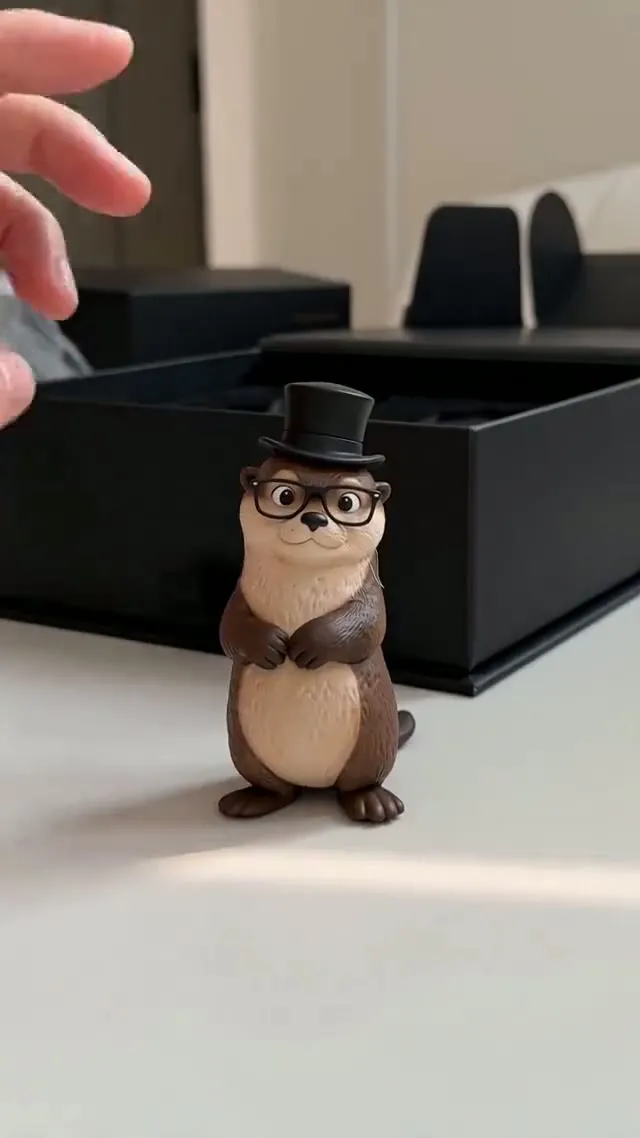
Otter figurine cut out from a desk with a box and a hand: BeforeOtter figurine cut out from a desk with a box and a hand: AfterBeforeAfter

Best Use Cases for the Background Remover

Anywhere you need the subject on its own, without paying for a studio or spending an hour with a pen tool.

E-commerce listings

E-commerce listings

Give every product the same clean backdrop so your catalogue looks consistent and passes marketplace image rules.

Profile pictures

Profile pictures

Cut yourself out of a holiday or office photo for an avatar, a LinkedIn header or a conference badge.

Thumbnails and ads

Thumbnails and ads

Layer a cut-out person or product over a strong colour or a new scene for YouTube thumbnails and banner ads.

AI image and video inputs

AI image and video inputs

Use the clean subject as a reference image when you generate new scenes, product shots or videos.

How to Remove the Background from an Image

Everything happens in the tool at the top of this page, and every PNG is also saved to My Assets.

  1. 1

    Upload your photo

    Click the upload box, drag a file onto it, or paste a screenshot. JPG, PNG and WebP up to 20 MB.

  2. 2

    Pick the subject

    Auto for anything, Person for people, Product for items. Person and Product keep only that kind of subject.

  3. 3

    Run and download

    Press Remove background, compare with the original, then download the transparent PNG.

Background Remover FAQs

How the AI background remover works, what it costs and how to get the cleanest cut-out.

Last updated:

An AI background remover, or BG remover, is a tool that removes the background from photos and other images in seconds. It works out which parts of the picture are the subject and which are the background, then clears the background away and leaves the subject on a transparent layer.

You get three subject modes instead of one: Auto for anything, Person for portraits and Product for packshots, so the cut-out follows the right edges. The result is a real transparent PNG at the size that was processed, each run costs just 1 credit, and it sits next to the other image tools, so you can extend, clean or upscale the same image without leaving the page.

Upload or drag and drop your image into the tool at the top of this page, choose Auto, Person or Product, and press Remove background. The AI finds the background and removes it in seconds. Download the transparent PNG, then place it over your own background or create a new scene for it with the AI image generator.

Yes, you can try it for free. New accounts start with free credits, and each background removal costs just 1 credit, with no credit card needed to start. If a run fails, the credit goes back to you automatically. More credits are on the pricing page.

You can upload JPG, PNG and WebP images up to 20 MB. Images longer than 2560 px on a side are scaled down first, and the cut-out always downloads as a transparent PNG.

Very fast. Most images are done in 10 to 20 seconds, with no queue. Keep the tab open while it runs; the result also appears in My Assets.

Yes. The background remover works in mobile browsers, so you can upload a photo straight from your camera roll, remove the background and download the PNG on the go.

Your uploads and cut-outs are saved to My Assets in your own account and are not shown to other users. You can delete any of them from My Assets at any time.

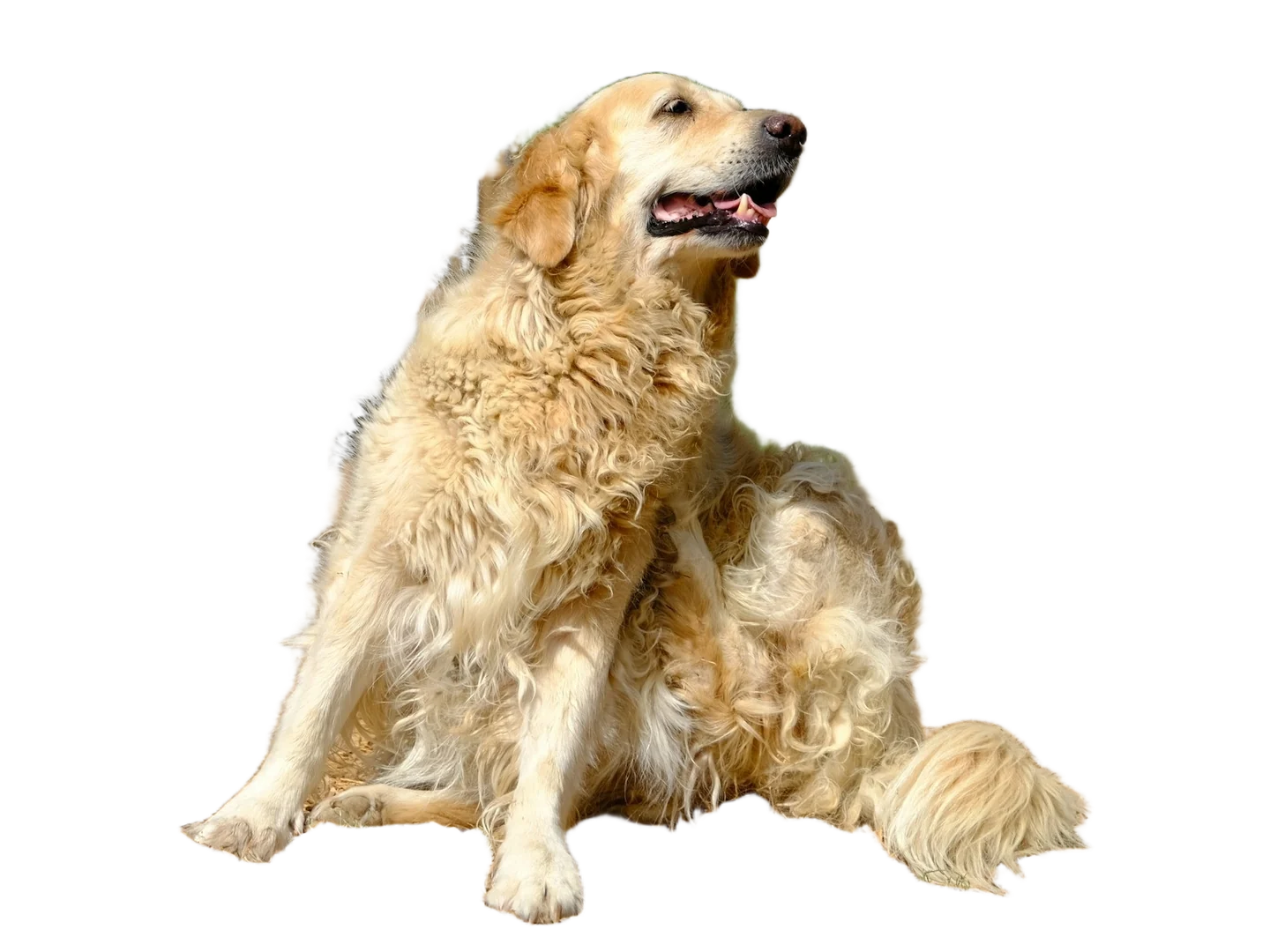
Yes. Person mode is tuned for hair, glasses and loose clothing, and Auto handles pets and objects. Very fine strands against a background of almost the same colour can still come out soft, so a photo with clear contrast between subject and background gives the sharpest edges.

Yes, it works on any image, old or new. Small or blurry photos give softer edges, so enlarge them with the image upscaler first, then remove the background from the sharper copy.

The tool always returns a transparent PNG, which gives you the choice: drop it onto white for a marketplace listing, onto a brand colour for a banner, or onto a new photo in any design tool.

Auto when you are not sure. Person for portraits and group photos. Product for items on a table or a plain backdrop. Person and Product drop anything that is not that kind of subject, such as a pet in someone’s arms, so switch to Auto to keep it.

Background remover

Cut Out Your Subject in Seconds

Upload a photo, pick Auto, Person or Product, and download a transparent PNG.

Upload an Image