How to Create Faceless YouTube Videos with AI-Generated Scenes
You can create a faceless YouTube video with AI by treating it as a normal production, not a one-click automation job. Start with a 3 to 5 minute script, record or generate the voiceover, and split the narration into visual beats. Use AI-generated scenes only where an original shot helps the story. Fill the remaining gaps with licensed footage, screenshots, charts, or simple motion graphics. Generate short clips with a consistent visual brief, then edit them to the narration, add readable captions, clear music rights, source notes, and any required AI disclosure. Seedance can create the original scene clips, but you still need an editor for the full timeline, subtitles, audio mix, and YouTube upload. The workflow below is designed for knowledge channels, narrated stories, and Shorts that do not show the creator on camera.
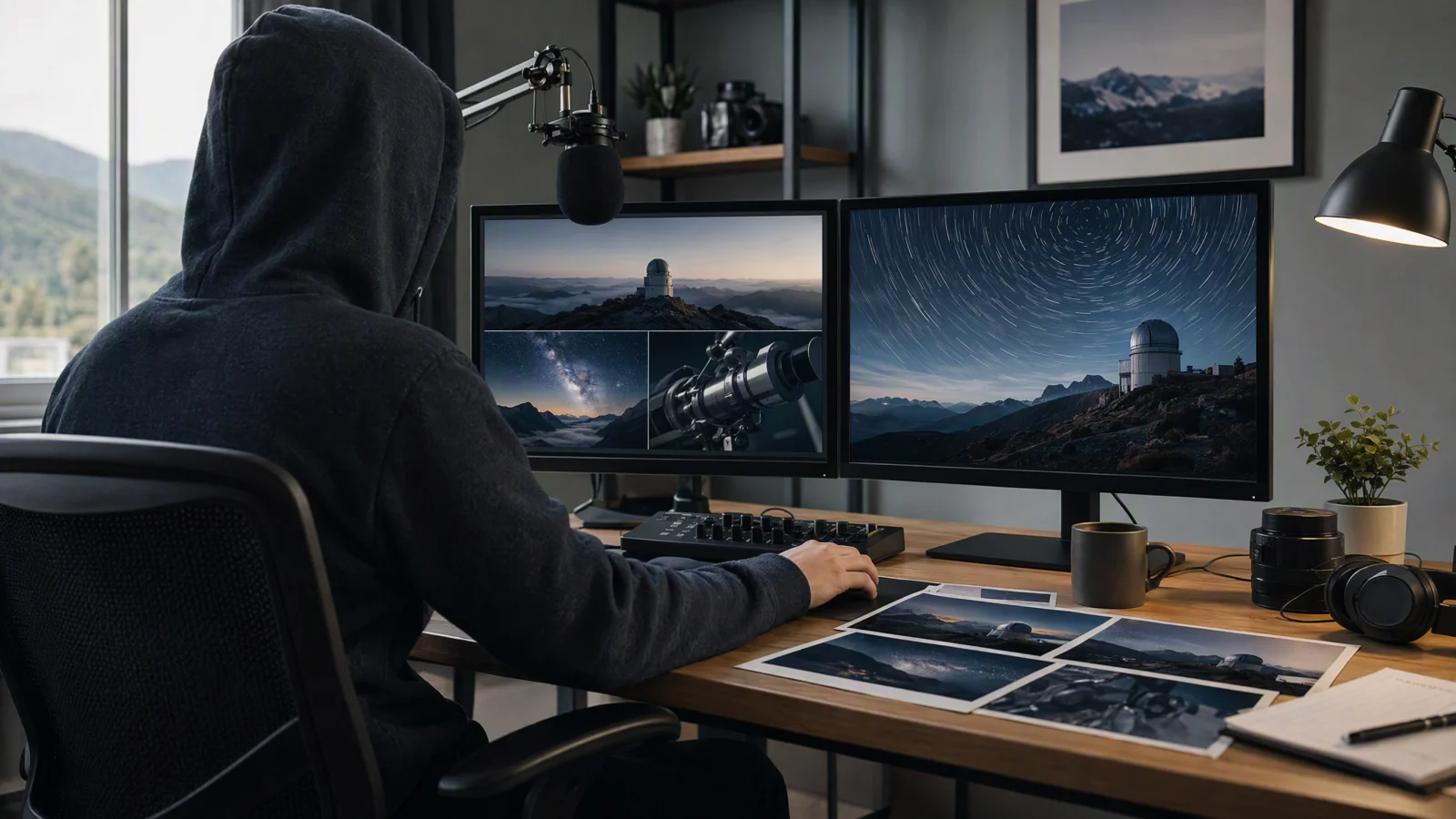
Image prompt: A cinematic 16:9 editorial photograph of a faceless YouTube creator seen only from behind at a clean home studio desk, reviewing coherent original documentary scenes of a mountain observatory, a star trail, and a telescope detail across two monitors. Include a studio microphone, headphones, printed shot cards, neutral daylight, a restrained blue-gray palette, a warm desk lamp, realistic materials, and clear negative space.
TL;DR
- Build the narration first. A 3 to 5 minute video usually needs many visual beats, not one long generated clip.
- Assign every line a visual job: AI scene, licensed footage, screenshot, chart, text card, or deliberate hold.
- Keep one style bible for color, lighting, lens language, subject details, and motion.
- Generate short scenes, review them at normal speed and frame by frame, then cut them to the voiceover.
- Check music, footage, likeness, and source rights. Disclose realistic synthetic scenes when YouTube requires it.
- AI-assisted production does not guarantee views, approval for monetization, or revenue.
Quick answer
The most reliable faceless channel workflow is script, voiceover, shot map, scene generation, edit, captions, rights review, and upload. Use the AI text-to-video generator for shots that can begin from a written scene description. Keep screenshots and factual charts for claims that need evidence. A 4-minute narration may need 30 to 60 visual changes, but only a portion of them need newly generated video. That mix keeps production manageable and makes the finished video easier to trust.
1. Choose a format that works without an on-camera host
Faceless does not mean personality-free. The channel still needs a recognizable point of view, a useful promise, and a visual system viewers can identify after a few seconds.
Three formats are especially practical:
- Knowledge videos use narration, diagrams, screenshots, archival material, and short illustrative scenes.
- Narrated stories use a stronger visual world, recurring locations, and more deliberate scene continuity.
- Shorts usually need one idea, a fast opening, large captions, and fewer but more readable shots.
Choose a subject you can support with original writing and lawful source material. A historical explainer needs reliable references. A software tutorial needs current screenshots. A fictional mystery can rely more heavily on generated scenes, but the story, voice, pacing, and edit still have to be yours.
Avoid choosing a topic only because clips are easy to generate. YouTube's monetization review looks for original, authentic work and may reject channels built from repetitive or mass-produced material. A reusable format is helpful. Repeating nearly identical videos at scale is a different thing.
Before writing, finish this sentence:
This video helps [specific viewer] understand or do [specific outcome] in [specific amount of time].
Try this prompt in SeedVideo AI
That sentence becomes the filter for every scene. If a visual does not clarify the point, create emotion, prove a claim, or reset attention, remove it.
2. Write the narration before generating scenes
A 3 to 5 minute video often contains roughly 450 to 750 spoken words, depending on delivery. Do not treat that as a fixed platform rule. Read the script aloud and measure your actual pace.
Write for listening. Use shorter sentences than you would in an article. Put the main claim early, explain one idea at a time, and mark names or numbers that need an on-screen source. If the voiceover uses a synthetic voice, listen for pronunciation, pauses, and unnatural emphasis before you build visuals around it.
A useful script document has four columns:
| Time | Narration purpose | Visual intent | Evidence or asset |
|---|---|---|---|
| 0:00-0:12 | State the problem and promise | Fast, specific hook | Original AI establishing shot plus title |
| 0:12-0:40 | Give context | Show where and when | Map, licensed photo, or simple chart |
| 0:40-1:25 | Explain the first idea | Demonstrate the mechanism | Screenshot, labeled diagram, or close detail |
| 1:25-2:20 | Develop the story | Add motion and contrast | Two or three generated scenes |
| 2:20-3:20 | Show proof or example | Slow down for evidence | Source capture, quote card, or comparison table |
| 3:20-4:00 | Resolve and give next step | Return to the opening image | Final generated shot and concise CTA |
This table prevents a common mistake: generating beautiful clips before you know where they belong. The AI explainer video workflow is useful when the script needs product footage, evidence screens, and narration to share the same timeline.
3. Turn paragraphs into visual beats
Break the script wherever one of these things changes:
- The narration introduces a new place, person, object, or time.
- A claim needs evidence on screen.
- The viewer needs a close detail instead of a wide scene.
- The emotional tone changes.
- A sentence is dense enough to benefit from a visual pause.
Each beat should have one clear job. Write that job before writing a generation prompt.
| Visual source | Use it for | Avoid using it for |
|---|---|---|
| AI-generated scene | Original atmosphere, fictional reenactment, transition, impossible camera move | Proving a real event, price, interface, or quote |
| Screenshot | Software steps, public records, source evidence | Decorative filler |
| Licensed footage | Real places, common actions, establishing context | Material whose license you cannot document |
| Chart or map | Comparison, sequence, scale, location | Claims without a cited data source |
| Text card | Name, date, short definition, transition | Long paragraphs that viewers cannot read in time |
For a 4-minute video, start with a change every 4 to 10 seconds, then adjust around the narration. Faster is not automatically better. A useful screenshot may need 12 seconds. A generated landscape may only need 4 seconds before the viewer has understood it.
Give every planned shot an ID such as S01, S02, and S03. Add the narration line, desired duration, source type, aspect ratio, and status. This simple naming system saves time when you replace one clip after the first edit.
4. Build a visual style bible
Generated shots drift when every prompt starts from scratch. A style bible is a short block of decisions you reuse across the entire video.
Define:
- Subject details that must stay fixed, including age range, clothing, object shape, and recurring colors.
- Location details, time of day, weather, and practical light sources.
- Lens and framing language, such as wide 24 mm establishing shots or restrained 50 mm medium shots.
- Camera behavior, such as locked tripod, slow dolly, or gentle handheld movement.
- Color and texture, including saturation, contrast, film grain, and material realism.
- Exclusions that protect the concept, such as no visible presenter, no logos, and no readable invented text.
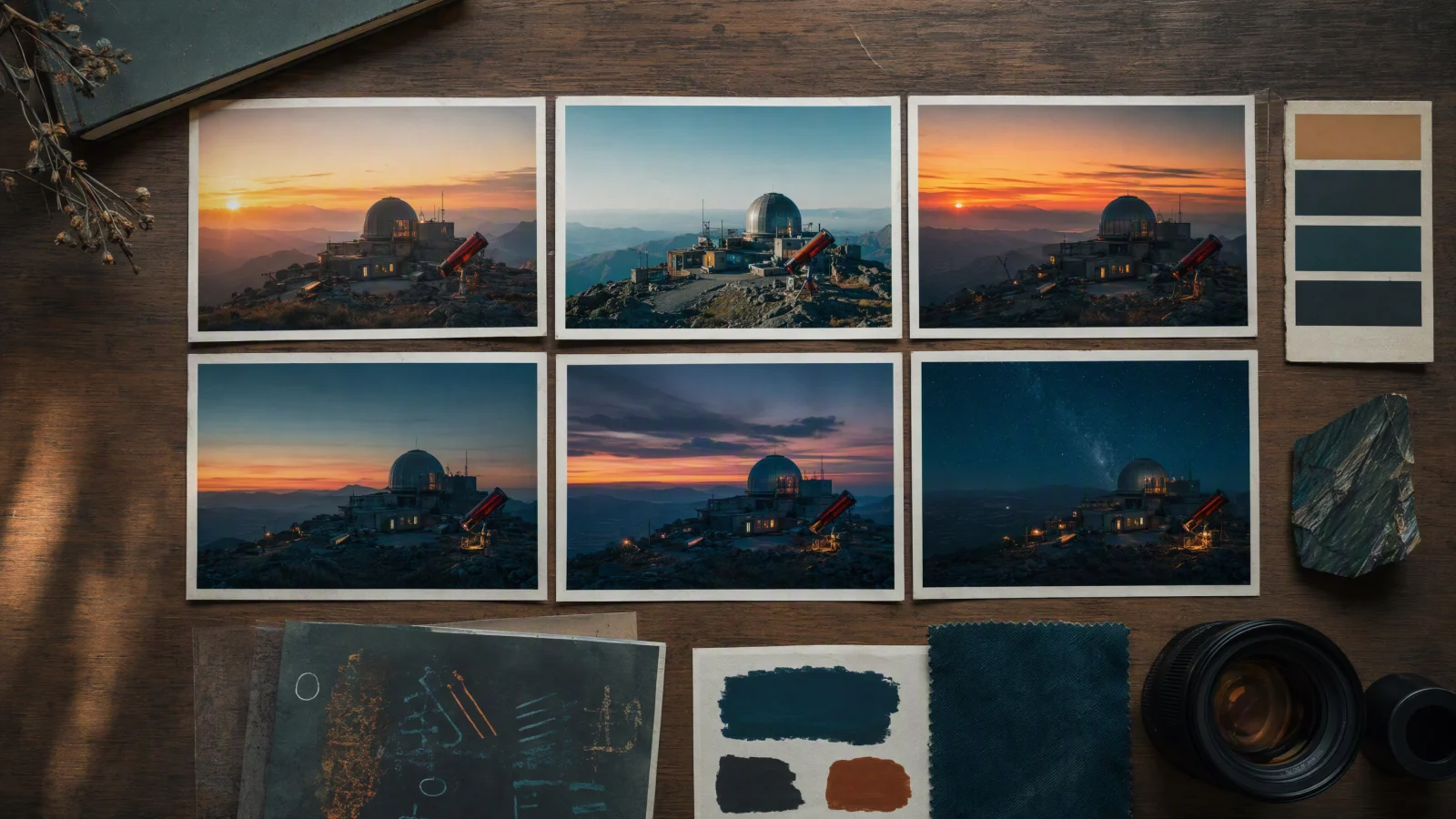
Image prompt: A cinematic 16:9 overhead photograph of a visual style bible for a faceless science YouTube channel. Arrange six physical film still prints of the same fictional remote observatory at dawn, noon, dusk, and night. Keep teal shadows, amber practical lights, wide-angle framing, and one recurring red telescope consistent. Add restrained color swatches, a lens reference, and a dark teal fabric sample on a realistic wooden desk with soft window light and no readable text.
Here is a reusable style block:
Remote mountain observatory built from weathered concrete and dark steel. One red telescope appears in every exterior shot. Cool teal shadows, warm amber interior lights, realistic night exposure. Restrained documentary photography, natural materials, subtle film grain. Slow camera movement. No host on screen. No logos or readable invented text.
Keep the block unchanged unless the story intentionally moves to a new visual chapter. Put shot-specific action beneath it. If a shot fails, change one variable at a time. A new camera move is easier to judge when the location, lighting, and subject stay the same.
5. Generate short, editable scenes with Seedance
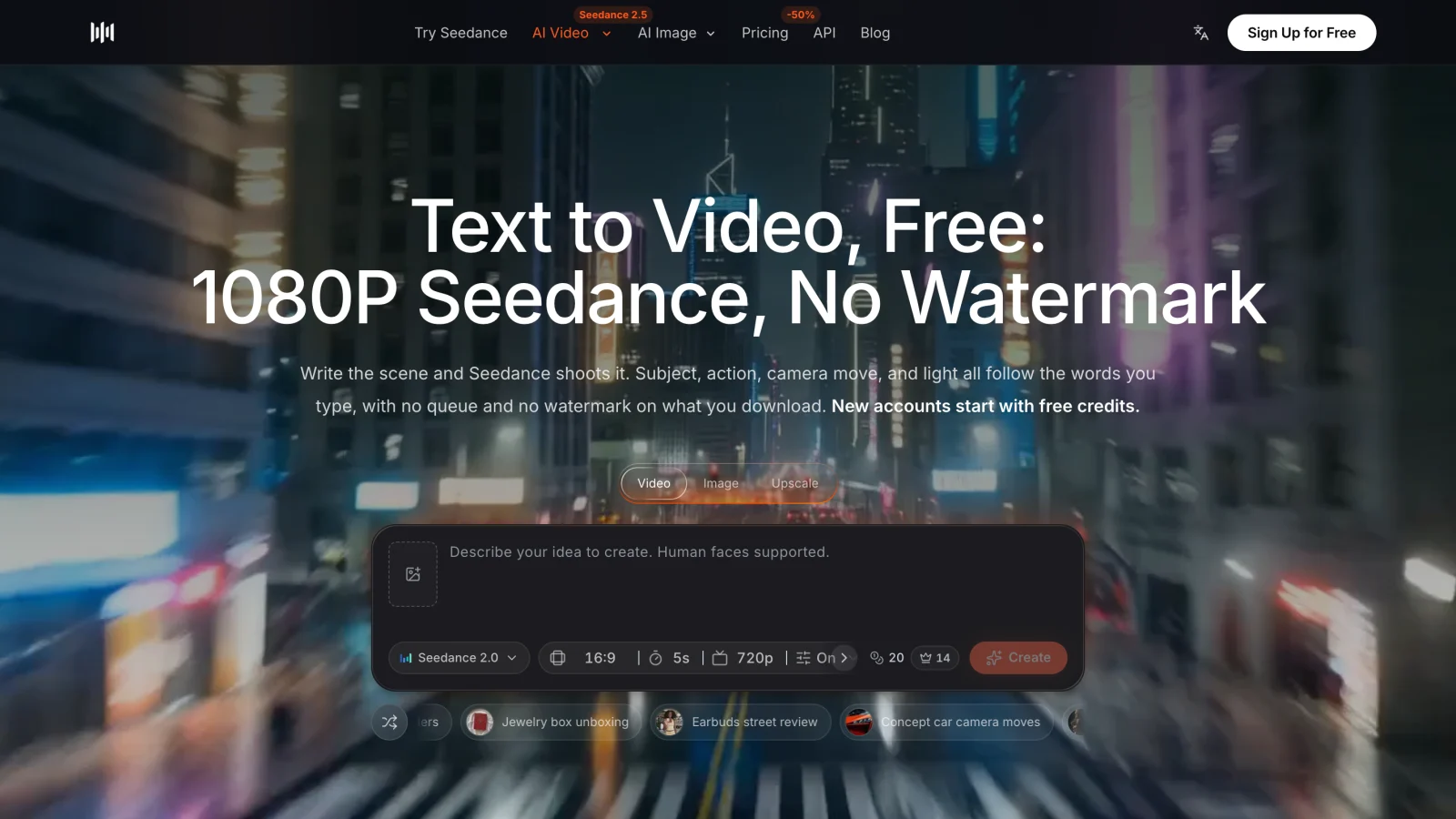
On September 5, 2026, the Seedance 2.5 controls on SeedVideo AI offered a 4 to 30 second duration range, adaptive framing plus 16:9, 9:16, 1:1, 4:3, 3:4, and 21:9, and 480p, 720p, or 1080p options depending on the plan. The pricing page listed 720p for Lite and up to 1080p for Pro and Premium. Check the live controls and your plan before starting because product settings can change.
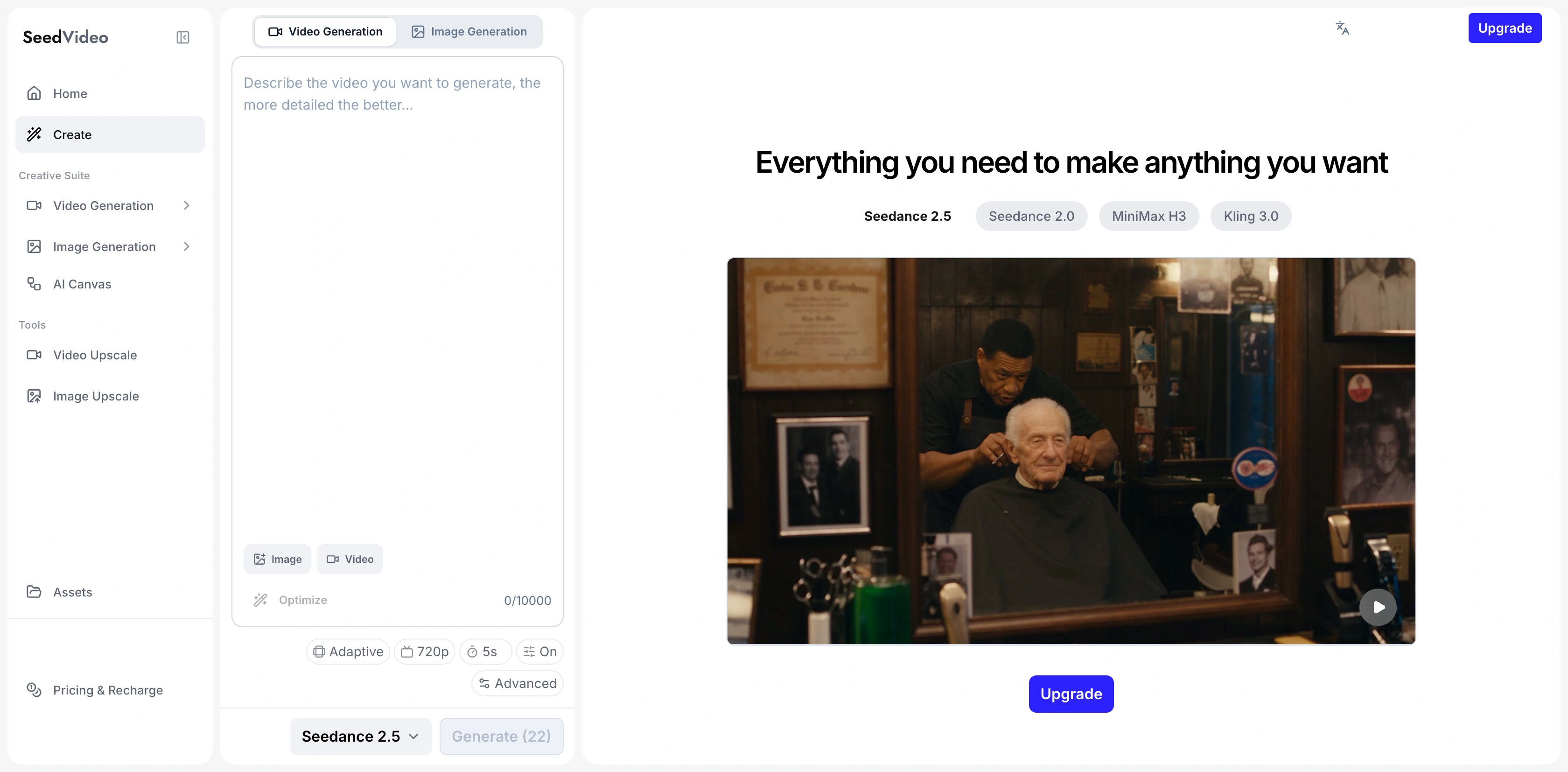
Current SeedVideo AI generation screen with Seedance 2.5 selected, an empty prompt field, attachment controls, adaptive aspect ratio, 720p, 5 seconds, sound, advanced settings, and the Generate control.
Open the Seedance text-to-video workspace, select Seedance 2.5, and set the delivery format before prompting. Use 16:9 for a standard horizontal YouTube video. Use 9:16 for Shorts. If both versions matter, plan enough safe space around the subject or generate a separate vertical shot instead of relying on a damaging crop.
Although the duration control reaches 30 seconds, most faceless edits are easier to manage as 4 to 10 second shots. Longer clips are useful when one action truly needs continuous motion. Shorter clips give you more control over pacing and make failures cheaper to replace.
Write each prompt in this order:
Subject and fixed identity. Action during this shot. Location and time. Shot size, lens, and camera movement. Lighting and color. Duration and ending frame. Important exclusions.
Example:
Remote mountain observatory built from weathered concrete and dark steel, with one red telescope on the east platform. Before sunrise, thin cloud moves below the ridge while the dome opens slowly. Wide 24 mm establishing shot, gentle six-second dolly forward, cool teal shadows and warm amber window lights, realistic documentary texture. End on a steady frame with the telescope clearly visible. No people, logos, or readable text.
Review the output twice. Watch at normal speed for story and motion. Then scrub frame by frame for warped objects, flicker, sudden lighting changes, invented text, or an unstable ending. Save the accepted clip with its shot ID and prompt version. If an accepted clip looks soft at the size needed for the final video, you can upscale video and review the enhanced copy before putting it in the edit. The repeatable AI video production workflow gives a fuller system for shot queues and approvals.
6. Edit scenes to the voiceover
Start the edit with the final voiceover, not the generated clips. Put narration on the timeline, remove mistakes and long gaps, then add markers at sentence changes and emphasized words. Place visuals against those markers.
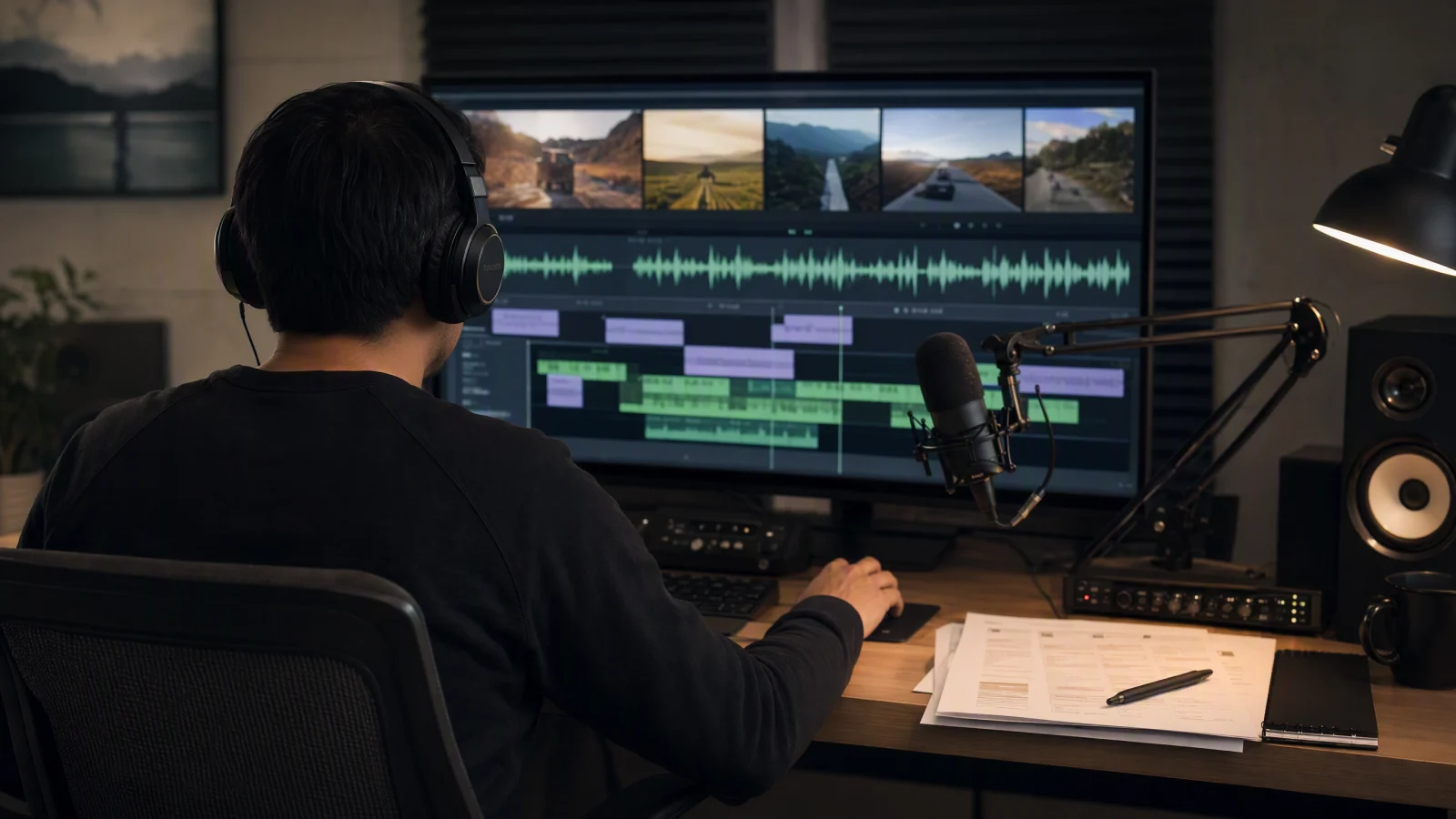
Video prompt: A realistic cinematic 16:9 post-production studio seen from behind an adult editor whose face is not visible. The editor matches short original landscape clips to a recorded narration waveform and subtitle blocks on a large monitor. Include a broadcast microphone, closed-back headphones, caption reference sheets, color-calibrated speakers, neutral grading light, and a warm practical desk lamp.
Use the narration to decide cuts:
| Narration event | Editing response |
|---|---|
| New place or time | Establishing shot or map |
| Specific object | Close-up or crop |
| Number or comparison | Chart, label, or source capture |
| Emotional turn | Slower shot, sound change, or visual contrast |
| Important sentence | Hold the frame long enough to understand it |
Captions should follow speech, not fight it. Use one or two short lines, strong contrast, and a safe margin from player controls. Correct names, numbers, and punctuation by hand. If every word animates, the motion can become more distracting than the idea.
Keep music below the narration. Use tracks and sound effects with licenses that cover YouTube and any commercial use you plan. Save the license record with the project. Generated video does not clear the rights for a song, a trademark, a real person's likeness, or source material added to the edit.
7. Handle exports, rights, and YouTube disclosure
Seedance output can be downloaded after generation. The current Seedance 2.5 model page describes MP4 or MOV output, while the available resolution depends on the selected plan. Paid pricing tiers list no-watermark exports and commercial use. The terms say users retain ownership of generated content, but they also prohibit infringement, unauthorized likeness use, deceptive deepfakes, and other unlawful content. Review the current pricing and plan terms before commercial publication.
YouTube requires creators to disclose realistic AI-generated or meaningfully altered content when it makes a real person appear to do something they did not do, alters footage of a real event or place, or creates a realistic scene that did not occur. The upload flow provides an AI use setting under Attributes. YouTube also says that disclosure itself does not reduce a video's audience or monetization eligibility. Repeated failure to disclose can lead to labels or penalties. Read the current YouTube AI disclosure guidance for the exact examples.
Monetization is a separate review. YouTube says monetized content should be original and authentic, not mass-produced, generic, repetitive, or manipulative. AI-generated scenes can be part of an eligible video, but they do not guarantee entry to or continued participation in the YouTube Partner Program. The YouTube channel monetization policies apply to Shorts, long-form videos, and live streams.
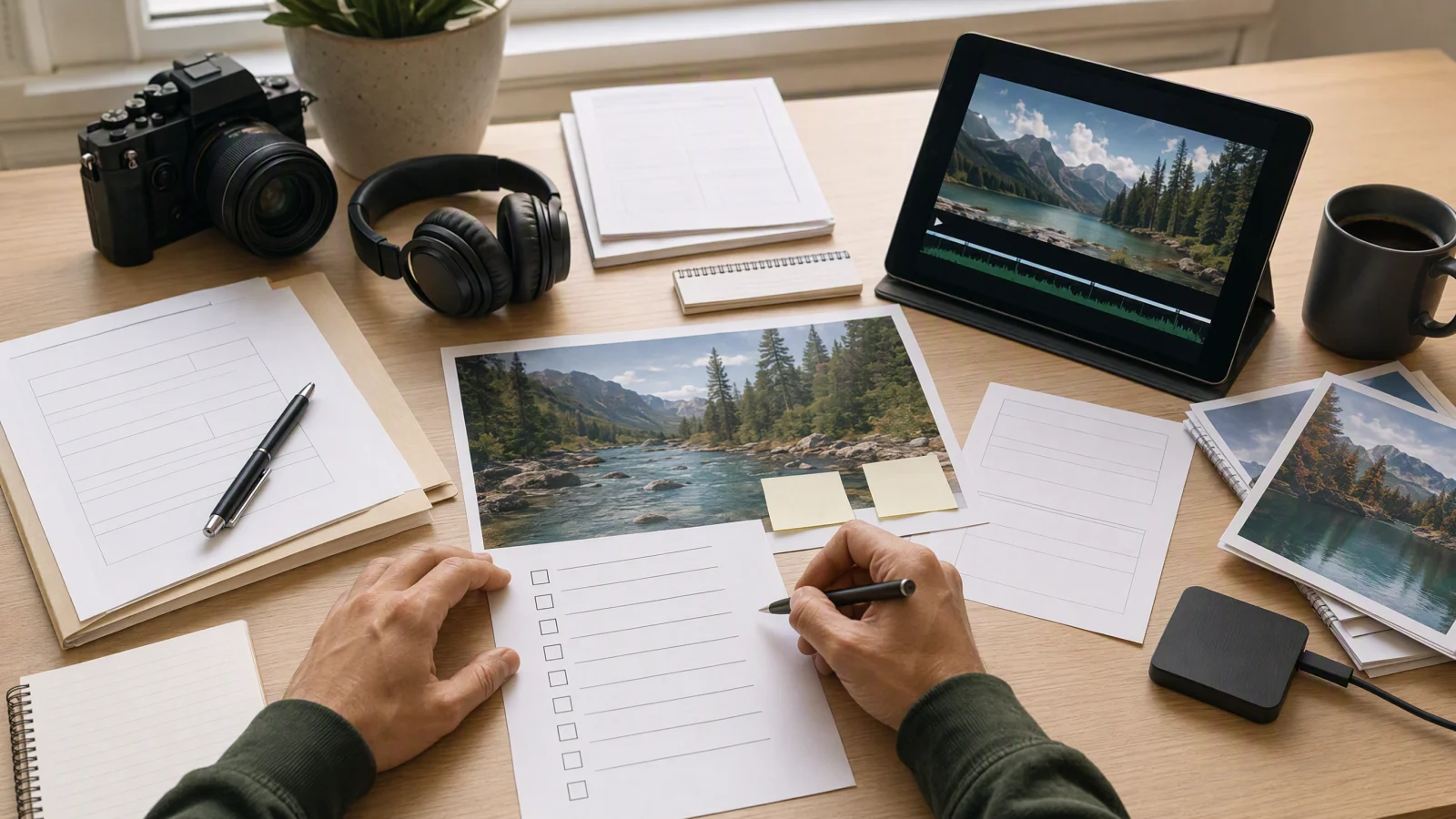
Image prompt: A cinematic 16:9 editorial photograph showing only a creator's hands during a careful YouTube publishing review. On a bright neutral desk, include an original nature-video frame on a tablet, a thumbnail print, headphones, source notes, licensed music documentation represented by blank forms, and a simple pre-publish checklist with empty boxes and no readable words. Use realistic paper and device textures and a restrained professional mood.
Run this check before upload:
- The script, narration, edit, and overall structure are original.
- Every external image, clip, sound effect, and music track has a documented license or valid permission.
- Real people and private locations appear only with appropriate rights and consent.
- Dates, quotes, prices, statistics, and screenshots match the named source.
- Realistic synthetic scenes receive the required YouTube disclosure.
- Captions, title, thumbnail, description, and source links are accurate.
- The final export was watched from start to finish with headphones and speakers.
8. Reuse a weekly production template
Efficiency should come from reusable decisions, not duplicated videos. Save a clean project template with tracks for narration, music, effects, captions, screenshots, AI scenes, and source notes. Keep a standard shot sheet and rights checklist beside it.
A simple weekly rhythm can look like this:
| Day | Output |
|---|---|
| Day 1 | Topic, source pack, promise, and outline |
| Day 2 | Script, fact check, and narration |
| Day 3 | Shot map, screenshots, charts, and scene prompts |
| Day 4 | Scene generation and first edit |
| Day 5 | Caption pass, sound mix, rights review, disclosure, and upload |
Keep the format stable, but change the substance. Each video should have a specific question, its own research, original narration, and visuals chosen for that story. Track where viewers leave, which scenes hold attention, and whether the product link receives clicks. Use that evidence to adjust the next script rather than copying the last edit.
FAQ
Can one AI tool create the entire faceless YouTube video?
Not reliably. Seedance can generate original scene clips. You still need a script, voiceover, factual assets, captions, music, editing, rights review, and the YouTube upload itself.
How many AI scenes does a 4-minute video need?
There is no fixed number. Start with 30 to 60 visual changes across all source types. Generate only the shots that benefit from an original scene. Screenshots, charts, licensed footage, and deliberate holds can cover the rest.
Should I generate one 30-second clip or several short clips?
Use one longer clip when an action needs continuous motion. For most narrated edits, several 4 to 10 second shots are easier to pace, review, and replace.
Which aspect ratio should I use?
Use 16:9 for standard YouTube videos and 9:16 for Shorts. Plan a separate vertical composition when the horizontal crop would hide the subject or important action.
Can I monetize a faceless channel that uses AI-generated scenes?
AI use alone does not decide eligibility. YouTube reviews whether a channel is original and authentic and whether it avoids mass-produced, generic, or repetitive content. Approval and revenue are never guaranteed.
Do I need to disclose every AI-assisted edit?
YouTube distinguishes realistic, meaningful synthetic content from minor edits and clearly unrealistic material. Disclose when the policy requires it, especially for realistic scenes that did not occur or altered depictions of real people, events, or places.
Can I use generated scenes commercially?
SeedVideo AI's paid plans list commercial use, and its terms say users retain ownership of generated content. You remain responsible for third-party rights, likeness permissions, trademarks, music, source assets, and compliance with the platform where you publish.
Build the first shot map
Take one finished script and mark the first 45 seconds. Give each visual beat a shot ID, source type, duration, and purpose. Generate only the original scenes that the story needs in the Seedance text-to-video generator, then cut them to the final voiceover. A small, traceable sequence is the best starting point for a faceless channel workflow you can repeat every week.