AI video flicker usually shows up as brightness pulsing, details appearing and disappearing, or a subject changing shape between frames. Start by locating the first bad frame. If the source image already has soft facial features, tangled hands, noisy shadows, or an unclear object edge, replace it with a cleaner first frame. If the source is sharp, simplify the motion prompt: ask for one small subject action and one camera move, then try a short clip. Watch the whole result at normal speed and frame by frame. Flicker in background lights calls for a different edit from a face that changes identity or a bottle that bends. Keep the source and settings fixed while changing one instruction at a time. Add more reference material only when you can say exactly which detail it should control. Higher resolution can make a good take easier to inspect, but it cannot reliably repair motion or geometry that already breaks.
TL;DR
- Brightness that pulses points you toward changing light, reflections, or exposure language in the prompt. A changing face or object silhouette points you toward the first frame and motion complexity.
- Begin with a clean image, a short duration, restrained movement, and a prompt that describes motion rather than repainting the scene.
- Change one variable, compare the same frames, and keep the version that actually looks steadier. Use references when a single first frame cannot describe both identity and movement.
Quick Answer
For a practical AI video flicker fix, inspect the start image first, reduce the requested motion, and rerun a short image-to-video shot. Describe what must stay fixed: face, clothing, product shape, or lighting direction. If the same feature still drifts, try a more compatible end frame or a small reference pack. Only raise resolution after the motion is stable. You can begin in the AI image-to-video generator, where the current Seedance 2.5 workspace shows a required Start Image, prompt field, model picker, and output controls.
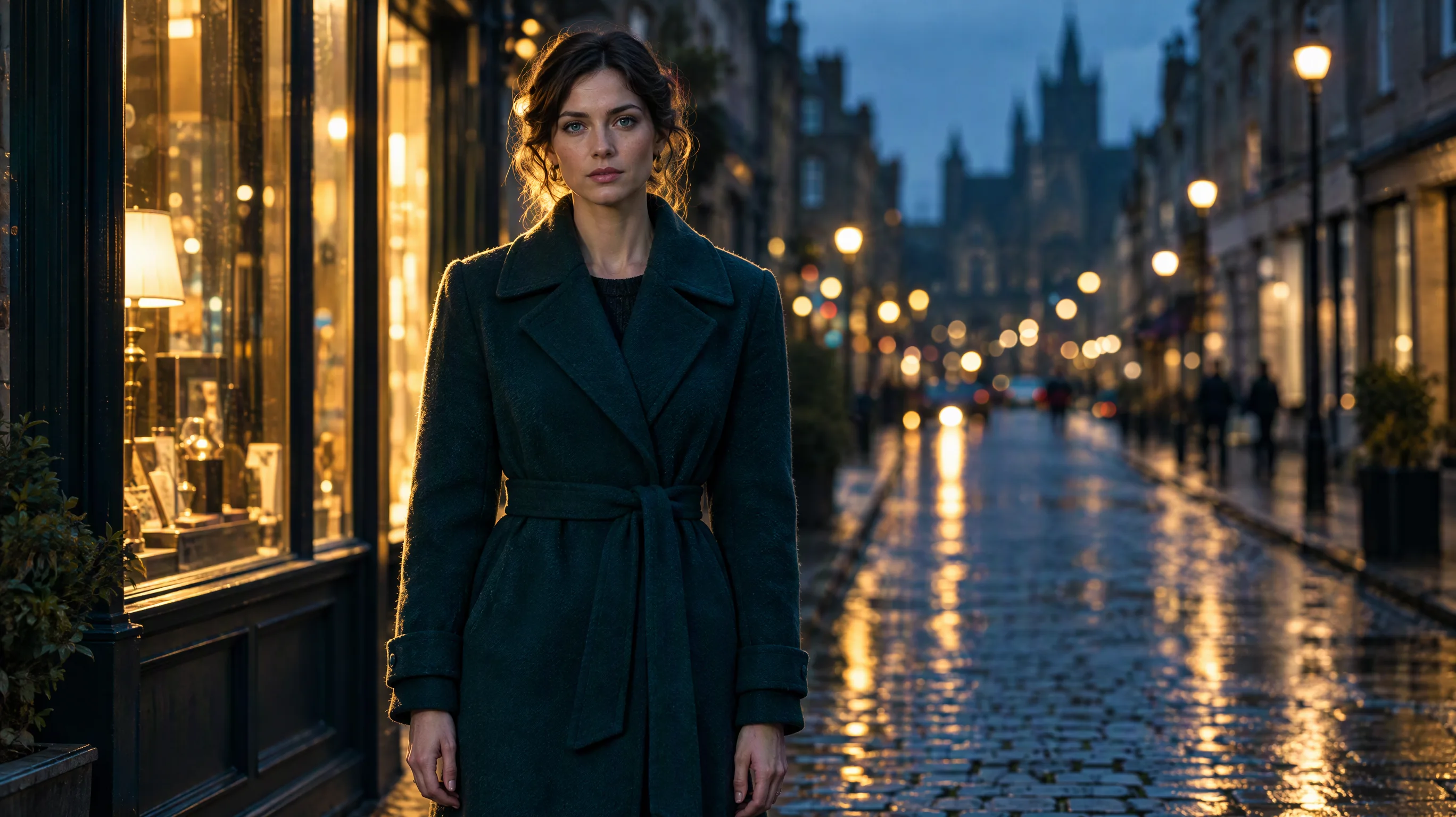
Image prompt: Fictional adult woman in a dark coat standing still on a rain-wet city street at dusk, warm shop light behind her, cool distant streetlights, eye-level medium shot, natural skin and hair detail, cinematic but realistic composition.
Identify the kind of failure before changing settings
"Flicker" can describe several different problems. Pausing at the first affected frame saves more time than rewriting a long prompt at random.
| What you see | Likely pressure point | First change to try | Review point |
|---|---|---|---|
| Light or color pulses while shapes stay steady | Conflicting or changing lighting instructions | Use one lighting direction and remove flashes, rapid cuts, or shifting exposure | Compare skin, walls, and background lights at the same moments |
| Face, hands, clothing, or product edges change shape | Ambiguous source detail or too much movement | Sharpen or replace the first frame; reduce turns, gestures, or camera travel | Freeze the first, middle, and last second |
| Background objects pop in and out | Busy scene, occlusion, or large camera shift | Simplify the background or use a slower camera move | Track one sign, window, or prop across the shot |
Use the table to choose your next test; it cannot tell you exactly what happened inside the model. Runway's image-to-video prompting guide makes two useful points that apply beyond its own editor: the input image carries composition and lighting, and artifacts in that image can be amplified in motion. The prompt should mainly describe action and camera behavior.
Fix 1: make the first frame easier to animate
Inspect the image at full size before uploading it. Look at eyelashes, fingers, thin straps, text, reflective surfaces, and object boundaries. A soft or duplicated feature gives the model little stable detail to preserve. If the intended shot is a close-up, use a close-up source instead of asking for an extreme push-in from a distant full-body photo. Leave room around the subject for the planned motion and use an aspect ratio that matches the destination.
The portrait below is a useful input for a restrained head turn because the eyes, hairline, ears, and collar are visible. Compare those same features in the first, middle, and final frames. If a face changes at the moment it turns away, reduce the turn before adding more descriptive adjectives. For more on this check, see the character consistency guide.
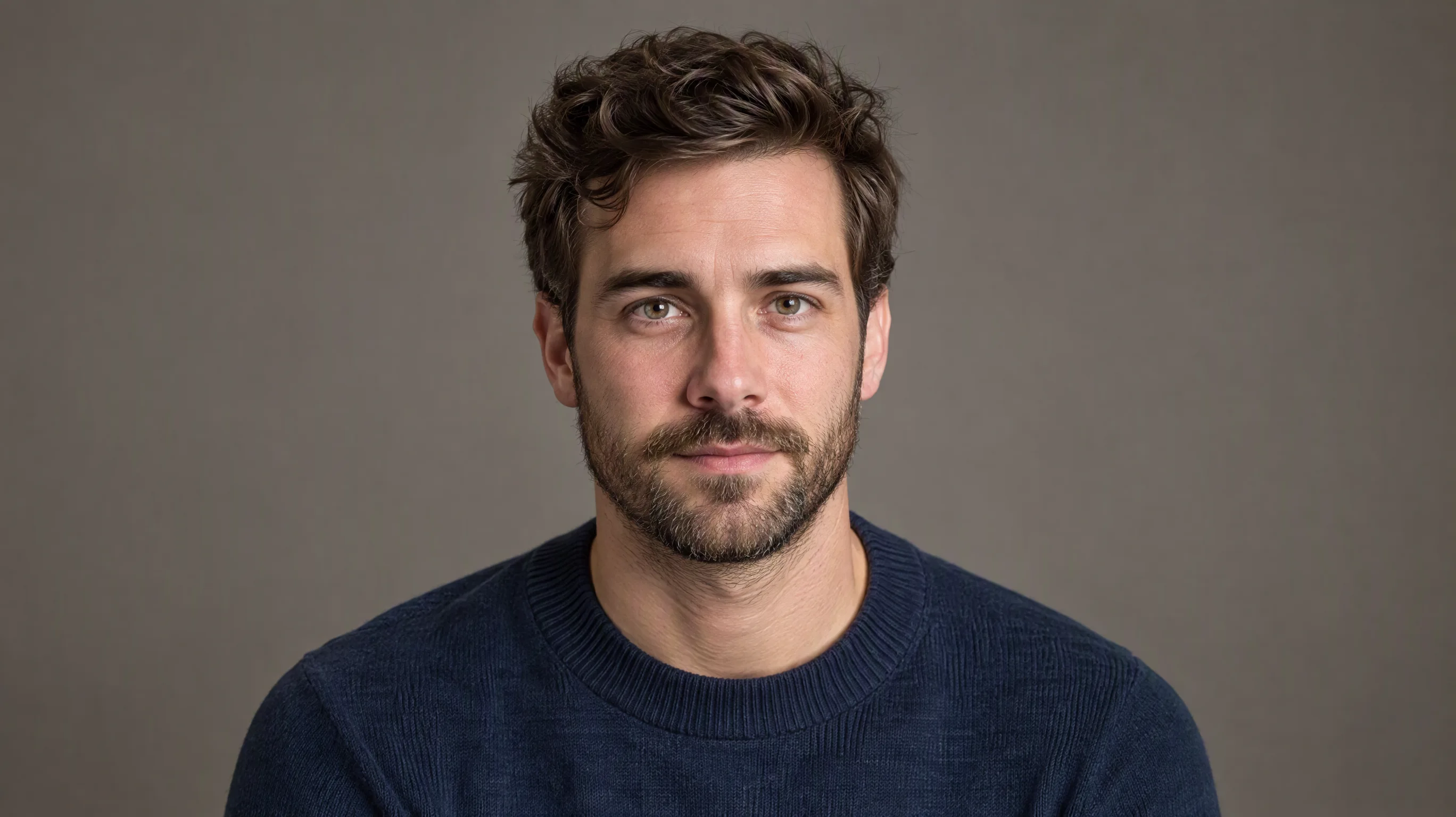
Image prompt: Fictional adult man facing the camera against a neutral studio background, clear eyes, hairline, short beard and navy collar, soft frontal light, eye-level close portrait, natural skin texture and balanced framing.
Fix 2: ask for less motion in one pass
An image-to-video prompt should direct movement, not restate everything in the picture. A request for a fast orbit, a full turn, flying hair, flickering neon, and a dramatic zoom in five seconds gives several features a chance to drift. Keep the first test modest:
The woman takes one slow step forward. The camera stays at eye level and tracks backward slightly. Her face, coat, hairstyle, storefronts, and warm backlight remain consistent. No cuts or sudden exposure changes.
For a product shot, identify its geometry explicitly. The copper kettle below has a curved spout, wooden handle, and round lid. Ask for a small camera slide while those parts keep their shape. If the handle bends, shorten the move or use a source angle closer to the desired final view. A second frame can help only when its object and lighting are compatible with the first.
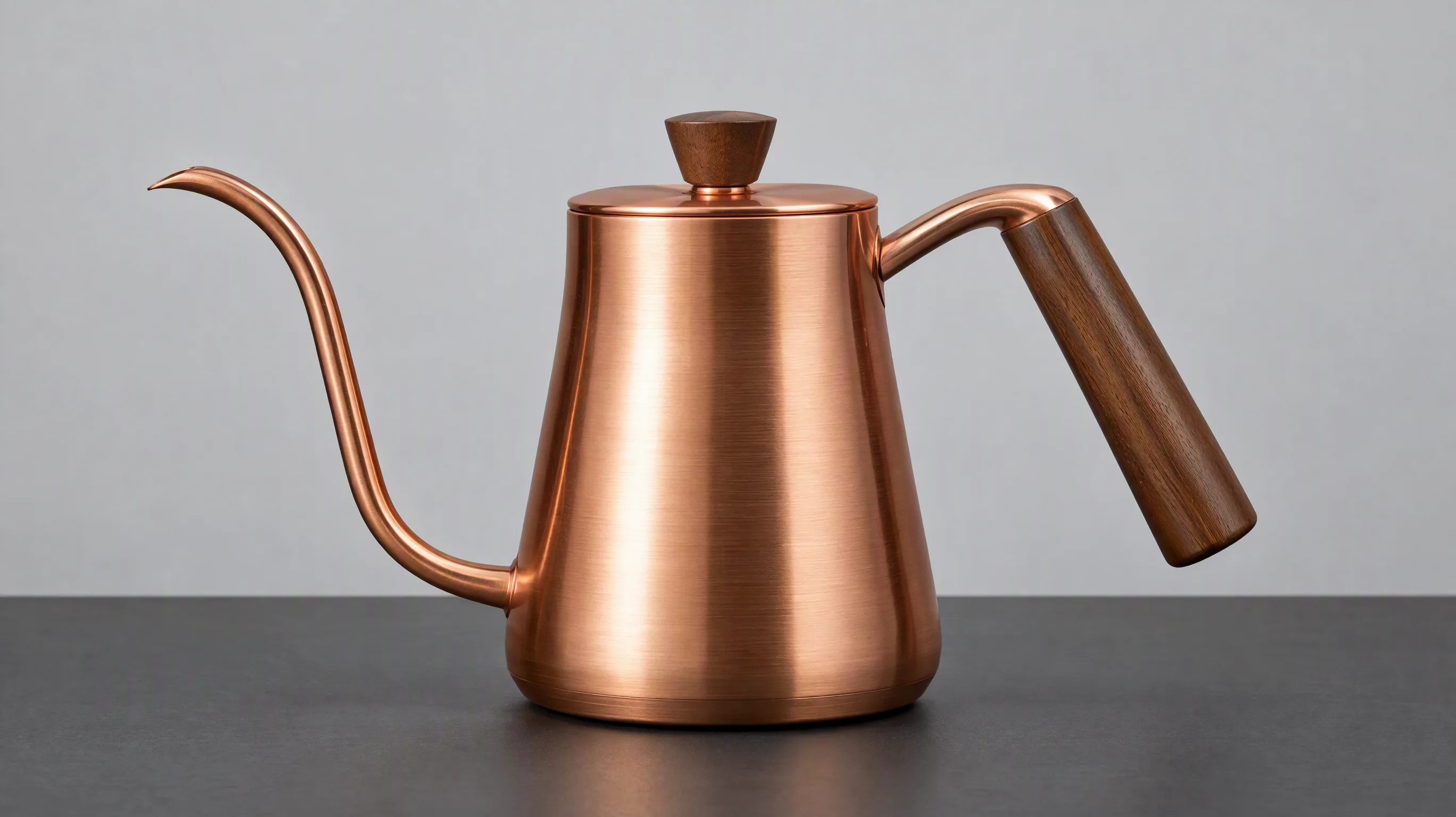
Video prompt: Copper kettle on a dark table, slow left-to-right camera slide, fixed curved spout, wooden handle and round lid, soft side light, clean background, close product framing, realistic materials.
Fix 3: keep lighting and the scene coherent
Background flicker can look like a model problem when the prompt itself calls for flashing signs, changing time of day, or several conflicting light sources. Try one stable lighting setup. For a night street, specify warm shop light on the subject and cool ambient light behind, then avoid a rapid camera pass across many reflective windows. For a tabletop product, reduce mirrored highlights and moving shadows while testing silhouette stability. Once the subject holds together, add more atmosphere in a separate iteration.
Repair the shot in five passes
Open the image-to-video workspace, select Seedance 2.5, add a clean Start Image, and write one motion instruction. The current English workspace shows the Start Image area, prompt, aspect ratio, resolution, duration, audio, and model controls. Available settings and credit costs depend on the account and selected model, so check the visible controls before generating.
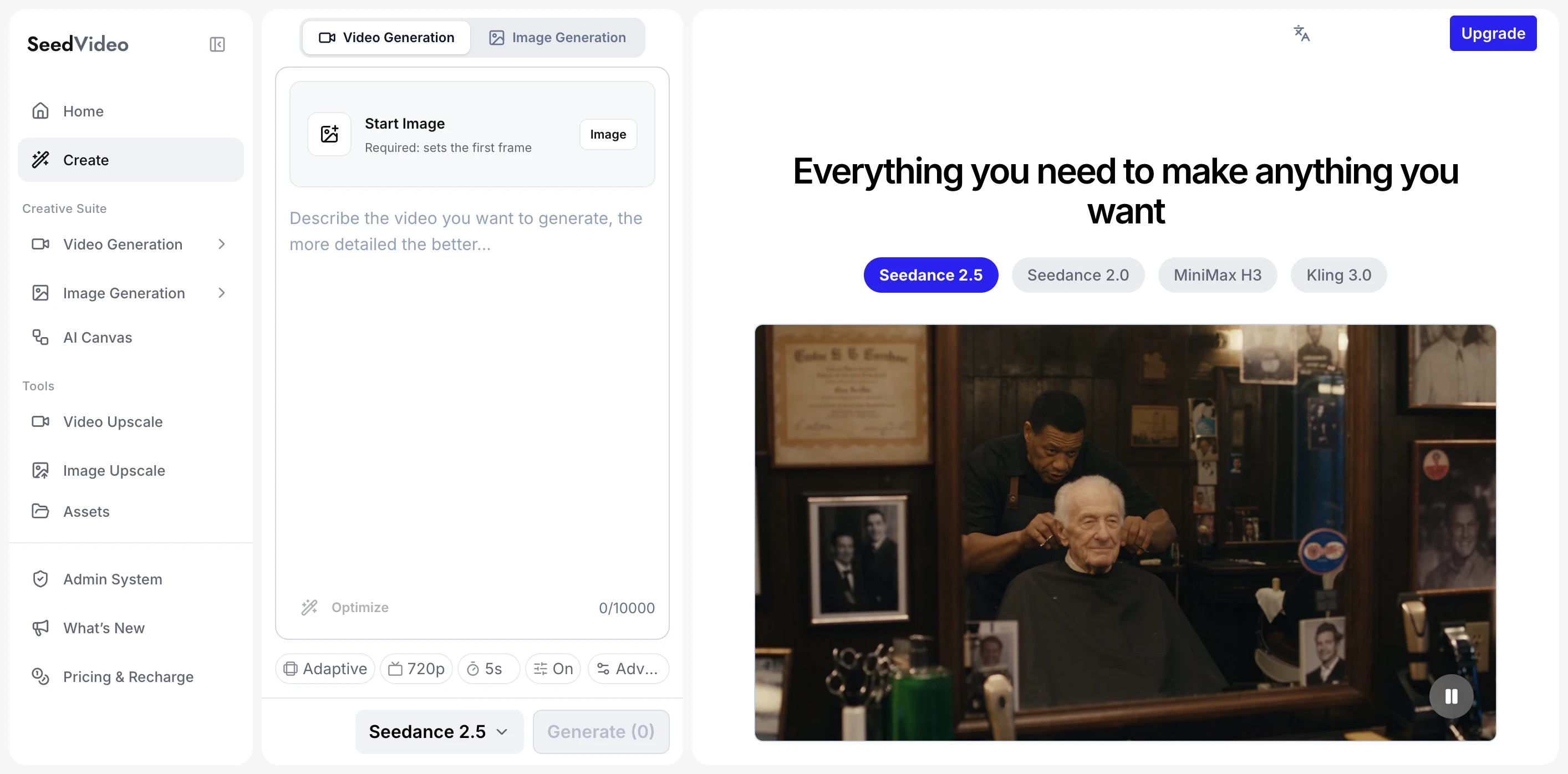
Current SeedVideo AI image-to-video workspace showing the Start Image, prompt field, settings row, and Seedance 2.5 selection.
- Save the original image and prompt so each revision has the same baseline.
- Choose a short test length and a resolution suitable for reviewing motion. Keep the framing close to the input image.
- Generate once and mark the first timecode where a face, edge, background object, or exposure changes unexpectedly.
- Change one thing: source image quality, one motion instruction, camera distance, lighting, or a reference role. Do not change all of them at once.
- Compare the same timecodes at normal speed and frame by frame. Keep the revision only if the problem is less visible across the whole clip.
| Before the edit | Edit to test | What a better take should show |
|---|---|---|
| The face changes during a large turn | Reduce the turn to a slight glance | Eyes, hairline, and collar stay recognizable through the movement |
| The kettle spout stretches during an orbit | Use a small lateral slide | Spout, lid, and handle keep a plausible silhouette |
| Street lights pulse across adjacent frames | Hold one lighting direction | The subject and background brightness change smoothly |
Judge each new take against those details. Keep the original alongside every revision. A flicker may disappear in one corner while a worse change appears somewhere else.
First-frame quality checklist
Before another run, answer these questions about the actual image:
- Is the subject sharp at the size it will occupy in the video?
- Are the face, hands, product edges, and distinctive details intact rather than blurred or doubled?
- Is the background simple enough to track during the planned camera movement?
- Does the image leave space in the direction the subject or camera will move?
- Do the lighting direction and aspect ratio match the shot you describe?
- Do you have permission to use the image and any people or marks it depicts?
If the first frame fails one of the first two checks, repair or replace it before spending time on a longer prompt. The Seedance 2.5 image-to-video guide explains the distinct roles of a start image, end image, and reference image.
When to use reference-to-video or raise resolution
Stay with a single start image when the shot only needs that opening composition and modest motion. Consider reference-to-video (R2V) when you need separate assets to define identity, product shape, setting, or camera movement. Give each asset one job and remove references that contradict each other. SeedVideo AI's model and input documentation distinguishes a single-image start-frame request from a reference-driven request; the R2V workflow guide shows how to assign roles. References provide guidance, not an exact lock on every frame.
Raise resolution when the composition and movement are already sound but the final delivery needs finer visible detail. If an eye changes shape or the kettle handle disappears, a sharper output will usually show that error more clearly. Correct the source, motion, or reference conflict first. The web workspace may show quality choices that differ from the public API's documented limits; use the controls and plan available in the surface where you generate.
FAQ
Why does my AI video flicker even with a good prompt?
The source image may contain weak detail, and the requested movement may expose parts of the subject that the first frame does not define. Mark the first bad frame and simplify one motion instruction before rewriting the entire prompt.
Can a negative prompt stop all video artifacts?
No single phrase guarantees that. A short, positive instruction about stable identity, object shape, lighting, and camera movement gives you a clearer test. Replace a weak source image when the artifact is already visible there.
Should I make the video longer to smooth out flicker?
Length alone does not repair a broken transition. Start with a short shot you can review frame by frame. Extend the sequence only after its basic motion stays coherent.
Will 1080p fix a morphing face or product?
Higher resolution addresses output detail, not the underlying choice of motion or references. Check that the selected model and plan offer the resolution, then raise it after the shape and identity are stable.
When are more references useful?
Use them when one first frame cannot describe a detail the shot must preserve, such as a character's side profile or a product's rear shape. Assign each reference a clear role and remove conflicting examples.
Try the repaired shot
Start with one clean source image and one small motion. Use the AI image-to-video generator to compare a short baseline with a single revised instruction. Keep the version that holds up across the full clip, then decide whether the shot needs references or a higher-resolution final render.