
AI video work gets messy when every request starts from a blank page, every generator run gets named differently, and reviewers cannot tell which clip is current. The problem is usually the handoff, not the idea. A repeatable AI video production workflow turns the creative brief into a delivery contract, a controlled asset package, a prioritized shot queue, and a review trail that survives the next person opening the project.
Seedance 2.5 can sit inside that system as the generation engine. Its current SeedVideo AI workspace accepts a text prompt plus image and video references, exposes aspect ratio, resolution, duration, audio, and advanced controls, and supports clips up to 30 seconds on the current model surface. The surrounding production system still belongs to your team. Keep the brief, naming rules, approvals, and delivery records in tools your team already uses, then connect them to each shot generated in SeedVideo AI.

Image prompt: A small professional video production team in a bright neutral editing studio reviews a coherent campaign for a fictional matte cobalt-blue reusable bottle, with a shot wall, clean cinematic product frames, organized reference prints, practical daylight, restrained documentary photography, and a wide 16:9 composition.
TL;DR
- Lock the delivery format and acceptance criteria before anyone writes a prompt.
- Store approved source assets in one reference package with stable names and clear usage rights.
- Break the job into shots, then prioritize the risky shots before easy connective footage.
- Version prompts, outputs, and review decisions separately so a retry never erases the history.
- Review identity, product accuracy, motion, facts, rights, audio, and channel framing at defined gates.
- Export from one approved master, then make channel variants without reopening creative decisions.
Quick Answer
A reliable AI video content pipeline has seven controlled handoffs: brief, asset package, shot queue, generation, review, edit, and delivery. Each handoff needs an owner, an input, an output, and a pass condition. Use the Seedance 2.5 model workspace for generation, but keep the operational record outside the prompt box. That separation lets a producer see what is blocked, an editor find the approved clip, and a reviewer explain why a version passed.
1. Turn the brief into a delivery contract
A useful brief is short enough to read in two minutes and specific enough to reject the wrong video. Begin with the business outcome and the viewing context. A landing-page hero, a paid social ad, and a tutorial clip can share a product but need different pacing, framing, and proof.
Write the acceptance criteria before the script. This prevents a familiar late-stage argument: the video looks good, but nobody agreed on what "good" meant.
| Brief field | Decision to lock | Example |
|---|---|---|
| Objective | One audience action | Start a free trial after seeing the product benefit |
| Primary channel | Placement and viewing behavior | Vertical paid social, usually watched without sound at first |
| Master duration | Editing target | 20 seconds, plus a 6-second cutdown |
| Aspect ratios | Required canvases | 9:16 master, 1:1 and 16:9 derivatives |
| Required proof | What must appear on screen | Product shape, lid detail, water pour, final pack shot |
| Brand locks | Elements that cannot drift | Cobalt finish, logo-free bottle, warm-neutral grade |
| Rights boundary | Approved people and assets | Licensed location plates and fictional adult talent |
| Pass condition | Measurable delivery check | Product stays consistent and CTA remains readable in every crop |
Assign one decision owner. Many people can comment, but one producer should decide whether feedback changes the brief, requests a new shot, or belongs in the edit. A shared comment thread without a decision owner becomes a second brief.
Use a change request when the target moves
If the client changes the platform, duration, product color, or message after generation begins, record it as a change request. Do not quietly edit the original brief. The new request should state which shots are affected, who approved the change, and whether the delivery date moves. This keeps scope changes from looking like generation failures.
2. Build one approved asset package
The asset package is the source of truth for anything the video must preserve. Keep approved items separate from inspiration. A product pack shot and a mood-board image do different jobs, even if both are blue.

Image prompt: A top-down editorial photograph of an organized AI video preproduction kit for a fictional matte cobalt-blue reusable bottle campaign, with consistent product reference photos, location plates, wardrobe and color swatches, camera reference cards, audio waveforms, neatly separated folders, soft window light, and a wide 16:9 composition.
Use a simple folder layout:
campaign-name/ 01_brief/ 02_brand-locks/ 03_product/ 04_character/ 05_locations/ 06_motion-audio/ 07_shot-outputs/ 08_approved/ 09_delivery/
Every source file should answer three questions without opening it: what it is, which version it is, and whether it is approved.
bottle-front_cobalt_v03_approved.webp kitchen-morning_wide_v02_approved.webp talent-01_wardrobe-a_v04_approved.webp music-90bpm_demo_v01_reference.wav
Avoid names such as final, final2, or use-this-one. They describe a moment, not a state. Use a version number and an approval suffix. If approval is withdrawn, move the file out of the approved folder and log the reason.
Keep reference roles explicit
For each reference, add a one-line role in the shot record:
- Product image: preserve silhouette, material, color, and lid shape.
- Character image: preserve face, hair, wardrobe, and age range.
- Location plate: guide architecture, light direction, and palette.
- Motion clip: guide camera path or action timing.
- Audio reference: guide rhythm, cue points, or dialogue pacing.
Seedance 2.5 public model information describes text, image, video, and audio references. The current SeedVideo AI generator shows image and video reference controls in the prompt area. Give each asset one job instead of uploading a large pile and hoping the model infers your priority.
3. Convert the story into a shot queue
Generate in risk order rather than script order. A product close-up with a precise lid, a character identity shot, or a complex hand interaction can invalidate the concept. Test those before spending time on easy establishing shots.
| Priority | Shot | Purpose | Input mode | Main risk | Pass condition | Status |
|---|---|---|---|---|---|---|
| P0 | S03 lid close-up | Prove the product detail | Image to video | Shape mutation | Lid and loop match the approved reference | Ready |
| P0 | S05 water pour | Show use | Image/video references | Hand and liquid artifacts | Grip, opening, and stream read naturally | Ready |
| P1 | S02 pickup | Start action | Image to video | Product scale drift | Bottle remains the same size and color | Blocked on source frame |
| P1 | S04 walking shot | Add lifestyle context | Text plus image reference | Character and product drift | Wardrobe and bottle survive the move | Ready |
| P2 | S01 kitchen wide | Establish place | Text to video | Low | Composition leaves space for crop | Ready |
| P2 | S06 hero hold | Close the message | Image to video | Final-frame instability | Clean hold for at least one second | Ready |

Image prompt: A professional six-frame cinematic contact sheet shows a repeatable product-video shot queue for the same fictional matte cobalt-blue reusable bottle: a kitchen establishing shot, hand pickup, product detail, walking lifestyle shot, water pour, and clean final hero hold, with consistent shape, warm morning light, coherent lenses, and a 2 by 3 grid.
Give every shot one job
A shot record should contain:
- Shot ID and story purpose.
- Duration and destination aspect ratio.
- Input mode and reference list.
- Stable prompt block.
- Changing action block.
- Pass condition and known failure modes.
- Owner, status, and latest approved output.
The multi-shot storytelling workflow explains how to split a longer sequence into ordered beats. For production management, the important addition is status. Use a small set such as blocked, ready, generating, review, revise, and approved. Define each one. A shot is not ready merely because someone wrote a prompt; its required references must also exist.
4. Generate with stable prompt and version rules
Open the text-to-video workspace when composition can change freely. Use the image-to-video workspace when the first frame, product, character, or location must remain specific.
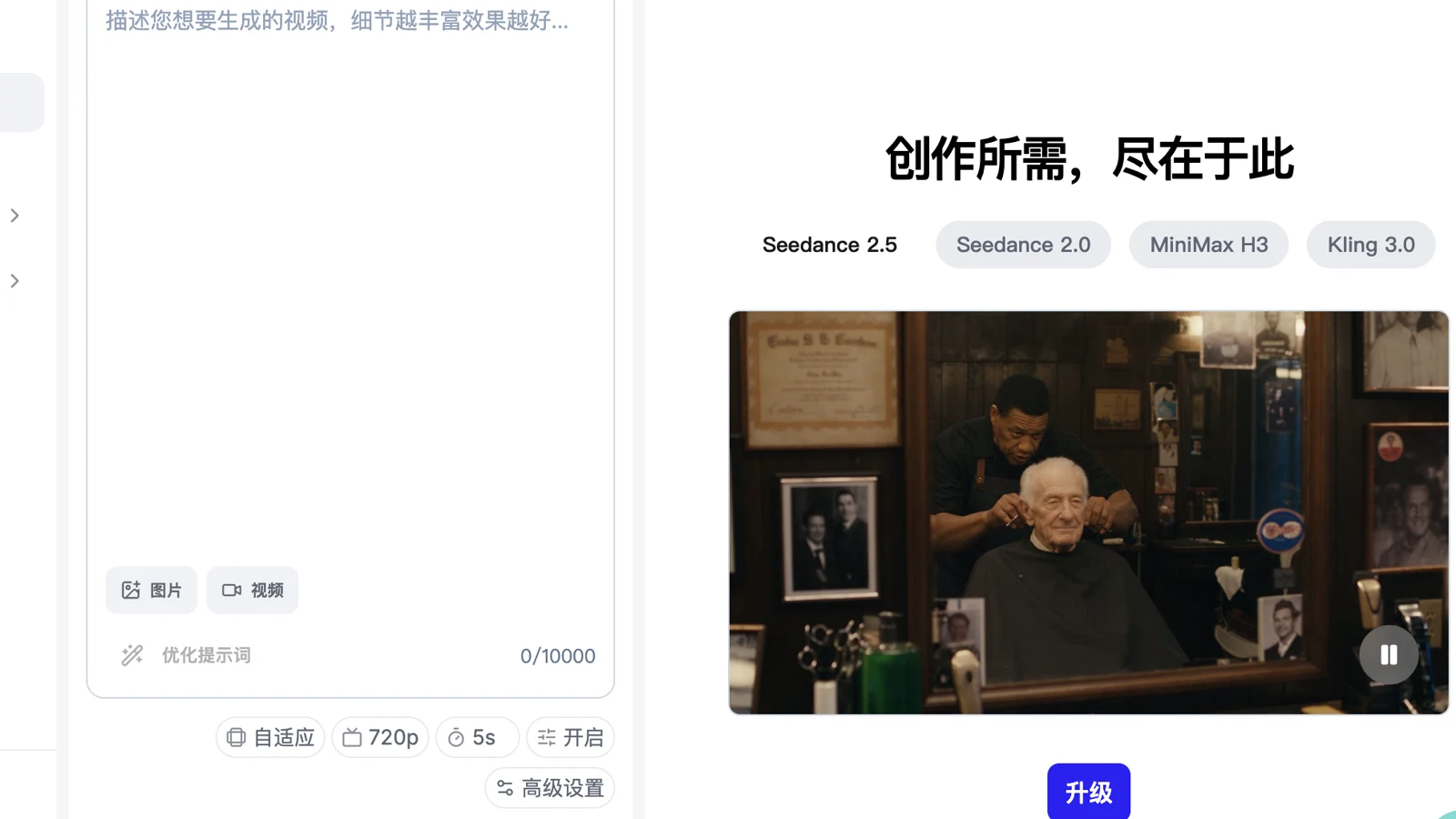
Current SeedVideo AI generator showing Seedance 2.5, image and video reference inputs, adaptive framing, 720p, duration, audio, and advanced controls.
The current Seedance 2.5 duration control exposes 4 to 30 seconds. Longer availability does not mean every shot should last 30 seconds. Set duration from the edit plan. A product detail may need four seconds; a connected narrative beat may need longer.
Write prompts in two blocks:
STABLE BLOCK Matte cobalt-blue insulated bottle, cylindrical body, black loop lid, warm-neutral commercial grade, realistic materials, no branding. SHOT BLOCK S03, macro 85mm product close-up. Slow 15-degree orbit around the lid. Morning side light reveals the powder-coated texture. End on a steady frame.
Reuse the stable block exactly until a reviewer changes a locked requirement. Change the shot block to describe the action, framing, camera path, light, timing, and end frame. The Seedance 2.5 prompt guide provides more prompt structures. In a production record, increment the prompt version whenever its meaning changes.
Separate prompt versions from output versions
Use a name such as:
S03_p04_o07_20260825.mp4
p04 means prompt version four. o07 means the seventh output generated from that prompt. If output seven is rejected, output eight still uses p04 unless the words or references change. This distinction tells you whether a result varied because of sampling or because the instruction changed.
Keep a retry log with five fields:
| Field | Example |
|---|---|
| Output | S03_p04_o07 |
| Result | Reject |
| Failure | Lid loop becomes oval at 2.8 seconds |
| Next action | Use a tighter product crop and reduce orbit angle |
| Decision owner | Producer initials and timestamp |
Do not write "bad result." Name the failure at a timecode. A precise diagnosis leads to a smaller change and preserves the parts that already work.
5. Review at three gates
Reviewing every concern in one giant meeting is slow. Use three gates with different questions.
Gate A: shot integrity
The producer or creator checks the generated clip before it reaches the editor:
- Does the subject remain the correct subject?
- Does the product preserve shape, material, and required details?
- Is the action readable without explanation?
- Does the camera move as requested?
- Are the first and final frames usable for the planned cut?
- Are there obvious hand, face, object, text, or physics artifacts?
Reject early when the shot fails its core job. Editing cannot repair a product that changes shape.
Gate B: sequence and brand
The editor assembles low-resolution working clips and checks continuity across cuts. Review screen direction, wardrobe, product scale, palette, pacing, and audio rhythm. A clip can pass alone and still fail beside the previous shot.
Keep brand review concrete. Compare the frame against the approved color and product references. Avoid feedback such as "make it premium." Ask for a warmer key light, a slower move, a cleaner surface, or more negative space.
Gate C: facts, rights, and delivery
Before final approval, verify visible claims, product behavior, subtitles, music rights, talent consent, source licenses, and platform requirements. If the video shows a UI, price, feature, statistic, or legal line, compare it with the current approved source. Record who checked it and when.

Image prompt: A meticulous post-production review in a neutral studio, with an adult editor and producer comparing a cobalt-blue bottle campaign across horizontal and vertical previews, matching product color and safe framing, printed frame strips on the desk, professional speakers, color-neutral light, and realistic documentary photography.
6. Edit one approved master, then derive variants
Only approved shot outputs should enter the master timeline. The editor can use proxies while generation continues, but the timeline should link each clip back to its shot ID and output version.
Finish the story before polishing transitions. Check the hook, proof, and final hold. Then add subtitles, sound design, music, dialogue cleanup, and color matching. Seedance 2.5 model information describes audio-aware planning and targeted editing, while the visible generator is still a generation surface. Use the controls available in your output flow, and use a dedicated editor for timeline assembly, typography, mix, and channel exports.
Create one approved master with a clear version:
campaign_master_v06_approved_20260825.mov
Derive each channel file from that master:
campaign_paid-social_9x16_20s_v01.mp4 campaign_feed_1x1_15s_v01.mp4 campaign_landing_16x9_20s_v01.mp4 campaign_retargeting_9x16_06s_v01.mp4
Do not reopen shot generation just because a crop needs adjustment. Solve channel framing in the edit when the approved source has enough safe area. Reopen generation only when the source cannot satisfy a required format or when the creative target changes.
7. Use a one-page AI video production checklist
| Stage | Owner | Required evidence | Pass condition |
|---|---|---|---|
| Brief | Producer | Signed brief and delivery matrix | Objective, channel, duration, ratios, proof, and rights are locked |
| Assets | Art lead | Approved reference package | Every reference has a role, version, and rights status |
| Queue | Producer | Shot table | Each shot has purpose, priority, owner, and pass condition |
| Generation | Creator | Prompt and retry log | Prompt/output versions are traceable |
| Shot review | Producer | Timecoded decision | Identity, product, motion, and usable frames pass |
| Sequence review | Editor and brand owner | Review export | Continuity, pacing, brand, and audio direction pass |
| Compliance | Assigned reviewer | Fact and rights check | Claims, licenses, consent, and subtitles pass |
| Master | Editor | Approved master file | Picture, sound, color, and CTA are locked |
| Delivery | Producer | Delivery manifest | Every file matches the requested channel specification |
| Archive | Producer | Final package | Brief, sources, prompts, decisions, masters, and exports are stored |
The checklist should fit on one screen. Detailed notes belong in the linked shot or review record. A producer should be able to open the checklist and see the current blocker in under a minute.
A practical operating rhythm for a small team
For a weekly content schedule, use one brief review, one generation review, and one final approval window. Batch shots by shared references when that reduces setup time, but keep approvals at the shot level. A five-shot campaign can move like this:
| Day | Work | Decision |
|---|---|---|
| Day 1 | Lock brief, assets, and risky shot tests | Is the concept producible? |
| Day 2 | Generate P0 and P1 shots | Which prompt and reference pattern is stable? |
| Day 3 | Finish P2 shots and assemble rough cut | Does the sequence work? |
| Day 4 | Revise failed shots, add sound and subtitles | Is the master ready for compliance? |
| Day 5 | Approve master, export variants, archive | Does every delivery match the manifest? |
This rhythm is a planning model, not a speed promise. A complex character piece or regulated product may need more review. The point is to schedule decisions, not to assume generation will always finish on a particular day.
FAQ
Is Seedance 2.5 a complete AI video project management tool?
The current SeedVideo AI surface provides generation controls and an Assets area. Use your team's existing tracker or production document for briefs, owners, statuses, approvals, and delivery history. This keeps operational records stable even if the generation interface changes.
Should we generate a whole 30-second video or separate shots?
Use one longer generation when the sequence is continuous and the current surface supports the required duration. Use separate shots when identity, product detail, timing, or review needs tighter control. The shot queue should decide, not a fixed rule.
What is the minimum versioning system?
Give every shot a stable ID. Track prompt version and output version separately, then store the approval state and reviewer decision. S03_p04_o07 is enough if the rest of the record contains the timecode and reason.
How many reference assets should a team upload?
Use the smallest set that gives each important constraint a clear source. Add a reference when it has a distinct job, such as product geometry, character identity, location, motion, or audio timing. Remove redundant references that compete for attention.
Who should approve AI-generated video?
The producer approves shot purpose and scope. The relevant brand or product owner approves representation. Assign a specific reviewer for facts, rights, and regulated claims. One person may hold several roles on a small team, but the decisions should remain distinct.
When should we regenerate instead of fixing the edit?
Regenerate when the subject, product, action, camera logic, or usable frame is wrong. Fix timing, crops, transitions, subtitles, mix, and minor color differences in the edit when the source clip remains valid.
What should the final archive contain?
Keep the signed brief, approved sources, rights records, shot queue, final prompts, retry decisions, approved outputs, master timeline, subtitles, audio licenses, delivery manifest, and final exports. The archive should let another editor rebuild the delivery without guessing.
Build the workflow before the next batch
Choose one upcoming video and create the brief, asset package, shot queue, version format, and three review gates before generation starts. Then open the Seedance 2.5 generation flow with a defined first shot instead of an empty prompt box. Your producer will know which output moves forward, your editor will know which file to cut, and the next review will start with a decision instead of a search.