AI can turn a phone snapshot into a marketplace-ready product photo in about a minute: erase the sale sticker and supplier text, cut the product out, and place it on a pure white square. The hard part is not the editing but the rules. Amazon requires a pure white background and wants the product to fill 85% of the main image; eBay, Google Merchant Center and TikTok Shop reject watermarks, added text and promotional stickers; Etsy requires at least one unedited photo of the real item. We checked each platform's official seller documentation on November 3, 2026, then ran a real listing photo through the AI watermark remover, the AI background remover and the AI image extender on SeedVideo AI. Below are the rules side by side, the exact workflow with timings, the two things that went wrong in our test and how we fixed them.
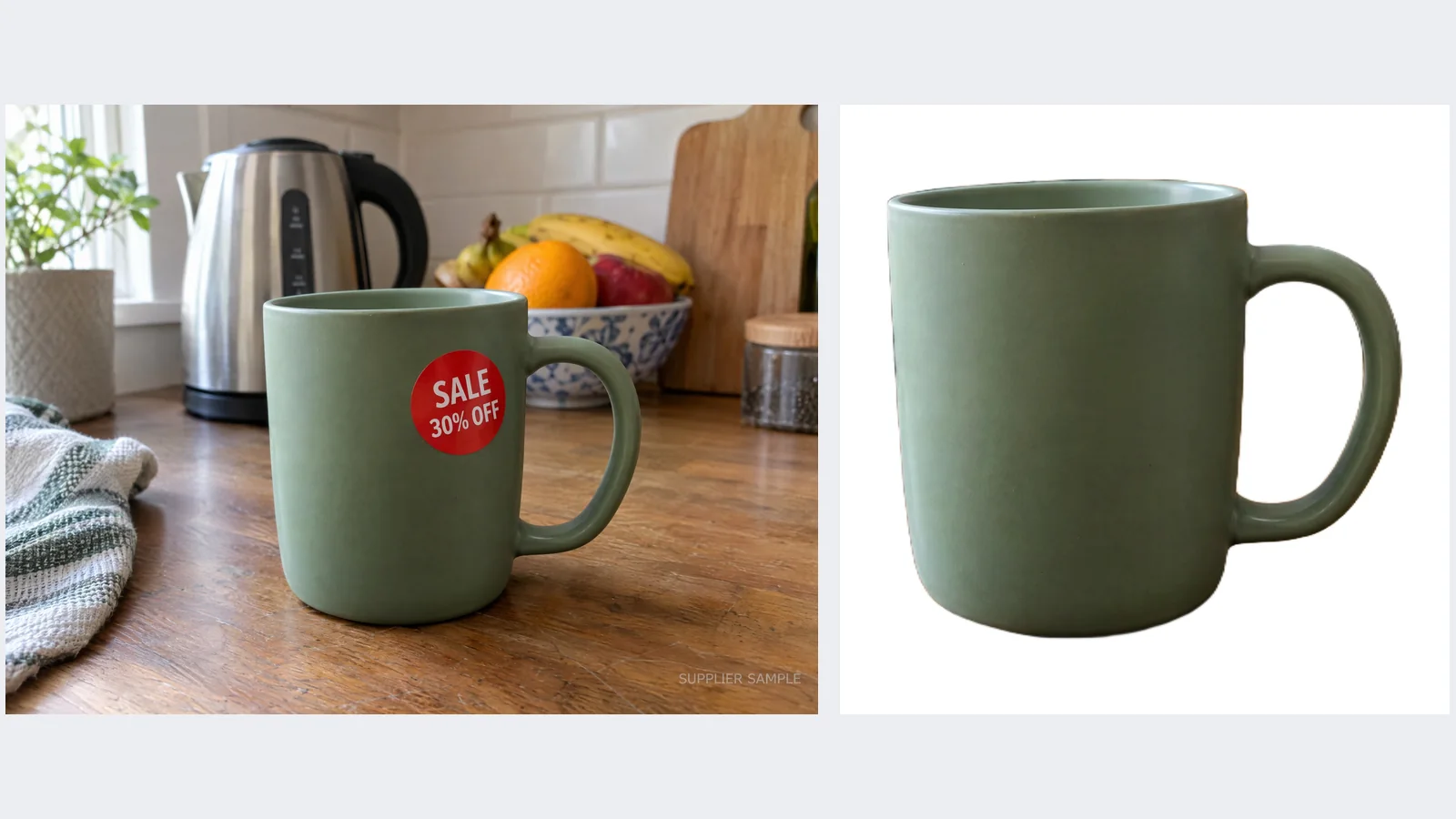
Left: the original snapshot with a sale sticker and a supplier mark. Right: the finished white-background main image from our test.
Quick Answer
- Remove stickers, price tags, logos and watermarks from the photo with a brush-based watermark remover.
- Cut the product out with a background remover set to Product.
- Place the cut-out on a pure white (RGB 255, 255, 255) square so the product fills about 85% of the frame, and export at 2000 px or more.
- Keep the original photo as well: Etsy needs one unedited photo, and lifestyle shots work better than cut-outs for secondary images.
TL;DR
- Amazon, eBay, Google Merchant Center and TikTok Shop all reject watermarks, added text or promotional overlays on product images. Removing them is not optional.
- Amazon's main image must be pure white and show the product at about 85% of the frame; Amazon also says not to artificially enlarge small images.
- Etsy is the exception on edits: it requires at least one unedited photo of the item against a real background.
- In our test, a red sale sticker needed two passes: the first left a pink ghost, a wider second pass removed it.
- Clear glass keeps the old background visible through it after a cut-out, so shoot glass against the colour you will show it on.
Marketplace product image rules at a glance
Last verified: November 3, 2026, on each platform's official help or seller pages (sources at the end).
| Platform | Main image background | Size | Product fill | Overlays that get images rejected |
|---|---|---|---|---|
| Amazon | Pure white, RGB 255, 255, 255 (required) | 500–10,000 px on the longest side; 1,000 px+ enables zoom | About 85% of the image, whole product in frame | Text, logos, graphics or watermarks on the main image; claims such as "free shipping" or "best seller" badges on any image |
| eBay | White "generally best" (recommendation) | At least 500 px on the longest side; about 1600 × 1600 recommended; 12 MB max | Not specified | Watermarks of any type, added borders, added text, artwork or marketing material |
| Etsy | No rule | At least 2000 px wide and tall recommended; first photo at least 635 px | Not specified | Not addressed, but one unedited photo of the real item is required |
| Google Merchant Center | Solid white or light neutral (recommended) | 100 × 100 px minimum (250 × 250 for apparel), rising to 500 × 500 for all products from January 31, 2027; about 1500 × 1500 recommended | 75–90% (recommended) | Watermarks, prices or discounts, calls to action, promotional text, superimposed logos or store names, borders |
| TikTok Shop (US) | Pure white for the main image (listing policy) | Square, at least 600 × 600 px (800 × 800 in the UK) | Not specified | Added logos, text, borders, watermarks, marketing or promotion stickers |
| Shopify | No rule | 2048 × 2048 px usually displays best; max 5000 × 5000 px or 25 MP, under 20 MB | Not specified | Not addressed |
Two details are easy to miss. Etsy does not support transparent PNGs, so flatten a cut-out onto a background before uploading. And Google Merchant Center asks for AI-generated images to keep the metadata that marks them as AI-generated, so do not strip metadata from images you generate.
The workflow we tested, step by step
We used a realistic problem photo: a green mug on a cluttered kitchen counter, with a red SALE 30% OFF sticker on the mug and a faint SUPPLIER SAMPLE mark in the corner. Every number below comes from our runs on November 3, 2026.
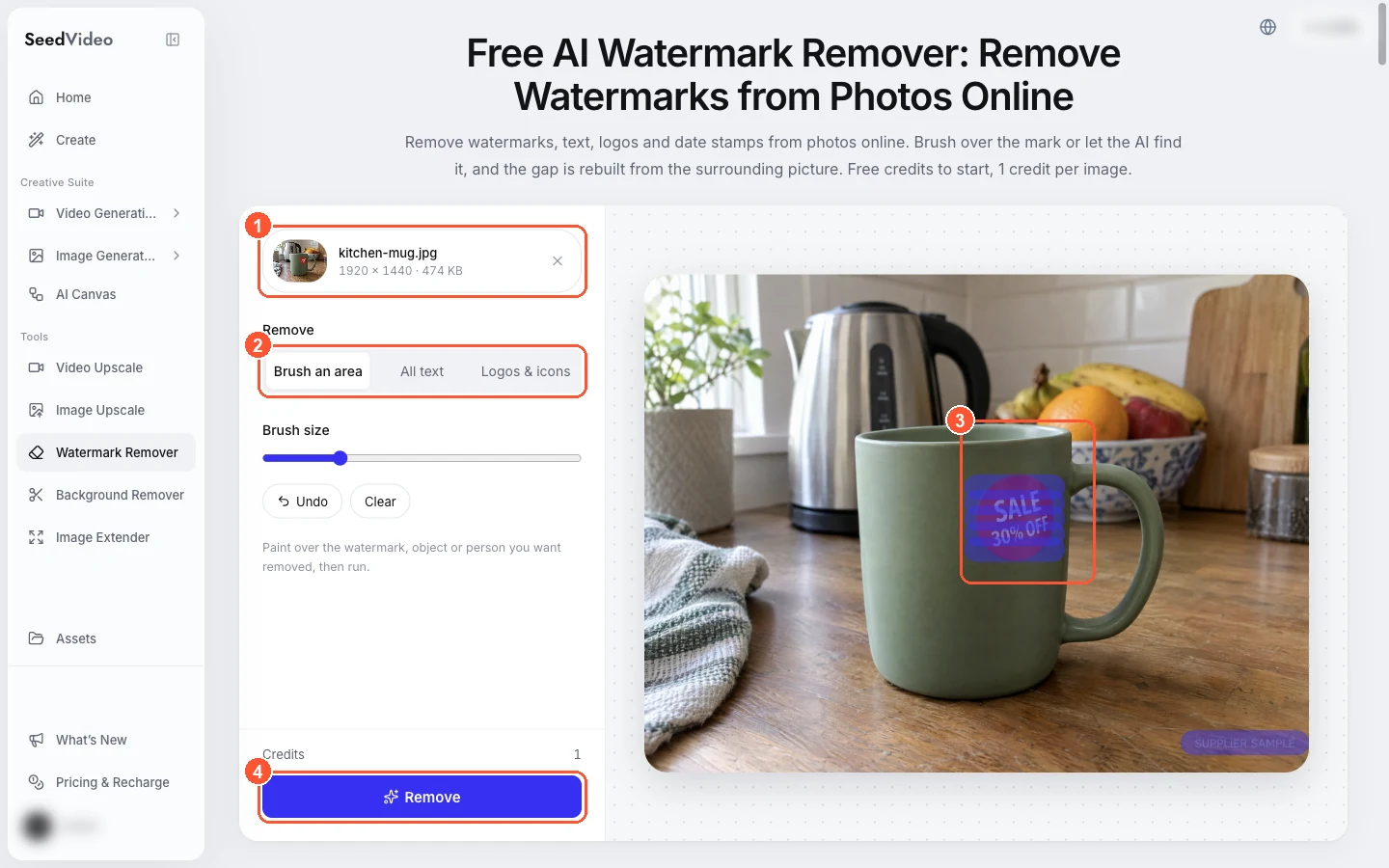
The watermark remover workspace: 1 the uploaded photo, 2 Brush an area mode, 3 brush strokes over the sticker, 4 the Remove button.
| Step | Tool and setting | Time | Result |
|---|---|---|---|
| 1. Remove sticker and supplier mark | Watermark remover, Brush an area | 10.7 s | Text gone, a pink ghost of the sticker left |
| 2. Second pass on the ghost | Watermark remover, Brush an area, wider stroke | 23.9 s | Clean mug surface |
| 3. Cut out the mug | Background remover, Product | 4.9 s | Transparent PNG, 1920 × 1440 |
| 4. White main image | Any editor: pure white 2000 × 2000 canvas, mug scaled to 85% | Under a minute | Marketplace-ready main image |
| 5. Store banner | Image extender, 16:9 from the cleaned photo | 7.7 s | 2560 × 1440 lifestyle banner |
Each of these tool runs costs 1 credit; your first image is free without signing up.
Step 1 and 2: remove the sticker in two passes
The first pass removed the printed text and the supplier mark, but the red of the sticker bled into the fill and left a pink circle. A second pass with a brush about 20% wider than the sticker cleaned it completely. This is the most common failure with strongly coloured stickers: the AI rebuilds the area from its edges, and a mask that stops exactly at the sticker's outline still contains some of its colour. Paint past the edge, and if a ghost remains, choose Edit this result and run again on just that spot.
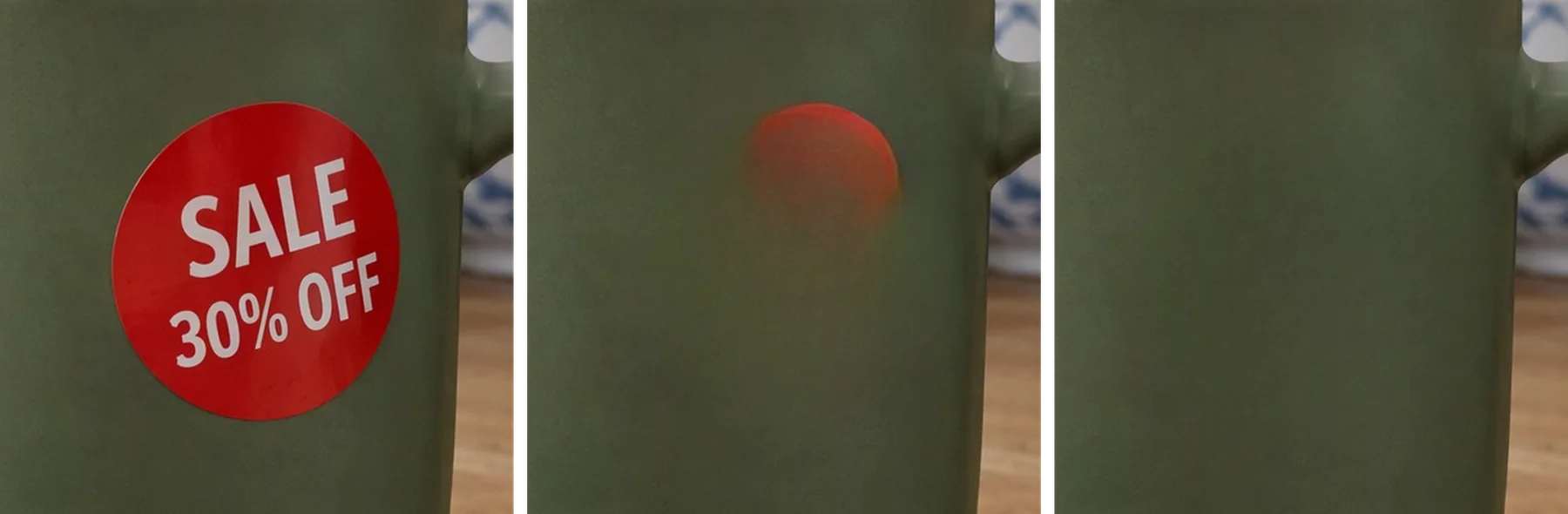
Left: the original sticker. Middle: first pass, a pink ghost remains. Right: second, wider pass, clean.
Step 3 and 4: cut out the product and build the white main image
The background remover's Product mode separated the mug and its handle from the counter in under five seconds. The tool returns a transparent PNG rather than a white image, which is the more flexible file: place it on a pure white 2000 × 2000 canvas, scale it until its longest side is about 1700 px (85% of the frame for Amazon), centre it, and export as JPEG or PNG in RGB.
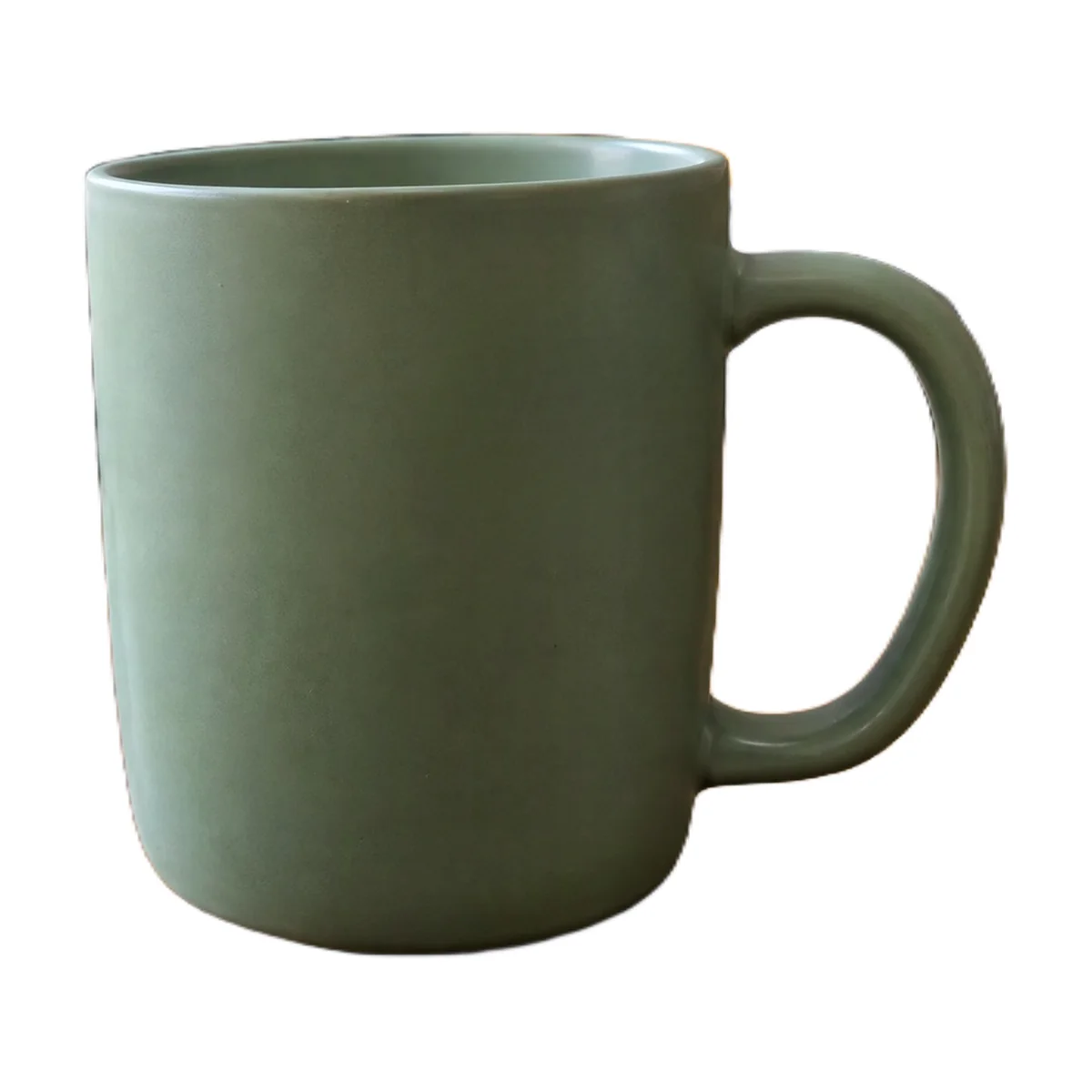
The finished main image: pure white background, product at about 85% of the frame.
Step 5: reuse the cleaned photo as a 16:9 banner
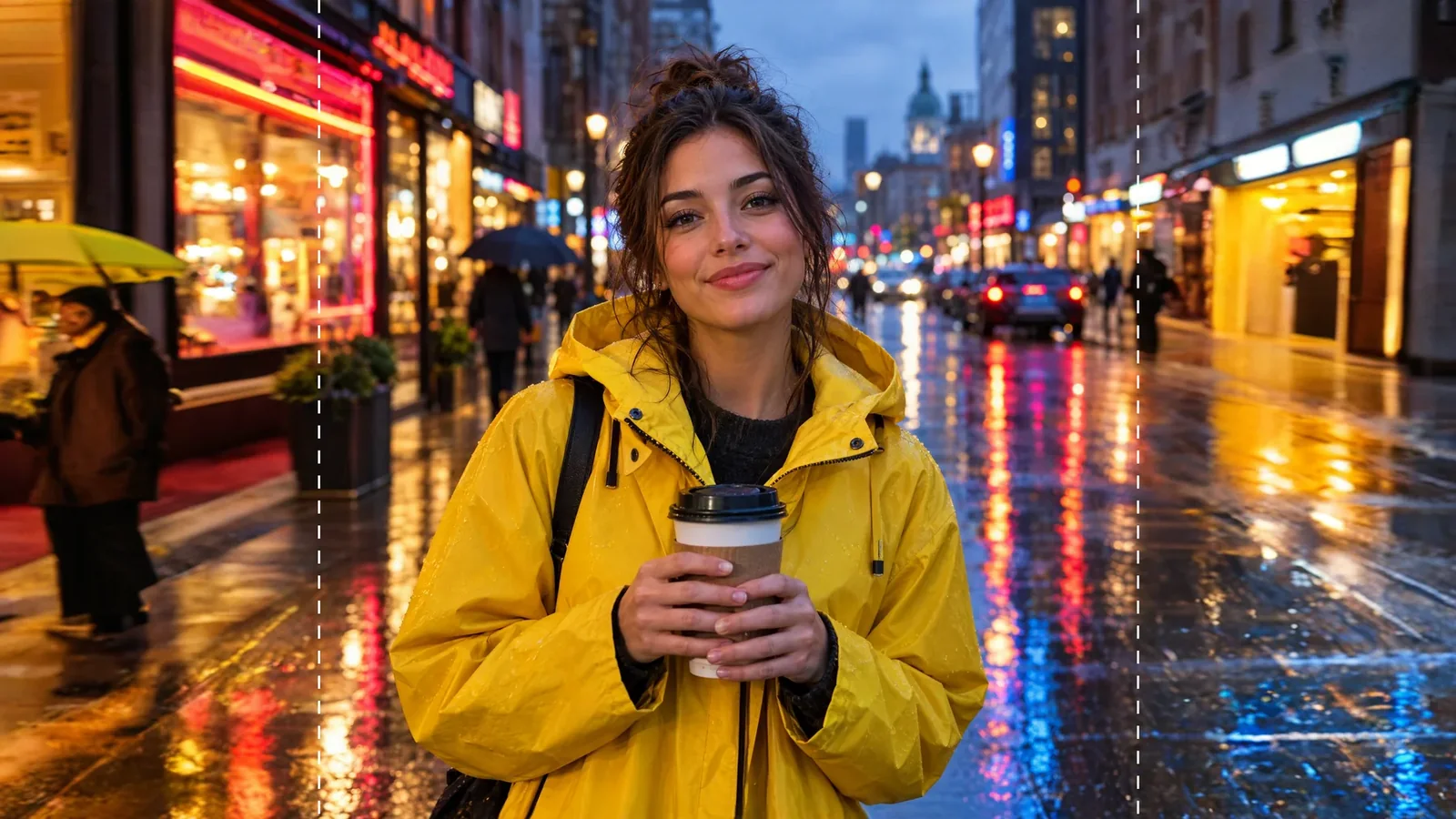
Secondary images and store banners can show the product in context. We extended the cleaned 4:3 kitchen photo to 16:9 in one run. The dashed lines mark the original frame; everything outside them was generated, including more of the window and towel on the left and a large leafy plant on the right. That is fine for a banner, but it should never be your main image, which has to show the real product only.
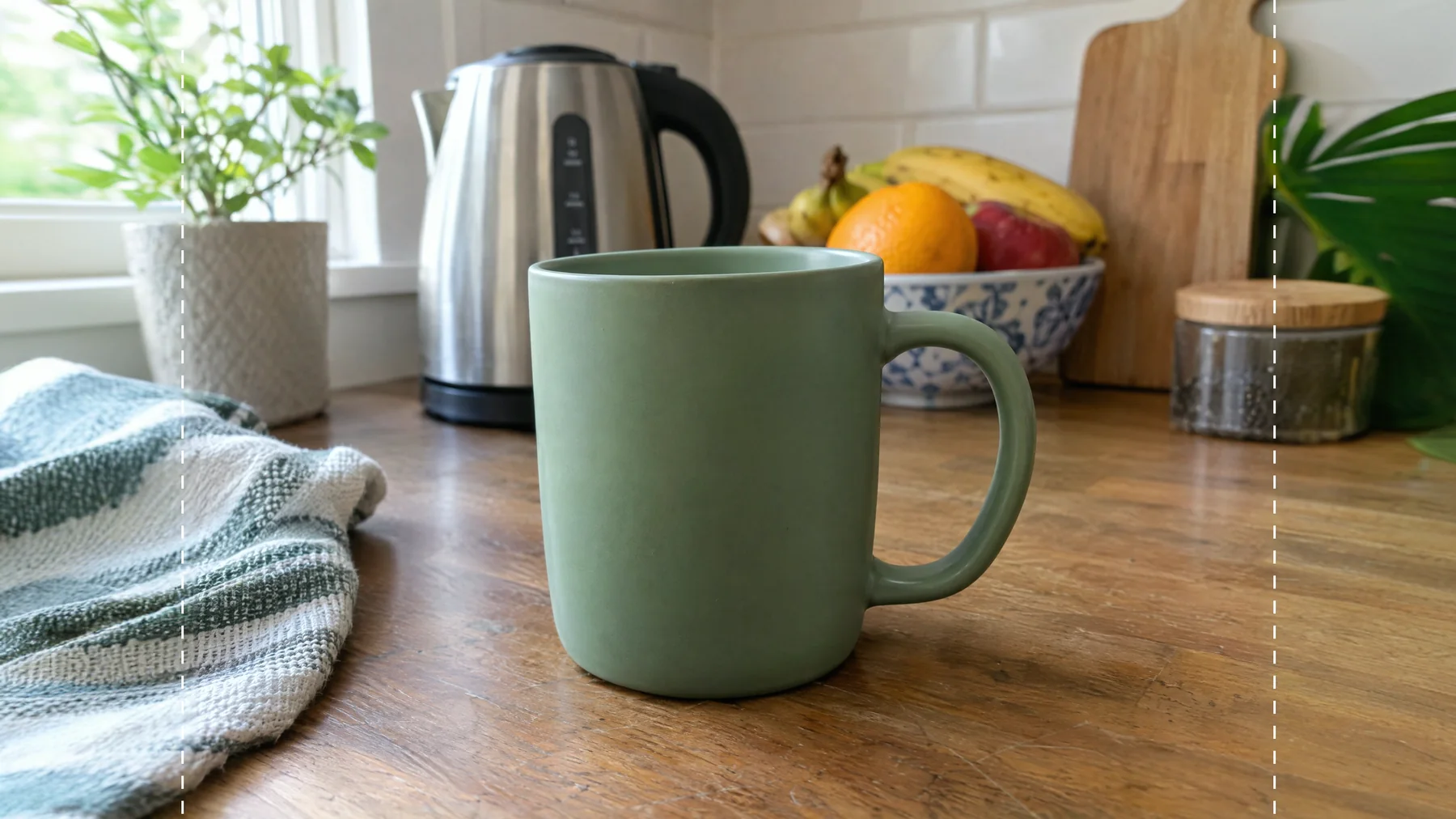
16:9 banner from one extender run; the areas outside the dashed lines are generated.
Hard cases: glass, white-on-white and reflections
Clear glass is where cut-outs show their limits. Our olive oil bottle separated cleanly from the marble table, but the white wall seen through the glass stayed inside the cut-out. On white that is invisible; on a dark background the neck and shoulders of the bottle turn milky.
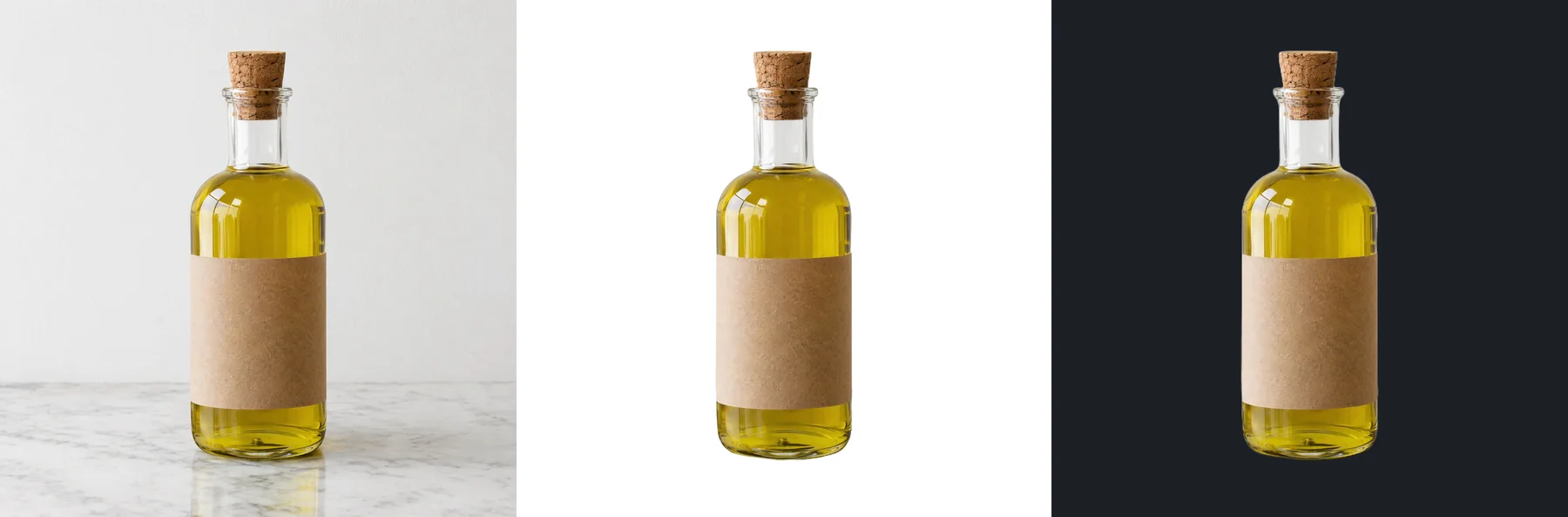
Left: original. Middle: cut-out on white. Right: the same cut-out on dark grey, where the old background shows through the glass.
- Glass and clear plastic: shoot against the background colour you will use, or keep glass products on white.
- White products on white tables: add a coloured backdrop when you shoot so the edge has contrast, then cut out.
- Shiny packaging: reflections of the room are part of the product to the AI and will stay; remove them before cutting out if they show something distracting.
What not to do with AI on product photos
- Do not upscale tiny photos to fake zoom. Amazon's image guide explicitly says not to artificially enlarge small images. Upscaling helps for print and banners, but a marketplace main image should start from a real photo of 1,000 px or more.
- Do not add sale badges or "free shipping" text to images. Amazon, eBay, Google Merchant Center and TikTok Shop all reject them; put promotions in the listing fields instead.
- Do not change the product itself. Removing a sticker is cleanup; changing a colour, a logo on the product or its shape misrepresents what the buyer gets.
- Keep an unedited photo for Etsy, and consider noting AI edits in the listing description, as Etsy suggests.
Turn the cleaned photo into a product video
A clean cut-out or white main image also makes a good first frame for a short product clip. Animate it with the AI image-to-video generator, and see our AI product video guide for prompts that keep labels and shapes stable. For the mug, a prompt like this works:
A sage-green ceramic mug on a pure white seamless background, slow 360-degree turntable rotation, soft even studio light, gentle shadow under the mug, clean minimal product showcase, steady camera.
For the rest of a store's toolkit, our roundup of the best AI e-commerce tools compares listing, ad and video tools, and more image fixes live in our quality fixes guides.
FAQ
What background does Amazon require for product photos?
The main image must have a pure white background, RGB 255, 255, 255, and the product should fill about 85% of the frame. Additional images can show the product in use.
Can I use AI to remove the background from product photos?
Yes. A background remover in Product mode cuts the item out to a transparent PNG; place it on white for marketplaces. Etsy still requires at least one unedited photo of the real item.
Are watermarks allowed on product images?
No, on most marketplaces. eBay bans watermarks of any type, Google Merchant Center disapproves images with watermarks or promotional overlays, TikTok Shop bans them, and Amazon suppresses main images with text, logos or watermarks.
What size should product photos be?
Aim for at least 2000 px on each side. That satisfies Etsy's recommendation, exceeds Amazon's 1,000 px zoom threshold and eBay's 1600 px recommendation, and stays under Shopify's 5000 px limit.
Why is there a coloured ghost where I removed a sticker?
The mask stopped too close to the sticker's edge. Paint a slightly wider area and run a second pass on just that spot.
Can I add text like "50% off" to my product images?
Not on Amazon, eBay, Google Shopping or TikTok Shop; all of them reject promotional text on images. Use your listing's price and promotion fields.
Clean your product photos now
Remove stickers and watermarks with the AI watermark remover, cut products out with the AI background remover, and reshape lifestyle shots with the AI image extender. Your first image is free, no sign-up needed.
Sources (checked November 3, 2026): Amazon product image guide, Amazon image suppression, eBay picture policy, eBay picture tips, Etsy listing photos, Google Merchant Center image requirements, TikTok Shop listing policy, Shopify product media.