Best AI Explainer Video Generators in 2026
Last verified: September 11, 2026.
An AI explainer video generator is useful when it matches the job that is slowing a team down. For a product launch, that may mean making a short visual sequence from approved product references. For training, it may mean an avatar reading an updated script in many languages. For a sales deck, it may mean turning slides into a reviewable video. These are different jobs, so this guide does not name one visual-quality winner.
TL;DR
- Choose Seedance 2.5 when an explainer needs original product or concept footage with controlled references.
- Choose HeyGen or Synthesia when a presenter-led script, translation, and repeatable updates matter more than generated scenes.
- Choose Vyond when a team needs a template-led editor, screen recording, and a broad set of assembly tools.
Quick Answer
For a SaaS walkthrough, start with the script and decide whether a human-like presenter is required. For an internal course, prioritize editing, voice, localization, and approval workflow. For a launch or product story, use a scene model only for the moments that need motion beyond slides and screen capture. A sensible production plan can combine those approaches: record the real product, assemble the explanation in an editor, then add a short reference-led opener made with an AI video model for product scenes.
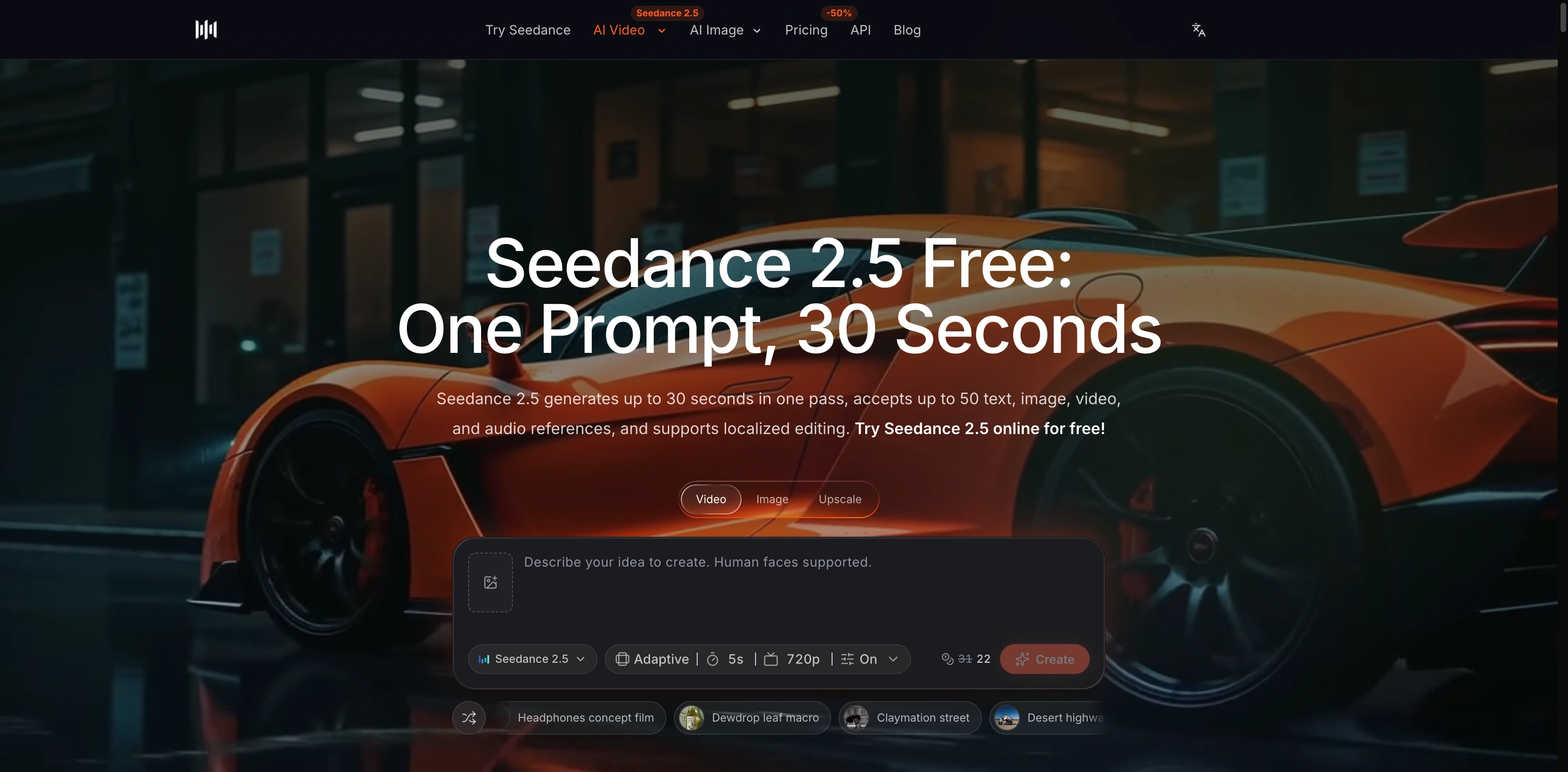
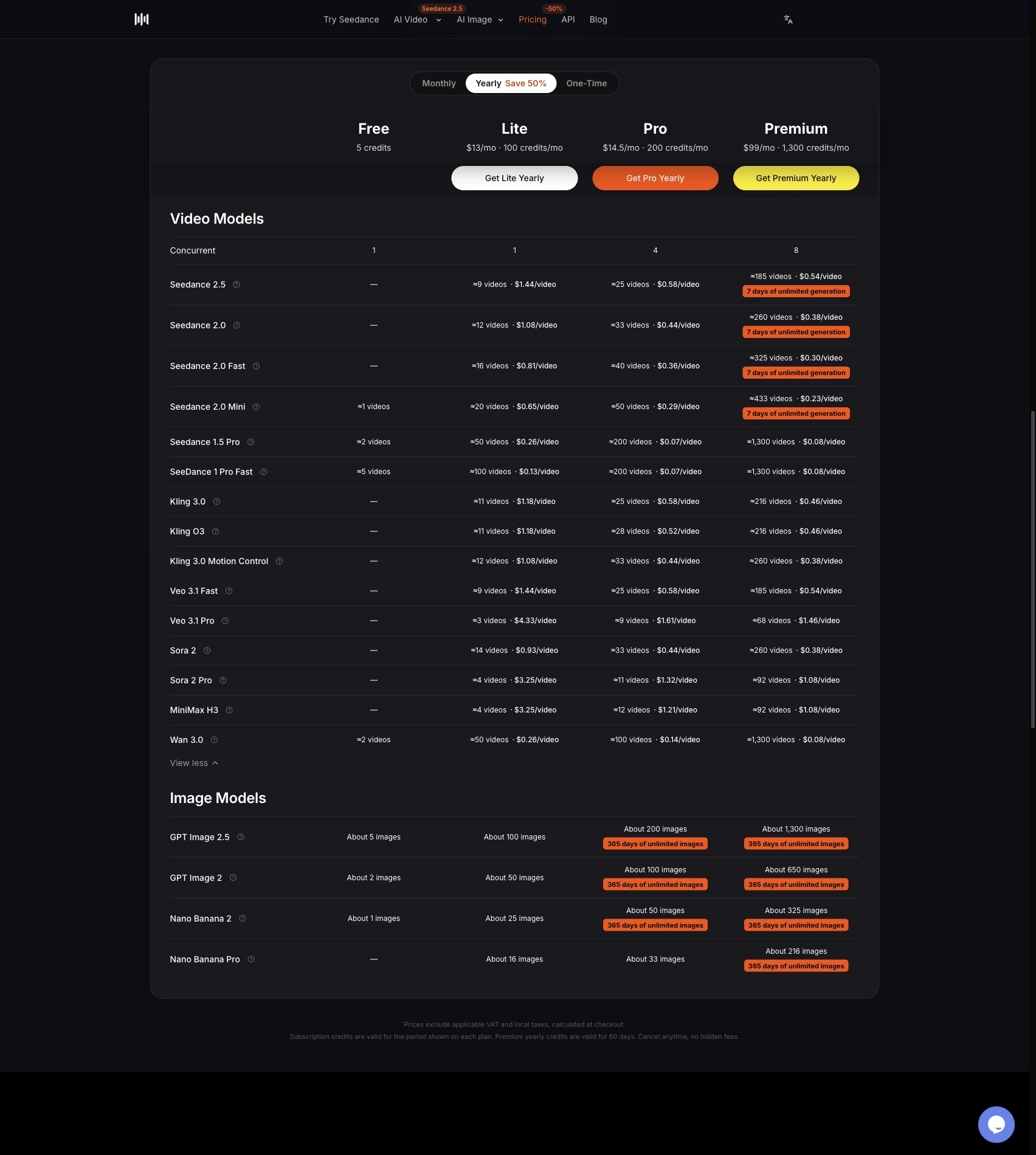
Current Seedance 2.5 model page screenshot showing reference-led generation controls.
The four types of explainer tools
| Tool type | Best for | What to check before buying |
|---|---|---|
| Script-to-video platform | Product education, training, recurring updates | Script editor, voices, translations, captions, brand controls |
| Avatar platform | Presenter-led training and localized announcements | Avatar consent, languages, lip sync, revision process |
| Template-led editor | Screen demos, animated explainers, slide-based stories | Template ownership, recording, asset library, team review |
| Generative scene model | Product openers, abstract concepts, transitions | Reference controls, duration, editability, rights for supplied assets |
The biggest mistake is asking every category to solve the same problem. An avatar can explain a policy clearly without a cinematic shot. A product launch may need a few generated scenes, but it still needs a reviewed script, a factual screen recording, and an edit that makes the claim understandable.
Seedance 2.5 for reference-led explainer scenes
Seedance 2.5 is the scene-making option in this comparison. Its current model page states up to 30 seconds in one pass and up to 50 combined text, image, video, and audio references. That is useful when an explainer needs an opening product mood, a visual metaphor, or a motion sequence built around approved source material.
Use it for a bounded section of the story. Give each reference a job: a product image for shape and label detail, a movement reference for camera direction, and a final frame for the ending. Then place that scene beside real interface capture and clear narration. Teams that need a walkthrough can pair the scene with the text-to-video workspace or animate approved source art with the image-to-video workspace.
Best for: launch explainers and product stories that need original motion around real product assets.
Not best for: compliance training, dense UI instruction, or any statement that needs a precise on-screen record.
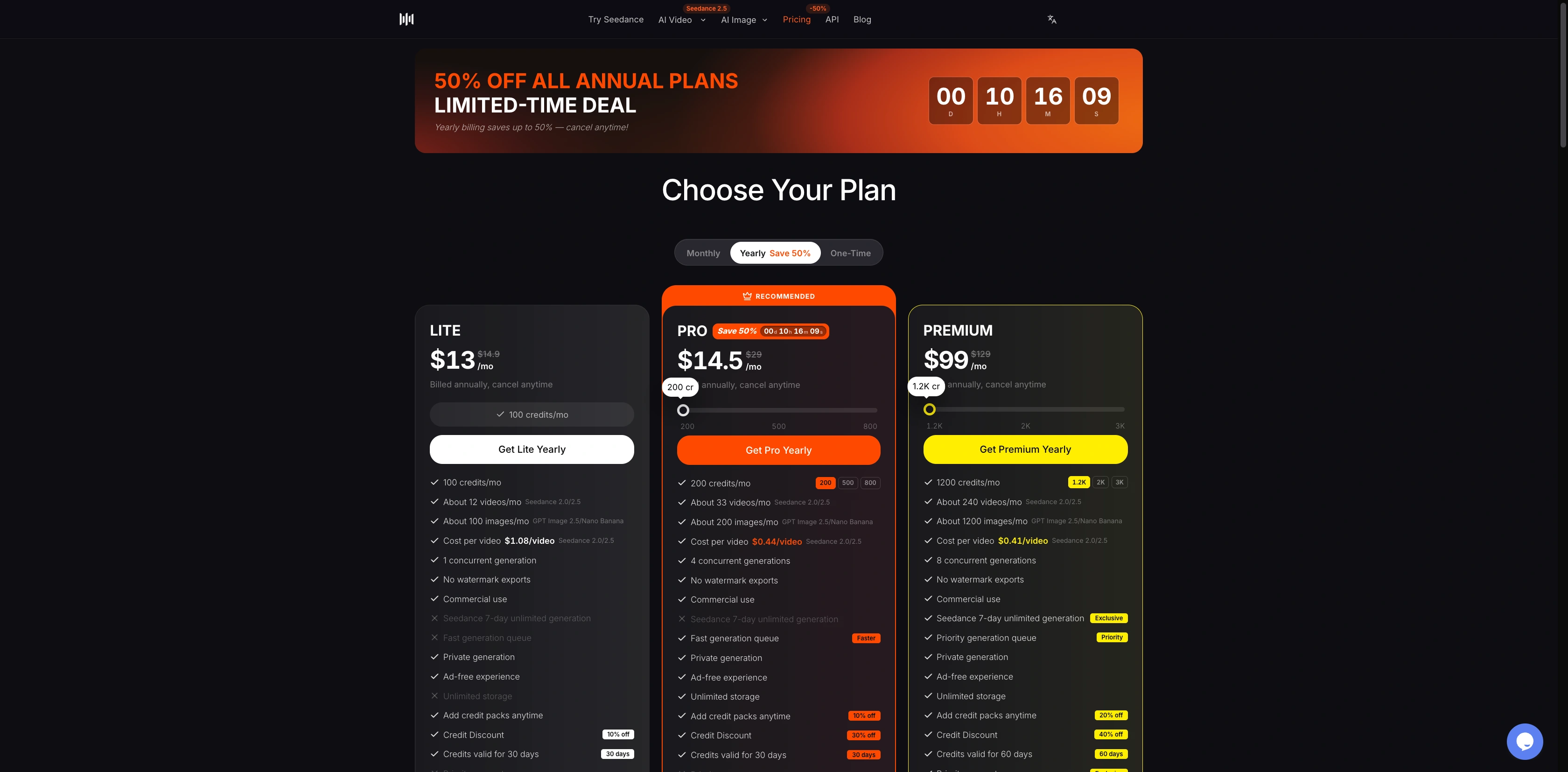
Current Seedance pricing page screenshot. Prices, credits, and plan conditions can change, so confirm the checkout page before purchase.
HeyGen for presenter-led explanations
HeyGen's pricing page lists a free plan with three videos per month up to one minute, then Creator at $29 per month and Pro at $49 per month. Creator lists up to 30-minute videos and 1080p export; Pro lists up to 4K export. The same page lists stock avatars, AI voices, PowerPoint and PDF imports, screen recording, templates, and language features that vary by plan.
That makes HeyGen a practical choice when the core asset is an explained script with a presenter. It is less suited to a product team that needs every shot to preserve a physical object or a UI state. In that case, use actual footage or screen capture for evidence, and treat the presenter as the narration layer.
Best for: recurring presenter-led explainers, localization, and a script that changes often.
Not best for: a scene-by-scene product proof where generated visuals would be mistaken for a real interface record.
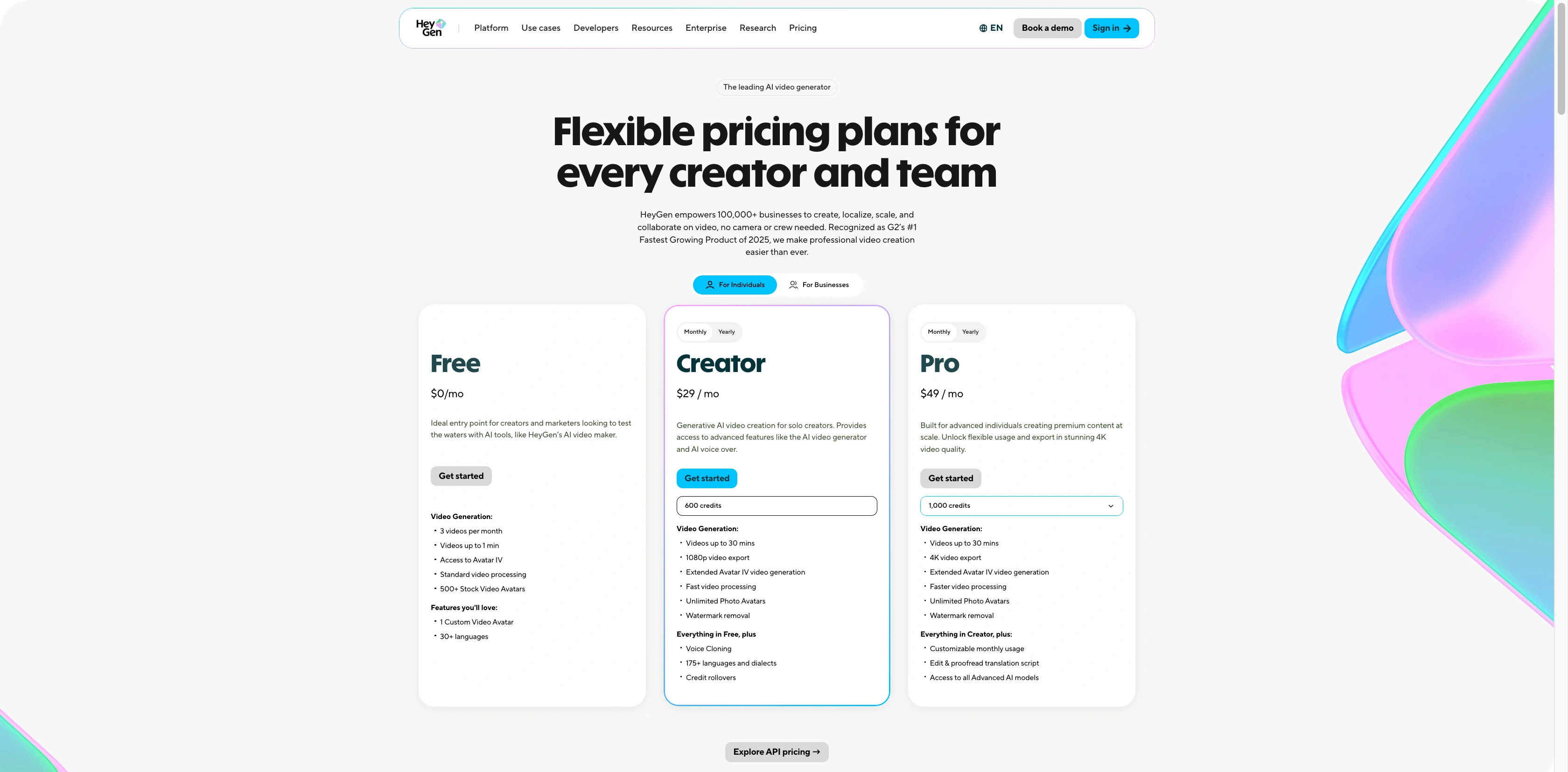
Current HeyGen pricing page screenshot.
Synthesia for training and internal communication
Synthesia's pricing page shows a Basic plan at $0 per month with up to 10 minutes of video, a Starter plan at $14 per month when billed yearly, and a Creator plan at $59 per month when billed yearly. Its current plan details list AI avatars, voices in 160+ languages, dubbing, multiple-avatar scenes, interactive video features, and enterprise options such as SCORM export and live collaboration.
This profile fits internal training, policy updates, onboarding, and learning teams that need a repeatable process for script changes. It also gives a clearer starting point for teams whose main requirement is spoken explanation rather than a generated visual sequence. Review the applicable plan and terms for your organization before using any content commercially.
Best for: training libraries, internal enablement, and multilingual narration.
Not best for: a campaign that depends on novel visual storytelling rather than a presenter and structured script.
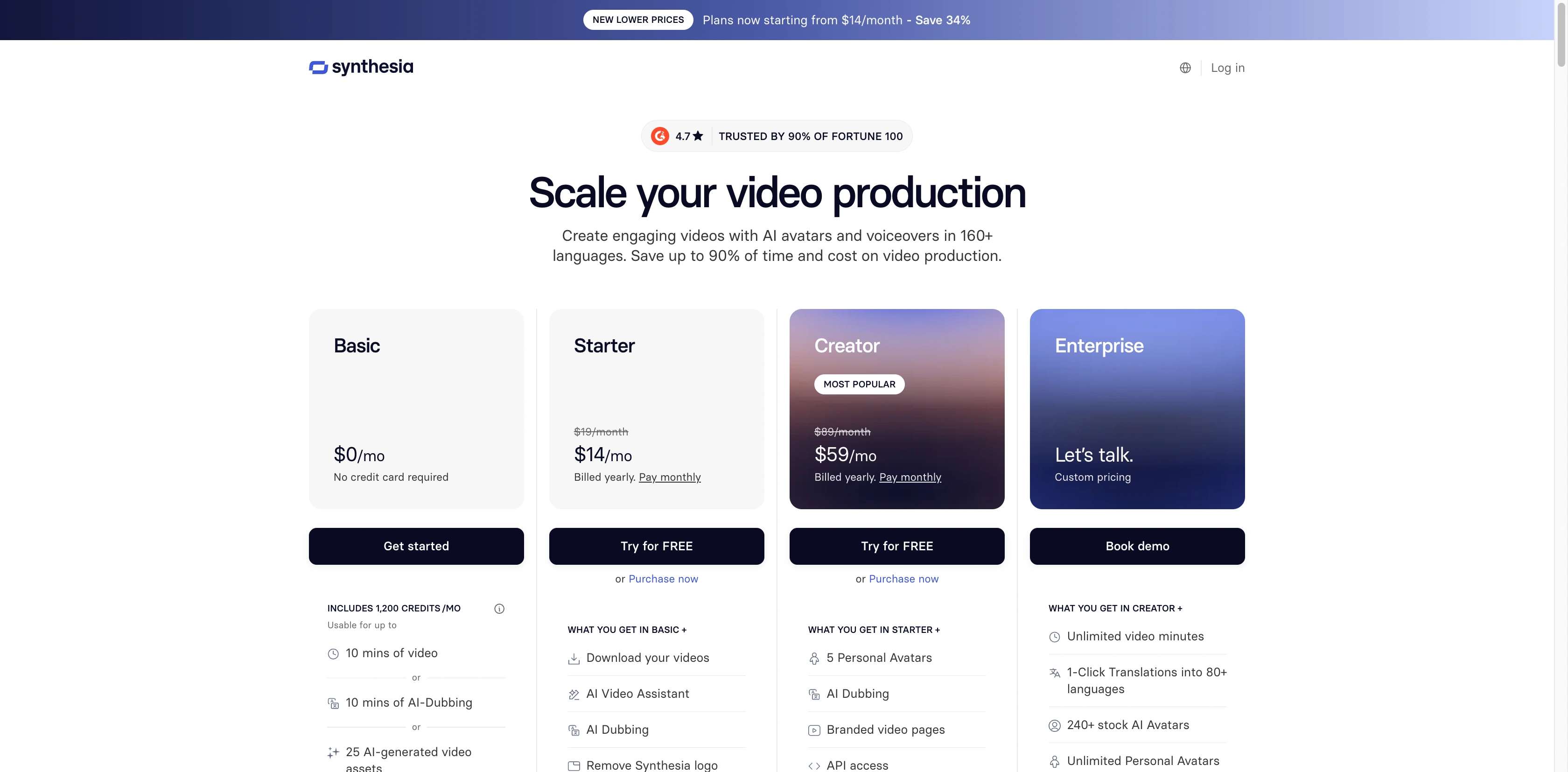
Current Synthesia pricing page screenshot.
Vyond for template and recording workflows
Vyond's plans page lists Starter at US$58 per month when billed annually, Professional at US$100, Enterprise at US$137, and Agency at US$167. Its current plan comparison lists text, document, script, and URL-to-video tools, screen and webcam recording, text-to-speech, AI avatars, translation, team collaboration, and brand management at higher tiers.
Vyond is most useful when a team wants to build a durable explainer workflow around an editor. The value is not a promise that every AI-generated clip will look the same. It is the ability to combine recorded screens, narration, templates, and approved visual assets in a format that can be revised when a product changes.
Best for: template-led customer education, sales enablement, and repeatable screen-demo production.
Not best for: a short film-style opener that needs reference-led motion and a distinct visual direction.
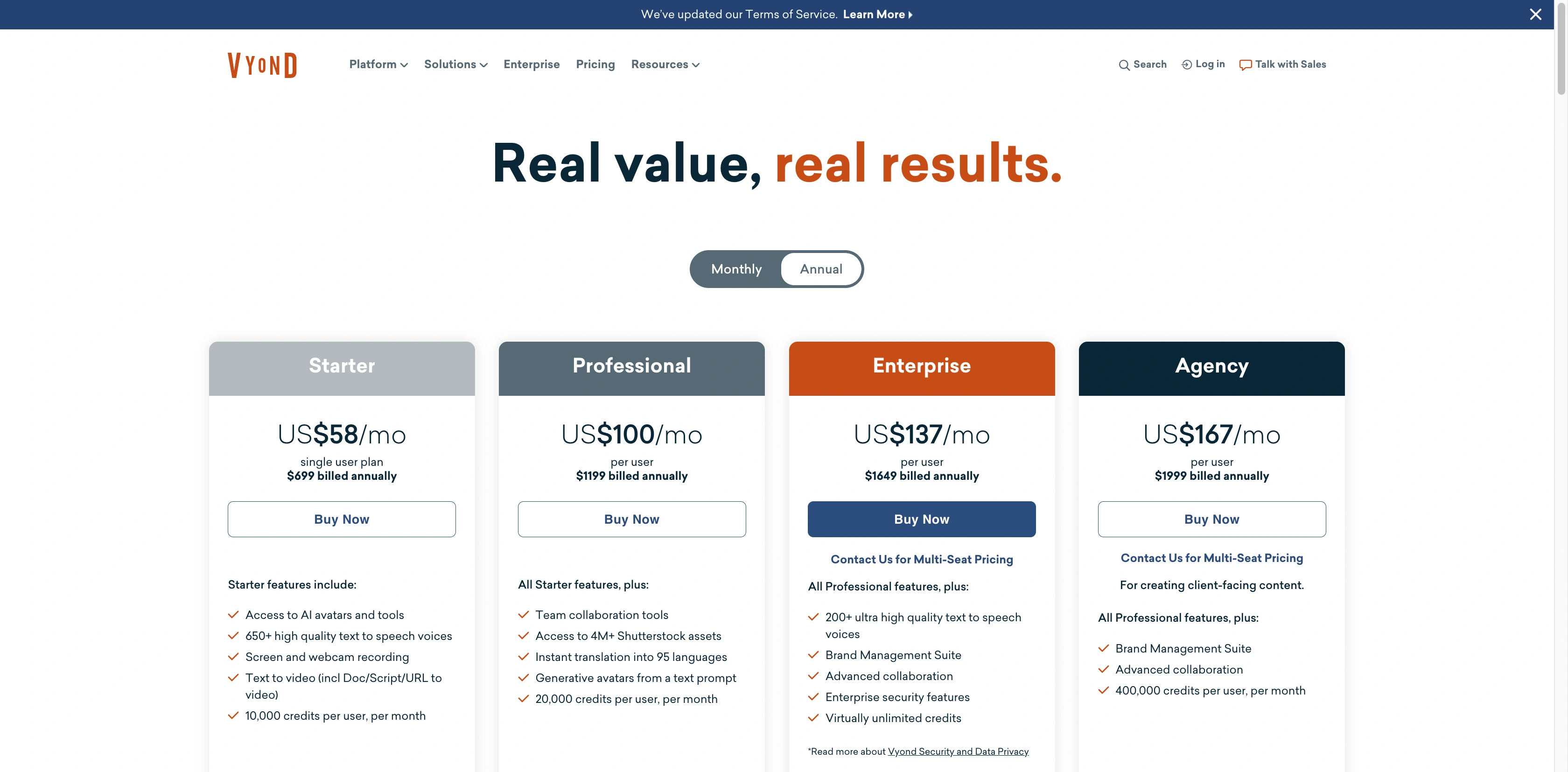
Current Vyond plans screenshot.
How to choose for a real workflow
Start with the claim that the viewer must understand. If it is a product claim, show the actual product. If it is a policy or process, write the explanation before choosing an avatar. If it is a launch story, identify the few shots that need motion and keep the rest grounded in approved visuals.
A workable SaaS explainer often has five parts: a problem in the customer's words, a short product context, one real workflow recording, a clear result or next action, and an end card. The explainer-video workflow guide and the product demo video workflow show how to organize those pieces before choosing a model.
Do not use generated scenes for an exact UI demonstration, an audited compliance instruction, a legal claim, or a statement that requires a real customer record. Those sections need screen capture, approved footage, or a designed graphic with reviewed copy.
Price, rights, and review checklist
Prices are not interchangeable because plans measure usage differently. HeyGen uses credits and plan limits, Synthesia describes minutes and credits, Vyond lists plan credits and downloads, and Seedance plans are credit-based. Compare the unit you will actually consume, plus revision time, voice work, translation, media review, and the people who approve the final cut.
For rights, confirm the current plan terms, the rights to every input you upload, and the approval needed for an avatar, voice, logo, or person. A paid plan does not remove the need to clear product imagery, music, trademarks, or customer data.
FAQ
Which AI explainer video generator is best overall?
There is no single best option for every explainer. Choose a script and avatar platform for repeatable narration, a template editor for recorded demonstrations, and a reference-led scene model for selected visual moments.
Can I make a product explainer with generated scenes?
Yes, but use real screens or product footage for factual product proof. Generated scenes work best as an opener, transition, or visual metaphor around the explanation.
Which tool is best for multilingual training videos?
Synthesia and HeyGen both list multilingual voices and localization features on their current plan pages. Compare the language coverage, review controls, and the plan that matches your expected volume.
Do free plans allow commercial use?
Do not assume that they do. Read the current plan and terms for the exact account, output type, and use case before publishing a paid campaign.
Next step
Map your explainer into narration, real evidence, editable templates, and any scene that genuinely needs generated motion. If the project needs a reference-led opener, review the Seedance 2.5 model page and build the shot around approved source material.
Build the outline before opening a generator
A useful explainer starts with a question the viewer can answer by the end. "What changed in this release?" and "How do I complete the first setup?" are better starting points than "make a polished video." Write one sentence for the viewer, one sentence for the proof, and one sentence for the next action. That makes it much easier to decide whether the next asset should be a screen recording, an avatar line, a diagram, or a short generated scene.
For a SaaS product, the proof usually comes from the live interface. Record the real click path after the script is approved, then cut that footage around the narration. For an education topic, the proof may be a worked example, a document excerpt, or an animation that clarifies a concept. For a marketing launch, the proof may be a product photograph, a customer-approved quote, or a feature demonstration. The tool should fit that proof rather than replace it.
A short planning table can keep a project honest:
| Story beat | Best asset | Reason |
|---|---|---|
| Viewer problem | Narrated line and simple title card | Gives context without inventing evidence |
| Product action | Real screen recording or approved footage | Shows the actual workflow |
| Hard-to-film concept | Diagram, template animation, or limited generated scene | Makes an abstract idea easier to follow |
| Result | Real output, customer-approved example, or measured statement | Lets the viewer judge the claim |
| Next action | Clear CTA and link | Tells the viewer what to do next |
This structure also reduces revision cost. If an interface changes, replace the product-action clip without rebuilding the entire film. If a translation needs a different phrase, change the narration layer and preserve the verified screen segment. Teams often save more time through this separation than by choosing the tool with the longest feature list.
Script, voice, and subtitle decisions
An explainer script should sound like a person talking to one viewer. Put the action before the feature name when possible. "Open a project and invite the reviewer" is clearer than a long sentence about collaboration capabilities. Use short sentences around a screen recording, because the viewer is already reading the interface. Use a slightly longer explanation only when the screen cannot carry the meaning alone.
Voice and subtitle choices deserve the same review as the visuals. A translated script can change product terminology, legal meaning, or the level of formality. Ask a fluent reviewer to check the first complete version, not only the headline. If an avatar is used, decide whether the presentation style fits the audience. An internal policy update may work with a steady presenter. A product launch can feel more direct with a human spokesperson or concise voiceover over real footage.
Captions should support the spoken line rather than repeat a crowded slide. Keep on-screen labels large enough to read, avoid placing them over dense UI, and do not turn every paragraph into a subtitle block. For accessible viewing, include the information needed to follow the action even when audio is off.
Brand control and collaboration
Brand control means more than adding a logo at the end. Teams should agree on the product names, font choices, color use, terms that require legal review, and which screenshots are current. A template editor can hold these choices in reusable scenes. An avatar platform can standardize voice and presentation. A scene model can use supplied materials for visual direction, but it cannot decide which product statement is approved.
Review in two passes. The first pass asks whether the story makes sense without production polish. The second checks facts, UI accuracy, permissions, accessibility, and final export settings. Keep the reviewer who owns the product claim involved until the last cut. A smooth motion shot cannot compensate for a wrong setup step or an old price.
For agencies, define the handoff early. The client should know which materials are source evidence, which are designed graphics, and which are illustrative scenes. That avoids a late disagreement when an approved product photo appears beside a generated visual. For internal teams, the same rule protects against employees treating a demonstration as proof of an unshipped feature.
A realistic selection matrix
A team that needs many language versions of the same training announcement should test an avatar platform first. The main question is whether script revision, translation review, voice quality, and project access fit the operating model. A team that teaches a product interface should test a template editor and screen recording workflow first. The main question is whether the editor makes updates fast while keeping screenshots and captions accurate.
A team launching a new physical product or a new visual concept should test a reference-led scene model for a small set of shots. The main question is whether the supplied references preserve the details the audience must recognize. That is different from asking which model looks best in a social feed. A product can look appealing in a generated shot and still lose its label, button placement, or shape consistency. Use an approval checklist for those details.
If the project combines all three needs, assign a role to each tool. A product scene can introduce the topic. A real demo can prove the workflow. An avatar or voice layer can explain the change in local languages. A template editor can assemble the final sequence and keep it maintainable. This mixed workflow is often more reliable than forcing one platform to own every frame.
What a purchase comparison should include
Start with a pilot that reflects the real work. Count how many minutes, credits, exports, reviewers, languages, and revisions the team expects in a month. Then read the plan page again with those numbers in mind. A low monthly starting price may apply to a plan with a short duration, a narrow export setting, or a limited number of users. A higher plan can be cheaper when it removes a repeated manual step, but only if the team actually uses that capability.
Check how each vendor describes free-plan output, watermark removal, export resolution, durations, and commercial permissions. These can change, and a plan page is more reliable than a comparison graphic that was made months earlier. For a client project, save the relevant plan and terms review alongside the approval record. That gives the team a clear point of reference if the project expands or a customer asks how a specific asset was made.
The best AI explainer video generator is therefore the one that makes the required proof easy to produce, review, update, and localize. Start with the evidence. Then pick the production layer that supports it.