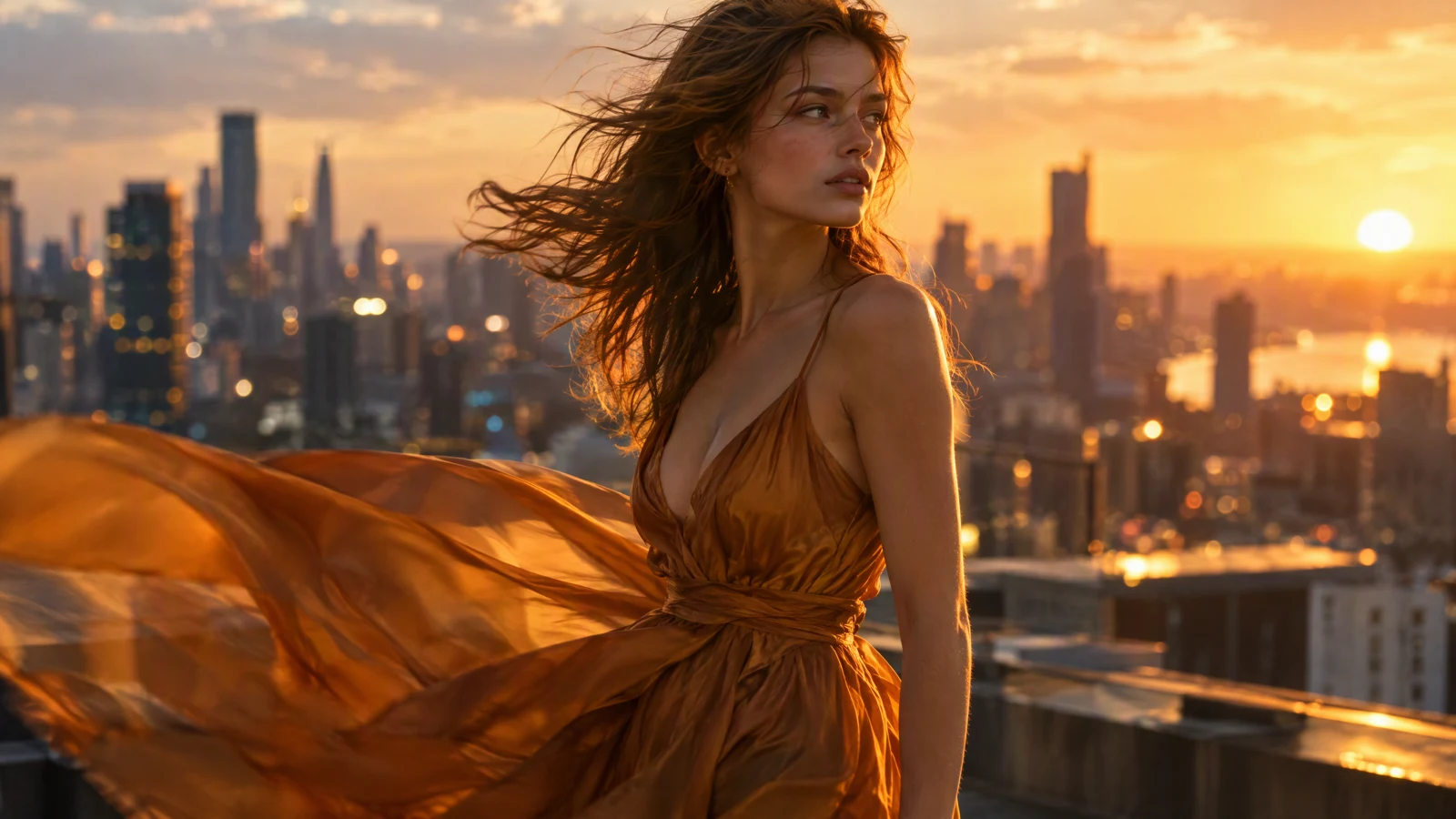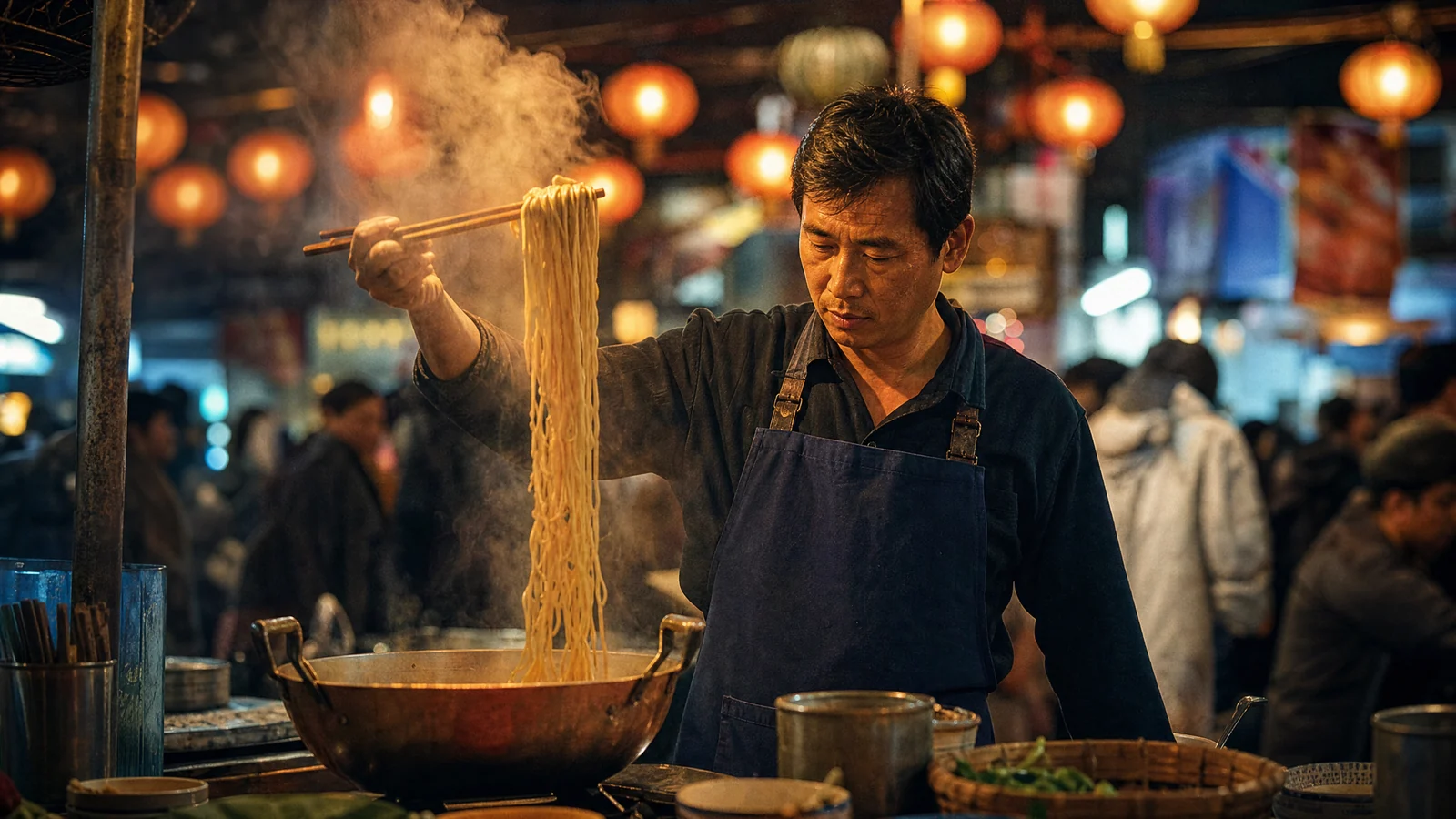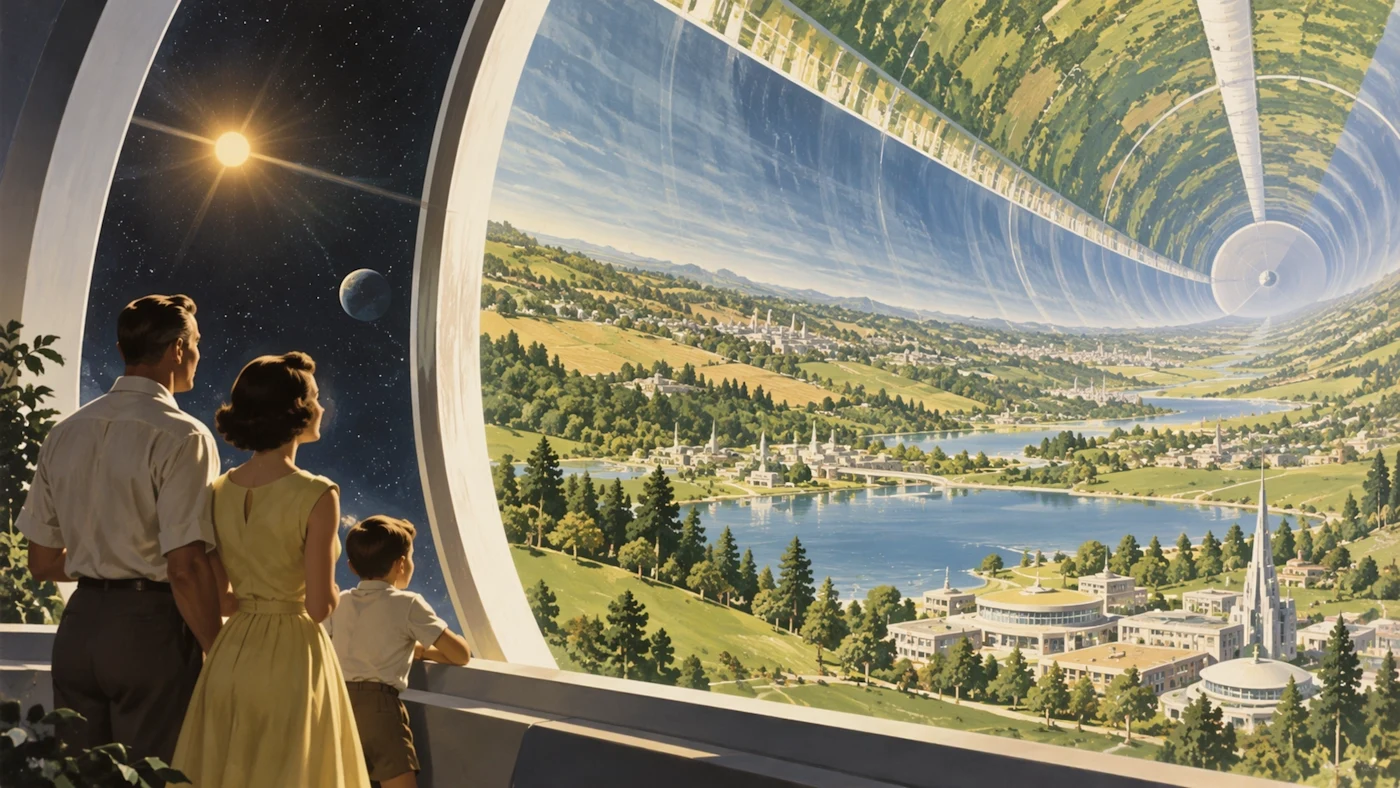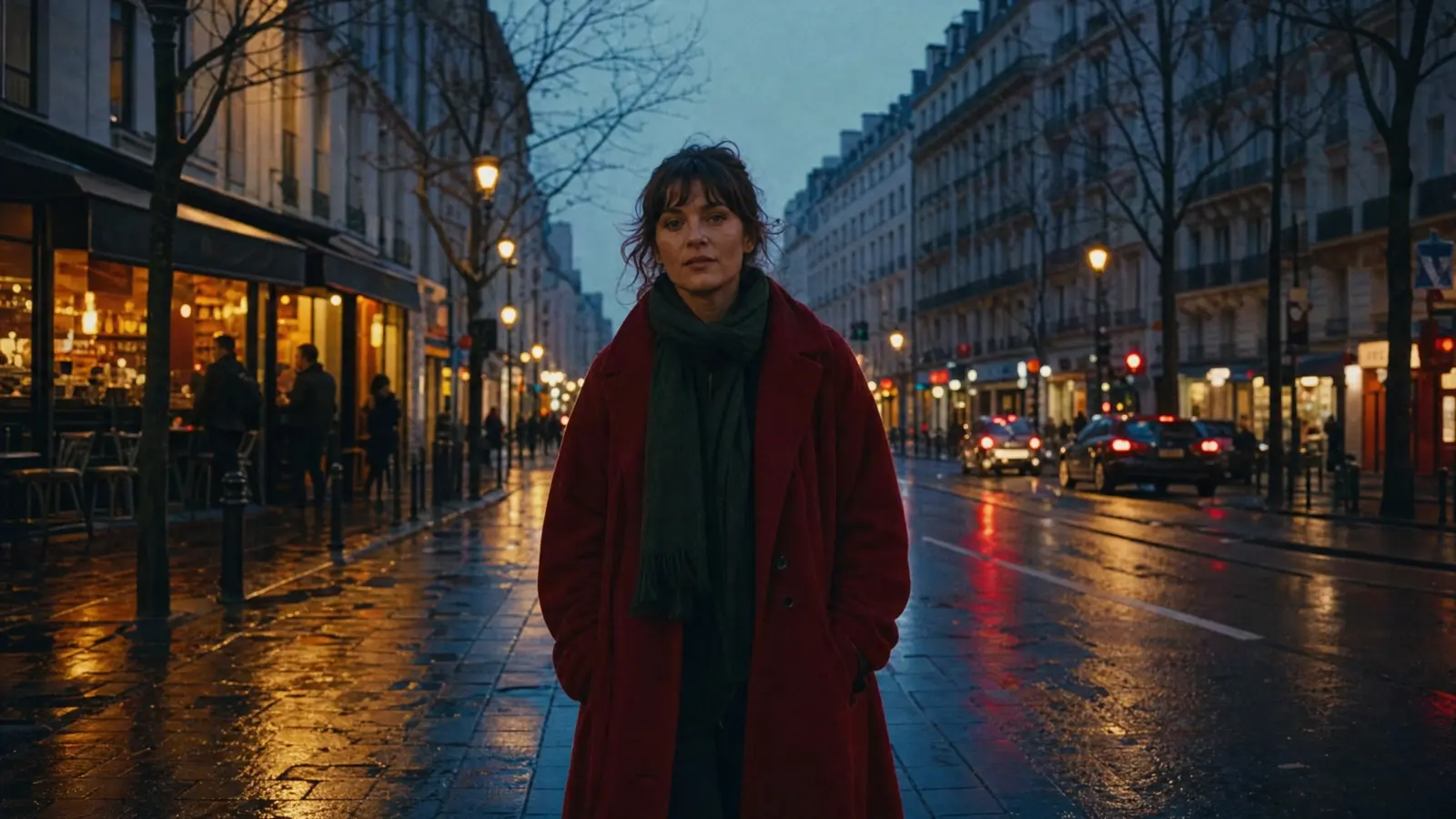
8 GPT Image 2.5 prompts for product photos, ads, and edits
A useful GPT Image 2.5 prompt says what the image is for, which details matter, and what you want to change. For a product ad, that might mean readable packaging and space for a headline. For an edit, it might mean changing a jacket while keeping the person's face and the room intact.
The eight templates below are original Seeddance examples. They build on editing workflows discussed on X and on OpenAI's guidance. Each one includes an input, a copyable prompt, and something concrete to inspect in the result. Replace the example products and text with your own brief before generating.
The X source behind these editing patterns
On September 9, @xiaohu shared 15 GPT Image 2.5 editing prompts, covering reference roles, product scenes, localized text, and other focused edits. At our September 9, 15:11 CST check, the post showed 166 likes, 31 reposts, and 23,062 views. Its full prompt text was readable. It also promoted Higgsfield, so we use it as a prompt collection rather than evidence of model performance.
One short instruction captures the approach:
“Keep product, layout and lighting exactly as is.”
These are early-release examples with a recorded audience, not a ranking of the most popular prompts across X. For the larger animation and sprite-sheet posts, see our creative GPT Image 2.5 prompt guide.
OpenAI gives a similar instruction in its official prompting guide:
“Separate changes from constraints.”
The prompts below use that distinction. A line such as “keep the label readable” expresses a requirement to check, not a guarantee that the model will preserve every letter.
A short brief you can reuse
Make: [the image and where it will be used]. References: [what each uploaded image supplies]. Composition: [subject placement, crop, and empty space]. Appearance: [materials, lighting, palette, and medium]. Exact text: [the words that should appear, or no text]. Keep: [details that must survive]. Change in this revision: [one specific request].
You can remove fields you do not need. A photo without text does not need a paragraph about typography. Put the important requirement near the beginning, where you can easily compare it with the finished image.
1. A product photo with room for a headline
Upload a clear photo of your product. This example uses a ceramic coffee cup; a bottle or jar works with a rewritten material description.
Create a portrait product photograph for a coffee shop announcement. Use the uploaded cup as the reference for its silhouette and glaze. Place it in the lower right on a pale stone counter. Leave the upper left mostly empty for a headline added later. Use soft window light from the left and a short contact shadow. Keep the handle shape and small speckles in the glaze. Add no lettering, utensils, plants, or extra cups.
Check the handle opening and the edge of the cup before reviewing the background. If they change, return to the original reference and clarify those features. Moving the product into a lovely scene is less useful if it stops looking like the item you sell.
2. A poster with a clear reading order
This prompt needs no reference image. Replace all three lines of copy with approved event information.
Design one portrait poster for a neighborhood ceramics workshop. Use warm white paper, black type, and one orange illustration of a bowl. At the top, place the exact headline "MAKE A BOWL". Below it, place "Saturday, 10 am" in smaller type. At the bottom, place "Clay House Studio". Make the headline the first thing a viewer reads. Keep wide margins and separate the three text blocks. Include no other words, badges, prices, or logos.
Read the poster at phone size. If the three lines compete, revise their relative size instead of adding more adjectives about the design.
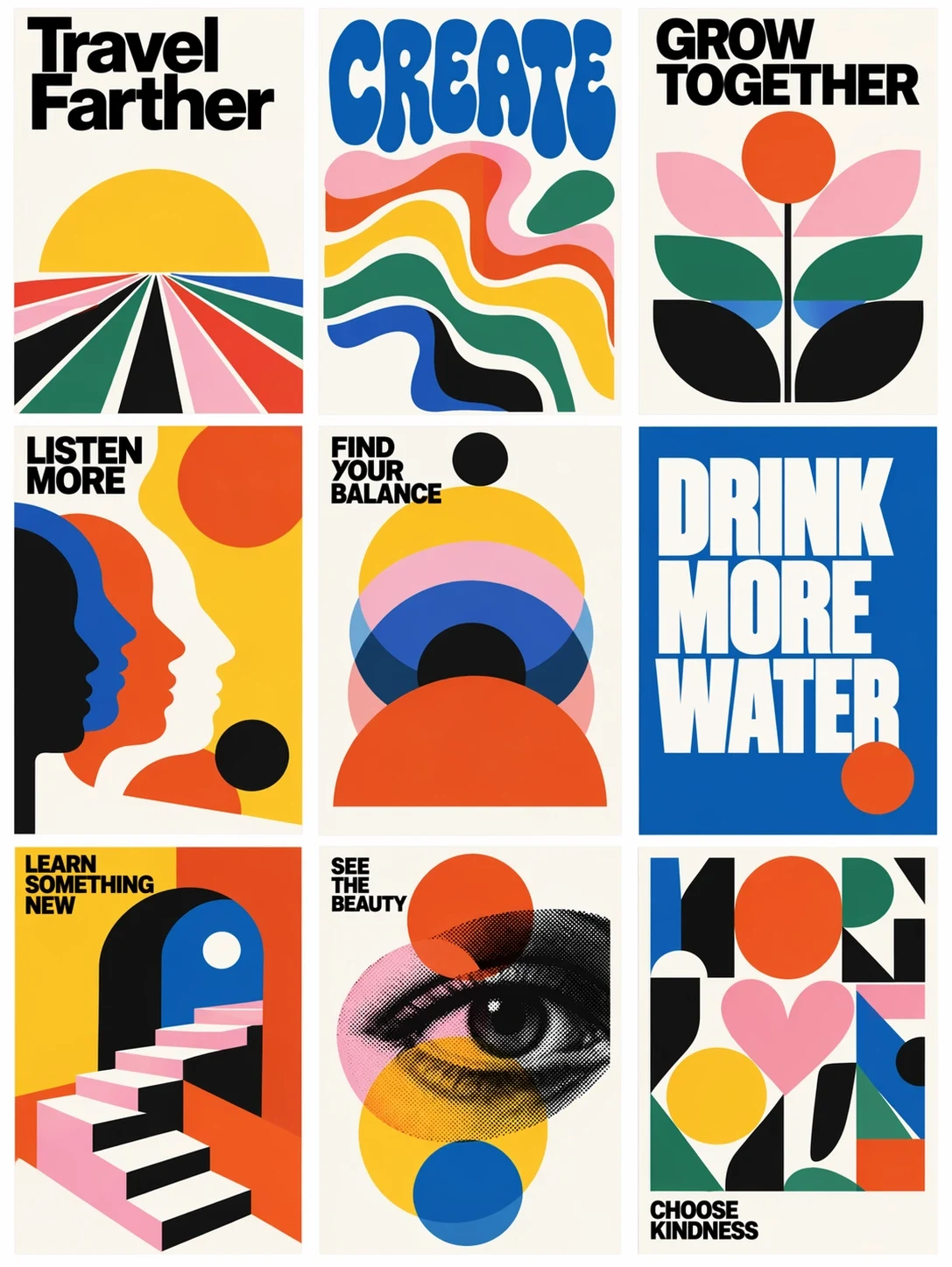
Official ChatGPT Images 2.5 examples from OpenAI's release. Notice how large type and simple shapes divide the space. They provide visual references for layout choices.
3. A controlled background-color variant
Start from a product image you have already approved. Request each variant from that same base image so the second version does not inherit accidental changes from the first.
Edit the attached approved product advertisement. Replace the peach background with a pale mint background. Retain the product position, crop, label, headline, and existing shadow. Keep the same amount of empty space above the product. Do not add objects or change the product color. Return one version with this background change.
Compare the headline, product scale, and shadow position side by side. Only a variant that keeps those elements sufficiently consistent can help you isolate the effect of background color in a later ad test.
4. One garment change using two references
Use image 1 for the person and image 2 for the garment. A front view of the clothing is easier to describe than a collage of several outfits.
In image 1, replace the person's coat with the short denim jacket in image 2. Use image 2 for the jacket cut, stitching, buttons, and blue fabric only. Keep the face, hair, expression, hands, trousers, and stance from image 1. Fit the jacket naturally around the existing shoulders and elbows. Match the room light and retain the original background and crop.
Inspect the cuffs, fingers, and hair where they overlap the new jacket. If you want to change the trousers too, do it in a separate revision after the jacket works.
5. A promotional scene for a UI screenshot
Upload a screenshot with private account information removed. For final assets requiring an exact interface, place the original screenshot into the approved device scene during compositing.
Create a landscape promotional photograph of a laptop on a plain desk. Use the uploaded screenshot as the screen-content reference. Keep its sidebar on the left and its main chart in the center. Angle the laptop only slightly so the screen remains easy to read. Use a white wall, soft daylight, and empty space on the right. Place no other devices, hands, or decorative text in the scene.
Review navigation labels and small chart text at full size. A convincing laptop photograph can still contain invented interface details. Use the generated scene for composition and preserve the source screenshot when exact pixels matter.
6. Replace the headline for a different market
Start from an approved poster. Supply the translation yourself so the image model has a defined text-editing task.
Edit the attached workshop poster for its Spanish edition. Replace only the headline "MAKE A BOWL" with "CREA UN CUENCO". Keep the date line, studio name, bowl illustration, colors, and margins. Fit the new headline into the existing headline area. Use the same bold type treatment and keep every letter legible. Do not translate or add any other text.
Check the exact wording and line breaks. Longer translations can crowd the illustration; specify a smaller headline or a permitted two-line layout in the next edit. This is image localization. It is separate from translating the text of your webpage.
7. Change a material in a room photograph
Use one room photo with a clear view of the object you want to change.
In this room photograph, change the round side table from glossy white to natural oak with a matte finish and visible fine grain. Keep the table's diameter, height, leg arrangement, and position. Retain the sofa, floorboards, window, and camera perspective. Make the new wood respond to the existing window light. Leave all other furniture and materials as they are.
Check whether the table legs still meet the floor in the same places. A material edit that quietly changes the object's dimensions gives you a different design decision.
8. Prepare a clean product cutout
Upload a product photo with a clearly visible outline.
Isolate the photographed amber glass jar on a transparent background. Retain the lid ridges, label wording, jar proportions, and glass color. Remove the table and room behind it. Keep the jar centered with a small clear margin on every side. Inspect the edges around the lid and the translucent glass. Add no new shadow, floor, lettering, or decorative objects.
For the direct API, request background="transparent" and a PNG or WebP output. Check the exported alpha channel; a checkerboard painted into the image is not transparency. OpenAI documents these controls in its image prompting guide.
What to do when a prompt misses
Describe the visible failure. “The jar label changed from six letters to seven” is actionable. “Make it more professional” leaves the model to decide what you disliked.
Keep a copy of each approved image. For a local revision, reuse that image and name the change, its location, and the details that should survive. OpenAI notes that edits can still affect surrounding details; review them before accepting a revision. Image editing help
Should I use Flare or Sunburst?
Start with Flare when the brief is straightforward and waiting time matters. Try Sunburst for a demanding edit that needs more precision. Use the GPT Image 2.0 vs 2.5 comparison for the official model distinctions and pricing context.
Are these the exact prompts from X?
The quoted sentence is from the linked X post. The eight numbered templates are our own, with different briefs and review instructions. The original post is linked so you can read its complete collection and compare approaches.
Where can I check the model before generating?
Check the selected model in the service you use. The GPT Image 2.5 overview explains the release and links to its official sources. Product names and rollout pages should not substitute for checking the active model in your workspace.