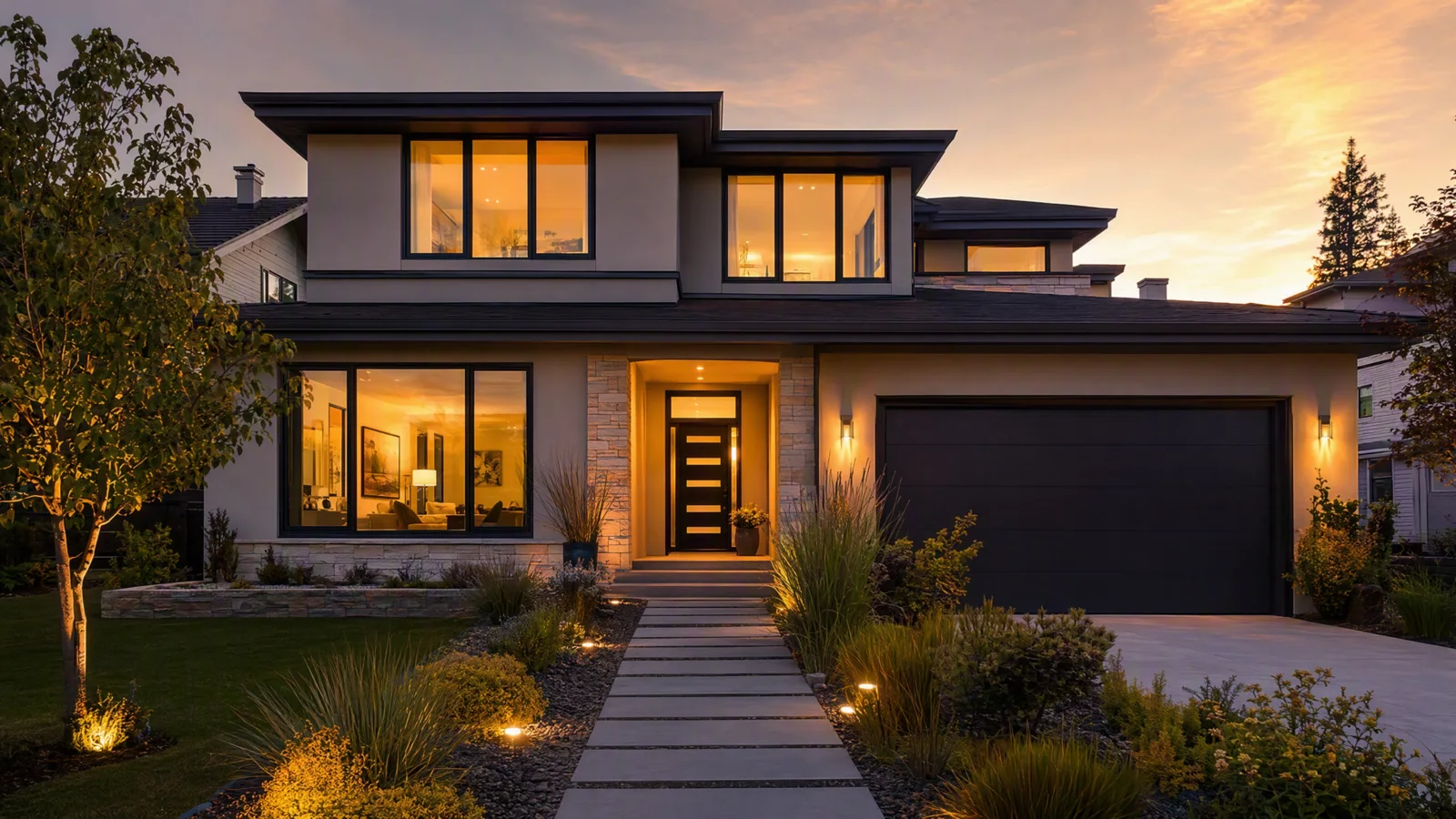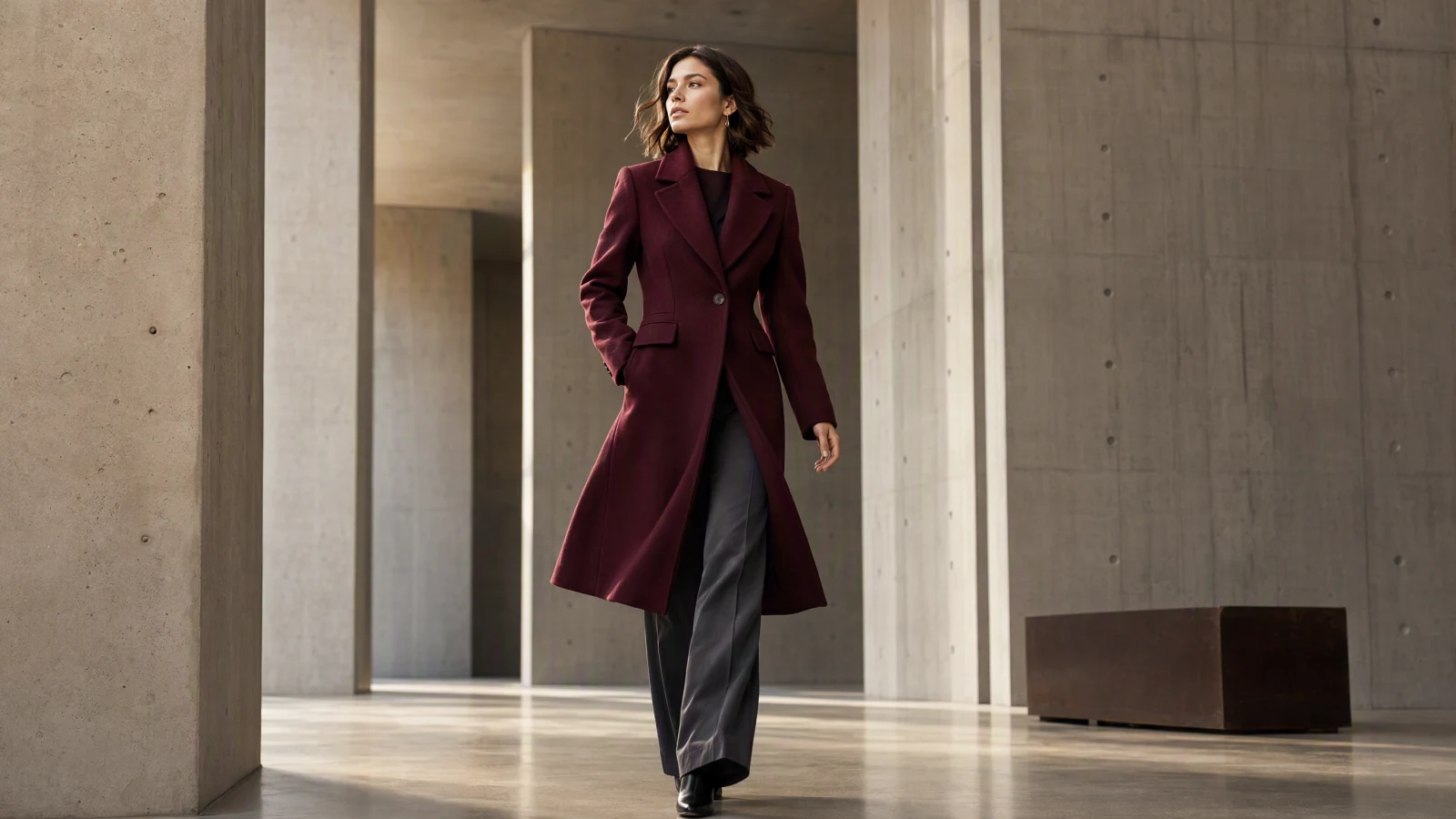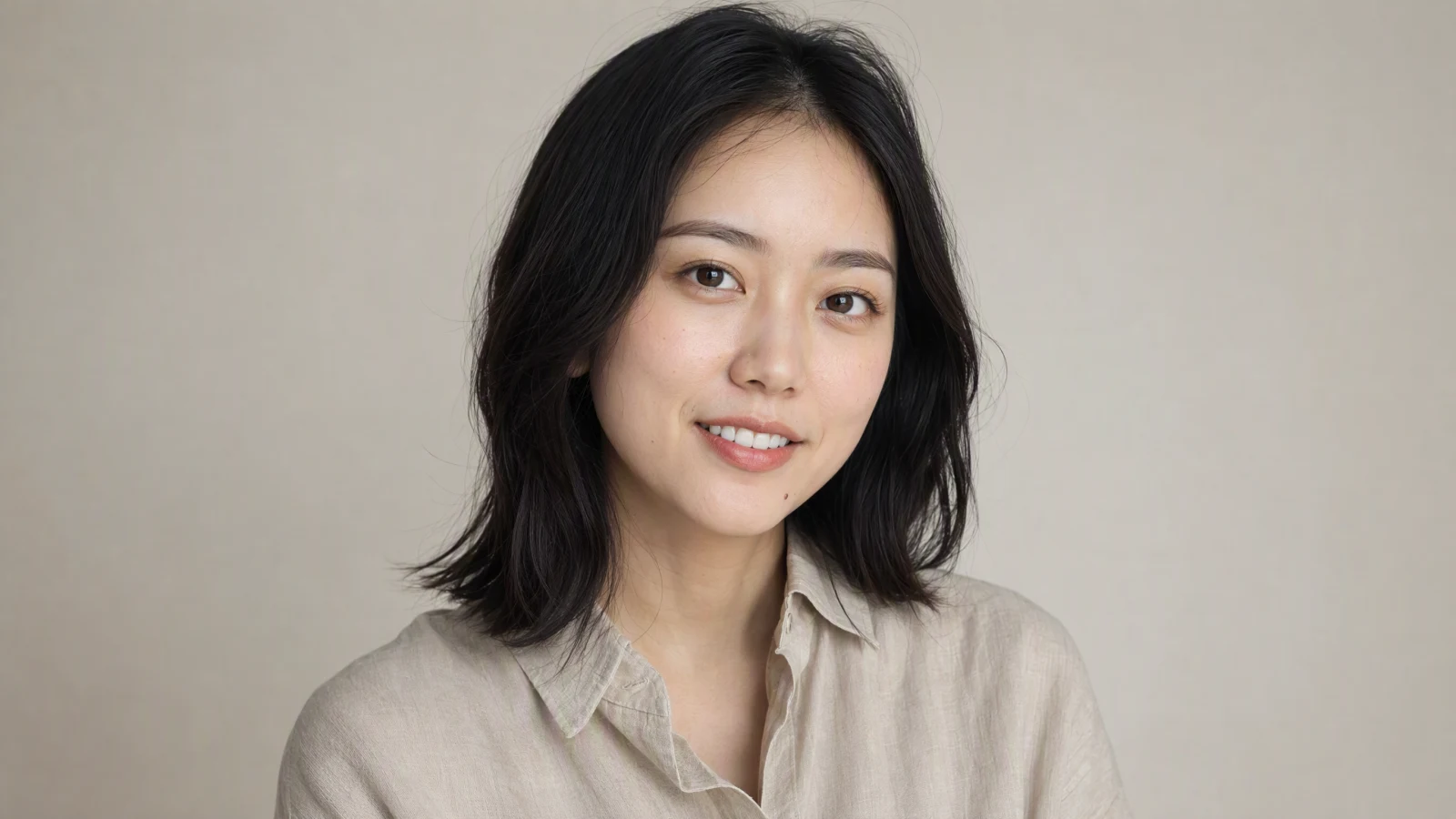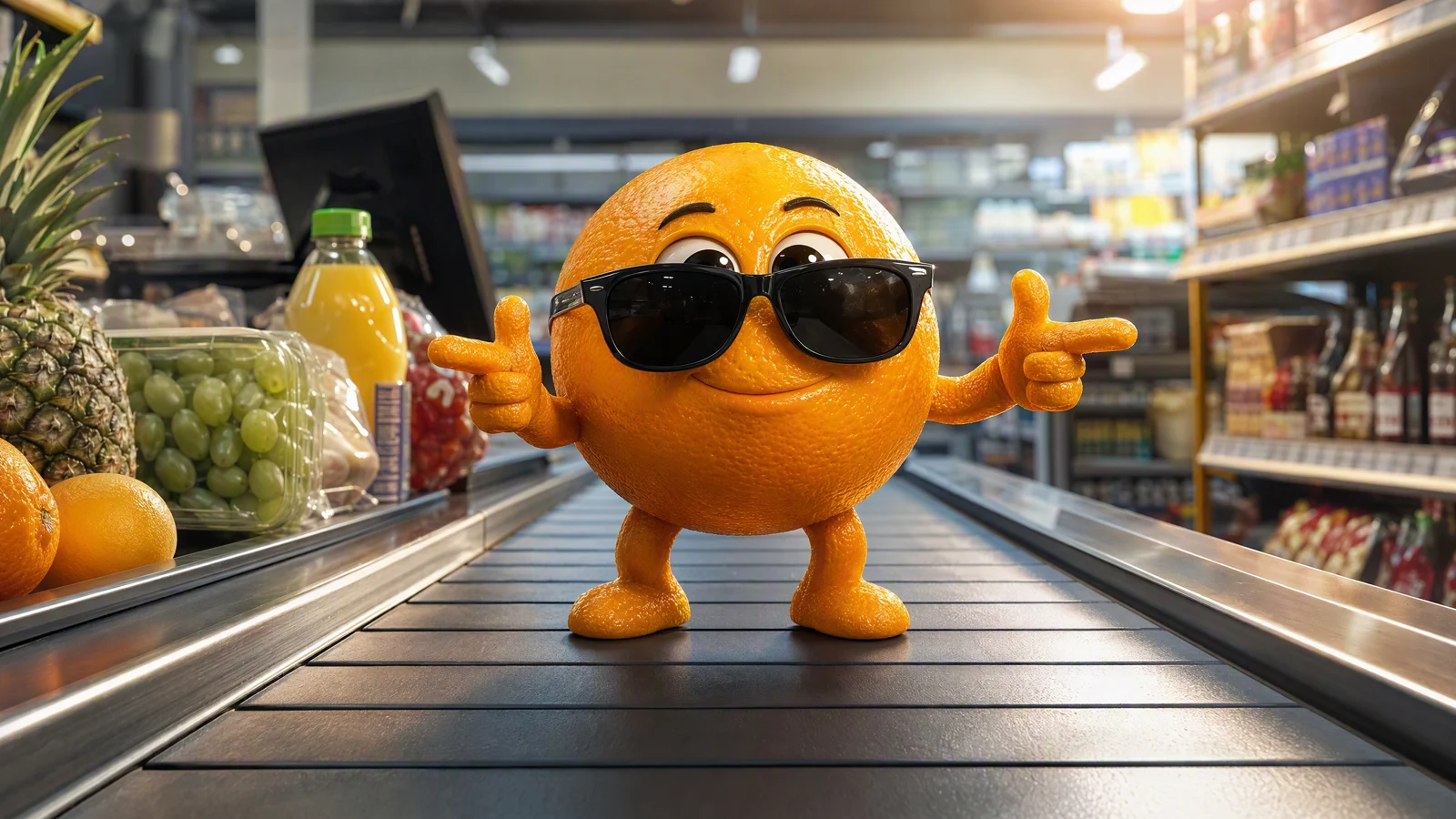
No. Nano Banana cannot make videos. Every model in Google's Nano Banana family, from the original Nano Banana to Nano Banana Pro, Nano Banana 2 and Nano Banana 2.1, is an image model: you give it text, images or (on the newer versions) a video, and it gives you back still images. Google's own documentation lists the family under image generation and points to separate models for video.
The mix-up is easy to make. The Gemini app can make short videos and animated GIFs, and Nano Banana also lives inside Gemini, so it looks like the same tool. It isn't. In Gemini those clips come from Gemini Omni, a video model that needs a paid Google AI plan.
If what you really want is a moving version of a Nano Banana picture, the path is simple: make the still with Nano Banana, then hand it to an image-to-video model as the first frame and describe the motion in a prompt. The rest of this page shows what each Nano Banana version outputs and how that handoff works.
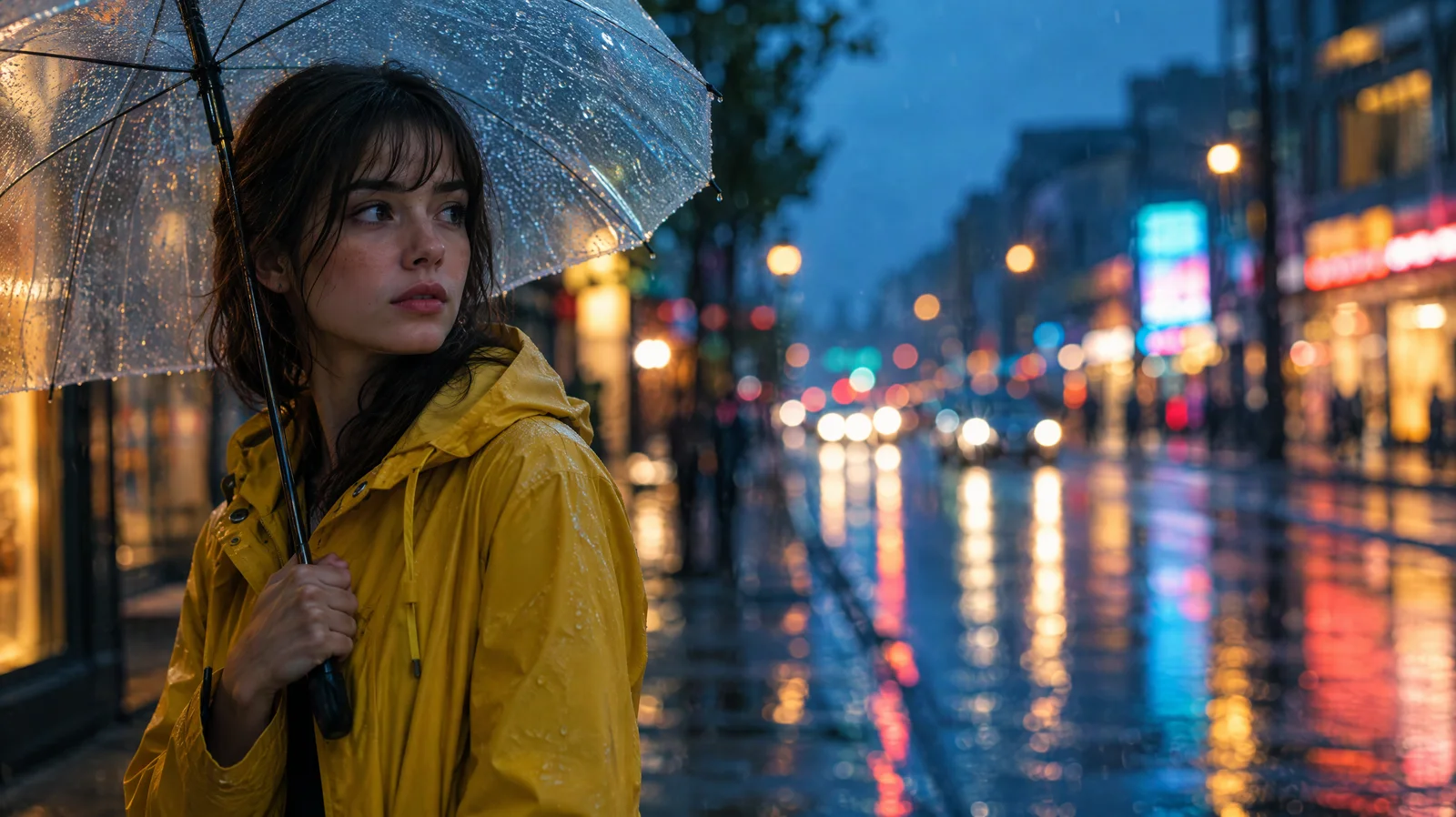
Image prompt: Cinematic still of a young woman in a bright yellow raincoat holding a clear umbrella on a rain-soaked city street at blue hour, neon signs blurred into colored bokeh behind her, reflections on wet asphalt, 35mm lens at eye level, shallow depth of field, teal and amber color grade.
Last verified: 2026-11-24, against Google's Gemini API image generation docs and the Gemini Apps help pages for video, images and usage limits.
Quick Answer
Can Nano Banana Pro make videos? No. Nano Banana Pro (Gemini 3 Pro Image) returns still images at 1K, 2K or 4K; it is the higher-detail image model, not a video model.
Which model makes the videos I see in the Gemini app? Gemini Omni 1.2 Flash. Google's help page names it as the model behind video and GIF creation in Gemini, and it accepts up to 5 images and one video as input.
Can Nano Banana make a GIF? Not on its own. Gemini's help page says GIFs are created by Gemini Omni, which requires a Google AI plan, and GIF creation is limited to eight countries for now.
Does the free Gemini plan include video? No. Google's usage table shows image generation with Nano Banana 2 for accounts without a Google AI plan, but video generation only on Google AI Plus, Pro and Ultra.
Nano Banana versions and what each one outputs
Here is every Nano Banana model in Google's current documentation, with the output it produces and the largest size it can render. "Image only" means the model returns pictures (plus optional text), never a clip.
| Version | Google model ID | Output | Video | GIF | Max resolution | Where to use it |
|---|---|---|---|---|---|---|
| Nano Banana (original) | gemini-2.5-flash-image | Image only | No | No | 1K (1024x1024 at 1:1) | Gemini API, marked legacy |
| Nano Banana Pro | gemini-3-pro-image | Image only | No | No | 4K (1K, 2K, 4K) | Gemini app ("Redo with Pro", Google AI plan), Gemini API |
| Nano Banana 2 | gemini-3.1-flash-image | Image only | No | No | 4K (0.5K, 1K, 2K, 4K) | Gemini app (Flash and Pro modes), Gemini API (previous generation) |
| Nano Banana 2.1 | gemini-nano-banana-2.1 | Image only | No | No | 4K (1K, 2K, 4K) | Gemini API, Google AI Studio; Google recommends it for new projects |
Sources: Google AI Studio image generation docs and Gemini Apps Help, checked November 24, 2026.
One sentence per version, since they get mixed up a lot:
- Nano Banana (original): an image model only, now listed by Google as the legacy member of the family.
- Nano Banana Pro: an image model only, aimed at detailed work such as text-heavy graphics, with no video output at any plan level.
- Nano Banana 2: an image model only, and the one the Gemini app uses for image requests in Flash and Pro mode.
- Nano Banana 2.1: an image model only, though it can now read a video as input and turn it into a still, such as a poster or a thumbnail.
Video input is the only place where Nano Banana touches video at all. Google's docs describe "video-to-image generation" for Nano Banana 2.1, Nano Banana 2 and Nano Banana 2 Lite: you pass in a YouTube link or an uploaded clip, and the model makes a new image from it. The output is still a single image. For a side-by-side look at the two Flash versions, see our Nano Banana 2.1 vs Nano Banana 2 comparison.
Where Gemini's videos and GIFs come from if not Nano Banana
In the Gemini app, Google splits the work between two kinds of model. Image requests go to Nano Banana. Video requests and GIF requests go to Gemini Omni 1.2 Flash, which Google calls its latest video generation model. According to the Gemini Apps help page checked on November 24, 2026:
| Gemini Omni in the Gemini app | What Google's help page says |
|---|---|
| Who can use it | Personal accounts need a Google AI plan; users must be 18 or older |
| Video length | 3 to 10 seconds, or up to 15 seconds on Google AI Ultra |
| Inputs | Text, up to 5 images and one video per request |
| GIFs | Short looping GIFs of about 3 seconds |
| GIF regions | Australia, Canada, France, Germany, Japan, Korea, the UK and the US, rolling out gradually |
| Editing | Multi-turn edits, and extending a clip by up to another 10 seconds |
For developers, the Gemini API docs list Veo as "Google's video generation model", next to the Nano Banana image models. So whether you work in the app or in code, video comes from a different model than the one that drew your picture.
So when you upload a Nano Banana image to Gemini and ask for a video, you are not asking Nano Banana to animate it. You are giving that image to a video model as a reference, which is exactly what any image-to-video workflow does.
How to turn a Nano Banana image into a video
You can get from a Nano Banana still to a clip in three steps. The steps are the same whichever video model you pick.
Step 1: Make the still with Nano Banana
Generate the image in the aspect ratio you want the video to have. A 16:9 still makes a 16:9 clip; a 9:16 still suits Reels, Shorts and TikTok. 2K is a sensible size, because most image-to-video clips are rendered at 720p or 1080p and a larger first frame adds little.
Leave room for the motion you have in mind. If the camera will push in, keep the subject a little smaller than you would for a poster. If a person will turn their head, make sure the face is clear and not cropped at the edge.
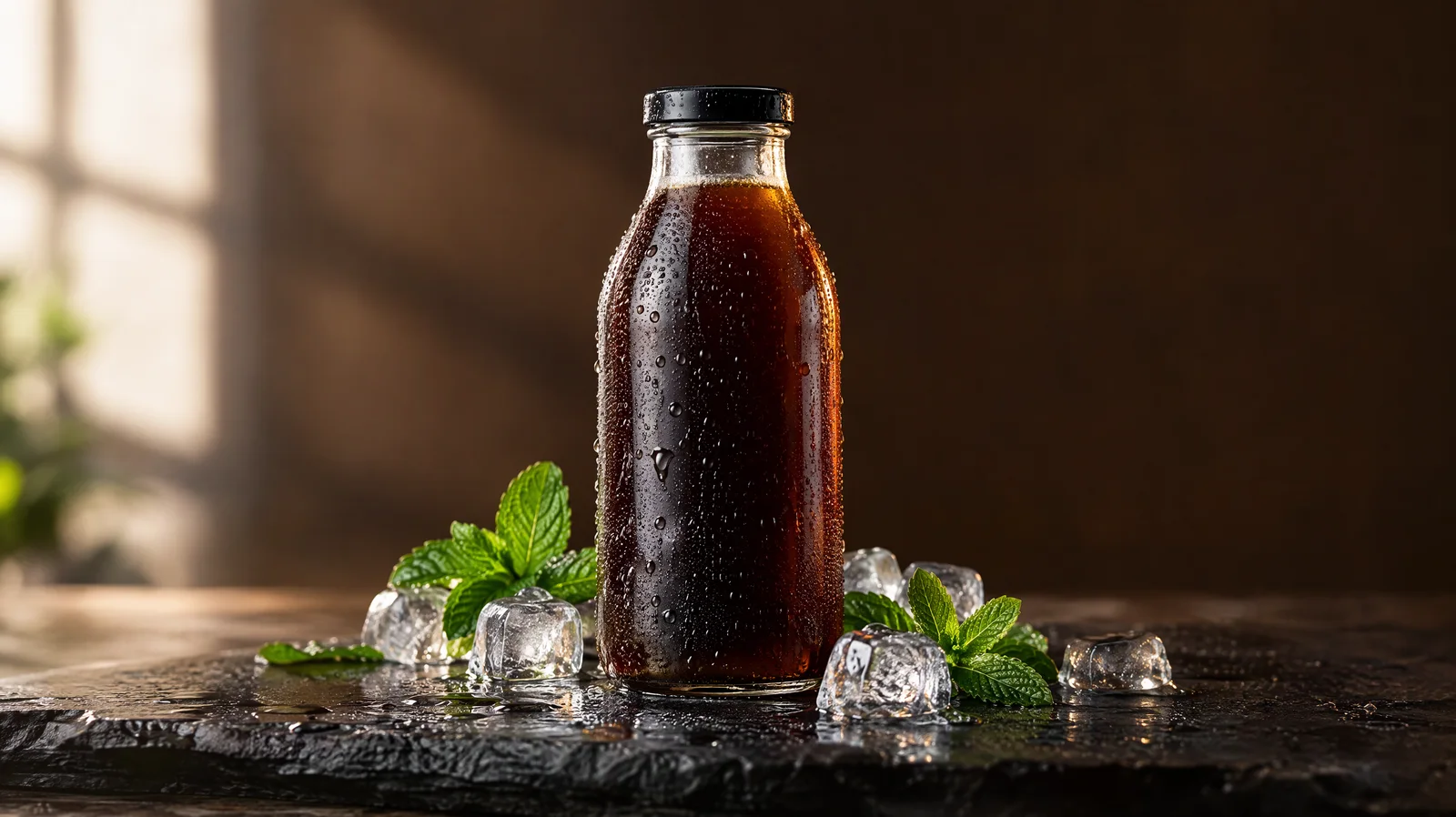
Image prompt: Commercial product photo of an unlabeled glass bottle of cold brew coffee on a wet dark slate surface, ice cubes and fresh mint leaves around the base, condensation droplets, soft morning window light from the left with a warm rim light, low camera angle, centered with room around the bottle, clean deep brown background.
Step 2: Pick a video model that takes a start frame
Look for an image-to-video mode where your picture becomes the first frame of the clip. That keeps the face, product or scene you approved in Nano Banana instead of drawing a new one. Things to check before you commit:
- Length: how many seconds one generation can run.
- Resolution: 720p is fine for social feeds, while ads and client work usually need 1080p.
- Sound: some models add audio, others make silent clips.
- End frame: a few models also accept a last frame, which helps when the clip must land on a specific shot.
If you are new to start-frame prompting, our guide to Seedance 2.5 image-to-video covers how first frames, end frames and reference images behave.
Step 3: Write a motion prompt, not a description
The image already shows what the scene looks like, so the prompt should say what moves: the subject, the camera and the environment. Keep it to two or three sentences and end by telling the model what must stay the same.
For the rainy street still at the top of this page:
She lowers the umbrella slightly and turns her head toward the camera as rain keeps falling. Slow push-in at eye level, neon reflections ripple on the wet street, cars pass softly out of focus behind her. Keep her face, coat and the street unchanged.
For the cold brew bottle in step 1:
Slow orbit around the bottle from left to right at bottle height. A single drop of condensation runs down the glass, the ice cubes shift slightly, and the warm window light flickers as if leaves move outside. Keep the bottle shape and the plain glass unchanged.
For a portrait, such as this fisherman at dawn:
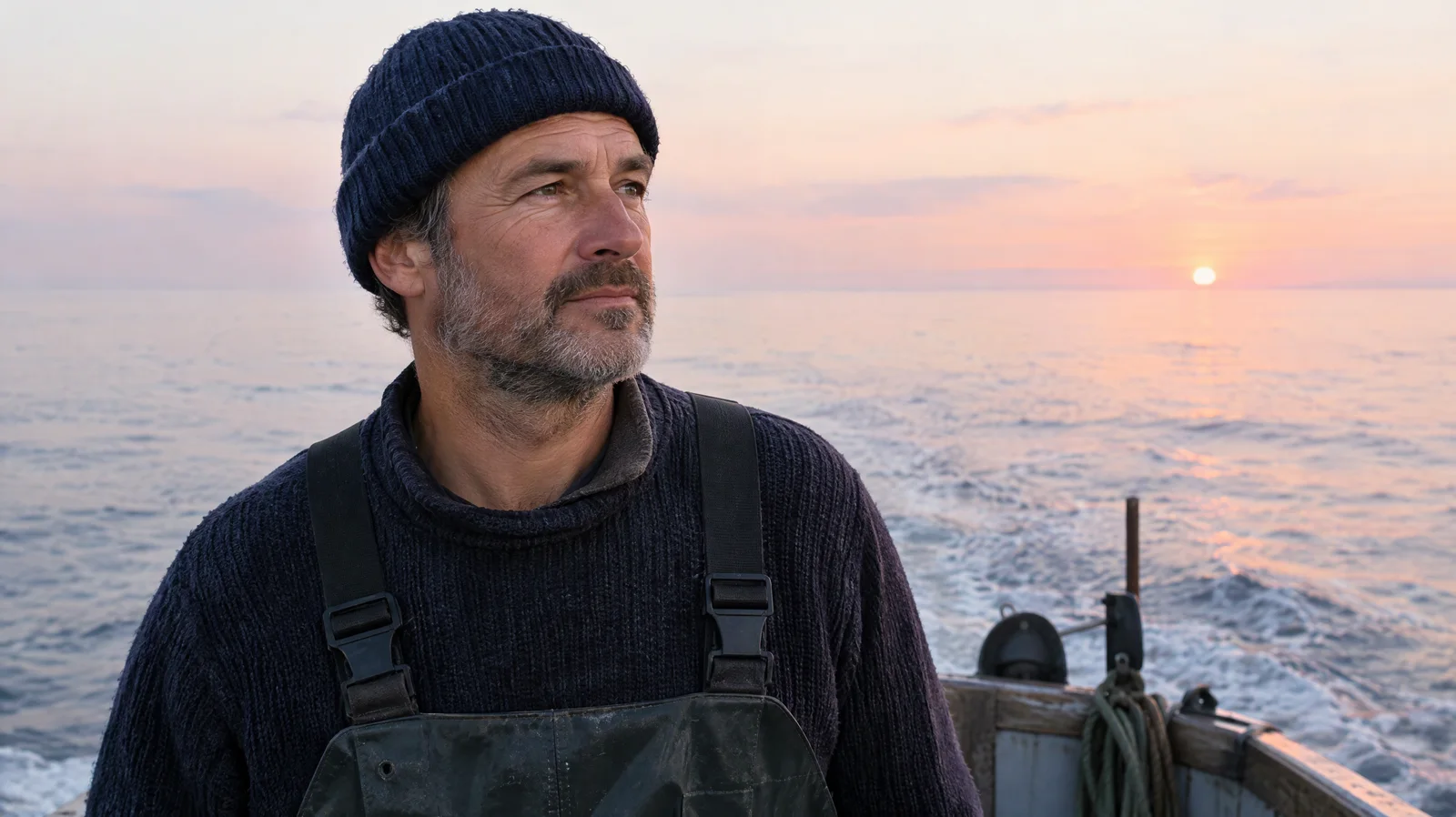
Video prompt: He breathes out slowly and turns his eyes from the horizon to the camera, the boat rocking gently on small waves. Handheld camera with a subtle drift, sunrise light shifting on his face, sea spray in the background. Keep his face, cap and sweater unchanged.
He breathes out slowly and turns his eyes from the horizon to the camera, the boat rocking gently on small waves. Handheld camera with a subtle drift, sunrise light shifting on his face, sea spray in the background. Keep his face, cap and sweater unchanged.
Wide scenes work best with one clear camera move and one moving subject:
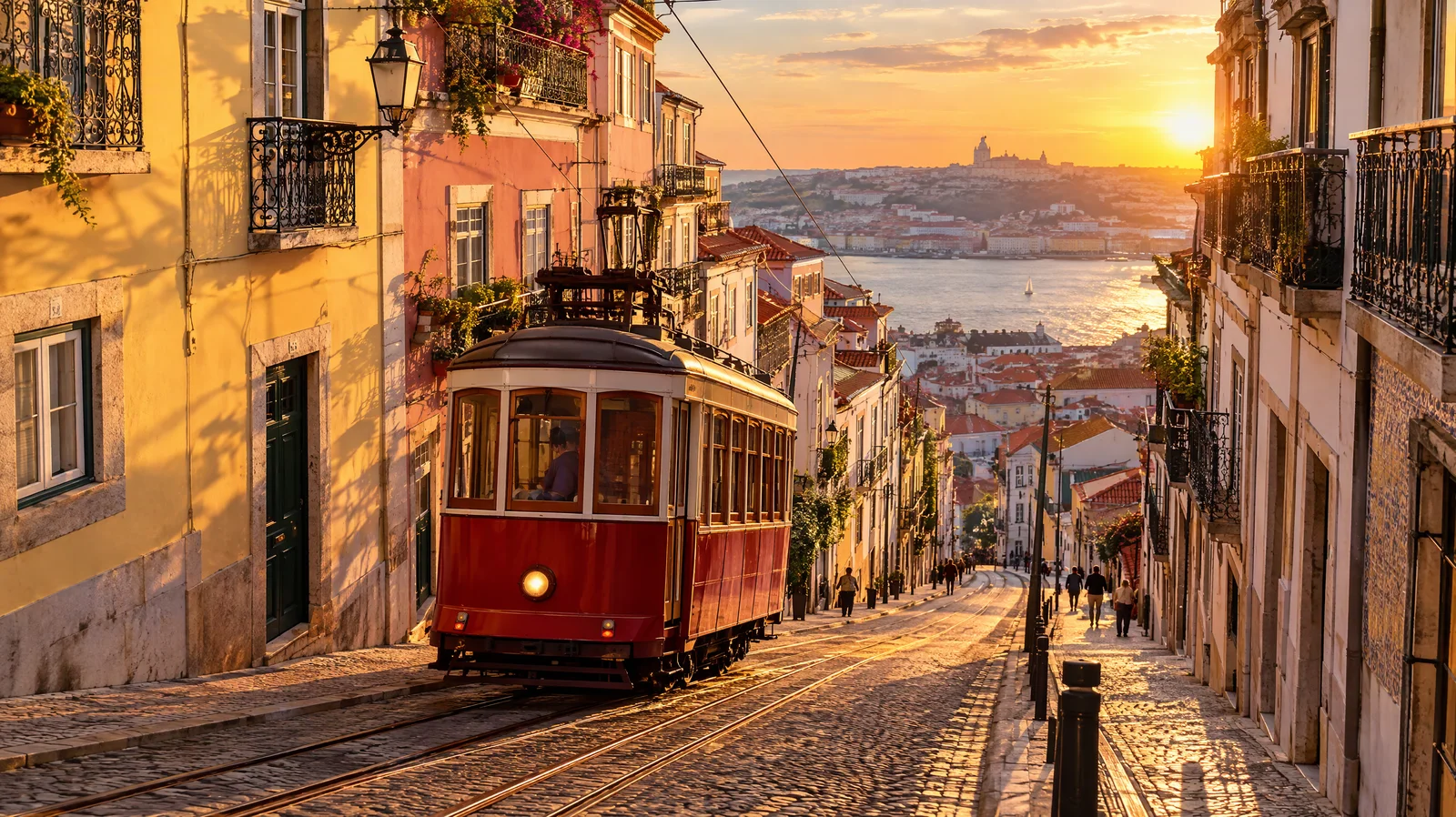
Video prompt: The red tram climbs slowly up the hill toward the camera while a few pedestrians walk along the sidewalk. The camera rises gently above street level to reveal more of the river behind, golden light and long shadows stay steady. Keep the houses and the tram design unchanged.
More motion prompts sorted by shot type are in our list of image-to-video prompts for Seedance 2.5.
Nano Banana 2.1 render time and failure rate
Before you plan a batch of stills for a video project, it helps to know how long they take and how often a request is refused. These are numbers from Nano Banana 2.1 jobs on our platform over 30 days, October 21 to November 20, 2026:
| Nano Banana 2.1 on our platform | Result |
|---|---|
| Successful images | 562 |
| Failed requests | 30, all content-policy refusals |
| Failure rate | 5.1% |
| Median time for a successful image | 46 seconds |
| 90th percentile time | 168 seconds |
Jobs that users cancelled or deleted (26 in the period) are left out. In practice, plan on about a minute per still, with the occasional job running close to three minutes. And when a request fails, it is almost always the prompt or the reference image tripping a content rule rather than a technical error, so rewording the request is the fix.
Animating a Nano Banana image on SeedVideo AI
SeedVideo AI runs both halves of this workflow in one place: Nano Banana 2.1 for the still and several video models for the motion. You can make the still on the Nano Banana 2.1 image generator, where a prompt-only image costs 2 credits at 1K, 3 at 2K and 7 at 4K, then open the image-to-video tab and add it as the start image.
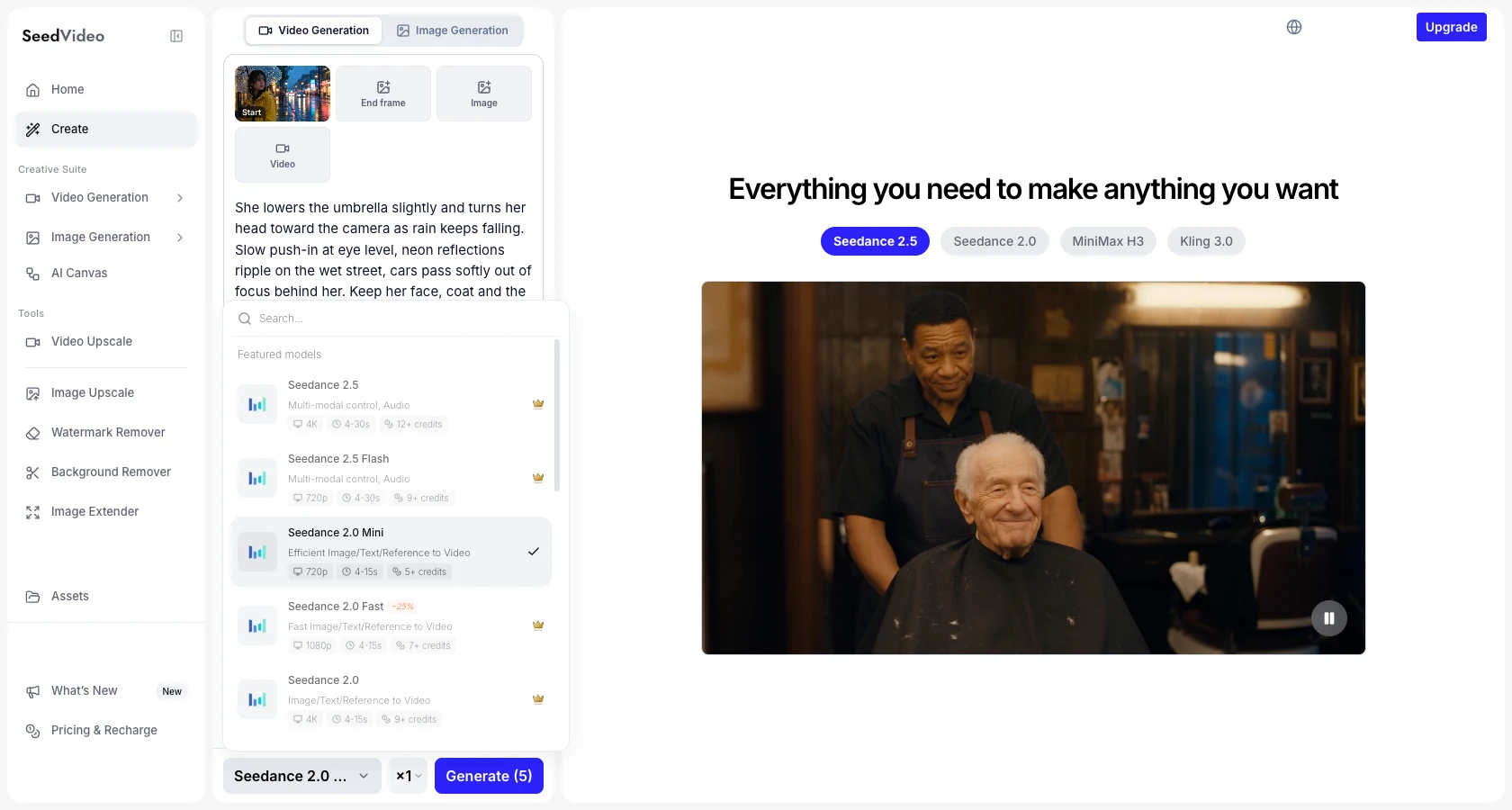
The Image to Video workspace with a start frame, a motion prompt and the video model list, November 24, 2026.
The screenshot shows the layout: the start image sits at the top of the composer, an optional end frame goes next to it, and the model list underneath shows each model's maximum resolution, length range and starting credit cost. Paste one of the motion prompts above, set the aspect ratio to match your still, and use the AI image-to-video generator to animate the source image.
More guides like this one are collected under video workflows.
FAQ
Can Nano Banana turn a video into an image?
Yes, on the newer versions. Google's docs say Nano Banana 2.1, Nano Banana 2 and Nano Banana 2 Lite accept a video (an uploaded file or a public YouTube link) and generate a new still from it, such as a thumbnail or a poster. The output is an image, not a clip.
Do Nano Banana images carry a watermark?
Yes. Google's API documentation says all images generated by Nano Banana models include a SynthID watermark, an invisible marker that identifies the image as AI-generated.
What size should a Nano Banana image be before I animate it?
2K in the same aspect ratio as the video is a safe default. Most image-to-video clips are rendered at 720p or 1080p, so a 4K first frame mostly adds cost.
How do I keep the same character across several clips?
Use the same Nano Banana still as the start frame for each clip, or generate a set of stills from the same reference images first. Google's docs say Nano Banana 2.1 can hold the resemblance of up to 4 characters in one workflow, which helps when you need several matching first frames.
Why did Nano Banana refuse to make my image?
Usually a content rule. On our platform, all 30 failed Nano Banana 2.1 requests in the last 30 days were content-policy refusals. Rewrite the prompt so it describes the scene plainly, and check that any reference photo is one you have the rights to use.
Turn your Nano Banana still into a clip
Nano Banana gives you the picture; a video model gives it motion. If you already have a still you like, upload it as the first frame in the image-to-video tool on SeedVideo AI, paste a motion prompt from this page, and generate a short clip from it.